💡This article contains version changes.
Spot the light bulb icon? That means you’ll find helpful details about what’s changed across versions. Read more about version changes here.
Data Selection in the Board M365 Excel Add-in allows users to filter data before it is requested from the Board model and retrieved into Excel. By defining a selection in advance, only the relevant data is queried and downloaded. This approach improves performance, reduces refresh time, and prevents Excel workbooks from being populated with unnecessary data.
This article covers the following topics:
A selection defines the data scope of a Table when the Table is created and each time it is refreshed or executed. A Table always uses the selection that is active at the moment of execution.
Entities available in the Selection area can be restricted in the Workbook settings in addition to security profiles.
Selections are defined at the sheet level, allowing different worksheets within the same workbook to use different selections.
If a selection is modified:
Only Tables that are refreshed or executed again reflect the updated selection.
Tables that are not refreshed retain their previous results.
This behavior ensures that data retrieval remains controlled and predictable, while allowing flexibility across worksheets within the same workbook.
See About the Select for more details on the Select function at Board.
How to create a Selection
To create a selection, go to Data selection in the Board ribbon. The following options are available:
Selection. Defines the set of selected Entity Members that filters the data returned to a Table.
Selection Overview. Displays a summary of the selections applied in the workbook. It allows the user to check all active selections at any time.

Click Selection to open the Task pane and configure the desired filters.
The same selection window used in the Board Platform opens with all its functionalities. Choose a Data Model from the dropdown menu to display the Entities available within the selected Data Model.
Users can perform a selection from any Data Model they have access to. If they have already applied a selection for a specific Data Model, the dropdown menu under “Data Model” is preselected accordingly.
Search for the name of the desired Entity and click on it. Within each Entity, there are several Members. Choose the Members and then click “Save” to include them or “Discard” to exclude them from the result set. Confirm the selection to return to the main window.
The Show selection toggle restricts the view to the Entity Members currently selected for the sheet. Enable the toggle to view only the Members you have selected.
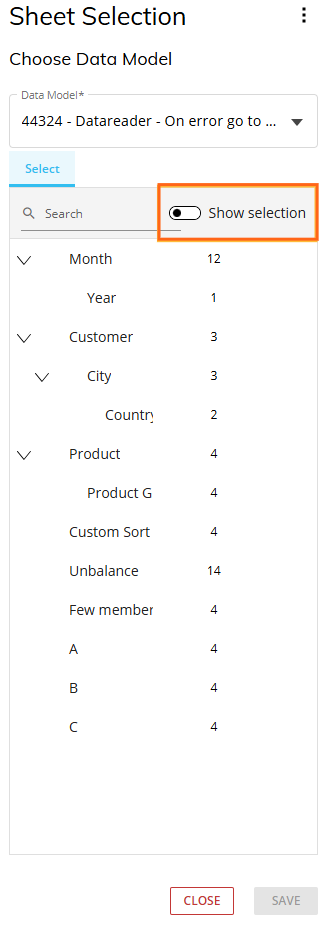
Click “SAVE” to confirm changes to the Entity selection. “CLOSE” closes the menu without saving changes.
Selections can only be made with the appropriate permissions. Administrators can restrict the ability of end users to use the Selection Editor in an application profile made in the Features section.
Additional options
When hovering over the available Entities, additional options appear at the right side of the "Select" column.
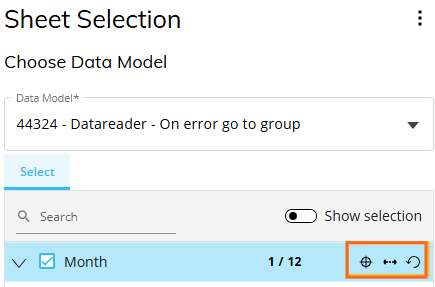
Those options are:
Focus
 . Reconfigures the selection in the hierarchy, while the contents of the selected Entity remain fixed. See The Focus function for more details.
Dynamic Selection
 . Makes a dynamic selection based on the current period or based on data in other cubes. See Dynamic Selection for more details.
Reset
 . Resets the selection on a specific Entity (available only for checked Entities).
A selection can also be reset by clicking the three-dot icon
.png) on the right side of the panel and selecting “Reset Selection”.
on the right side of the panel and selecting “Reset Selection”.
See the dedicated section in About the Select for more information about these options.
Available filter options
Click on the filter icon  to display a dropdown list with the following filter options:
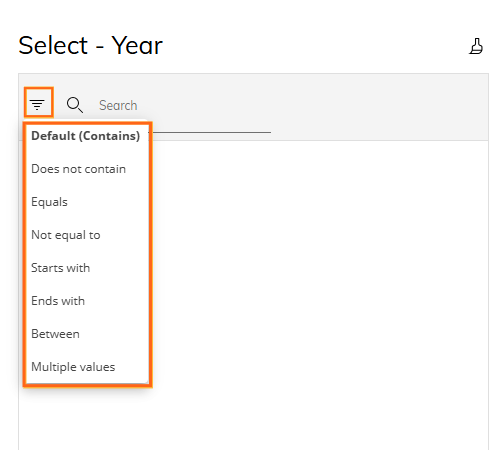
See the dedicated section in About the Select for more information about these options.
💡 Copy/Paste a Sheet Selection
In versions prior 15.0x and earlier, this feature is not available. This was introduced in 15.1.
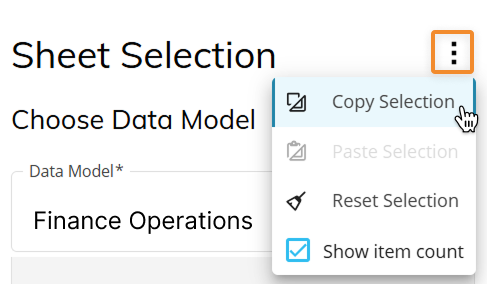
You can copy and paste Sheet Selections across multiple workbooks. Copy a Sheet Selection from an existing sheet and paste it into a new sheet, or use it to overwrite an existing one with the same Data Model. The "Copy Selection" option is in the Sheet Selection menu options. After clicking "Selection" in the ribbon, click on the 3 dots next to "Sheet Selection".
Sheet Selections can be copied and pasted across workbooks only when you are signed in with the same account and use the same Platform URL.
Sheet Selections can only be pasted into sheets that use the same Data Model.
If you paste a Sheet Selection into a workbook that uses a different Data Model, the selection does not apply and a message appears. To paste the Sheet Selection, you must change the Data Model to match the source sheet.
Selection visibility and ownership
Selections are saved as part of the workbook configuration and are not stored at the individual user level. When a workbook is shared, its selections are shared automatically with all users who open it. However, what each user can view and modify depends on license type and on the visibility rules defined.
End users can only:
Change member selections within the available Entities
Reset selections where permitted.
Dynamic Selections, default members, and structural changes to the selection configuration can only be defined or modified by Power Users and Developers. Both Power Users and Developers always see the complete selection model, regardless of settings restrictions. This ensures that workbook designers can control the data scope available to end users while maintaining a consistent selection structure.