When accessing a Send To job from a Presentation, Edit Mode opens with the job details and editable settings. From this page, users can modify the selected Send To job.
When accessing a Send To job from the Send To page in System Administration, users can open Edit Mode by clicking on the Send To job’s name or the pencil icon. In System Administration, Edit Mode is available for review only. Administrators can view the Subscription details, but the only element they modify is the Enabled status.
To edit a Send To job:
In the Send To panel, select a job name. For example, "Test 2".
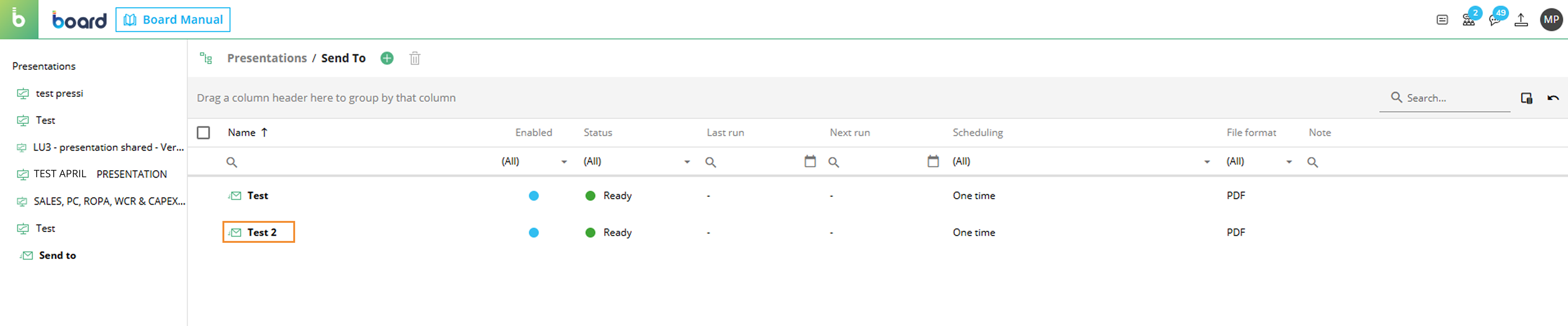
Edit Mode opens, where users can edit most of the Send To job details defined during creation. You can edit the following details:
Send To job name. Defines the name of the Send To job.
Note. Adds or updates an internal note for the Send To job.
Attachment. Defines the Presentation and file format sent as the email attachment.
Presentation. Defines the selected Presentation.
File format. Defines the attachment format.
Enabled/Disabled. Defines whether the Send To job is active or inactive.
Board recipients. Defines the Board users who receive the Send To email.
Email content. Defines the email subject and body text.
Scheduling. Defines when and how often the Send To job runs.
Frequency. Defines how often the Send To job runs.
Start time. Defines the time when the Send To job starts.
Start date. Defines the date when the Send To job starts.
Months. Defines the months when the Send To job runs.
Weeks. Defines the weeks of the month when the Send To job runs.
Days. Defines the days when the Send To job runs.
.png)
.png)
Select "Discard" to discard your changes, or select "Save" to save your changes.