💡This article contains version changes.
Spot the light bulb icon? That means you’ll find helpful details about what’s changed across versions. Read more about version changes here.
Applies to: All Board Cloud subscriptions
Board Subscription Hub workspace
The Subscription Hub home page is the entry point for centralized user management activities, with fast and direct access to your Board Cloud Platforms.
The Subscription Hub home page provides common navigation elements used throughout all Board environments, such as tiles, the home link, and the user menu.
Here's a breakdown of all the main elements of the Subscription Hub's workspace:
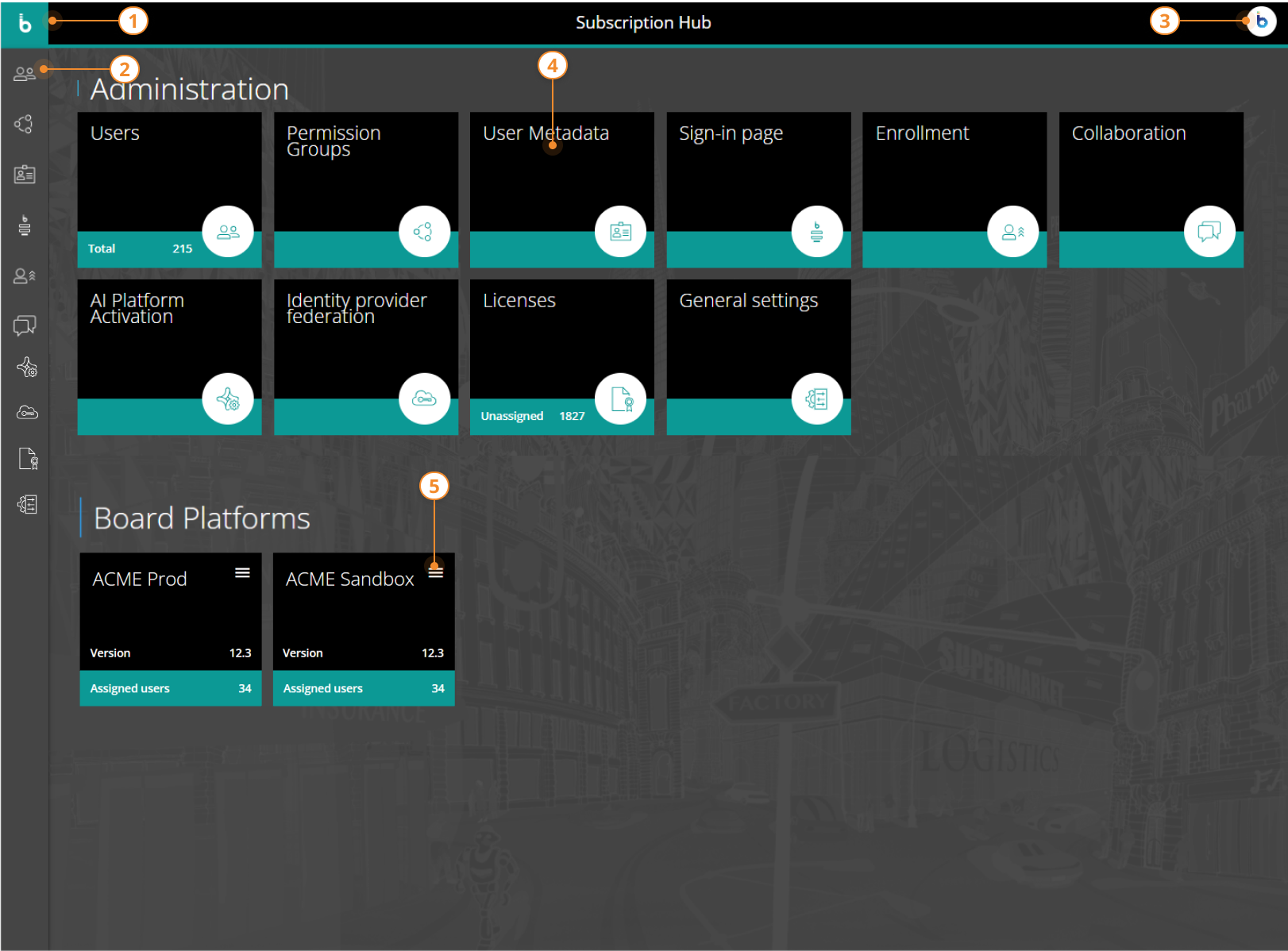
Home link. Allows you to easily return to the home page from anywhere in Subscription Hub.
Side menu. Click on the menu to jump to one of the Administration sections.
Subscription Hub user menu. Allows you to log out of Subscription Hub and review user related information, including your language preferences.
💡The user menu also displays the Board Subscription Hub version and revision number, shown in the image below, which is the same number. This enhancement was not available in versions earlier than Board 15.1.
This information identifies the Identity Provider configuration or artifact currently used by the environment. It can help support teams verify the exact configuration in use, check compatibility, and investigate issues more efficiently.
.png)
When contacting Support, users may be asked to provide the version and revision number displayed in this menu. The displayed value should match the Board Subscription Hub version and revision configured for the environment.
Administration Tiles. Click on a tile to access the corresponding administration section.
Platform Tiles. Allows you to access a Board Platform, change a platform URL, import users, or remove a previously associated platform from the Subscription Hub.
Please note: removing a platform only disconnects it from the Subscription Hub. The platform will remain active and will still be reached through its direct URL. If that platform is restarted and its association with the Subscription Hub is still present in its configurations files, it automatically reappears under Board Platforms.