The Workbook Settings are available for Power Users and Developers only. For all other users, the button will be inactive and the settings inaccessible.

Board M365 Excel Add-in provides Power Users and Developers a "Workbook Settings" option in the top Board ribbon menu.
Clicking on the Workbook Settings options in the Board ribbon menu opens the Task pane, as shown below.
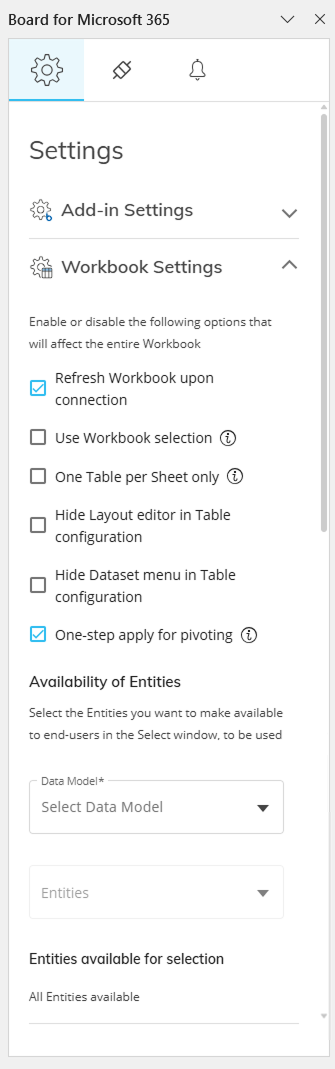
Workbook Settings
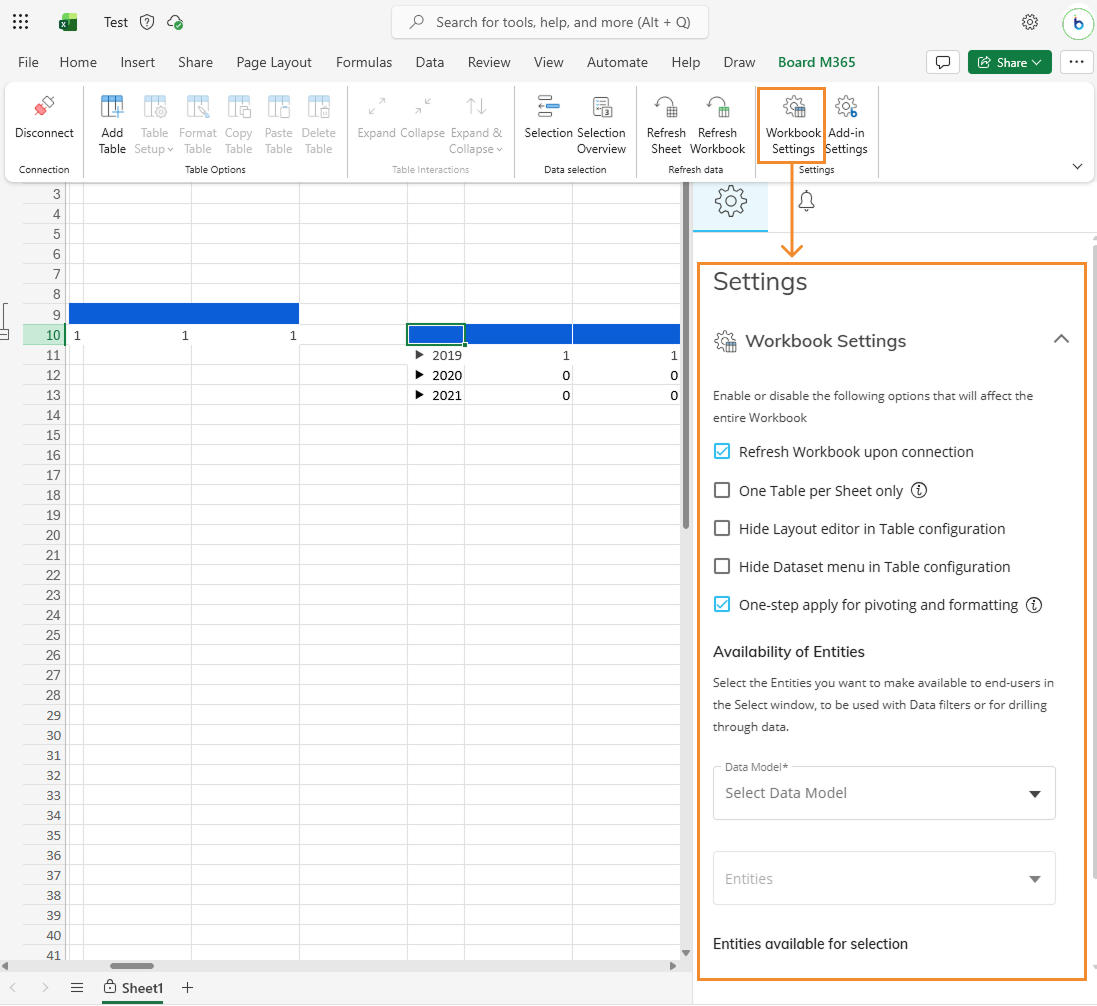
The following Workbook settings are available:
Refresh Workbook upon connection. Enabled by default. Offers the user to refresh all Workbook content when a connection is established with the corresponding Board Platform.
All of the tables will be refreshed, with corresponding log entries added to the Notifications tab in the Task pane.
One Table per Sheet only. Permits end users (Planners) to create only one Table for each Sheet in this Workbook.
Hide Layout editor in Table configuration. Disables the Layout option so that Planners cannot change or create new Layouts in this Workbook.
Hide Dataset menu in Table configuration. Disables the Dataset option so that Planners cannot change or add to the Datasets in this Workbook.
One-step apply for pivoting and formatting. Enabled by default. Applies all changes to pivot fields (add, move, remove) at once using a dedicated “Apply” button.
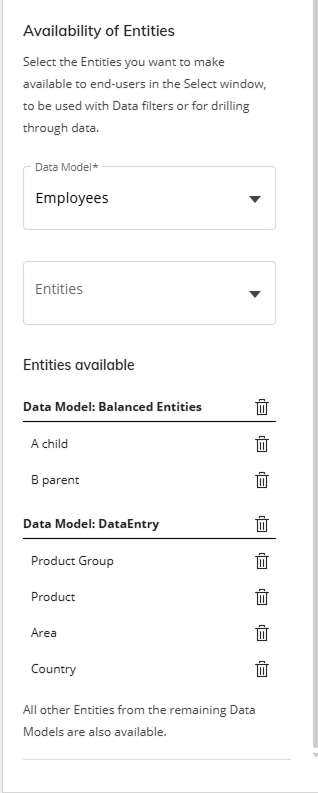
Availability of Entities. Specify which Entities are available to Planners for filtering in the Selection Task pane for each Data Model by following the steps below:
Select a Data Model from the dropdown list
Check all Entities you would like to make available to the user.
Multiple Data Models can restrict availability to users.
Permission and Role settings for Workbooks
The Add-in feature settings can be configured centrally in the Features section within the Board Platform.
You can configure Features of application profiles that are assigned to users via Roles to configure explicit Board M365 Excel Add-in permissions.
In the Features section of Users & Security, under the application profile name, you can configure the following settings for users accessing the Board M365 Excel Add-in under “Office Add-in Workspace”:
Deny Layout Designer. Enable this option if you want to deny a user associated with this Application Profile access to modify a Table configuration. The user can still pivot data.
Deny Dataset List. Enable this option if you want to deny a user associated with this Application Profile access to use Datasets. The user can still use the Layout option.
Deny Selection Editor. Enable this option to deny a user associated with this Application Profile access to the Selection options. The user cannot use the Selection feature, but can still use the Board function BOARD.SETSELECTION.