💡This article contains version changes.
Spot the light bulb icon? That means you’ll find helpful details about what’s changed across versions. Read more about version changes here.
The Board for M365 Add-in requires an internet connection, an active Board 15 license for a Cloud Platform (15.0 versions are only compatible with the Subscription Hub), administration permission from the Subscription Hub for User and Lite licenses (not needed for Power User or Developer licenses), and other system requirements listed below.
Add-ins are only compatible with both:
Version Board 15.x
Cloud Platforms (15.0 Board versions are only compatible with Subscription Hub).
Board license requirements
Add-ins are included with all Power User and Developer licenses.
For User and Lite licenses, access to the Add-ins must be enabled through the User section of the Subscription Hub. The features available within the Add-in depend on the assigned license, and some functionality may be restricted accordingly.
To grant access to the Add-ins, proceed as follows:
Cloud environment with Subscription Hub
Go to Administration and click on the Subscription Hub tile.
Go to the User section and select/create the user to view their user profile.
Navigate to the License section of the user profile and enable the checkbox labeled M365 Add-ins.
Click Save.
💡Cloud environment without Subscription Hub
In versions prior 15.0x and earlier, Board for M365 Excel Add-in is not available for customers without Subscription Hub. This was introduced in 15.1.
Go to Administration and click on the Profiles tile.
Select or create a profile to view settings in the right sliding panel.
Navigate to the License section of the profile and enable the checkbox labeled M365 Add-ins.
Click Save.
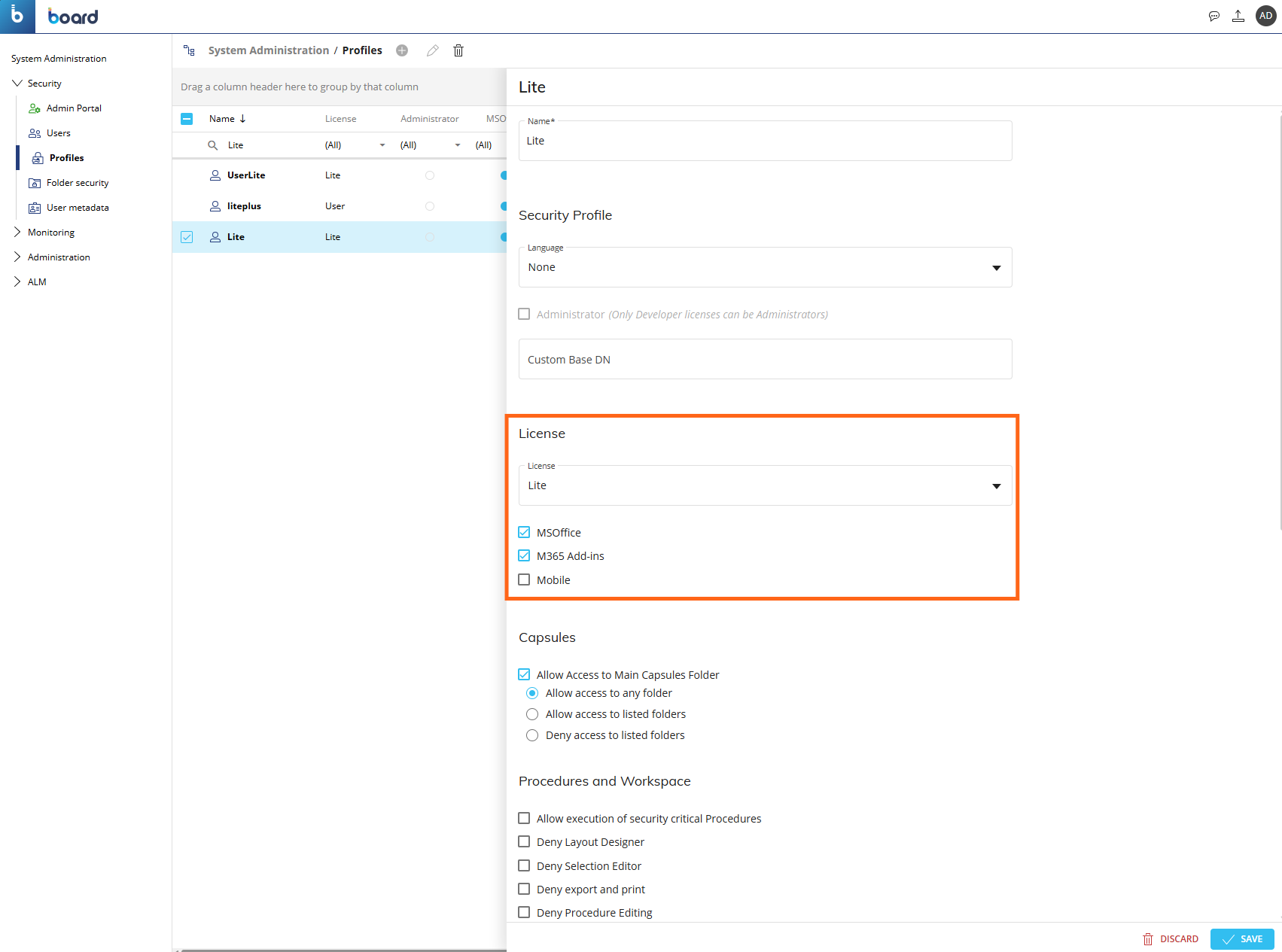
The MS Office Add-in flag still exists and is a separate permission to use the previous Add-in. You can have both enabled, but only enabling one does not allow you to use the other.
Board supports both the MS Office Excel Add-in and the Board M365 Excel Add-in on the same device. Users can install both Add-ins and switch between them at runtime without the need to restart Excel or reinstall an Add-in.
Version management
Board uses version validation to prevent users from opening workbooks created in one Add-in with the other.
Because Board supports two Add-ins, MS Office and Board for M365, users cannot use a workbook made for one Add-in while using the other Add-in:
Any workbook created with the MS Office Excel Add-in cannot be used with the Board M365 Excel Add-in.
Any workbook created with the Board M365 Excel Add-in cannot be used with the MS Office Excel Add-in.
Board supports both the MS Office Excel Add-in and the Board M365 Excel Add-in on the same device.
Users can install both Add-ins and switch between them at runtime without the need to restart Excel or reinstall an Add-in.
Permission and Role settings for Workbooks
The Add-in feature settings can be configured centrally in the Features section within the Board Platform.
You can configure Features of application profiles that are assigned to users via Roles to configure explicit Board for M365 Excel Add-in permissions.
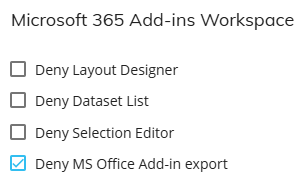
In the Features section of Users & Security, under the application profile name, you can configure the following settings for users accessing the Board M365 Excel Add-in under “Microsoft 365 Add-ins Workspace”:
Deny Layout Designer. Enable this option if you want to deny a user associated with this Application Profile access to modify a Table configuration. The user can still pivot data.
Deny Dataset List. Enable this option if you want to deny a user associated with this Application Profile access to use Datasets. The user can still use the Layout option.
Deny Selection Editor. Enable this option to deny a user associated with this Application Profile access to the Selection options. The user cannot use the Selection feature, but can still use the Board function BOARD.SETSELECTION.
💡 Deny MS Office Add-in export. This setting restricts users from exporting Data Views or Screens to the legacy MS Office Add-ins. The option is removed from the export window. This option is enabled by default.In versions prior 15.0x and earlier, this feature is not available. This was introduced in 15.1.
Client software requirements
Client Software | Version | Additional information |
|---|---|---|
Desktop browser | Microsoft Edge* or Internet Explorer 11 for Microsoft 365 version 16.0.11629 and later Safari (version 16 or newer) | *Microsoft Edge is required for Microsoft 365 version 16.0.13530.20424 or later |
Operating System | Windows 7 service Pack 1 (SP1) Mac OS Sierra | For mobile devices, see See the full Microsoft requirements for Add-ins here |
Microsoft Office | Excel 2016 or later, Microsoft 365 for Windows Excel 2019 or later, Microsoft 365 for Mac | For static exports to Excel, version Excel 2007 or newer is required |
Board Cloud | Board 15, cloud only with Subscription Hub |
Warning
If you disable Internet Explorer in the environments listed above, the Microsoft 365 Add-ins will stop working. You can upgrade to a newer version of Microsoft 365 to stop using Internet Explorer 11.
Limitations
Some performance limitations both from Board and on the Excel side apply and must be taken into consideration when using the Board for Microsoft 365 Excel Add-in.
File compatibility
Only XLSX is compatible with the Board for M365 Excel Add-in. We recommend to always save exports as an XLSX.
Table limitations
The performance of Board Tables depends on the size of the result set, the execution context, and the Excel environment in which the Table is used. When working with large Datasets, you should carefully plan data retrieval and execution timing to ensure acceptable performance.
For Tables containing more than 100,000 rows, performance is comparable to a Flex Grid in the Board web interface: limitations of 2.5 million rows and 160 columns. However, Excel imposes their own maximum row limits of ~1 million that cannot be exceeded.
Excel limits
Maximum rows: 1,048,576
Maximum columns: 16,384
If a Table result set exceeds Excel’s maximum row limit of 1,048,576 rows or 16,384 columns, the Table is not rendered. In this case, a warning message prompts you to restrict the Selection or otherwise reduce the size of the resulting dataset. The Excel row limit is also the limit of a worksheet’s capacity. If a Table approaches the end of an Excel worksheet an error message appears and you must reconfigure or move the Table to fit the worksheet limits.
This limitation applies during:
Table execution in Excel
Application and modification of Selections
Pivoting operations
Table resizing or editing
To resolve rendering issues, narrow the Selection to reduce the result size, or move the Table starting position to an area of the worksheet with more available rows and columns.
Excel Web Payload Considerations
When working in Excel Web, additional payload size limitations apply. Enabling “Show Source Data” for very large Tables may result in long execution times or failed data retrieval.
Very large Tables may take several minutes to load or may fail to display completely. If this occurs, reduce the Dataset size or defer execution until analysis is required.
Performance may vary depending on the environment and internal chunking behavior, and large data retrieval should be planned accordingly.
Refresh limitations
When refreshing Tables, sheets, and workbooks, limitations apply.
Refresh happens in two parts:
1. Query the Board Engine
2. Print the new data in Excel
Refresh Sheet limitations
The single active worksheet and Tables are grouped together and refreshed in one go with the following limitations:
1. Query the Board Engine: the limitation is equal of that of a Flex Grid: 2.5 million rows and 160 columns per Table
2. Print data in Excel sheet: limitation of 5 million cells for each worksheet
Refresh Workbook limitations
The entire Workbook, Sheets, and Tables are grouped together and refreshed in one go with the following limitations:
1. Query the Board Engine: the limitation is equal of that of a Flex Grid: 2.5 million rows and 160 columns per Table
2. Print data in Excel workbook: limitation of 10 million cells for each workbook
If any of the limitations are reached, an error message will appear prompting the user to reduce the data.
Workbook Storage and Auto-Sync Behavior
Table configuration works correctly in workbooks stored in shared folders with automatic saving enabled, such as OneDrive.
When file auto-sync is active, Table definitions and configuration changes are preserved as expected.
Ensure that the workbook remains fully synchronized before performing large executions or configuration changes to avoid inconsistencies.
Language & culture settings
Language and culture settings in Excel behave differently when using the Add-in.
Language in Excel will apply to all Excel-specific components, options, and settings. The Board for M365 Add-in will only follow the Language settings of Excel if the language chosen is one of the official 6 supported languages listed below under Language compatibility. If one of those languages are chosen, the Board Add-in-specific components, options, and settings will also localize.
Culture settings in Excel apply while using the Add-in.
For example, if your culture is American, commas are used as the thousands delimiter (1,000) and periods as the decimals delimiter (1.0), whereas in Europe cultures the opposite applies (1.000 and 1,0).
Culture
Thousands delimiter
Decimal delimiter
American
comma = 1,000
period = 1.0
European
period = 1.000
comma = 1,0
💡Language compatibility
The Board for M365 Add-in supports 6 official languages: English, French, German, Italian, Japanese, and Spanish.
In versions prior 15.0x and earlier, only English is available. The other languages were introduced in 15.1.
If your Excel language differs from the official 6 supported languages mentioned above, you will see English for the Add-in-specific components.