In the Board for Microsoft 365 Excel Add-in, Board data is represented as Tables. A Table can span a full range of cells or consist of a single Excel cell. Each Table is created by using a Dataset or a Layout defined in the Board Platform as the Data Source.
Tables provide a structured way to retrieve, display, and manage Board data directly within an Excel workbook.
Board Tables vs. Excel Tables
Key differences
A Board Table is not the same as an Excel Table:
A Board Table is a grid of values based on the current Selection and the underlying Dataset or Layout configuration. The data displayed in the Table reflects Board logic and is refreshed through execution of the Table definition.
An Excel Table is a native Excel object with its own structure, metadata, and behaviors, including structured references, automatic expansion, and built-in filtering and formatting.
While a Board Table may visually resemble an Excel Table, it does not automatically inherit Excel Table features. Excel-specific behaviors apply only if the Board Table is explicitly converted into an Excel Table, and some Excel features may not be supported or may behave differently after conversion.
Manage a Table
The Board M365 Excel Add-in provides a Task pane where you can create, format, edit, and manage a Table. The following tabs are available when managing a Table:
Add data from Board
All Tables, where you can engage in Table Management
Notifications
Table Management
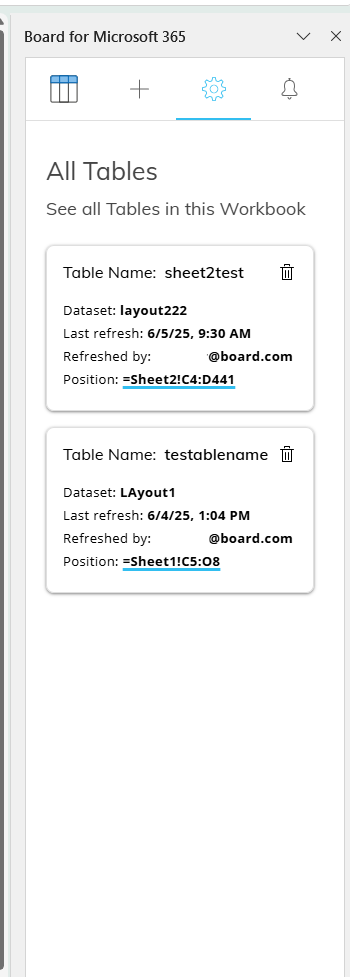
Table Management occurs in the All Tables tab where you can view, navigate and delete Tables. The Table Management interface supports the following user actions:
View the position of each Table within the workbook
Edit Tables from the Task pane
Access Table Management
Table management is available from the Task pane on the right side of the Excel window. To access it, select the Settings icon  .
.
The All Tables section lists all Board Tables present in the current workbook.
Collaboration and Shared Workbooks
Workbooks that contain Board Tables can be shared using standard collaboration methods, such as shared folders or cloud-based drives.
When file auto-sync is enabled, multiple users can work on the same workbook while preserving Table definitions, Layouts, and connections to the Board Data Model. This allows teams to collaborate on ad-hoc analysis and reporting without reconfiguring Tables or duplicating logic.
Update a Table
Tables saved in a workbook retain their configuration and can be updated over time to reflect changes in data or analysis requirements.
You can update a Table by:
Refreshing the underlying Dataset or Layout
Modifying selections or configuration and re-executing the Table
Reusing saved Layouts across multiple Tables
Updating a Table refreshes the data displayed in the worksheet based on the current configuration and selections, ensuring consistency and accuracy across reports.