The All Tables area in the Board M365 Excel Add-in provides a centralized overview and management entry point for all Tables defined in a workbook. Users can assess the status of Tables, navigate directly to them, collaborate with others, and keep data up to date.
View all Board Tables
To view all Board Tables, access the Table Management tab and review each tile below the “All Tables” heading. Tables are listed in the order in which they were created.
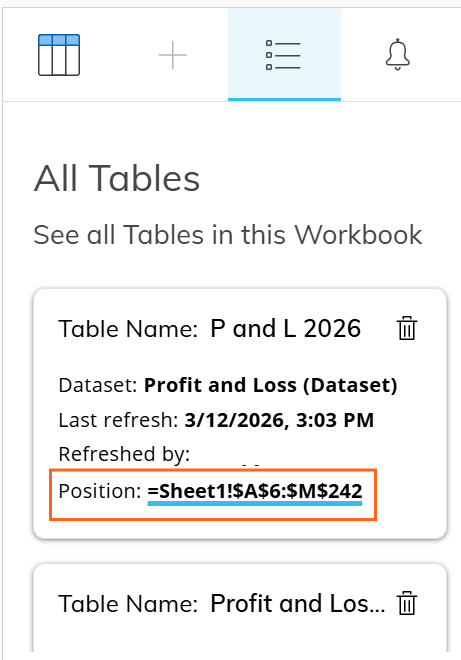
Each tile represents a Board Table in the workbook, and not only on the open worksheet. Within each tile, you will see the following information:
Table Name. The name of the table.
Dataset. The Dataset name used in the Table, indicating whether the Table is based on a Dataset or a Layout.
Last refresh. The date and time of the last refresh. Date and time format depends on your Excel culture settings.
Refreshed by. Displays the name of the user who last refreshed the Table.
Position. Displays the sheet and cell position of the Table. The cell position represents the very first cell of the Table, being the very top left corner of the Table. You can easily navigate to the position of the Table by clicking on the position link.
Navigate to a Table
You can navigate directly to a specific Table from the right panel.
By clicking the position link of a Table, Excel switches focus to the corresponding worksheet, highlights the cell range occupied by the Table, and automatically opens the Task pane in Edit Data mode for the selected Table.
This behavior simplifies navigation and editing in workbooks that contain multiple Tables.
Delete Tables
You can delete a Board Table directly from the All Tables view in the Board Excel Add-in. For other ways to delete, read more about Board controls and Excel shortcuts.
To delete a Table:
Open the All Tables view.
Select the Delete icon associated with the Table.
Confirm the action when the warning message appears.
Once confirmed, the Table and its associated configuration are permanently removed from the workbook.
This action cannot be undone, and deleted Tables cannot be recovered. Any data previously displayed by the Table must be recreated by reconfiguring and re-executing the Table definition. Before deleting a Table, ensure that it is no longer required or that a backup copy is available.