💡This article contains version changes.
Spot the light bulb icon? That means you’ll find helpful details about what’s changed across versions. Read more about version changes here.
Applies to:
Admin Portal Administrators
Users in the Subscription Hub who have both the relevant flag enabled and a developer license
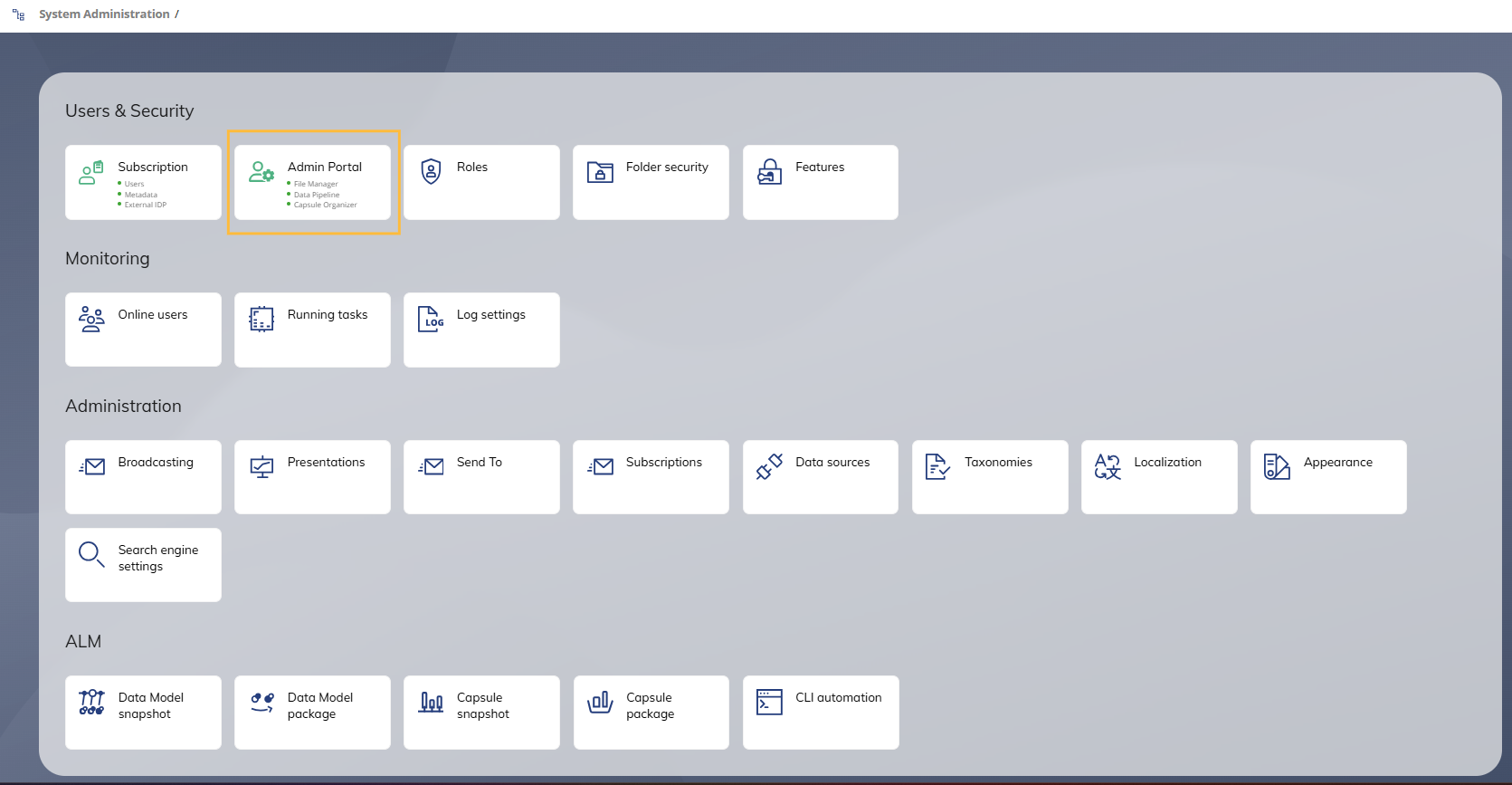
The Admin Portal provides enhanced usability of the File Manager, Data Pipeline, and more capabilities within a Board instance. It is accessible from the System Administration page by clicking the Admin Portal tile.
Key benefits
Intuitive and streamlined file management. The File Manager provides upload and download capabilities through a familiar Windows like interface
Seamless service restarts. Administrators can restart both Board Engine and the Web component at the same time, helping prevent session desynchronization issues
Improved Capsule management. The redesigned environment simplifies Capsule organization and management
Enhanced usability and accessibility. The updated interface improves navigation and delivers a more accessible user experience
Improved system monitoring. Graphical insights into memory and CPU usage help Administrators monitor application health and identify potential performance issues more effectively
More secure access to File Storage. The Admin Portal uses Managed Identity to access File Storage, the Azure storage area where files used by Board applications are stored in Cloud environments. Managed Identity provides a more secure authentication model than SAS URL-based access and removes the need to persist SAS URLs in system settings.
Main panel
When you access the Admin Portal, the main panel displays the following sections in the left-side navigation menu:
Services Status
Scheduler
Database Backup Restore
Capsule Organizer
Data Pipeline (if present)
File Manager
Logs
Os Events
Subscription Hub
Board Instance
Known limitation
The informational question mark button and its associated help dialog are currently unavailable in several Admin Portal sections. This is a UI limitation and does not affect the functionality of the affected features. Users can continue using these sections normally while the contextual help content is unavailable.
Services Status
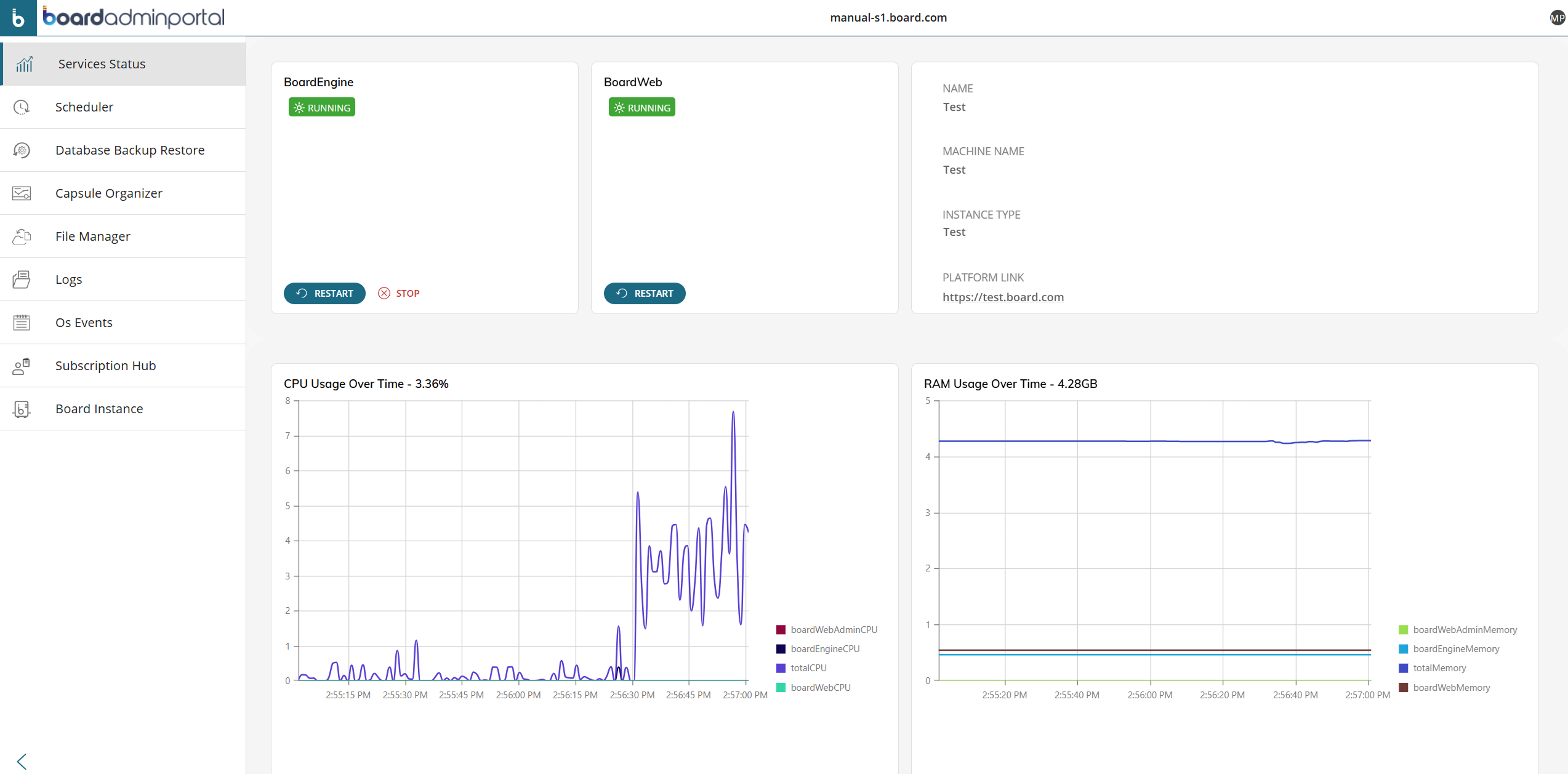
The Services Status page in the Admin Portal provides graphical monitoring of the main system services and resources of a Board Platform instance. Administrators can use this page to assess system health, verify whether services are running correctly, and identify potential performance issues related to CPU or memory usage.
The page displays service status tiles, instance information, and resource usage charts for the selected environment.
At the top of the page, the service status tiles show the current status of the main Board services.
BoardEngine. Shows the status of the Board Engine service. Board Engine is the core service responsible for processing Board application logic and requests. The tile displays the current service status and provides service management actions.
BoardWeb. Shows the status of the Board Web service. Board Web is the web application component that allows users to access Board through the browser. The tile displays the current service status and provides service management actions.
The Restart action allows Administrators to restart the selected service. Restarting Board Engine automatically restarts Board Web as part of the same operation. Therefore, when both services need to be restarted, Administrators only need to restart Board Engine.
Instance information panel. Displays technical details about the selected Board Platform instance:
Name. Name assigned to the instance
Machine name. Name of the machine where the instance is running
Instance type. Type of instance
Platform link. URL used to access the Board Platform instance. Administrators can use this link to open the environment directly
Resource usage charts. The lower part of the page provides graphical monitoring of system resources. These charts help Administrators evaluate resource consumption over time and detect unusual behavior or potential performance degradation.
Scheduler
The Scheduler allows Administrators to view, create, and monitor scheduled tasks for a Board Platform instance. Administrators can use this page to verify the execution status of scheduled operations, review the outcome of previous runs, and check when each task is scheduled to run next.
The page displays the list of scheduled tasks configured for the selected environment.
Main table
The main table provides the following information about each scheduled task:
Task. Name of the scheduled task
Status. Current status of the scheduled task
Created. Date and time when the scheduled task was created
Last result. Result of the most recent execution. This field displays the execution code and a short message indicating whether the operation completed successfully or whether an issue occurred
Last run. Date and time when the scheduled task was last executed
Next run. Date and time when the scheduled task is scheduled to run next
Parameters. Parameters used by the scheduled task
Enabled. Indicates whether the scheduled task is currently enabled.
.png)
Add new scheduled task
At the top of the page, the Add new scheduled task action allows Administrators to create a new scheduled task for a Board Platform instance. Click on the .png) icon to access the action.
icon to access the action.
Scheduled tasks are used to run a specific Procedure on a selected database at a defined date and time, or as soon as the task becomes available.
The page contains the configuration fields required to define the scheduled task:
Name. Name assigned to the scheduled task
Host. Host and port used to connect to the Board Platform instance
By default, this field is populated with the local host address and port.
Username. User account used to run the scheduled task
Password. Password of the user account
Procedure. Procedure to be executed by the scheduled task
Database. Data Model where the Procedure is located
Type. Defines how the scheduled task is executed: one time, daily, weekly, monthly, or monthly by day of the week
Start when available. Allows the scheduled task to start as soon as it becomes available
Start time. Time when the scheduled task is scheduled to run. This field is required when the task is not configured to start when available
Start date. Date when the scheduled task is scheduled to run.
.png)
Database Backup Restore
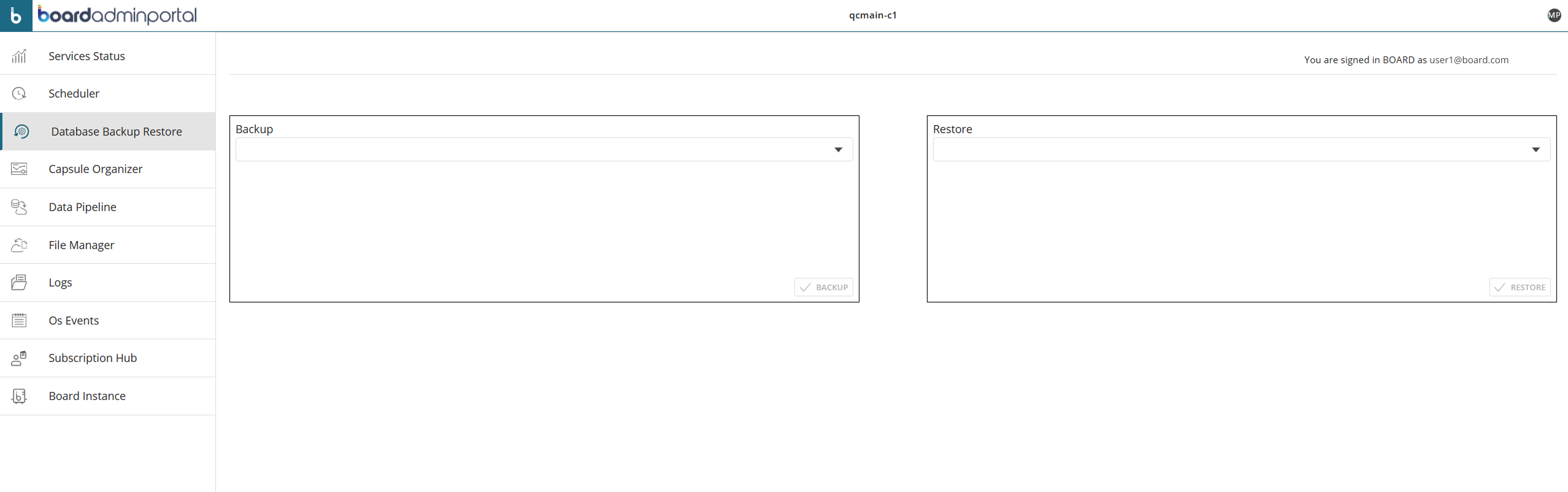
The Database Backup Restore page allows Administrators to create and restore backups for Board databases. Administrators can use this page to safeguard database content, recover a database from an existing backup, or restore a previous database state when required.
This page is available for both on-premises and IDP tenants. For on-premises tenants, Administrators must authenticate in Board before accessing the page. A login dialog is displayed before they are redirected to the Database Backup Restore page.
The page is divided into two main panels: Backup and Restore.
Backup. Allows Administrators to create a backup of a selected Data Model. The drop-down list is used to select the database to back up
Restore. Allows Administrators to restore a database from an available backup. The drop-down list is used to select the backup or database restore option to apply.
This page helps Administrators manage database protection and recovery operations directly from the Admin Portal.
Capsule Organizer
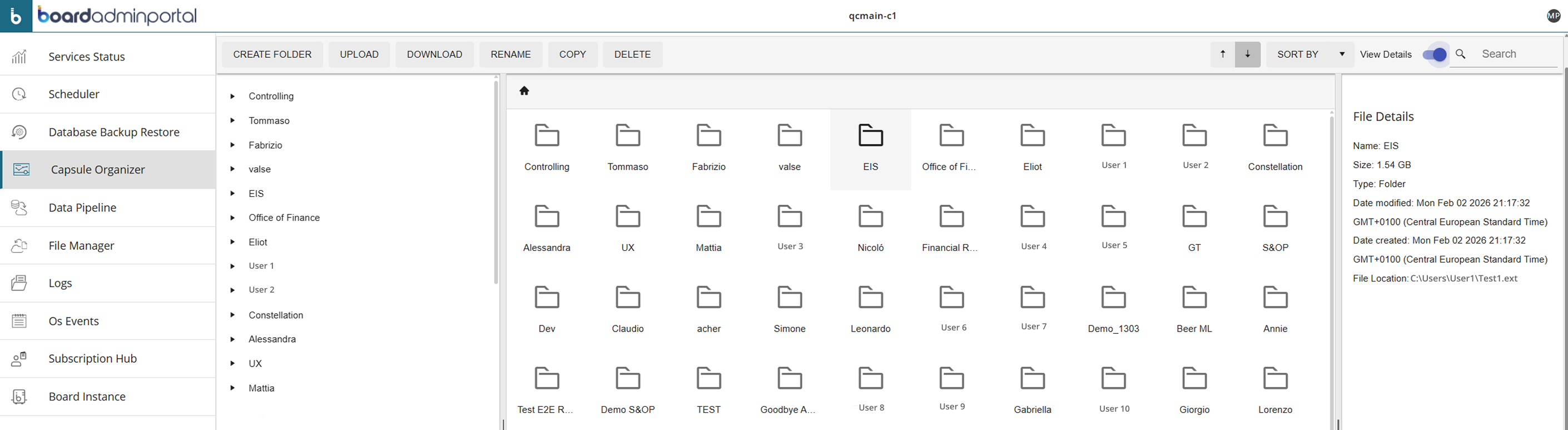
The Capsule Organizer allows Administrators to browse, organize, create, upload, download, rename, copy, and delete capsules and folders available in a Board Platform instance. Administrators can also use this page to review the capsule folder structure, manage capsule content, and locate specific files or folders.
At the top of the page, the following actions allow Administrators to manage the capsule repository:
Create folder
Upload
Download
Rename
Copy
Delete
Sort by
The left panel displays the folder tree. Administrators can expand or collapse folders to navigate through the capsule structure and select the location they want to inspect or manage.
The main area displays the contents of the selected location. Folders and files are shown as icons with their corresponding names. Administrators can select an item to enable the available management actions and view its details.
The View details option, located on the right side of the toolbar, shows or hides the File Details panel. When enabled, the panel appears on the right side of the page and displays information about the selected item, such as name, size, type, modification date, creation date, and file location.
This page helps Administrators maintain the capsule structure, manage capsule content, and quickly find folders or files within the selected Board Platform instance.
Data Pipeline
The Data Pipeline provides access to the Board Cloud Data Pipeline configuration area, the data sources configured on the local host, and the Board Data Sources portal.
Administrators can use this page to set up and manage connections between Board and external data sources, including both Cloud-based and on-premises data sources.
The page is organized into three tabs:
Cloud Data Pipeline. Provides access to the Board Cloud Data Pipeline portal, where Administrators can configure and manage data source connections. At first login, Administrators must use the credentials displayed on the page.
.png)
Data Sources on [machine name]. Displays the data source connections configured on the local host. These connections can be used by the Data Pipeline to access local or on premises data sources.
The main table displays the following information:
Connection alias. Name used to identify the data source connection in the Admin Portal
Data Pipeline name. Corresponding Data Pipeline connection
.png)
Data Sources. Opens the Board Data Sources portal in a separate page.
File Manager
The File Manager allows Administrators to browse and manage files stored in the Z: drive directly from the Admin Portal, without using external tools such as Microsoft Azure Storage Explorer.
The page is available only when a valid and supported Cloud configuration is detected. If the configuration is missing, invalid, or unsupported, the section is automatically hidden.
The page is organized into two tabs:
File Manager
The File Manager tab uses the same layout and navigation logic as the Capsule Organizer. It includes:
A folder tree on the left
The contents of the selected location in the center
An optional File Details panel on the right.
For more information about the available browsing, sorting, search, and file details options, see Capsule Organizer.
In addition to the common file management actions available in the Capsule Organizer, the File Manager includes the Upload Folder action, which allows Administrators to upload an entire folder to the selected location.
The File Manager is available in the Admin Portal only when a valid and supported Cloud configuration is detected. If the configuration is missing, invalid, or unsupported, the section is automatically hidden.
.png)
Azure Storage Information
The Azure Storage Information tab explains how the Admin Portal accesses the Board Azure storage area used to store files for Board applications and file-based processes, such as Data Readers and Procedures.
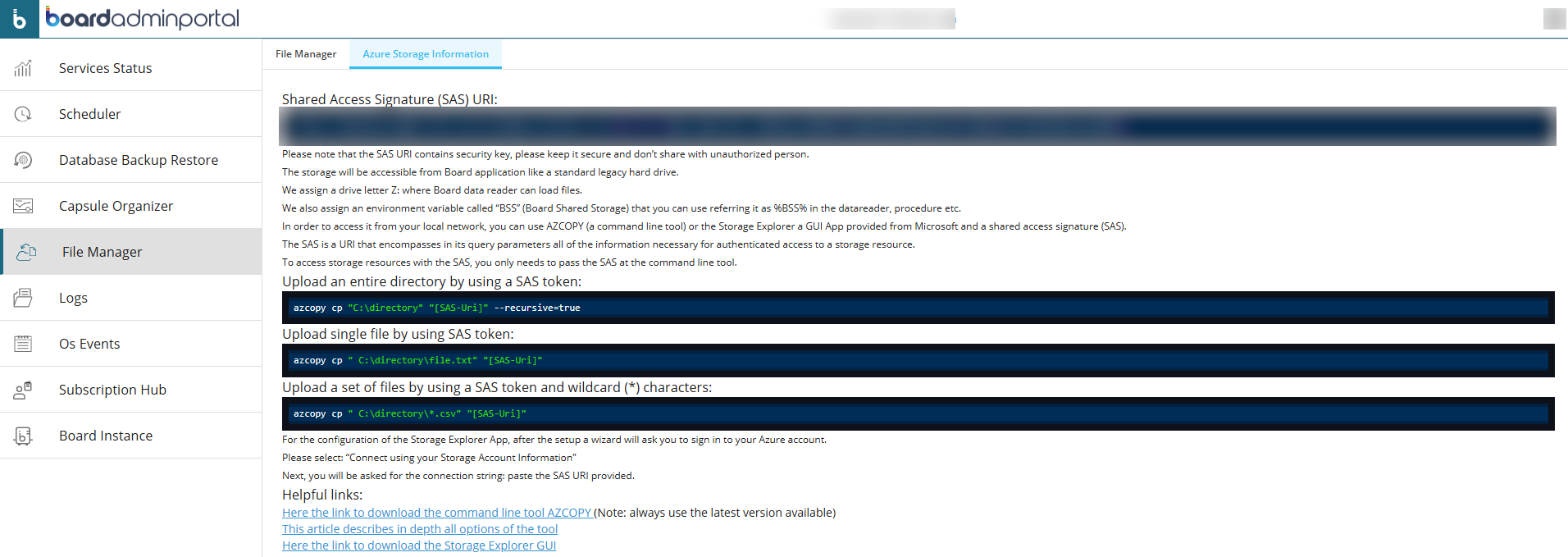
💡In versions earlier than Board 15.1, File Storage access only used a Shared Access Signature URL (SAS URL) authentication mechanism.
The File Storage tab provided a SAS URL to access the File Storage through supported external tools and integrations, such as AzCopy or Microsoft Azure Storage Explorer. Because the URL contained security information granting access to the storage resource, it had to be protected. The Admin Portal now uses an updated secure authentication mechanism to access the storage area without requiring users to manage or store access credentials within the application. As a result, sensitive connection details are not exposed in system settings, configuration data, or logs, reducing the risk of credential exposure.
Files in the storage area remain available within Board through:
The assigned Z: drive
The %BSS% environment variable
These paths can be used by Data Readers, Procedures, and other Platform capabilities that interact with File Storage.
Logs
The Logs page allows Administrators to review log information for a Board Platform instance. Administrators can use this page to inspect system activity, troubleshoot issues, and access logs related to specific functional areas.
The page displays log categories in an expandable list. Each category can be expanded to view the corresponding log entries.
The available log categories are shown in the image below:
.png)
The Log Level Settings action opens the Log Level Settings panel, where Administrators can select which log events are enabled.
In tenants without an Identity Provider (IdP), selecting this action first prompts the Administrator to sign in to Board before the panel opens.
The available log event options are shown in the image below:
.png)
When the Enable Log Encryption option is enabled, Administrators can use the Change Password action to update the encryption password.
These settings help Administrators control which log events are collected by the system, protect log information when encryption is required, and access the information needed for auditing and troubleshooting.
Os Events
The Os Events page allows Administrators to review operating system events related to a Board Platform. This page helps Administrators review operating system activity, identify service start and stop events, detect errors, and access diagnostic information needed for troubleshooting.
The page displays OS event entries in a table. Each row represents an event recorded by the system.
The table includes the following columns:
Date. Date and time when the event was recorded
Name. Name of the service, application, or system component that generated the event
Level. Severity level of the event
Message. Detailed message associated with the event. This field may include service status information, startup details, configuration paths, ports, exception messages, or other technical information useful for troubleshooting
.png)
Subscription Hub
The Subscription Hub section opens the Subscription Hub directly in the Board Platform.
Administrators can use this section to access and manage Subscription information for the current environment.
For more information about the Subscription Hub and its functionality, see the dedicated Subscription Hub articles.
.png)
Board Instance
The Board Instance section opens the selected Board Platform instance directly.
Administrators can use this section to quickly access the Board environment associated with the current Admin Portal instance.