OpenStreetMap properties are available from the Object Properties panel on the right of the Screen editing page once the Object is selected and associated with a Layout.
The OpenStreetMap Object supports all options common to all Screen Objects and the following properties:
Master Object. If enabled, clicking on a marker or a map area will update the data displayed by all other Objects on the Screen in order to show only the data relating to the clicked item. The Master object result is similar to applying a Screen Selection.
Disable Drill down. Disables the drill-down functionality, both in Design and Play Modes.
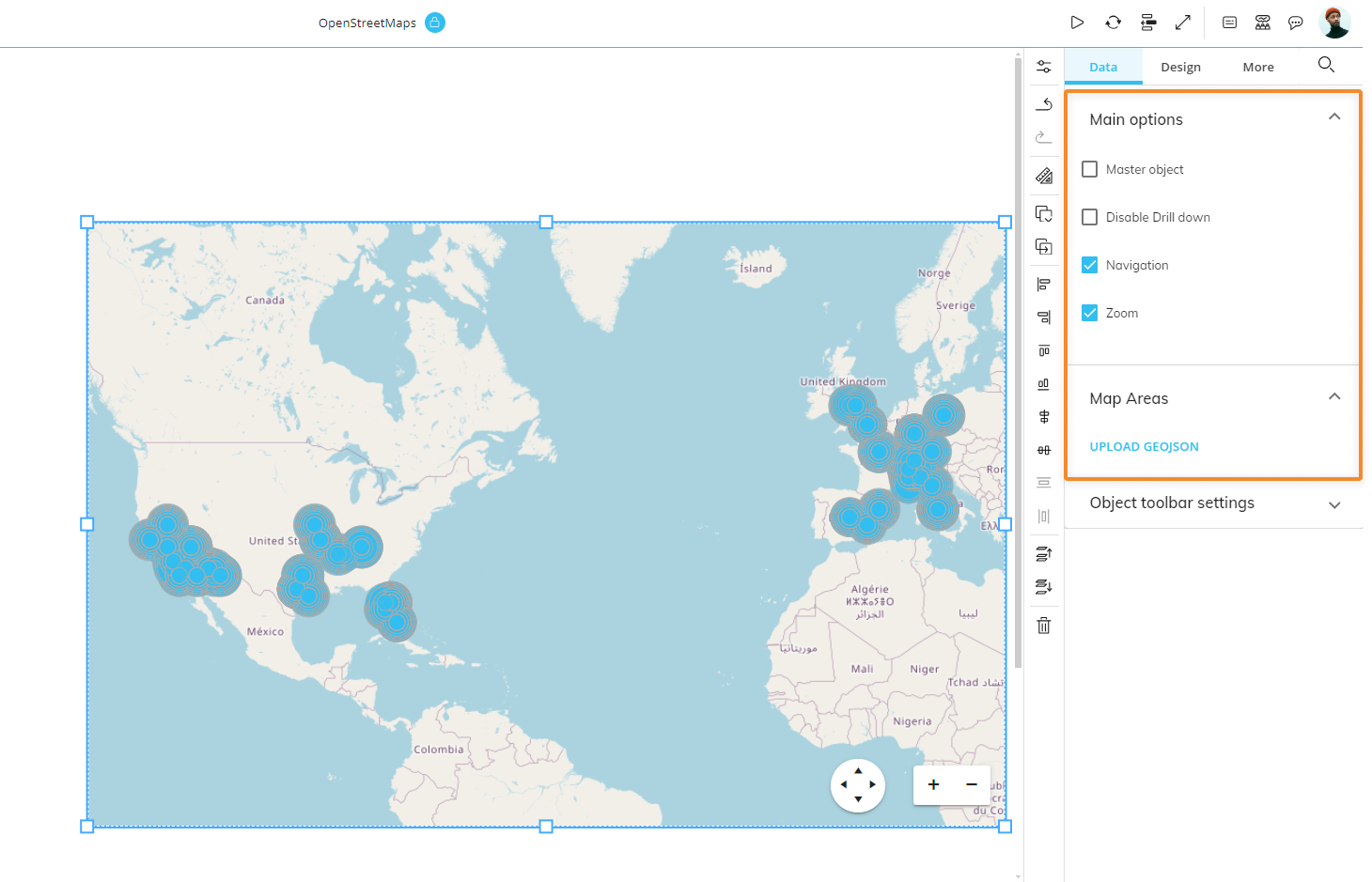
Main options: User Controls
The Navigation and Zoom options enable or disable users controls for panning and zooming, both in Design and Play Modes.
Map Areas
The "UPLOAD GEOJSON" button allows you to upload a GeoJSON file to manage map areas at different levels of detail.
To do so, proceed as follows:
Click on the button. The GeoJSON configuration window appears:
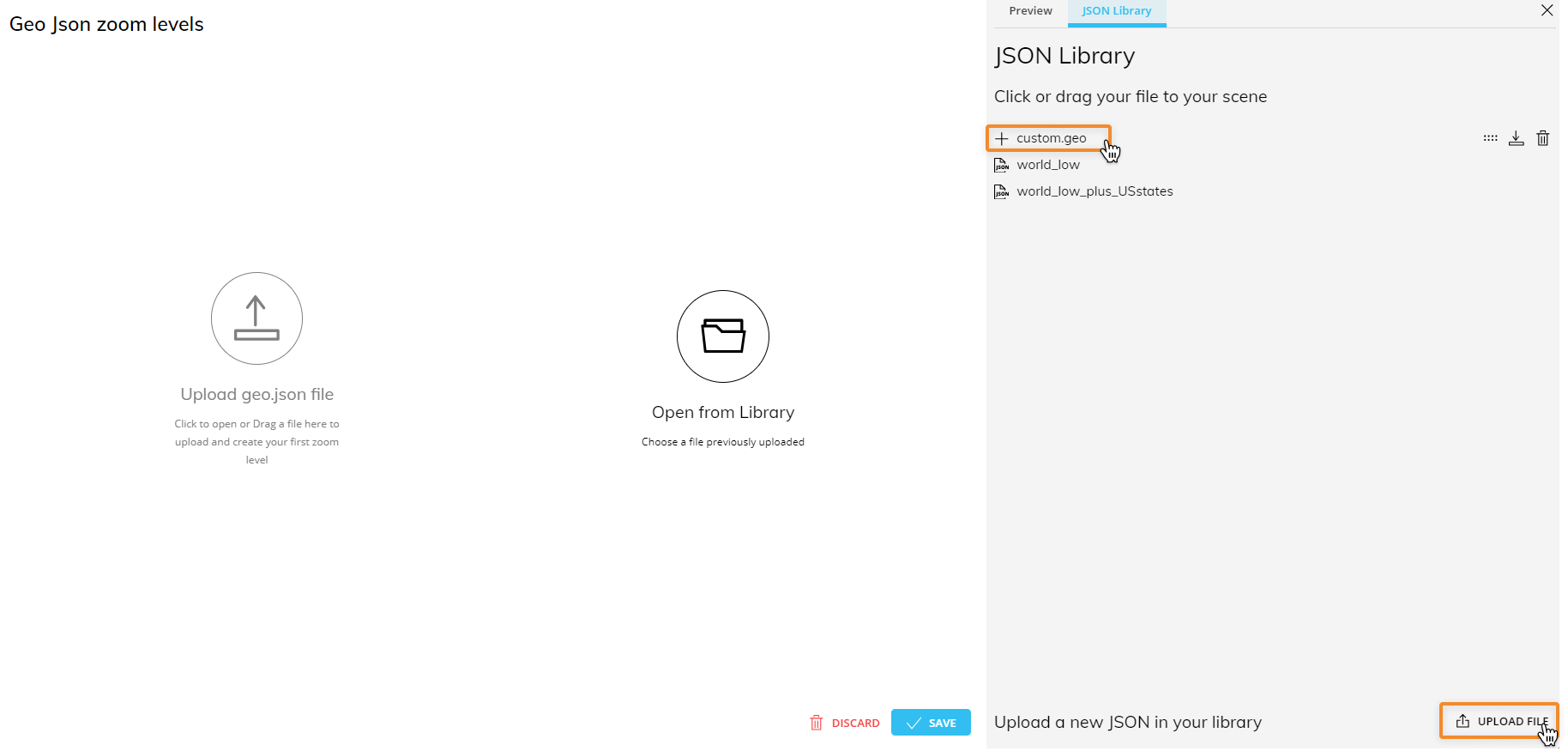
From there you can upload one or more GeoJSON files to create your Library that will always be available for all OpenStreetMap configurations.
Once you've uploaded your files (or selected a previously uploaded file from the Library), you can set the maximum zoom level (from 0 to 19) and associate each level with the available GeoJSON files.
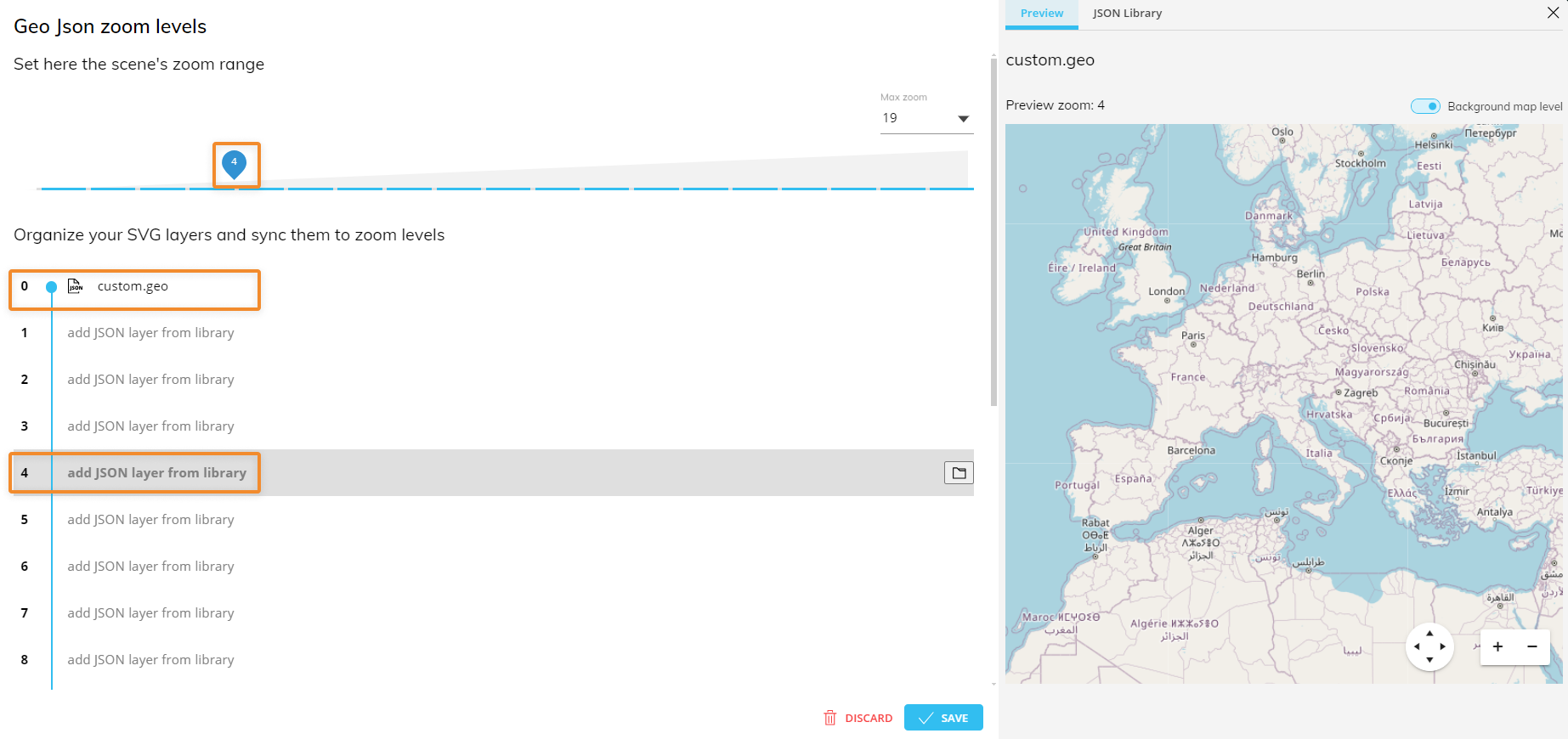
Board includes two out-of-the-box GeoJSON files, one for the entire world to be used at zoom level 0 and one for US States to be used at higher zoom levels.
Click the "SAVE" button to save your configuration and close the window.
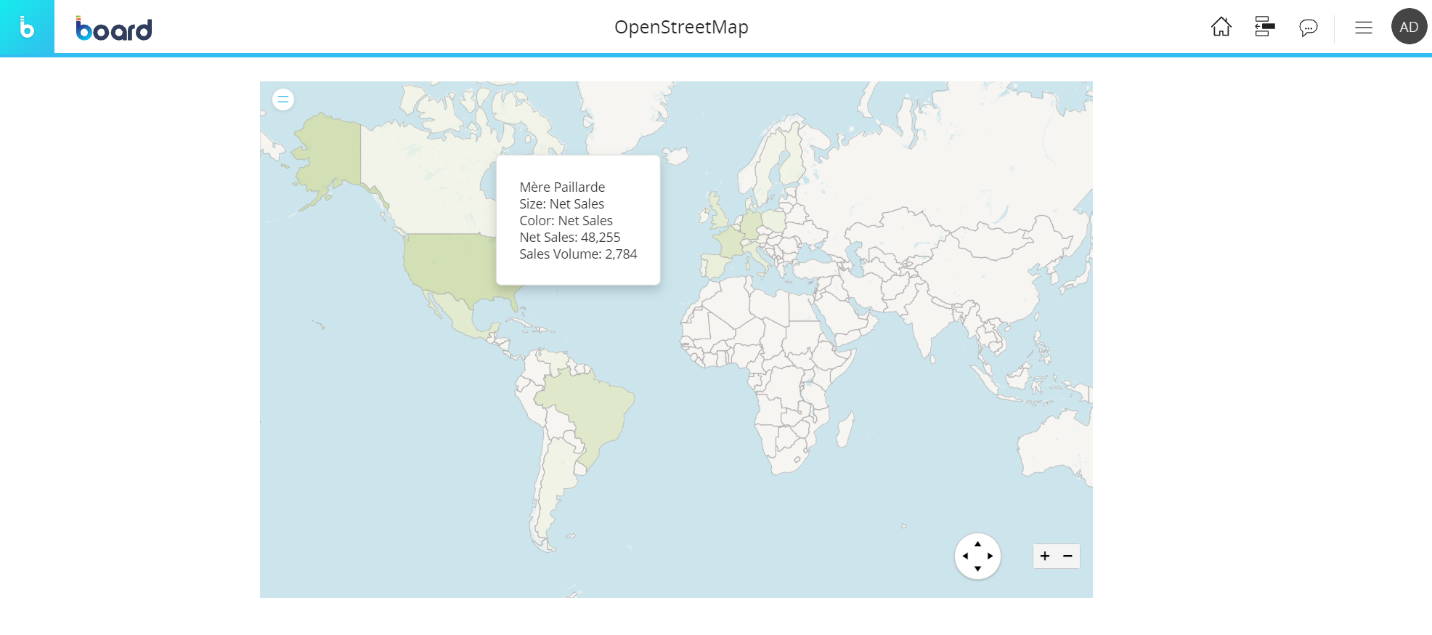
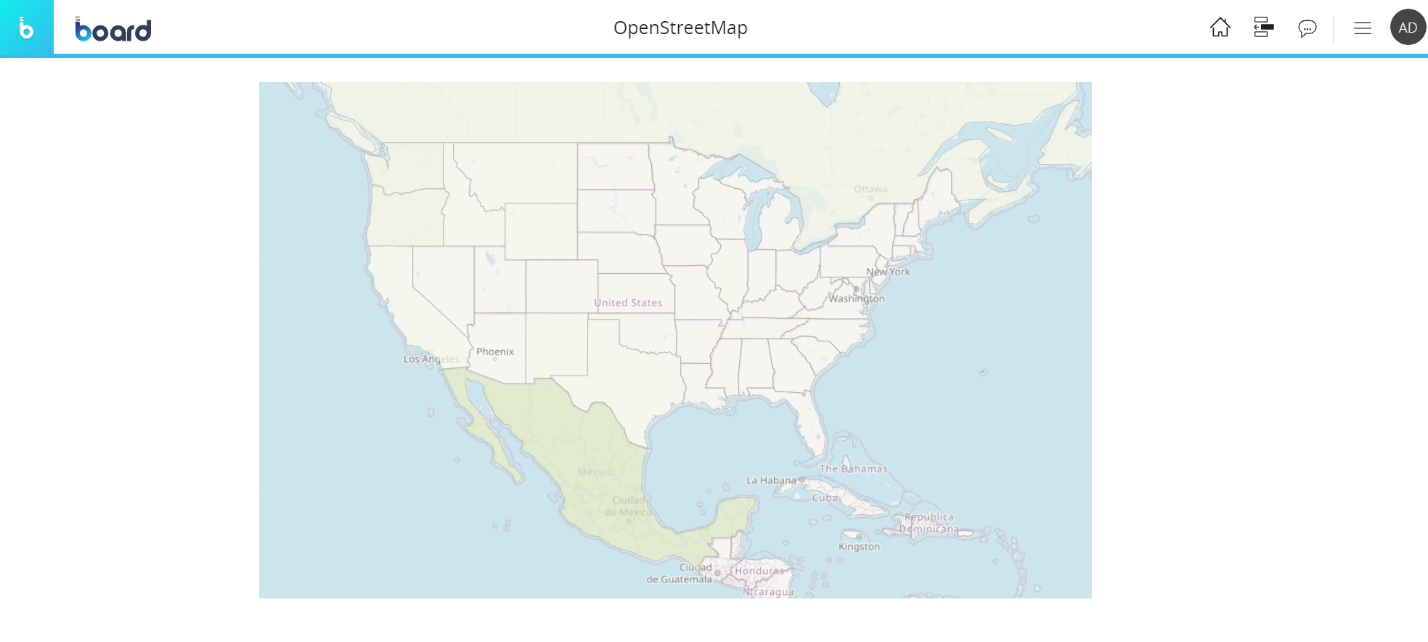
In the example above a JSON map has been associated with the zoom level 0 and another JSON map with zoom level 3: when users will zoom on the map, a JSON map layer will be displayed according to this configuration.
In the following pictures you can see the map behavior at zoom level 0 and at zoom level 3:
Default Drill Down
You can configure a default drill-down path saved in the map configuration that will deploy when end users select a Bubble and click on the Drill Down button in Play Mode.
Map areas don't support drill features.
To configure the default drill, proceed as follows:
Select a Bubble and click the Drill Anywhere icon
 .
.From the popup window, select the Entity to drill down on and click "APPLY". The configured drill is performed and data is displayed in a Data View.
Close the Drill Down window and save the Screen. The configured Drill is now the default, both in Design and Play Modes.
End users will still be able to configure other drill-down paths in Play Mode, if they're allowed to do so. See next paragraph for more details.
Screen selections and selections made by the user using Selector Objects (if any) also apply to data in drill-down windows.
Limit Drill Down Entities
You can limit drill-down paths that end users are allowed to configure by selecting the Entities the user can drill down on.
To do so, while in Design Mode, click on "CONFIGURE" in the top right corner of the Drill Anywhere window to enter the Drill Anywhere configuration window. From here, under the Entities tab, select/unselect the Entities you want to show/limit to the Planners. The selected Entities will be the only ones available to the Planners during the Drill Anywhere configuration in Play Mode.
Drill-to-Screen
To allow users to drill down from the map to another Screen within the same Capsule with a selection on the selected Bubble element:
Select a Bubble and click the Drill Anywhere icon
 .
.From the popup window, click on the "CONFIGURE" button in the top right corner of the window to enter the "Drill Anywhere configuration" window, and click on the "Screen" subpage. Enable the toggle next to the Screen subpage title and select all the Screens you would like to allow the Planners to drill to.
These Screens will be the only ones available when conducting a Drill-to-Screen from the Object in Design and Play Modes, however, in Design Mode, you can see any hidden Screens from the Drill Anywhere window when you enable the "Show hidden" toggle in the top right corner of the window (which also shows you the hidden drills.
Click "APPLY" to close the configuration window.
From the Drill Anywhere window, you can now further configure your Drill-to-Screen with the following options:
Select the "Same tab" checkbox to open the destination Screen in the same browser tab.
Select the "New tab" to open in a new tab.
The Drill to Screen mode, if enabled, will open the destination Screen with a selection on the row header (a member of the Entity set By Row) when the user double-clicks on it or selects it and clicks on the Drill Down icon
 .
.The Go to Screen mode, if enabled, will open the destination Screen when the user double-clicks on a row header (a member of the Entity set By Row) or selects it and clicks on the Drill Down icon
 . The destination Screen won't inherit any selection from the Data View.
The Dynamic Screen option allow to select a Block (an algorithm) to dynamically change the Screen navigation based on another Block values (a text cube containing Screen names).
Click "APPLY" to save the configuration.
This feature allows you to nest your analysis in a more powerful way than the standard drill down, which only changes the level of granularity of a report. In a Drill-to-Screen navigation the data represented (values, indexes) and types of Objects (Charts, Dashboards, Data Views) may vary as the user drills from a top level view to another Screen at a more detailed level.
Screen selections and selections made by the user using Selector Objects (if any) also apply to data in the target Screen.
Drill-Procedure
It is possible to trigger a Procedure from a map when the user selects a Bubble and clicks on the Drill Down icon. The Procedure is launched with a selection filter applied based on the clicked Bubble.
If a Drill-Procedure containing two or more procedures is configured, when the user double-clicks on a Bubble, a popup window allows the user to select the Procedure to run from a configured list.
To configure a Drill-Procedure, proceed as follows:
Select a Bubble and click the Drill Anywhere icon
 .
.From the popup window, click on "CONFIGURE" in the top right corner of the window to open the Drill Anywhere configuration window and select the Procedures tab.
Select the Procedures for the drill configuration. Choose whether the Procedure comes from the "Capsule" or the "Data Model" and then select the Procedure from the dropdown menu (as described below).
Capsule. If selected, the dropdown menu to the right allows you to choose from a list of Procedures saved at the Capsule level.
Data model. If selected, select a Data Model from the dropdown menu on the right. By doing so, only Procedures belonging to the chosen Data Model will display in the dropdown menu to the right.
After you've chosen the desired Procedure, click the "ADD" button on the right. Repeat the process for each Procedure that you want to add to the drill.
Enable Procedures with the corresponding toggle by the tab header to allow end users to configure a Drill-Procedure with the Procedures that you just added
If the Procedure toggle remains disabled, its configuration will not be available in Play Mode.
Click "APPLY" to save the Drill-Procedure configuration and return to the Drill Anywhere window.
Double click a Procedure or select one and click "APPLY" to set a default Drill-Procedure.
Screen selections and selections made by the user using Selector Objects (if any) also apply to data in drill-down windows.
Drill Through
It is possible to execute a Drill Through from a map when the user selects a Bubble and clicks on the Drill Down icon. The Drill Through is executed with a selection filter applied based on the clicked Bubble.
Drill Throughs are configured in the Drill Through section of the Data Model.
To configure a Drill Through on Bubbles, proceed as follows:
Select a Bubble and click the Drill Anywhere icon
 .
.Click on the Drill Through tab to view.
If the Drill Through feature is enabled from the "Drill Anywhere configuration" window, a "Drill Through" tab will be visible. If the Drill Through feature is enabled and you would like to configure a Drill Through on a row header that is not in the list that you configured as available to the Planners, you can do so by enabling the toggle "Show hidden" and selecting a hidden Drill Through. If the Drill Through feature is disabled, you can still apply a default Drill Through by enabling the "Show hidden" toggle in the top right corner of the window and selecting a Drill Through.
Double-click the Drill Through or select one and click "APPLY" to save the Drill Through default configuration.
You can also double-click on the Drill Through which will save the configuration and close the window (and you can skip the 4th step).
To configure which Drill Throughs the Planners can use and see in Play mode:
Depending on the chart type, select a data point (a bubble, a bar, a rectangle, etc.) and click the Drill Anywhere icon
 , or you can double click on a data point if a default Drill has not already been configured.
From the popup window, click on the "CONFIGURE" button to open the "Drill Anywhere configuration" window.
Select the "Drill Through" tab. Enable the toggle next to it and add the desired Drill Throughs you'd like to be available to the Planners below. If the toggle is not enabled, the Drill Through drill down will not be available within the Drill Anywhere window (when accessed by the Object toolbar) for either Developers or Planners.
Click "APPLY" to save and return back to the Drill Anywhere window where you can now configure a default Drill Through.
Click "APPLY" to save the Drill Through configuration.
Screen selections and selections made by the user using Selector Objects (if any) also apply to data in drill-down windows.