The "Refer to" option available in Block allow users to aggregate a Data Block with more detail based on an Entity member. This functionality gives users more customization to display data precisely regardless of a Screen Selection.
Under the "Refer to" subpage of Block settings, it is possible to apply the "Refer to" function to a Data Block with a Cube in order to alter its aggregation or detail level.
The "Refer to" function refers the Data Block to a specific Entity member, overriding the Screen Selection (Select) and the axes settings.
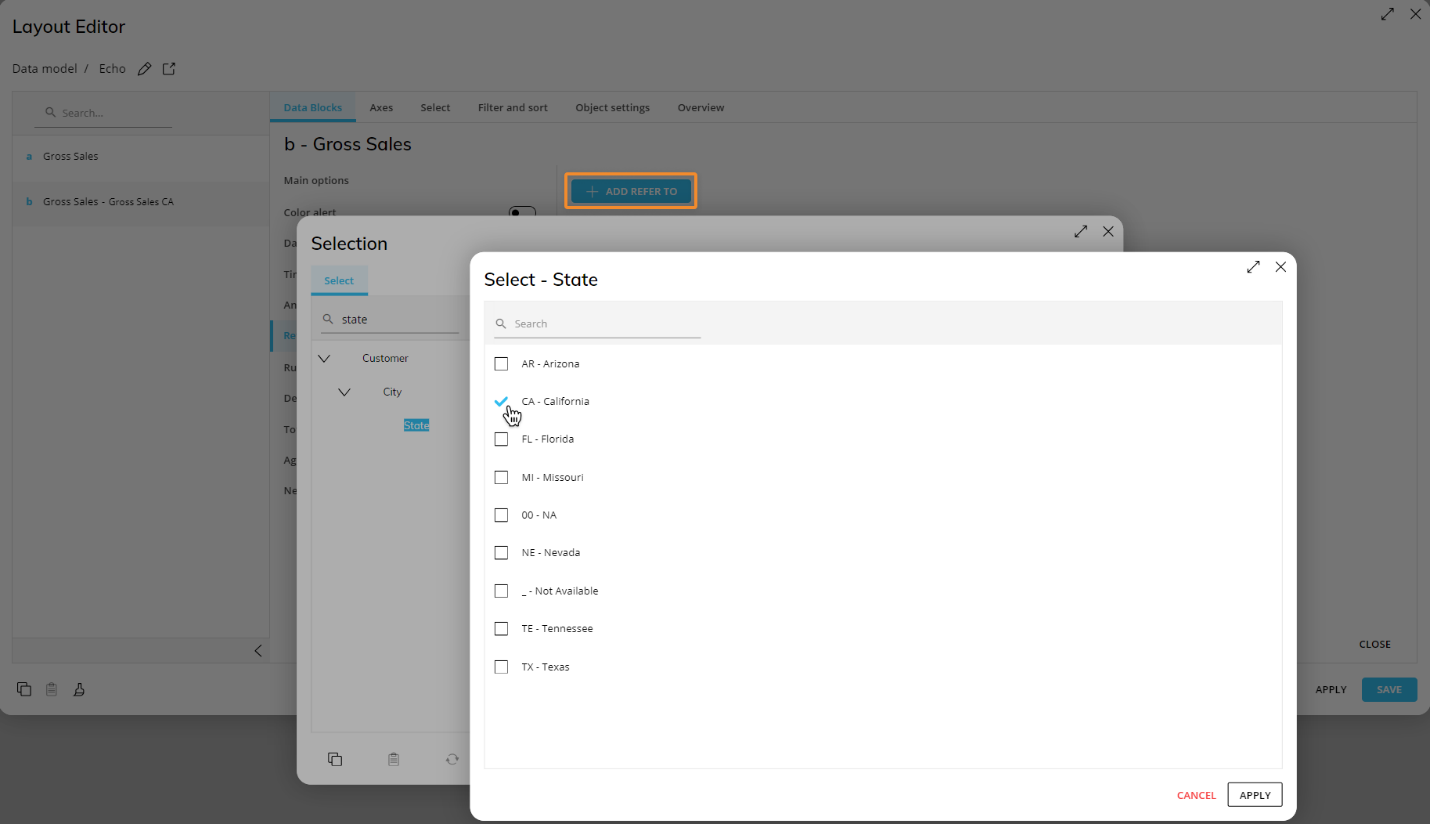
To do so, click on the "ADD REFER TO" button, select an Entity from the popup window, and then select the desired Entity member.
If the "Refer to" function is enabled, any existing security selection applied on the Entity chosen in the "Refer to" function configuration will be ignored.
Example
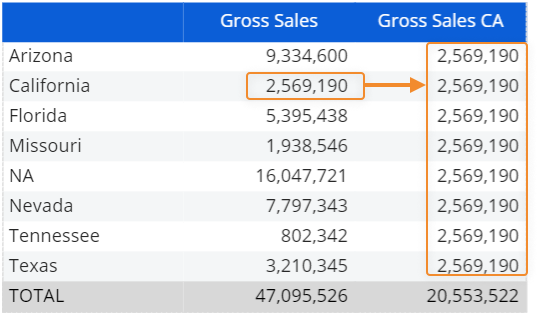
If you set a "Refer to" condition on the "California" member of the State Entity, the function will return data for that state regardless of rows, columns, and selection settings as shown below:
Below is the configuration in the Layout Editor:
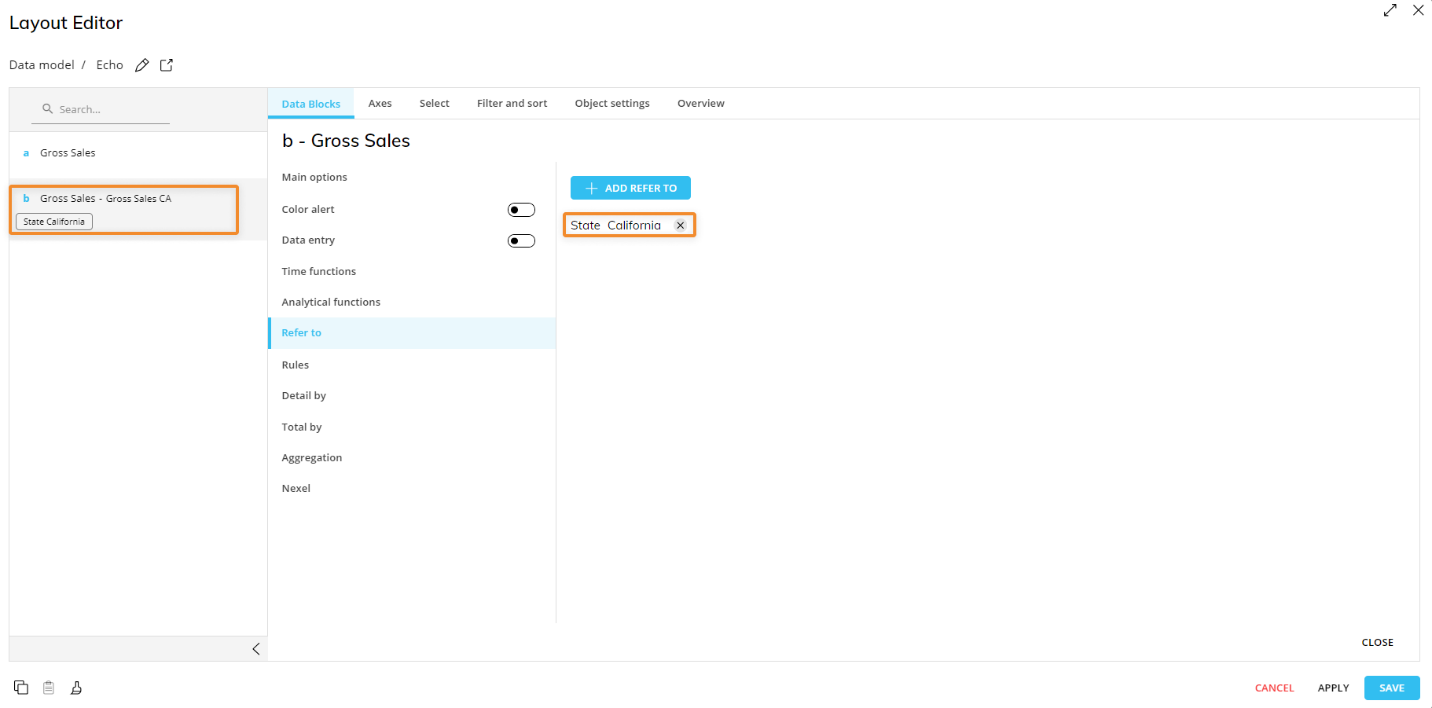
And, how it appears once the "Refer to" has been applied:
More information about “Refer to”
There are no limitations on the number of "Refer to" conditions you can configure on a Data Block, as long as they don't limit each other.
For example, if you set a "Refer to" condition on the "Italy" member of the Country Entity and then you set another condition on the "San Francisco" member of the City Entity, you will have empty cells as a result.
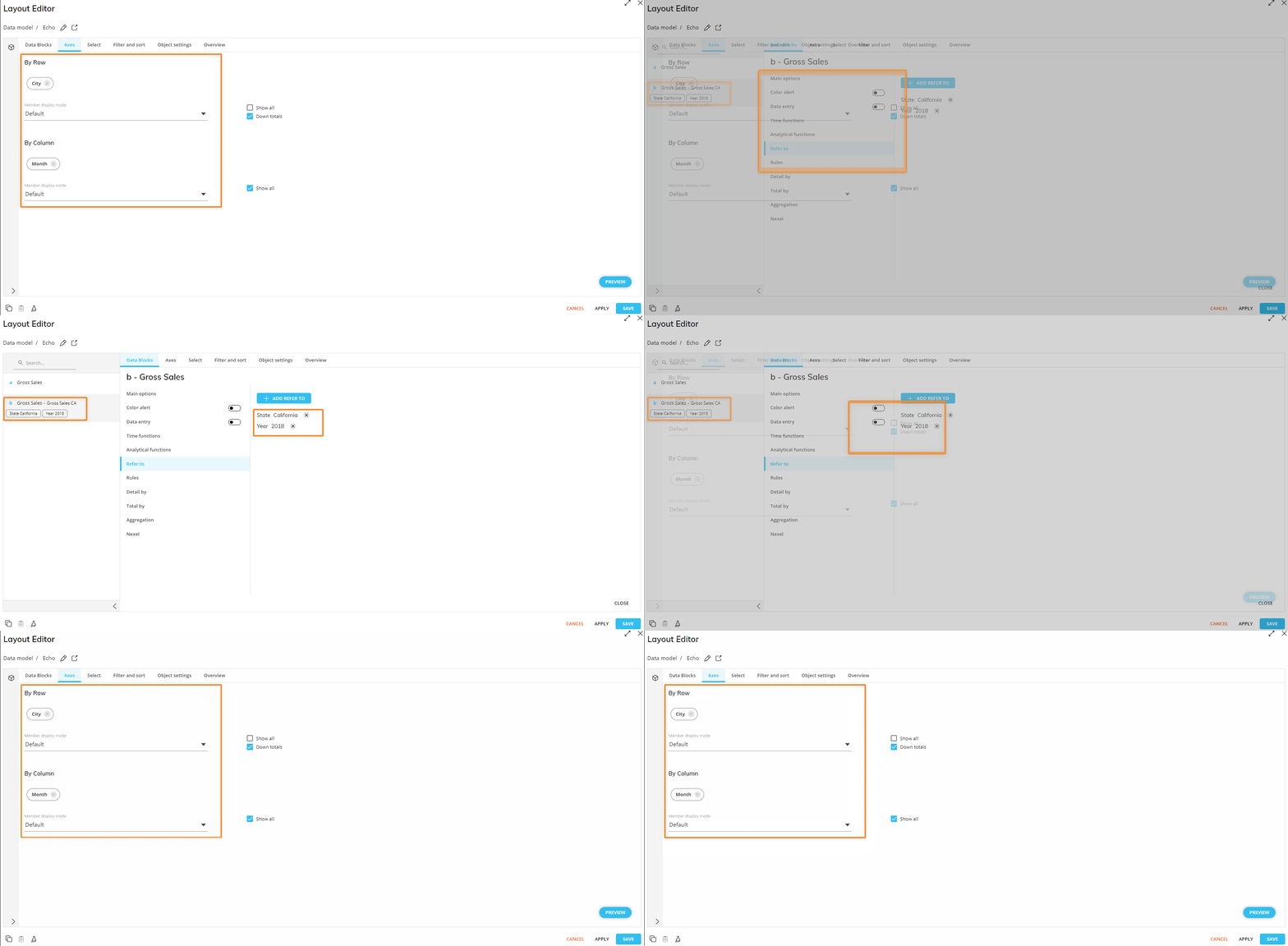
The "Refer to" function can also be used to obtain totals: if you configure a "Refer to" condition on an Entity that is more aggregate than the Entities set By Row or By Column, the function returns the referred occurrence value.
For example, if you set a "Refer to" condition on the Year and State Entity in a Layout where the Month and City Entities are set by column and row respectively, the function will return the total value for the referred year and state in all cells.
Example:
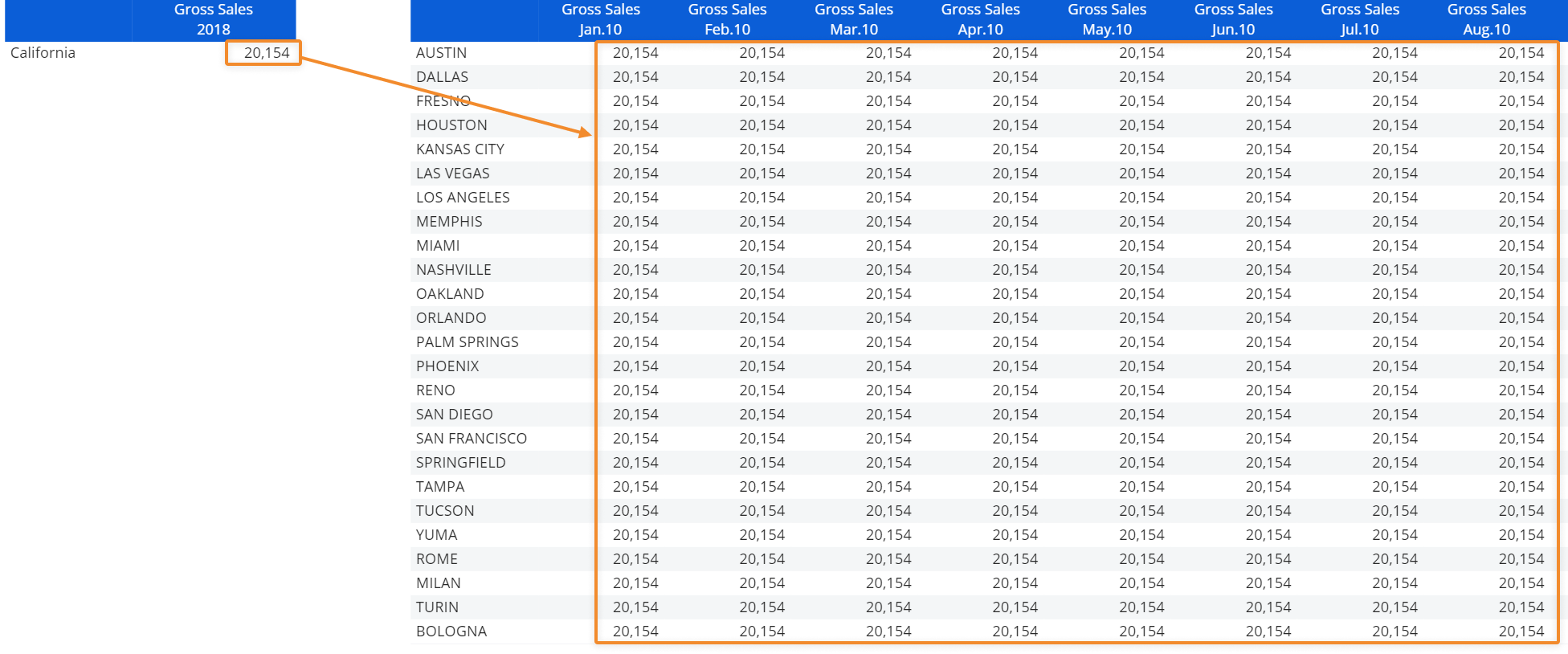
Here's the configuration in the Layout Editor: