Sorting allows users to control the display order of data in a Table.
Sorting changes only how data displays. It does not change queries or calculations unless a data refresh is triggered.
Sorting behavior depends on the Table type:
Dataset-based Table. Sorting reorders the specific fields displayed within the Table. This action only affects the current view.
Layout-based Table. Sorting follows the Layout definition.
This article covers sorting capabilities only. Filtering behavior is documented separately.
How to sort a Table
To sort a Table:
Click on the Table icon on the Task pane and click on Filter & Sort.
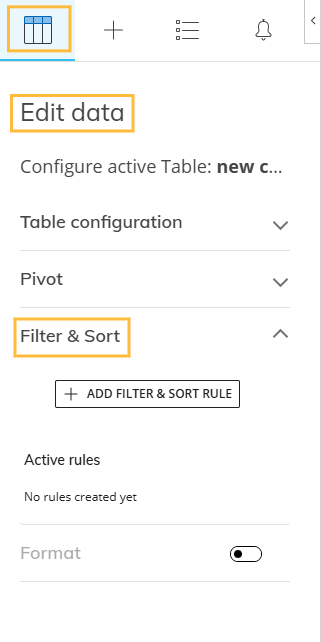
After choosing the feature, the Add Filter & Sort Rule button appears. Click it to add a new filter or sort rule.
Each rule always includes both filtering and sorting options.
A New Filter & Sort rule drop-down menu appears. In this menu, choose a field in Choose Field.
Users can sort any field type (Entity, Text, Numeric, Date).
Sorting is available only for fields placed on rows.
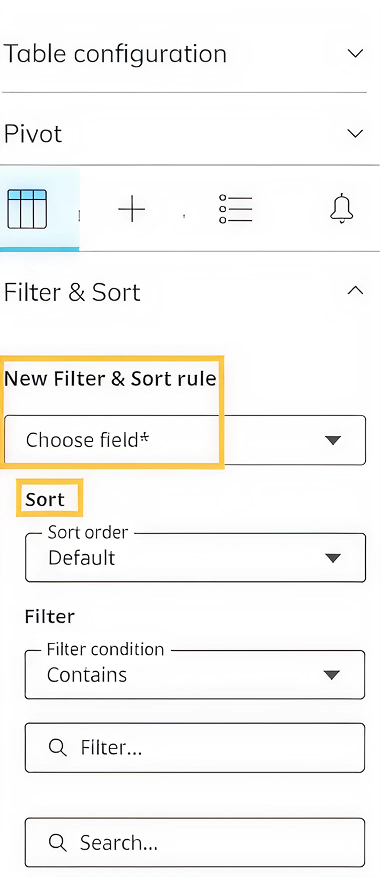
From Sort order, choose one of the following options:
.png)
Choose a condition.
The available conditions depend on the data type of the selected field: text or numeric.
For text fields, the following conditions are available:
Contains
Does Not Contain
Equals
Not Equal to
Starts With
Ends With
For numeric fields, the following conditions are available:
Equals
Not Equal to
Greater Than
Greater Than or Equal to
Less Than
Less Than or Equal to
Between
After creating the filter, members update automatically. Select the members you want to include from the list or click on Select All.
Click ADD to add the rule or DISCARD to cancel and return to the Table.
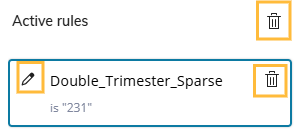
Active sorting rules are displayed in the side panel and indicated directly on the pivot menu of the Add-in, allowing users to identify which fields are sorted.
Users can edit or delete individual sorting rules directly from the side panel, remove a specific rule, or clear all sorting rules in a single action. Use the pencil icon to edit a rule and the trash icon next to each rule to delete it. The trash icon displayed on the right of Active rules clears all sorting rules at once.
If a field is removed from rows, any associated sorting rule remains applied. If a field is removed entirely from the Dataset or Layout, the corresponding sorting rule is automatically removed.
Adding fields to the Pivot Columns area removes any filters and sorting currently applied to the Value fields.
Excel-native sorting
After a Table is rendered in Excel, users can use Excel-native sorting on the worksheet.
Excel-native sorting:
Operates only on visible data
Does not modify the Dataset or Layout definition
Does not affect Board selections or Data Filters.
Excel-native sorting is handled entirely by Excel and is not saved as part of the Table definition or Board analytical configuration. When refreshing the Table, Excel-native sorting is removed and must be applied again.