Board's Presentations provide a solution to close the gap between corporate data governance and individual analysis needs. Board's powerful Presentation environment enables business users to easily create customized versions of enterprise reports (Screens from Capsules) and to save them as Presentations in their personal workspace.
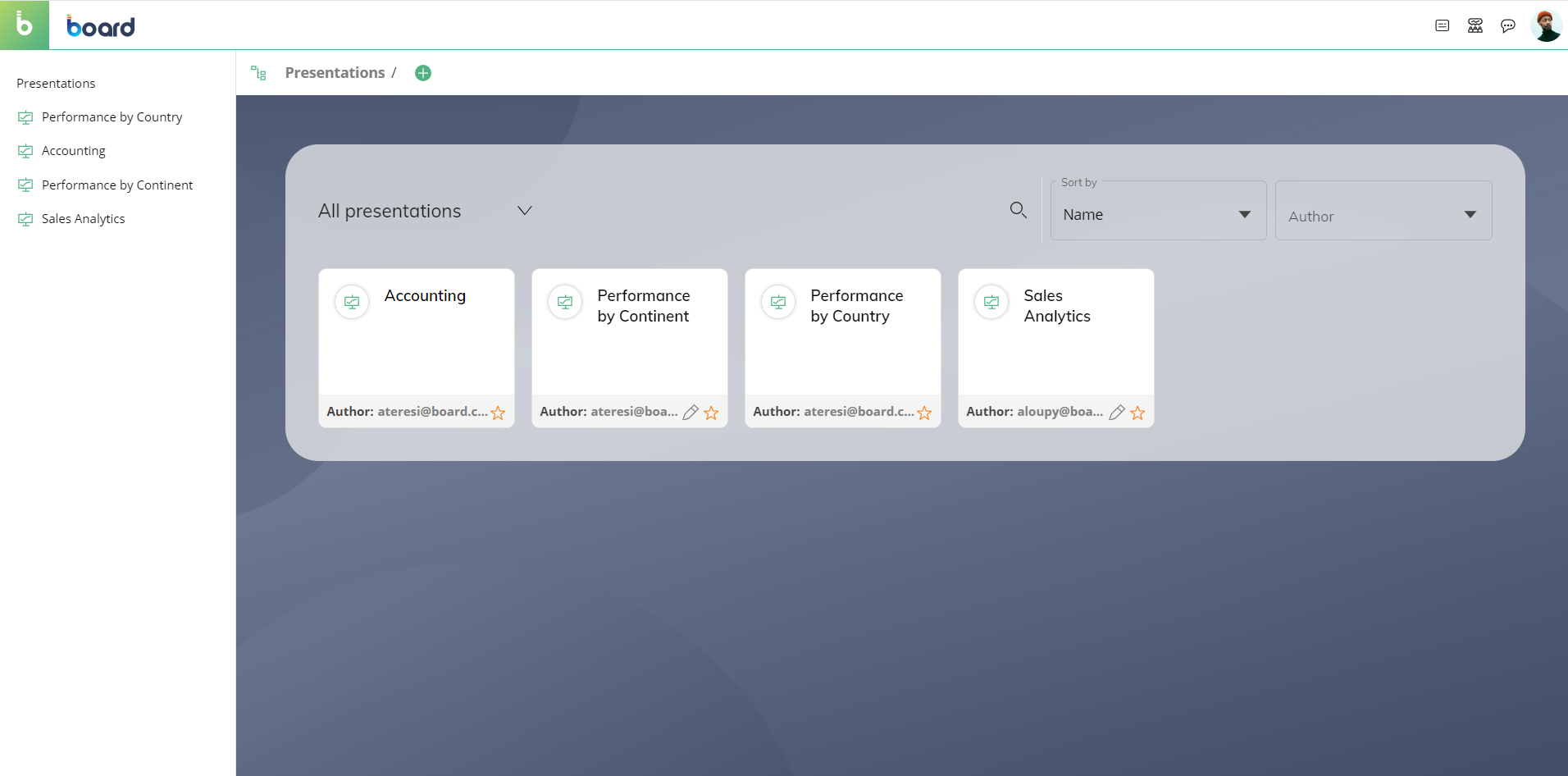
Presentations are initially associated with the user who created them (the owner). Board's in-context Collaboration services and sharing capabilities make it possible to immediately share the new insights with a single person or a work group: recipients can also be given editing permissions to collaborate on the same reports together from a shared Presentation.
All Board users can use Presentations and create their own reports based on the Capsules that they have access to, regardless of their licenses.
A Presentation lends itself to a wide range of purposes, just like a Capsule. The key difference is that a Presentation is personal and, unless shared, it is only accessible by the user who created it. If, for any reason, a user account is deleted, all Presentations created by that user are deleted at the same time.
Use case examples of Presentations are:
Save the Screens of a Capsule that you visit most often in a personal private area.
Share specific data from a Capsule and discuss it with another team member.
Save the progress made on a custom analysis (started on a Screen) so that you can come back later to finish it.
Create a printout copy of a Capsule with the ability to define the Screens and data that are to be included.
Slides
A Presentation is simply a collection of Slides, each of which can be either a Capsule Screen or a Section header.
.png)
A Section header is a standalone title page that introduces what the user is about to see and sets the pace for the ensuing Presentation.
When a Screen is added to a Slide, a link is created between the Slide and the original Screen: the Screen is then displayed on the Slide with any custom settings applied (Layouts, selections, drills, and filters as are defined within the Capsule environment in Play Mode).
The user can interact with Objects in the Slide exactly like with the linked Screen in Play Mode. See About Objects and the various Objects sections in this manual for more details.
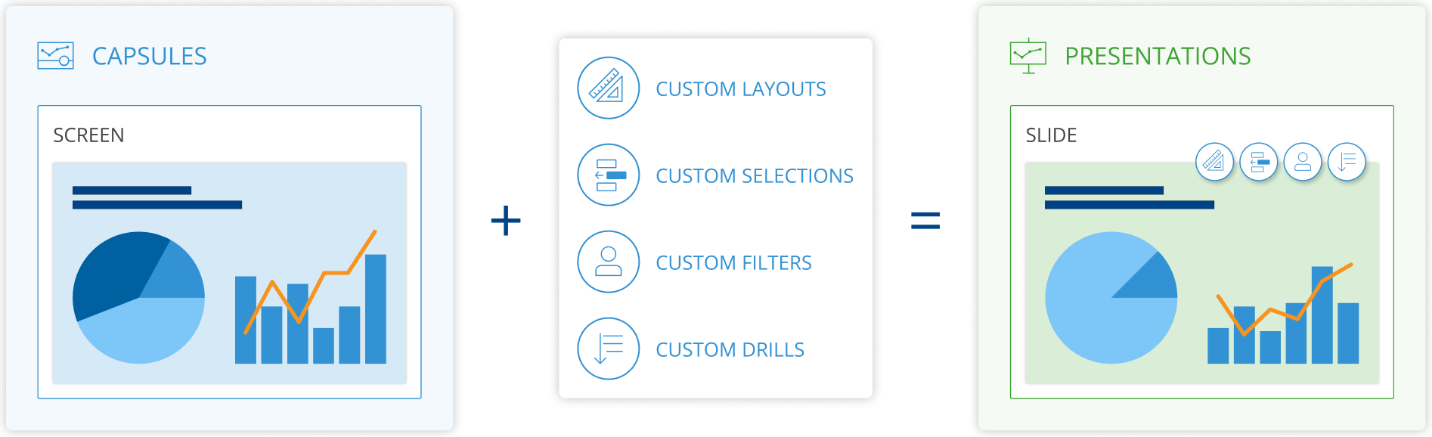
When making changes to Layouts, selections, drills, and filters of a Screen, and adding them to a Presentation, the resulting Slide saves those changes and shows the linked Screen with those changes applied.
If the user does not make any changes to Layouts, selections, drills, and filters of a Screen, and saves this configuration to a Presentation, the resulting Slide reflects the linked Screen and continues to do so as long as the user does not apply any changes to Layouts, selections, drills, and filters from within the Presentation environment in Edit Mode.
Once the user adds a Screen to a Presentation, they can make changes to Layouts, selections, drills, and filters (Pagers) of that Screen in the Presentation environment by opening the corresponding Slide in Edit Mode. These changes are automatically saved when switching to Play Mode in the Presentation environment, but they do not affect the linked Screen in the Capsule environment.
If a new Object is added to a Screen in the Capsule environment and that Screen is linked to one or more Slides, that new Object always appears in both the Capsule and the Slides. If the user adds a Screen to a Presentation from within the Presentation environment, the resulting Slide shows the linked Screen in its default view (i.e. as when opening the Screen in the Capsule environment).
The user’s personal Security Profile is always applied to Presentations and that applies to every other Board user, which means that different users might see different data on the same Presentation based on their Security Profiles.
Should the Screen (or the Capsule of said Screen) that was added to a Presentation be deleted or moved to another Capsule or folder, or if the Capsule is renamed (but not the Screen), the Slide is no longer linked to the Screen and no data displays. To fix this, the user needs to add the Screen (or a copy) from its new location back into the Presentation again.
Screen Objects in a Slide offer the same interactive features as are available when navigating a Capsule in Play Mode. They likewise display data based on the same Data Model that was associated with them in the source Screen: any changes made to that data, for example through Data Entry actions, are immediately reflected in Presentations and vice-versa.
Just as with Capsules, Presentations do not actually store data themselves: they only display the linked Screen and its Objects with any custom settings applied (custom Layout definitions, selections, drills, and filters). Whenever a Slide is opened, the data is freshly retrieved from the Data Models that have been associated with the linked Screen.