The Layout Object defines a query on an existing multidimensional Data Model. It specifies which data (Cubes, Entities, and calculated fields) to retrieve from an existing Board Data model, and how to calculate the analytical information from them (the aggregation and summary levels).
A Layout can be associated with a data visualization Object, such as a Data View, Flex Grid, Chart, Gauge, and others, or it can be used in a step in a Procedure.
When using the Layout for a data visualization Object, you are able to simultaneously define a dataset and where to view it in the associated Object.
When a Layout is executed, the retrieved dataset is dynamically filtered by multiple layers of filters:
the user security profile selection,
the Screen Select,
the Pagers and Selectors selections,
and the Layout Select.
First, the selection filters are applied, then the query is executed, and the data is retrieved from the Data Model.
Read about the Select application sequence for more details.
Layout refresh
Whenever a Screen is opened, either in Design Mode or Play Mode, all of the Layouts associated with the Objects on the Screen are refreshed. This also happens when a Data Entry action is performed and the "Refresh on Data entry" option is enabled under Screen Properties. If that option is disabled, only the Layout associated with the Object affected by the Data Entry action is executed.
The "Refresh Screen" Procedure step and the "Refresh" button in the Top Menu also refresh all of the Layouts.
Layout Editor
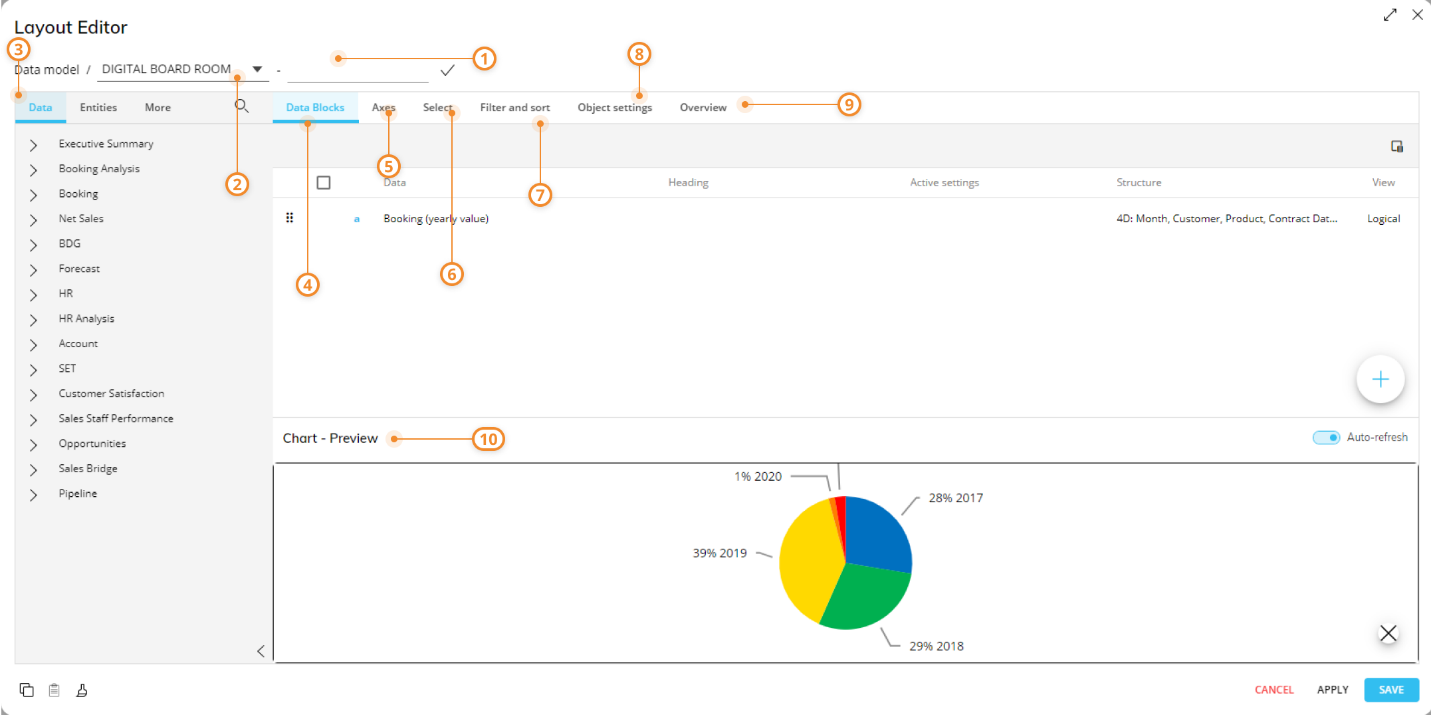
Depending on the Object the Layout is associated with, the Layout editor may have slightly different features and configurations available. These differences are highlighted in the documentation of each Object.
Here's a breakdown of the main elements of the Layout Editor interface:
1. Layout title
It's good practice to give your Layout a title, as this information is used in Substitution formulas and is shown in certain Objects.
2. Data model
Shows the Data model on which the Layout is executed. In case the "Multiple Data Models" mode is enabled in the Screen Properties, a dropdown menu will allow you to select a Data Model from those that exist in the Platform.
3. Data panel
The grey panel on the left contains all elements that can be used to define the Layout query. A tabbed menu on the top of the panel gives you access to the following sub-pages, showing:
Data. A list of available Cubes from the selected Data Model.
Entities: A list of available Entities from the selected Data Model.
More: A list of rules from the selected Data Model, ranking functions, and an Algorithm placeholder.
You can configure the Layout query by dragging and dropping elements from the Data panel into the Data area, the Axes area, or the Object preview pane (if enabled). Dragging and dropping the Algorithm placeholder allows you to create a Data Block calculated with a formula based on other Data Blocks of the Layout.
4. The Data area
Define the Data Blocks (or columns) of the Layout. It accepts Cubes, Algorithms, Rules, Ranking function, Entities, and Relationships.
5. The Axes area
Define the aggregation level of the Layout query and set the Entities that will be displayed in Rows, Columns, Categories, and/or Series, depending on the Object. You can also configure additional Axes-related properties.
6. The Select area
Define selections to apply only to the Layout that you are currently configuring.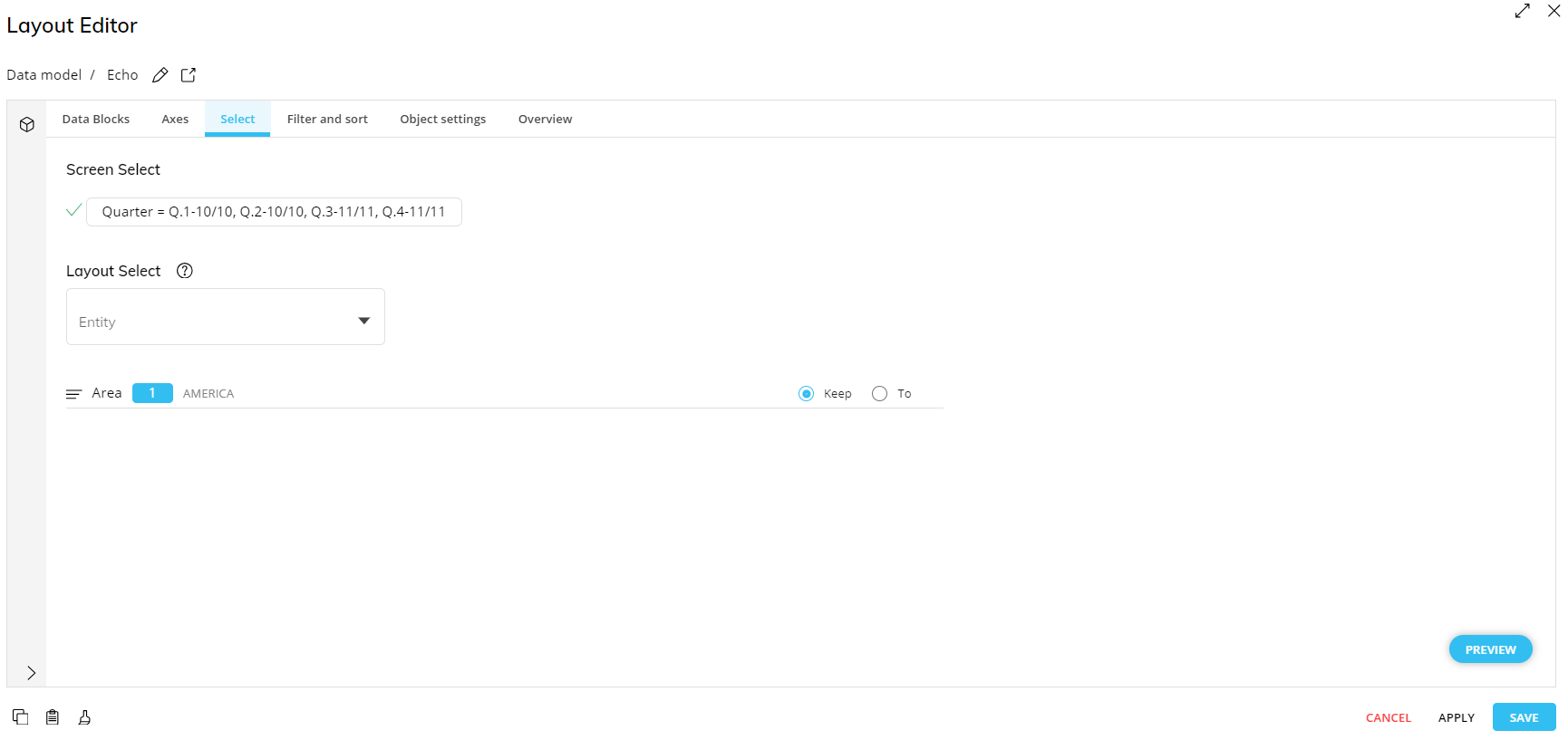
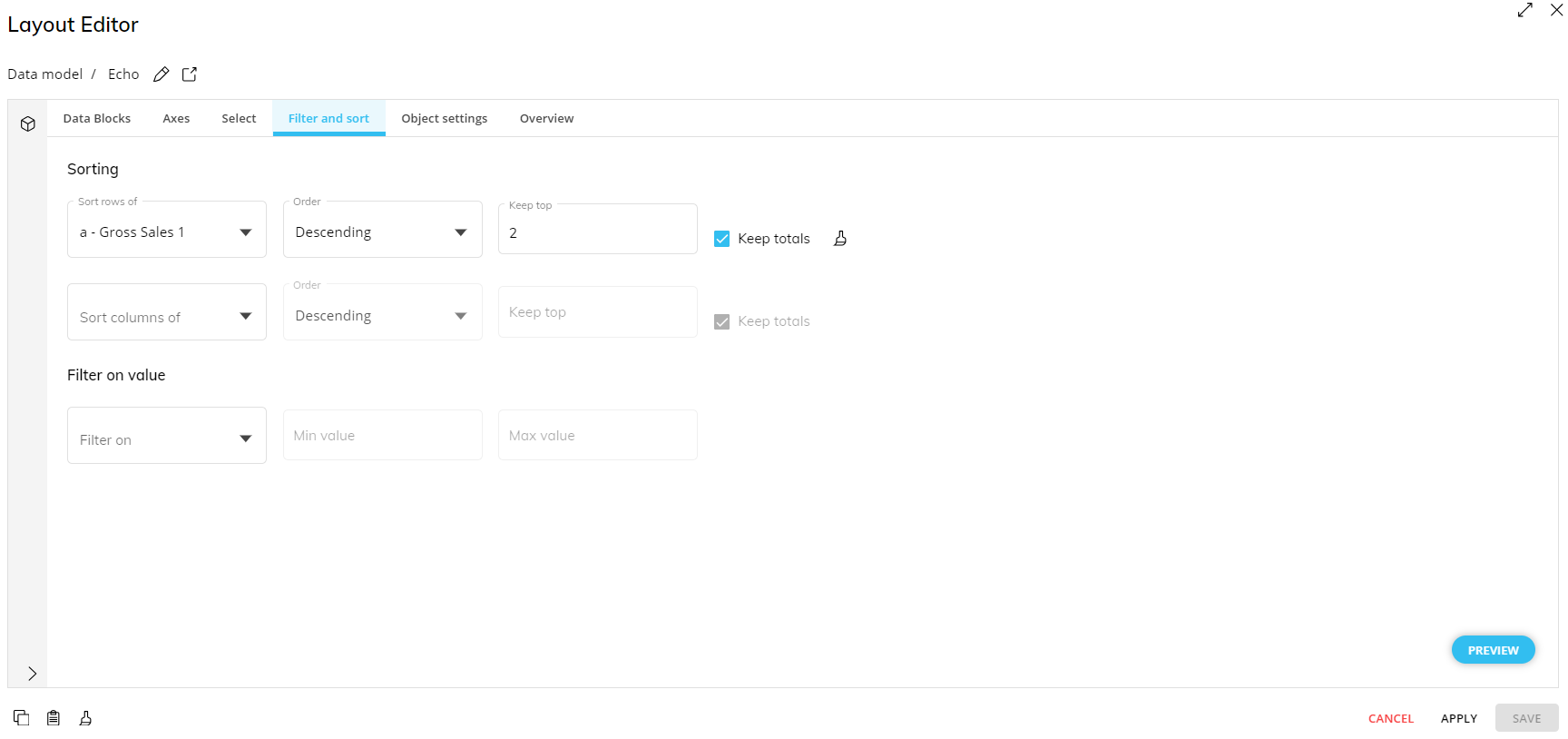
7. The Filter and sort area
Add additional sorting and filtering settings based on Data Block values.
The Flex Grid only has a Filter area. Read more about the Flex Grid Filters area.
8. The Object settings area
From the Object settings area, you can configure additional Object Layout properties for each Screen Object. Object settings differ for each Object.
The common Object settings found in Objects that require a Layout (except for the Tree Object) are the following:
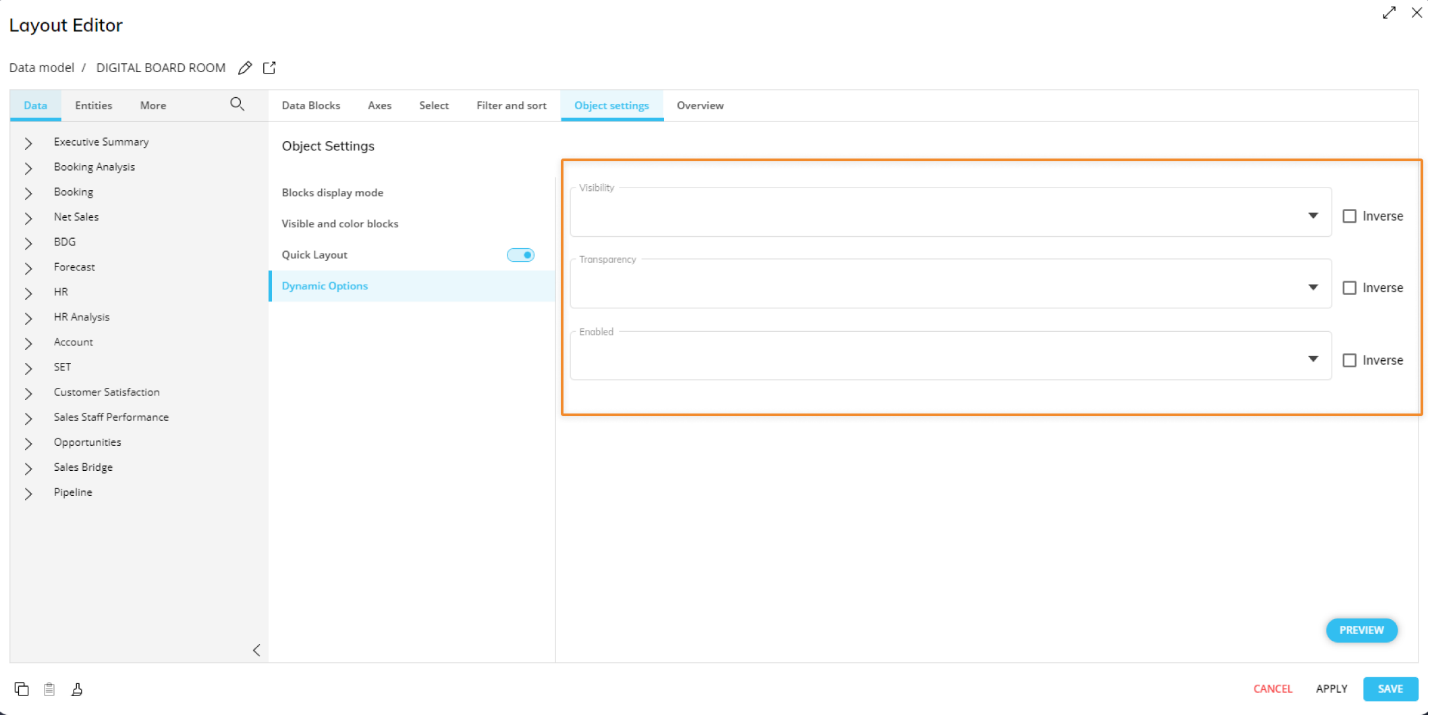
Dynamic Options. Dynamically define several format and interaction options which are always found in the Layout editor for every Object:
Visibility. If the Block value is zero (0), the Object disappears.
Transparency. Any number between 0 and 100 determines the transparency rate of the Object. A lower value creates a higher transparency.
Enabled. If the Block value is zero (0), the Object won't execute an action.
These behaviors can be inverted by checking the Inverse option. These behaviors can be combined. For those options to work properly, be sure to deselect the "Hide zeroes" property for the Data Block in the Block settings panel.
The Quick Layout is a feature found under Object settings only for Data Views, Flex Grids, and Chart Objects. You can define the capabilities and/or restrictions of the Layout configurations for the end user in Play Mode. See the Quick Layout to learn more.
9. The Overview area
See all of your configurations listed out on one page and if any issues are present in the Layout configuration.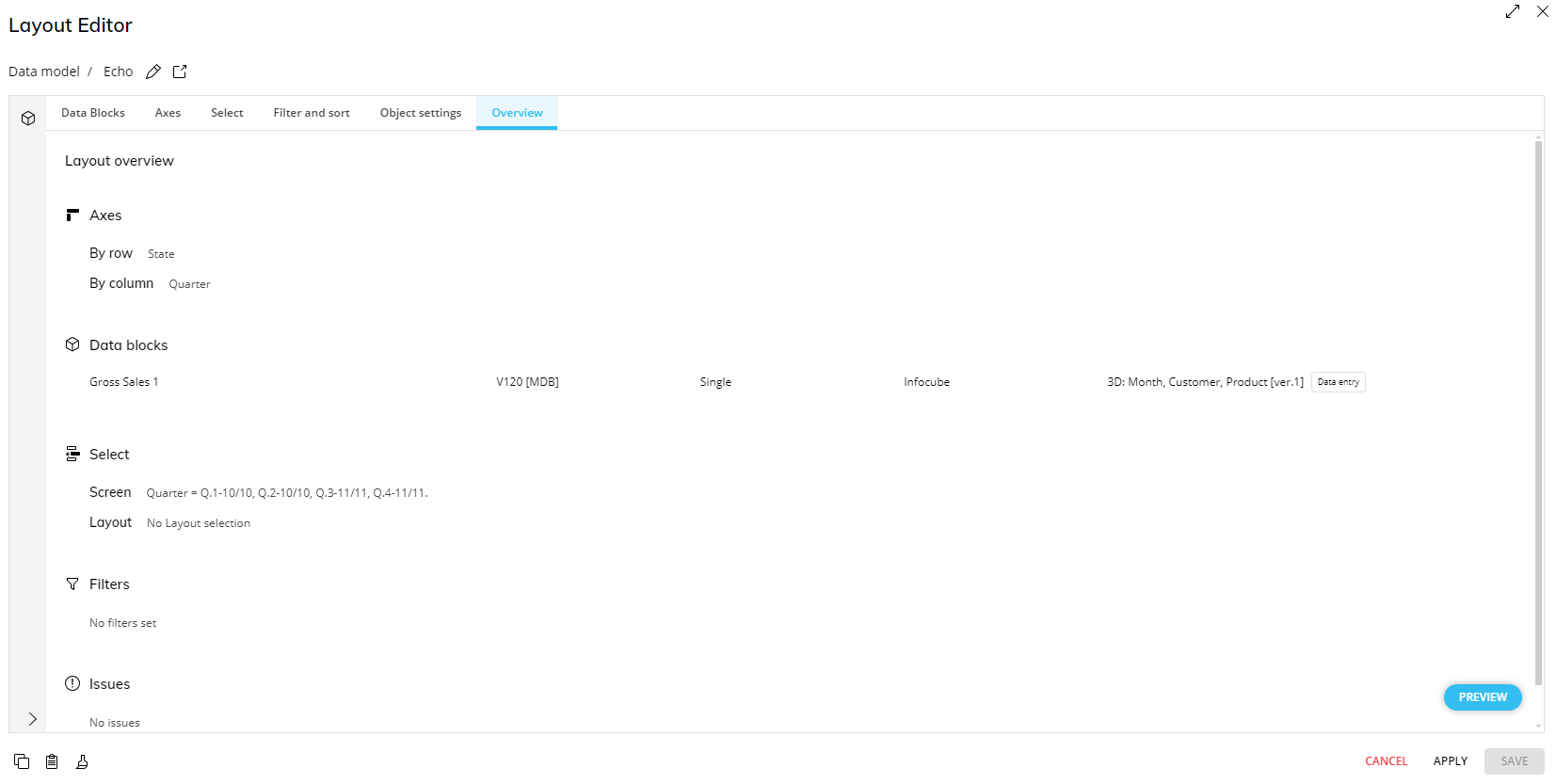
10. The Object preview pane
Shows a preview of the Screen Object defined by the Layout. The preview will update every time the Layout configuration is changed. Click on "Preview" to open the Preview pane and the “X” in the bottom right corner of the Preview pane to close it. 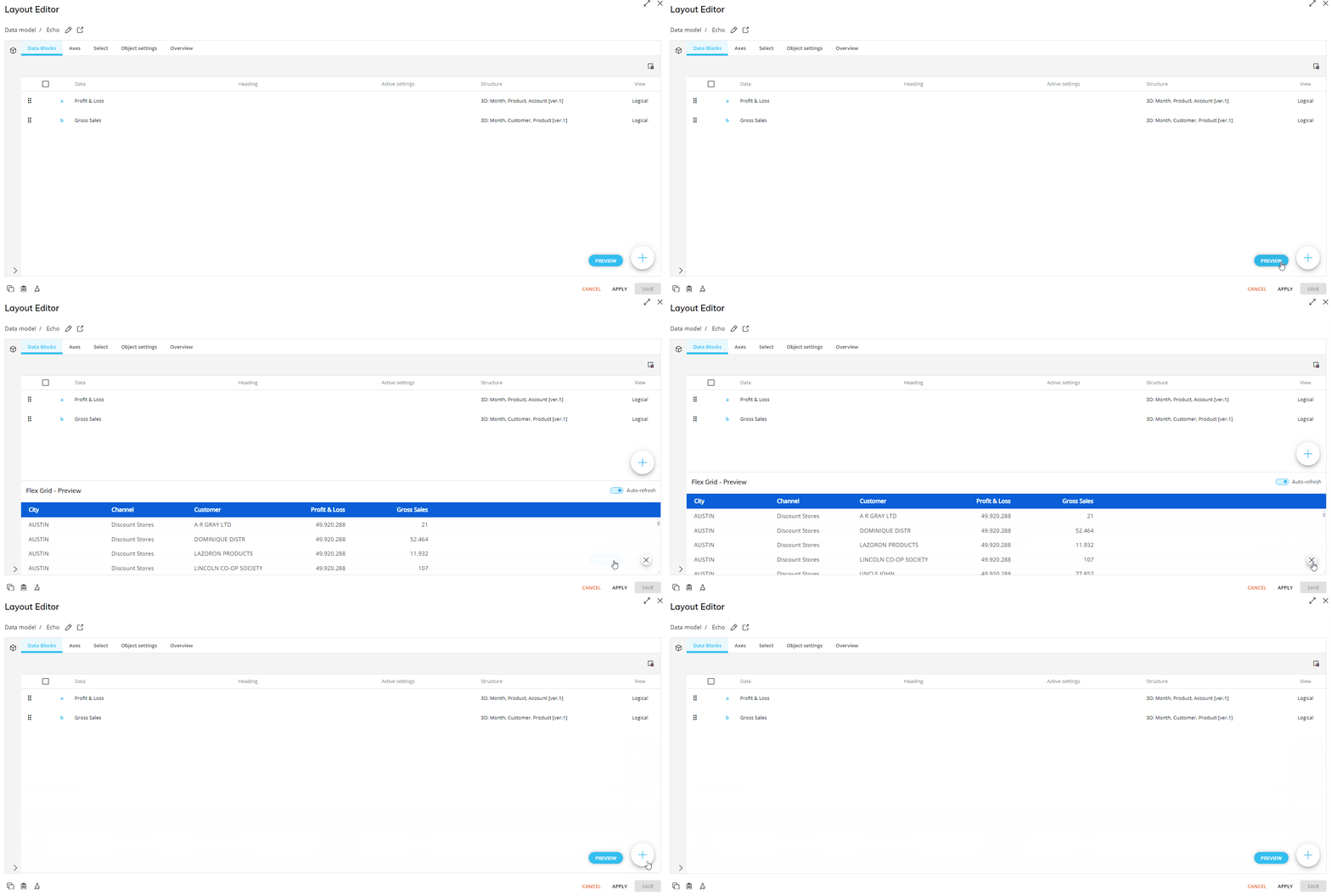
The "Auto-refresh" toggle on the right lets you turn on and off the automatic update of the Object preview. If activated, this option will refresh the Layout with each change made to the dataset.
If you are working with very large data sets, it is advisable to turn off the automatic refresh of the Object preview by disabling the "Auto-refresh" toggle in order to avoid slow performance as you configure the Layout.
11. Issues area
The issues area only presents itself when an issue in the Layout arises. When the Layout is configured incorrectly, the Issues tab will appear at the top and the "SOLVE ISSUES" button will appear at the bottom right corner of the Layout, replacing the SAVE button. Click on it to open the Issues tab to view further information in order to fix and save the Layout.
Other interactive elements of the Layout Editor
The icons in the top left corner of the Layout Editor allow you to:
Edit
 . Edit the Layout Editor name. This will display alongside the Data Model after the hyphen (-).
Open Data Model
 . Open the Data Model page to configure selected Data Model or create a new one.
Search function
 . Located in the menu of the Data area in the table below, click on the magnifying glass icon to search the Data panel.
The icon in the top right corner of the Layout editor allow you to:
View. You can click on the double-sided arrow
 in the right corner to enlarge the window to full-screen, and back to the smaller window size by clicking the two arrows facing one another
  in the same location.
The icon in the bottom right corner of the Layout editor allow you to:
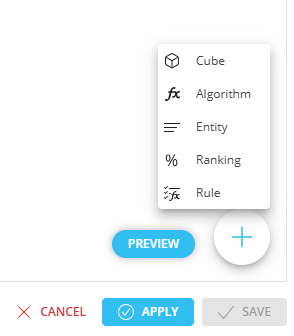
Preview. Select this button to view a preview of the Object defined by your Layout.
Add
 . Click to open a menu and add a Cube, Algorithm, Entity, Ranking function, or Rule to the Data area.
CANCEL. Cancel any changes.
APPLY. Apply changes without refreshing the Screen. This option will be available when you create at least one data block or edit an existing Layout.
SAVE. Clicking "SAVE" will apply changes, save changes, close out the Layout Editor, and refresh the Screen automatically to reflect any changes.
The icons in the bottom left corner of the Layout editor allow you to:
Copy Layout
 . Copy the configuration of the Layout.
Paste Layout
 . Paste the configuration of the Layout.
Clear Layout
 . Clear the Layout configuration to start again.
Copying a Layout
When copying a Layout from one Screen Object to another of a different type (for example, from a Flex Grid to a Data View or vice versa), the basic Layout structure, including the Data Blocks, Entities, and Axes configuration, is correctly applied.
Data Block settings
Data Block settings differ across Objects and therefore differ when pasting the copied Layout to a differing type target Object.
The following Block settings are copied and unchanged:
Color alerts
Time functions
Analytical functions
Refer to
Rules
Total by
Filters
Not all filters of the Layout are copied when the source and target Objects are a different type.
From a Data View to a Flex Grid only the following filters are kept:
>=
<=
Only numerical Blocks and Blocks without By Column support filters in a Flex Grid Layout. Should one of these limitations exist when copying over, the filter will be ignored.
Sorting is always ignored between different Objects.
Object Settings
The Object Settings section of the Layout Editor is not copied when the source and target Objects are a different type. These settings must be manually reconfigured in the target Object after pasting the Layout.
These settings include, for example, display settings defined for Data Blocks such as Color alerts or Button Objects, and drill configurations such as Drill-to-Screen and Drill-Procedure.
Because the Object Settings section is not copied, the pasted Layout may appear structurally identical but will not automatically retain these display or drill behaviors. It is therefore recommended to review and restore the desired configurations in the Object Settings section after performing the copy/paste operation.
Data Entry
When Data Entry is activated and configured in a Layout of the source Objects and the target Object is a different type, the following rules apply:
Pattern-based allocation is removed
Total locked by Block is removed
Cube cells locked by is removed
Formatting
All common formatting in Row Templates and the Design Object Properties is copied, like fonts, font size, borders, and colors. Others specific to an Object are removed.
Block Format is not copied.
Read about Data View/Flex Grid-specific copy/paste Layout limitations and changes.