My View is now called My Views because now end users can save up to 5 personal Screen configurations. In previous versions, users could only save 1 My View for each Screen.
With this update, end users can switch between different saved configurations quicker. This helps reduce setup time when more than one configuration is needed for analysis, review, or daily work.
Planners benefit from My View improvements in the following ways:
Compare different sets of data on the same Screen without setting up each configuration again.
Save different personal views for the Screens you use most often.
Keep one view for daily work and other views for specific review or analysis tasks.
Move between different Screen configurations based on your role, task, or reporting need.
Read more about My View enhancements:
About the original My View
My View is an existing feature in the sliding menu that saves a Screen’s current configuration to restore the Screen to that configuration at any time. The view includes Layout configurations, Pager definitions, Freeze Panes settings, Numbers scaling status, Column visibility, Grand total row set to top configurations, Flex Grid filters, Docked Charts for Flex Grid, and most customizations made to the Screen, except for Selections. To save Selections, use the Select Bookmark feature.
About My Views
My Views replaces My View with the following improvements.
What’s improved?
My Views is now found in the Top Menu for quicker access
A dedicated My Views window where you can manage all your saved views:
Add a description to your view to keep track of each saved configuration
Descriptions help you identify the configuration saved in each view.
You can save the same configuration twice if each view has a different name. Use detailed descriptions to avoid saving duplicate configurations.
Set a default My View. You can label one view as default for quick visibility on your default or most used view.
Manage My Views (edit, update, and delete) in a dedicated window
Rearrange My Views in any order
Restore the original Screen quickly
Saved views are personal to each user’s account and cannot be shared.
Limitations for My View and My Views
Selections are not saved. Use Selection Bookmarks to save selections.
Drill downs are not saved. Drill anywhere configurations and changes in a Drill down Layout are not saved in a My View.
Only Drill downs that have already been configured in the original Screen continue to work as expected when a My View is applied.
Read more about Capsules in Play Mode.
How to create multiple My Views
Easily organize your workspace by setting up multiple My Views. My Views let you save up to 5 different Screen configurations so you can switch between multiple views instantly.
Create the first view
To create your first My View, follow these steps:
Click the My View icon at the top of your screen to open the My View menu.
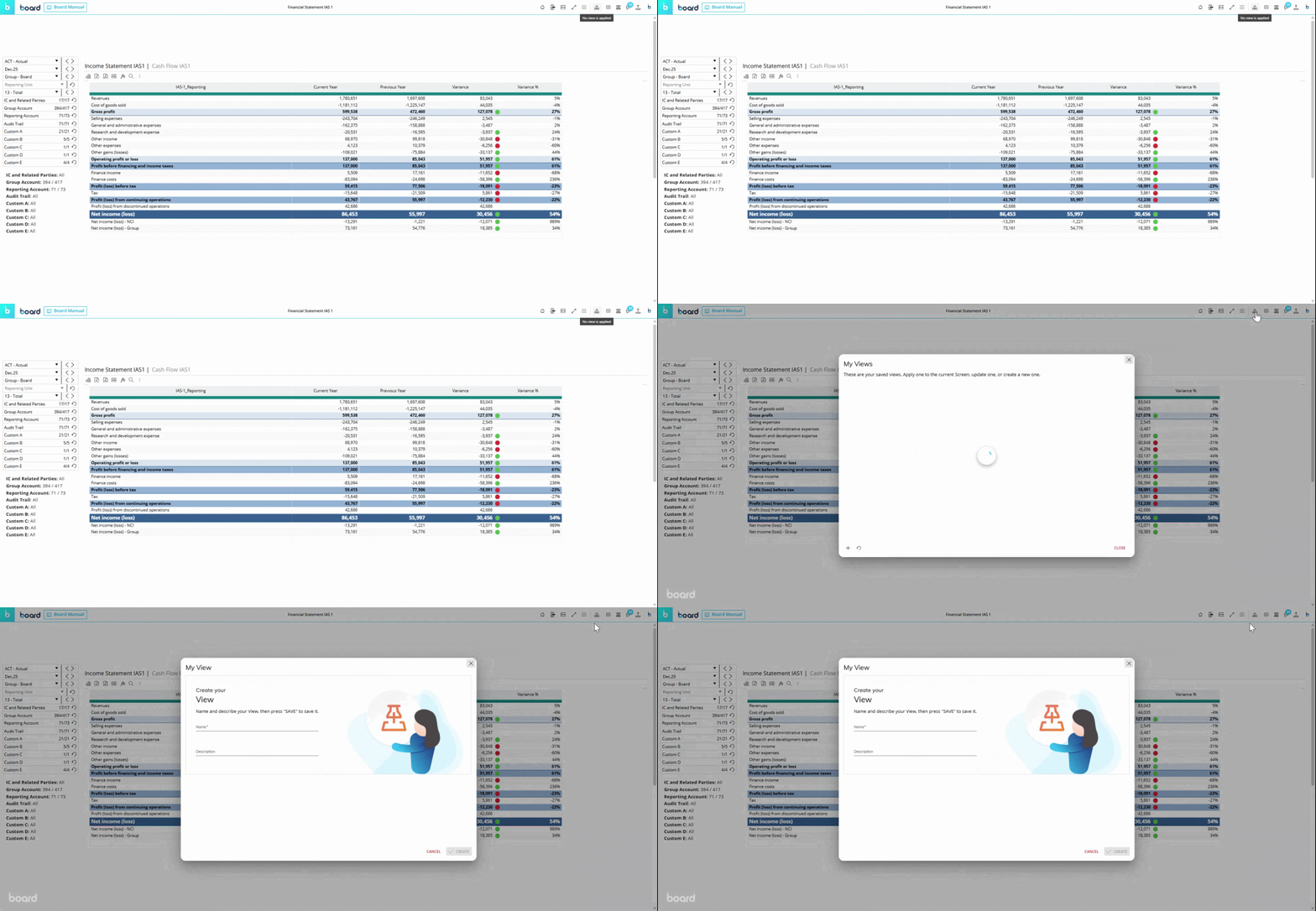
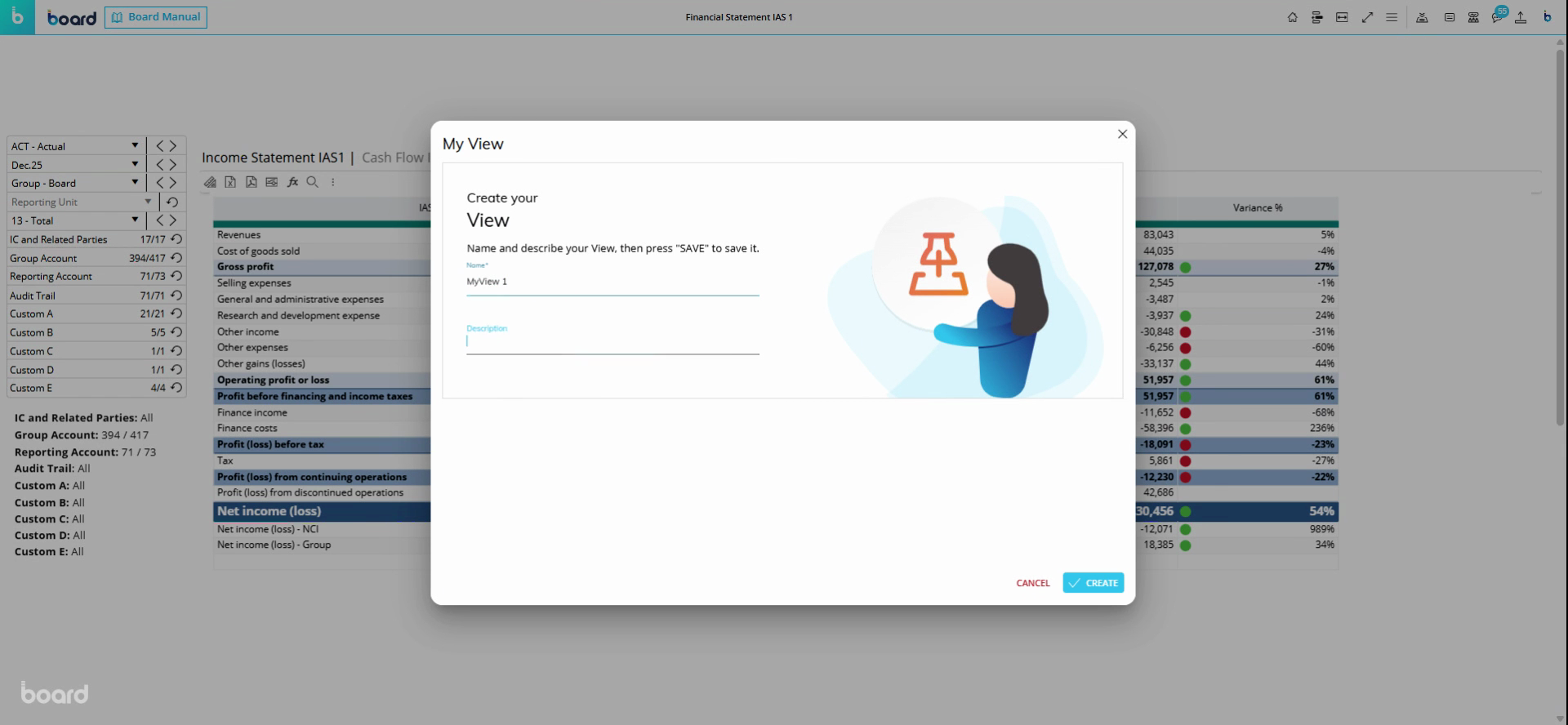
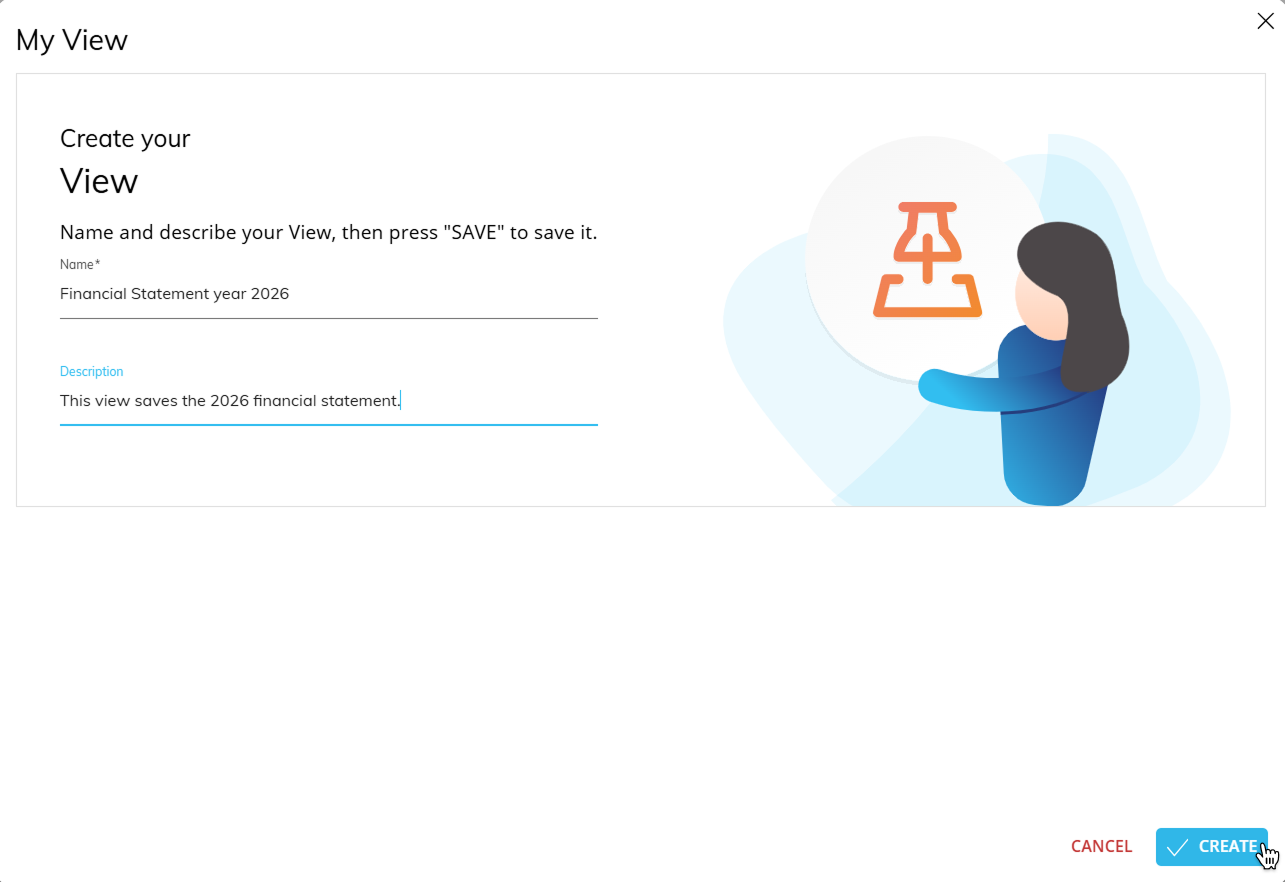
Select Create View. Enter a unique name for your view and, if you want, add a description to help remember its purpose.
Names cannot be the same.
Descriptions are optional, but highly recommended. Descriptions are the best way to keep track of what type of configuration is saved in your view.
Click Create. Your new view is saved and appears in the list.
Create additional views
To create additional My Views after saving your first one, follow these steps:
Configure your Screen for the new custom view (filters, Layout, etc.).
Click the My View icon again to open the My Views window.
Click the Plus button at the bottom left of the window.
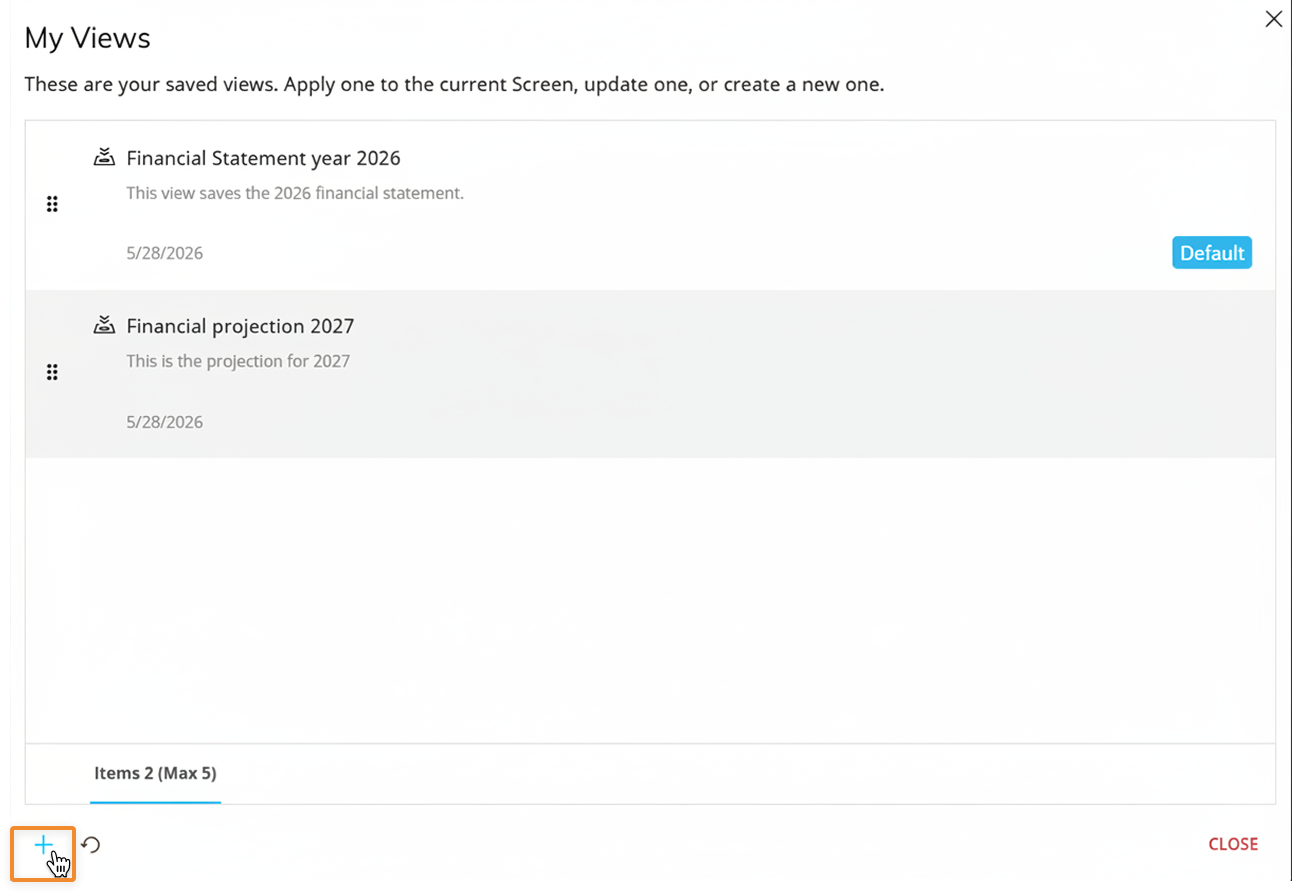
Give the view a name and a detailed description, then click Create.
Names cannot be the same
Descriptions are optional, but highly recommended. Descriptions are the best way to keep track of what type of configuration is saved in your view.
Repeat these steps to save up to five different My Views. Each one can have a distinct name and description.
Manage My Views
The My View window puts all your saved views in one easy list. Here’s what you can do inside this panel:
Navigate. Click any view in your list and click apply to immediately load its saved configurations.
 Update. With a view selected, adjust your workspace as needed. Then click the icon to update the view with these new changes.
 Edit. Edit the name and description of a My View.
Default. Set one of your views as the default. This chip acts as a label to identify your default view. Only one default can be applied.
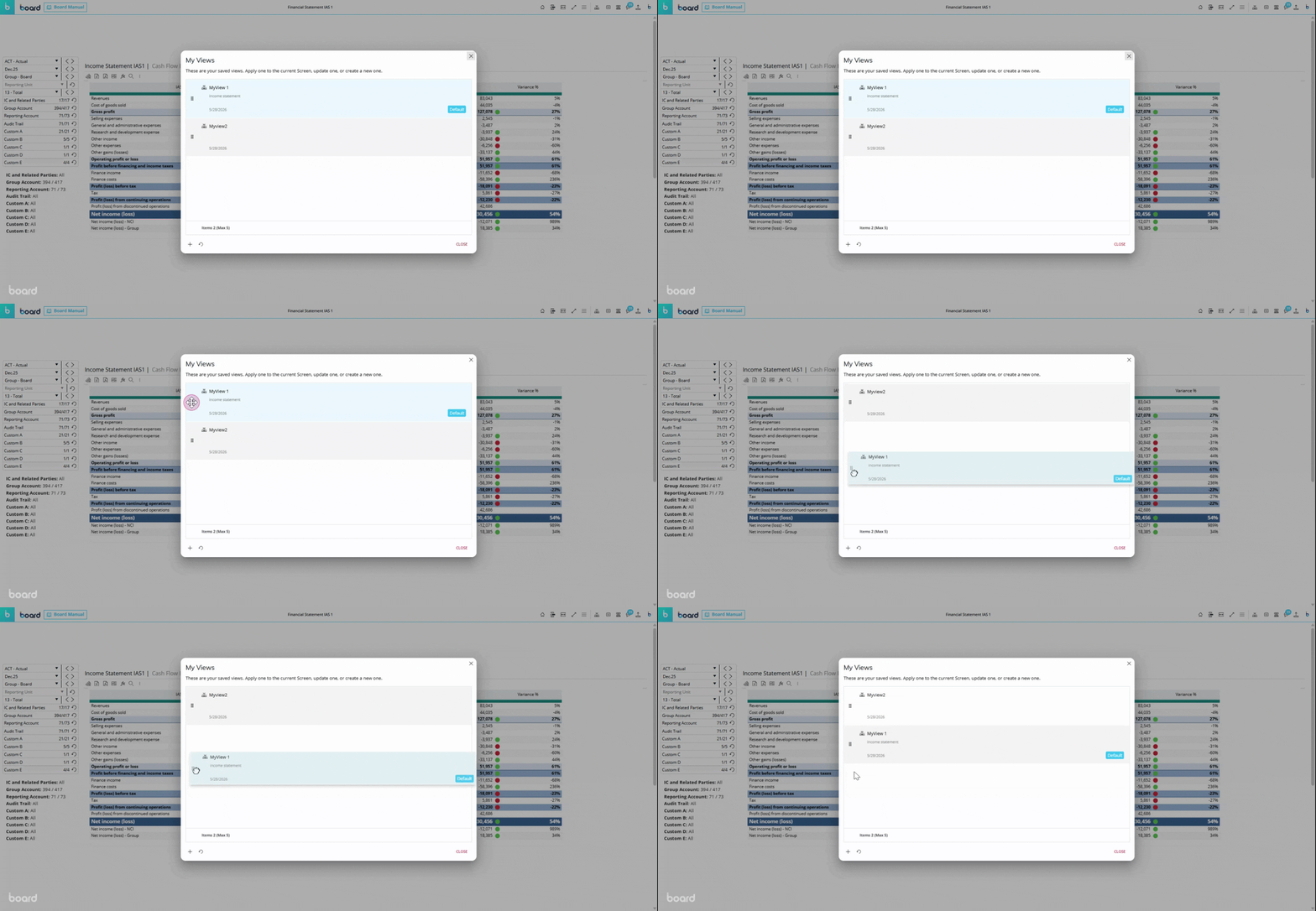
Reorder. Drag and drop the views to change the list order. Your updates save automatically and take effect right away.
Restore the original screen. Use the restore icon
 in the bottom left corner of the My View window to restore the original Screen without any My Views or other configurations applied.