The Board M365 Excel Add-in provides enhanced Board-specific commands to Excel’s right-click context menu when you interact with an active Board Table or want to create one. These commands are grouped under the Board Add-in menu and provide direct access to key table actions, including configuration, navigation, pivoting, and filtering, without requiring users to switch to separate panels or toolbars.
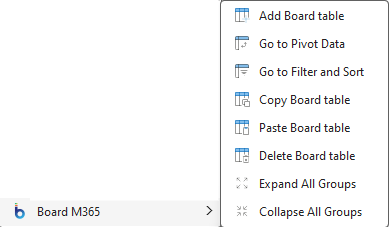
In the web version, icons in the right click menu are unavailable.
Right-click context menu options
This section lists the options exactly as they appear and describes their current behavior.
Add Board table. Opens the Board M365 right panel under the “Add data from Board” tab to create and configure a new Board Table.
Go to Pivot Data. Opens the Board M365 right panel under the “Edit data” tab and expands the “Pivot” menu to configure the active Table’s Pivot configuration.
Go to Filter and Sort. Opens the Board M365 right panel under the “Edit data” tab and expands the “Filter & Sort” menu to configure the active Table’s filtering and sorting rules.
Copy Board table. Copies the selected Board Table.
Paste Board table. Pastes the copied Board Table in the selected cell. If there is not enough cell range due to other content, the paste is canceled and an error message appears.
Delete Board table. Deletes the selected Board Table.
Expand All Groups. Expands all grouped rows and columns in the selected Board Table.
Collapse All Groups. Collapses all grouped rows and columns in the selected Board Table.