This topic explains the process of archiving and unarchiving a Presentation in Board.
Archive a Presentation
Archiving a Presentation allows users to temporarily remove it from their main view without deleting it. This action is useful for keeping their workspace organized when certain Presentations are no longer immediately relevant, but they want to retain access to them.
Archiving is a personal and reversible action: a user can only see the Presentations they have archived, and this status does not affect how other users view shared Presentations.
A Presentation can be archived from the main Presentations panel. Users can only archive Presentations they own or that have been shared with them.
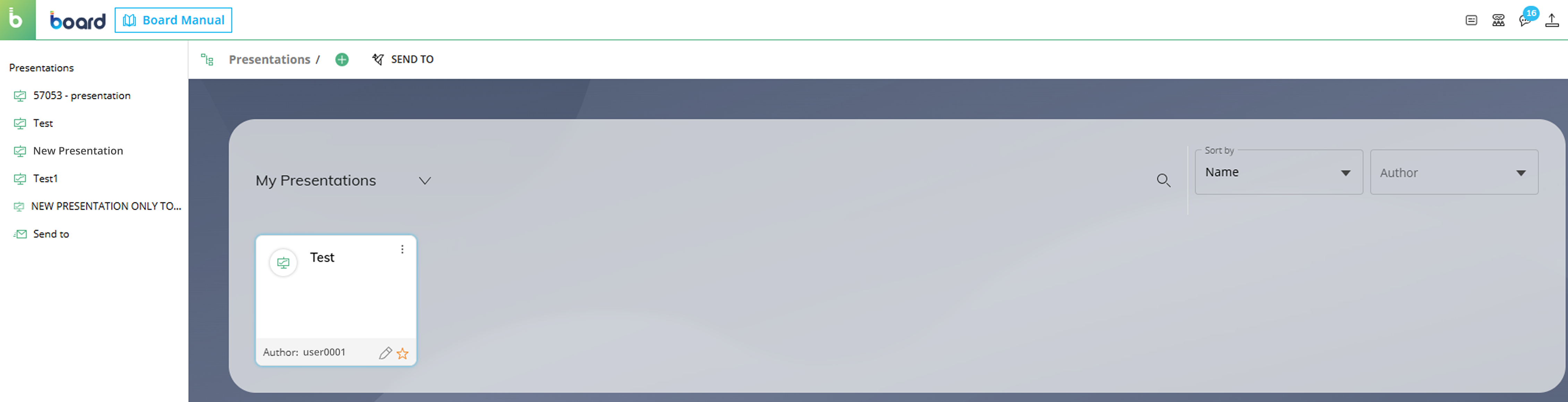
There are two ways to access the Archive action:
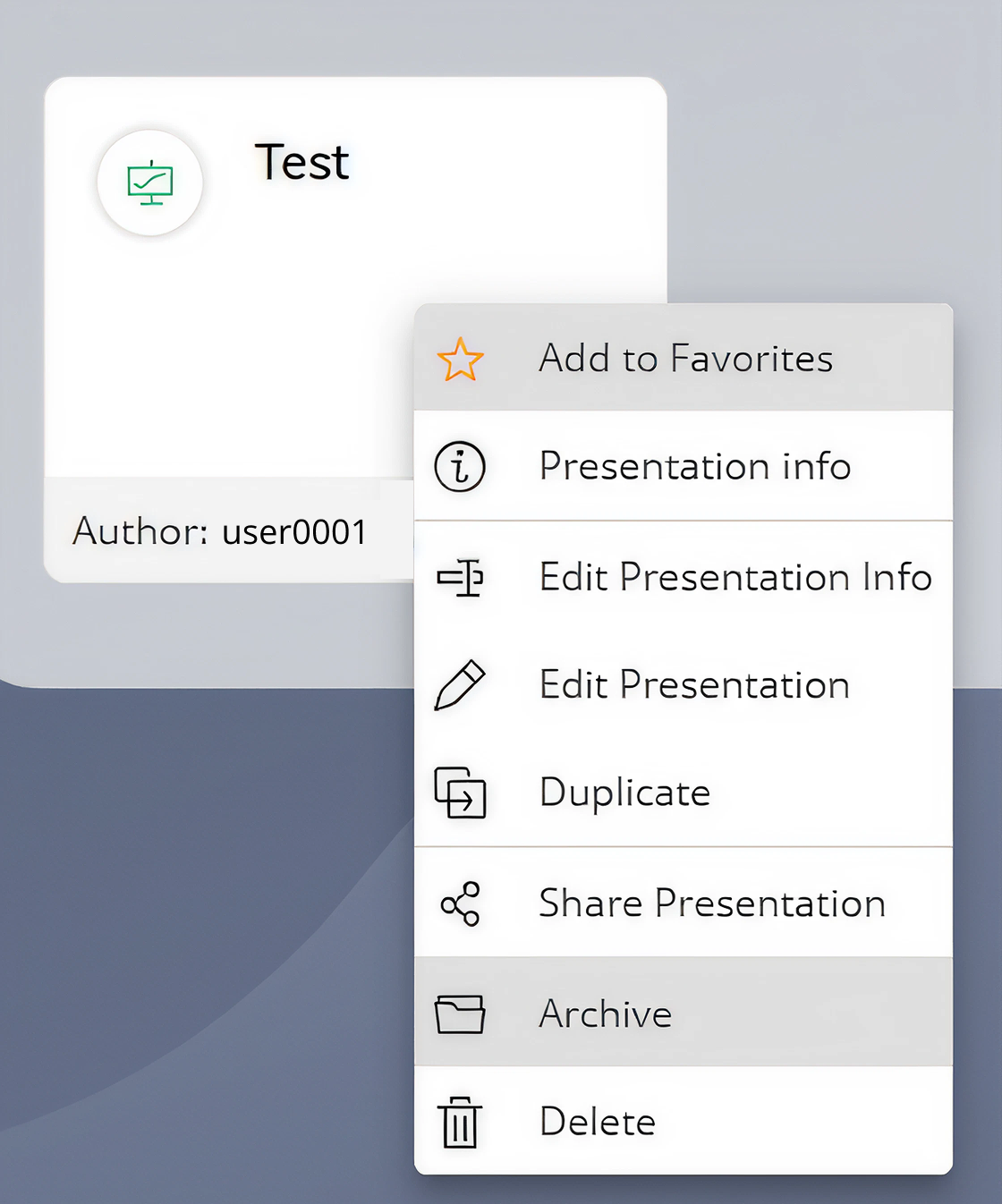
Right-click the Presentation to find the "Archive" command within the context menu.
Select the three-dot icon
.png) in the upper-right corner of the Presentation tile to find the "Archive" command.
in the upper-right corner of the Presentation tile to find the "Archive" command.
.png)
.png)
When a user archives a Presentation:
It is moved to the Archived group within the Presentations area.
It is hidden from other views, such as All Presentations and My Presentations.
It loses other user-specific statuses, including Favorites.
It remains fully accessible: users can open and view an archived Presentation at any time.
Archiving does not delete or unshare the Presentation. Other users with whom it is shared continue to see it in their own lists unless they also choose to archive it.
Example scenario
When signing in as a Board user and opening "Presentations", users can see their Presentations and any shared Presentations that others have made visible to them.
Owners and authors of a Presentation can use the "Delete" action label. Selecting "Delete" for a shared Presentation and confirming the action removes the file for every user on the sharing list.

For users who are neither an owner nor an author of a Presentation, the "Leave Sharing" feature is available. This action removes the Presentation from the user's specific list only.
.png)
Unarchive a Presentation
To restore an archived Presentation to the main view, use the "Unarchive" action. This action returns the Presentation to the All Presentations view.
There are two ways to access the Unarchive action:
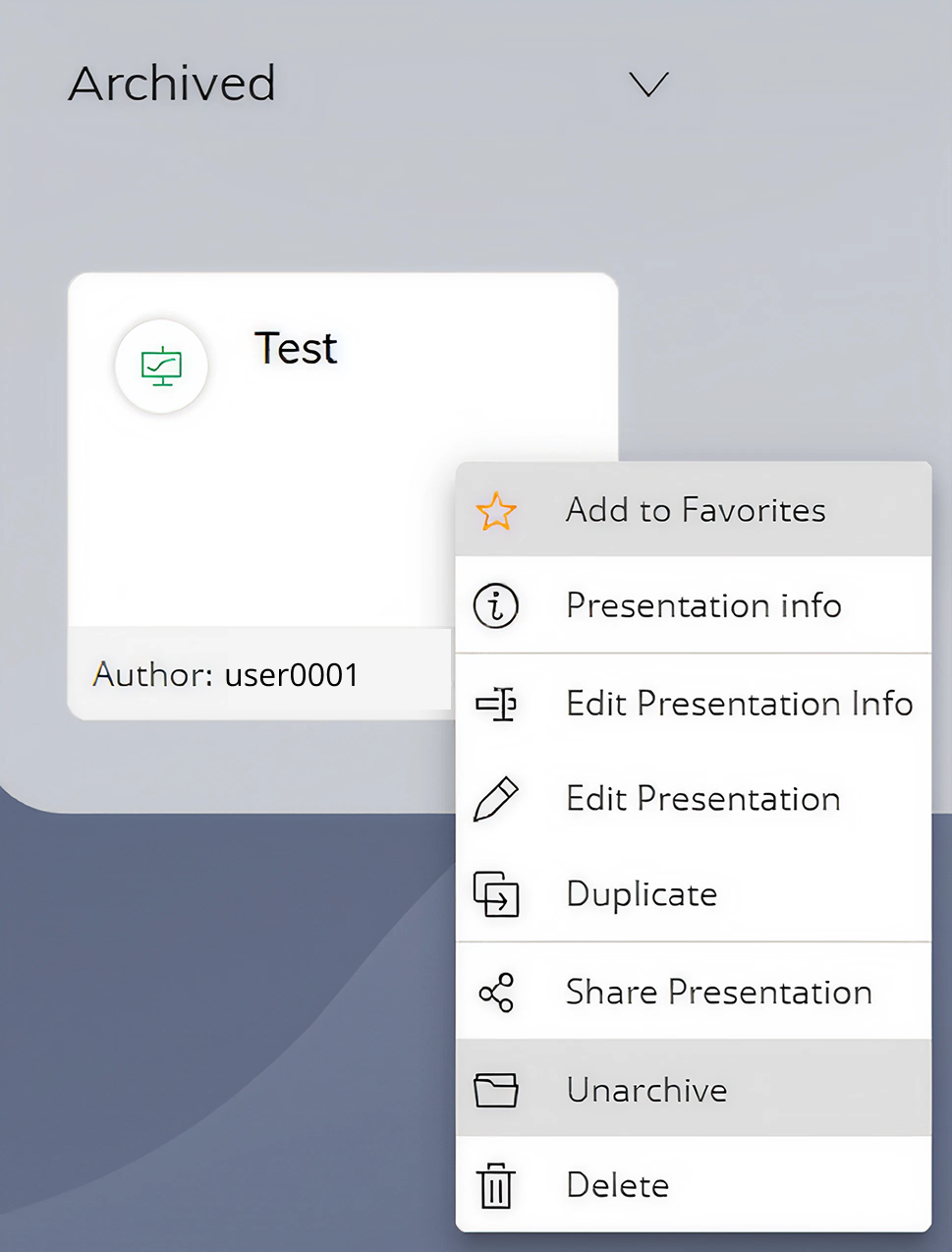
Right-click the Presentation in the Archived group to find the "Unarchive" command available in the context menu.
The "Unarchive" command is only available for Presentations that have previously been archived.
Select the
icon in the upper-right corner of the Presentation tile to find the "Unarchive" command.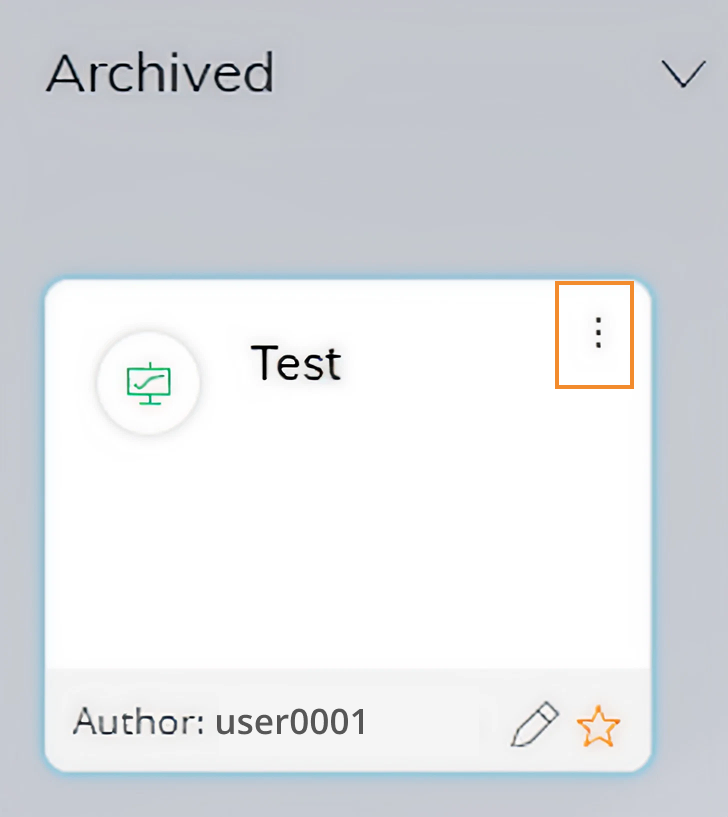
When unarchiving a Presentation:
It is removed from the Archived group
It becomes visible again in the main Presentation lists
Previous user-defined statuses (such as Favorites) are not restored automatically and must be reapplied manually if needed.
Unarchiving is a personal action. It does not affect other users' views or the sharing status of the Presentation.