The "Detail by" and "By Column" options allow you to select an Entity by which to display data across all columns.
"Detail by" is used for a Data View.
"By Column" is used for a Flex Grid.
Only available for Data Views and Flex Grids.
Limitations apply to Algorithm Blocks, read more below.
Detail by settings
The "Detail by" option for a Data View allows you to select an Entity by which to display data across all columns. This option overrides any Entity set By Column defined in the Axis area of the Layout Editor.
To configure a “Detail by”, choose the Entity from the dropdown menu and press “Save”.
It is also possible to sort values using the "Order" menu. The following settings are available:
None (default). No sorting applied.
Descending. Returns values from bottom to top considering only n columns, where n is the number defined in the "Keep top" field.
Ascending. Returns the function results from top to bottom considering only n columns, where n is the number defined in the "Keep top" field.
Keep top. Add the number in which you want to be considered when configuring Detail by with “Descending” or “Ascending” Order.
Example:
Consider the following report:
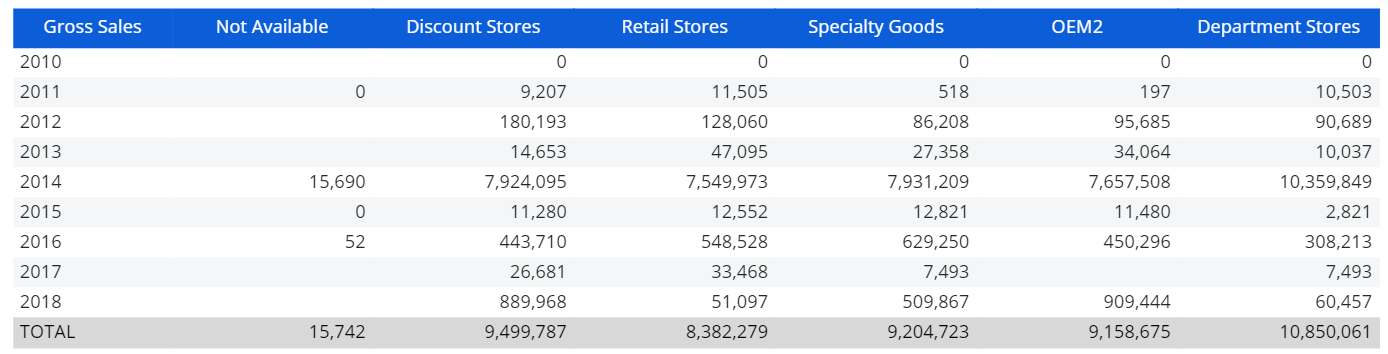
The Gross Sales values are shown by Channel (in columns) and by Year (in rows).
Here's the report's configuration in the Layout Editor:
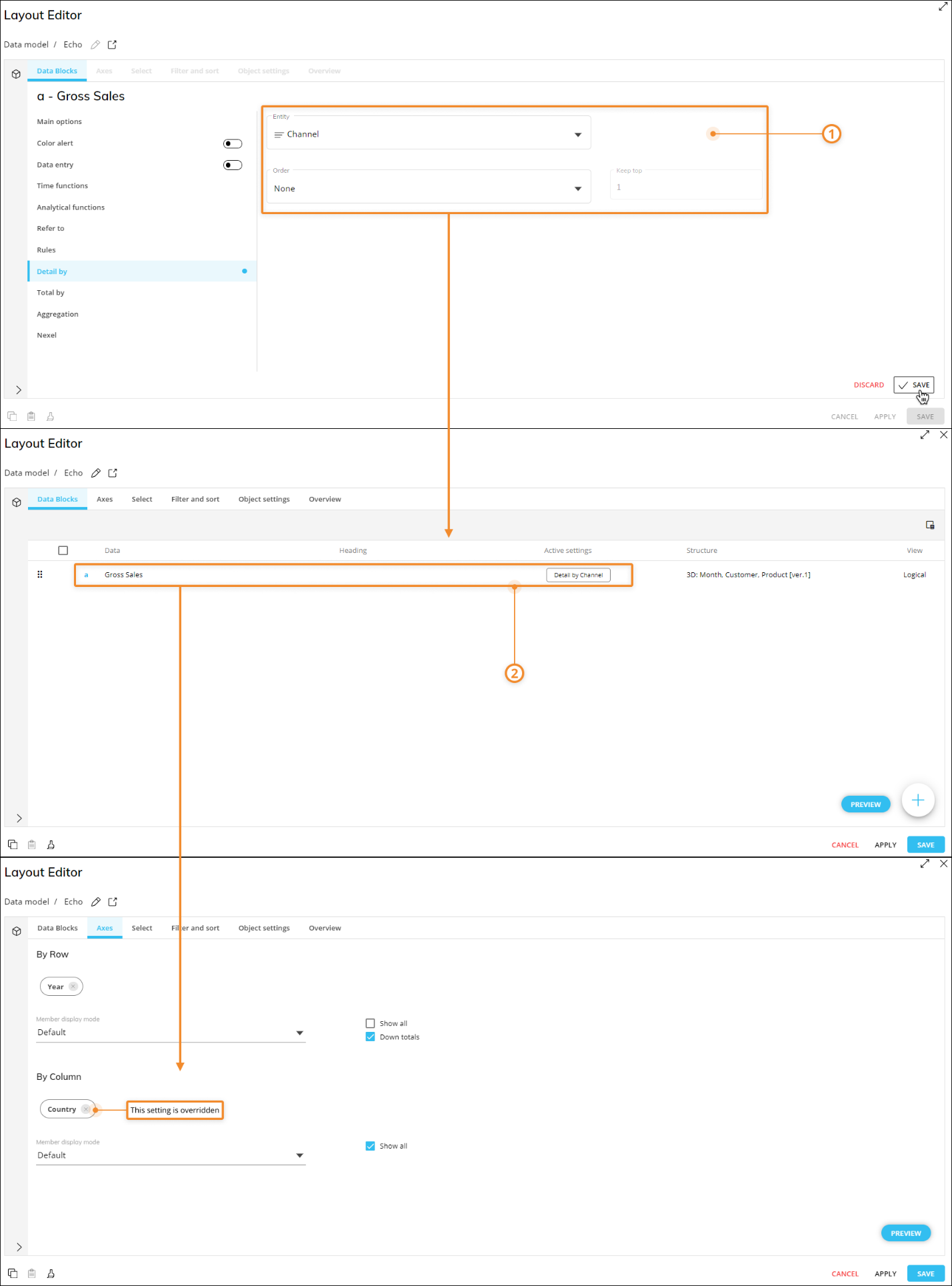
As you can see, the "By Column" Entity is overridden by the "Detail by" function settings.
By Column settings
The “By Column” option for a Flex Grid Object allows the configuration of Data Blocks with data broken down by column, providing more flexibility and control over data presentation. This feature is inspired by the "Detail By" functionality of the Data View Object, offering advanced options for positioning columns, headers, totals, and interactions in Play Mode.
When a Flex Grid is configured with “By Column” and the selection displayed on Screen is changed via the Select or a selection Object (such as a Selector or a Pager Objects), the number of displayed columns may change.
How to configure “By Column” Entities
Flex Grid supports multiple column groups – By Column Entities, allowing users to set and reorder each Entity, regardless of its hierarchical relationship. To configure column groups, follow these steps:
Open the Flex Grid Layout Editor.
Find the "By Column" option in the Data Block settings by right-clicking or double-clicking the Data Block.
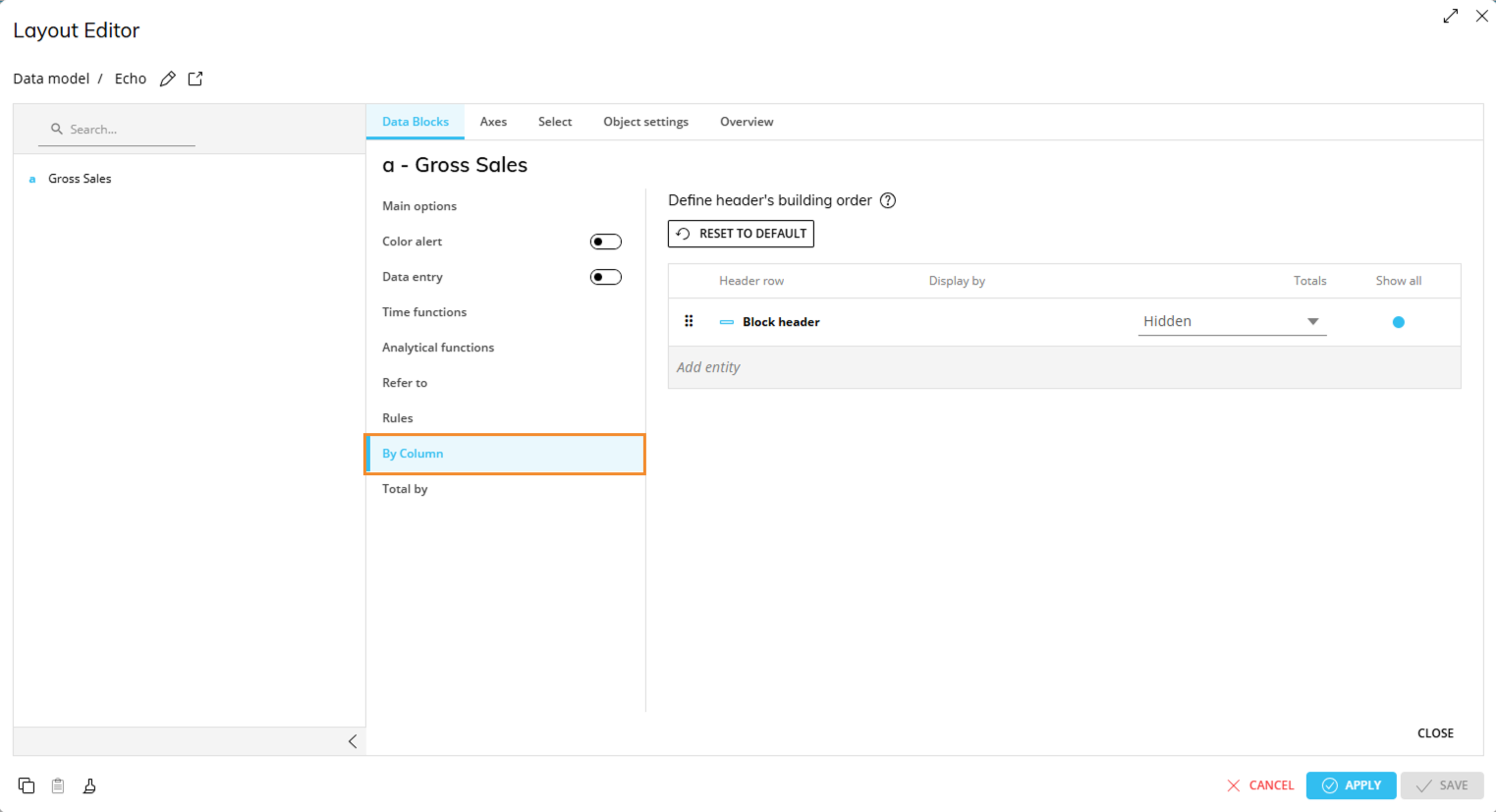
Define the different column groups and their header’s building order. Multiple By Column Entities can be set with a limitation regarding Totals.
To do this, click on "Add Entity" to choose the different Entities you wish to detail for each Data Block. For each Entity configure:
Display by. Defines how the group labels are displayed.
Totals. Show ("Always visible"), hide ("Hidden") or show only when collapsed ("Only collapsed") the total columns.
By Column totals across multiple Blocks are not supported when those Blocks share the same By Column configuration and are grouped by 1 or more Entities. If a total sum column is needed with By Column Blocks, it can be recreated by using a new algorithm Block that sums the multiple Blocks together.
Show all. By default, only columns with values are shown, otherwise the user can display all the elements that are in the selection by checking the "Show all" box.
The Block header label can be used as one of the groups, meaning it can be reordered for better display by clicking and dragging the  icon. Column groups created will be visible in both Flex Grid’s Flat and Pivot Modes in the Fields panel for quick search, hide/show and pivoting functions.
The Block header label works as a placeholder that refers to the Blocks that are consecutive and that share the same By Column configuration.
To reset the default settings, click on "RESET TO DEFAULT". Otherwise, you can delete one or more Entities by clicking on the respective delete icon.
Notice that once this functionality is configured, the "Active settings" column on the main Data Blocks window will display your chosen configurations.
By Column is not available for the following:
Entity Blocks
ROLAP Cubes
Blocks with trend or forecast time function enabled
Rule Blocks
Unbalanced Entities unless "Disable unbalanced entities" is enabled
Entities on the same Relationship branch of one of the Entities configured by row
Blocks that are linked by a reference (e.g. a Block locked by another, an algorithm referencing various Blocks) that don’t share the same By Column configuration
Limitations with Algorithm Blocks
All Blocks referenced by an algorithm must use a compatible column configuration and return the same column structure. Do not mix Blocks configured with the Block setting Detail by/By Column and Entities set By Column in the Layout, or reference Blocks whose column configurations differ. Unsupported combinations may return incorrect calculations or empty results.
Exception: If no Entity is set by column in the Layout and the Algorithm Block does not use Detail by/By Column, but the Blocks referenced by the algorithm do, the algorithm calculates using the totals of the referenced Blocks, as if Detail by/By Column were not applied.