Board 15.1 also introduces more enhancements across planning, administration, and platform management, including improved change tracking, centralized user and license management, stronger security, and usability improvements throughout the Platform.
Screen and Objects enhancements
Design Mode change tracking
Clearer messaging now appears when you switch to Design Mode from a Screen that has changes applied in Play Mode. This prevents power users and developers from saving unwanted Screen changes by mistake.
What's changed?
A warning toast appears the first time you enter Design Mode if changes were made in Play Mode prompting you to save or discard changes.
The "SAVE" and "DISCARD ALL" buttons appear in the top bar immediately after the switch from Play to Design Mode if changes were made so you can review the changes before saving.
The "SAVE" and "DISCARD ALL" buttons now also appear when the Screen state (Design/Play Mode) changes through:
Go To Screen actions that keep the source selection.
Drill-to-Screen actions on the target Screen.
Apply Selection to Screen and Block Procedure actions.
Go To Previous Screen actions that restore a previous Screen state.
Loading the Screen from the browser history.
Read more about switching between Play and Design Mode.
Data View distinct count
Distinct count calculations now return results on total rows, subtotals, and down totals when the Block Summary is set to "Totals". This improvement helps users analyze unique Entities across aggregated levels without exporting data to Excel for manual checks.
Flex Grid Row Templates
Row Template rules are now applied correctly in a Flex Grid. This improvement ensures that Row Templates work as expected when combined with Color Alerts, Block formatting, Border settings, Data Entry, Drill Down, Tree view, Flat view, Pivot view, Column by, and row group display types. Exported files now match the Flex Grid Layout for PDF, Microsoft Excel, DOCX, PPTX, and PNG exports generated from Screen, Presentation, Send to, new subscription, and Broadcasting.
Bookmarks save Calendar selections
Bookmarks now save Calendar selections. Read more about Select Bookmarks.
The Board Identity Hub
Applies to: Board Support
The Identity Hub is a centralized identity management service that allows Administrators to manage users and their access to one or more customer Subscription Hubs from a single location. It provides a unified administration experience for Board Support, Cloud operations, economists, and other users who need access to customer environments.
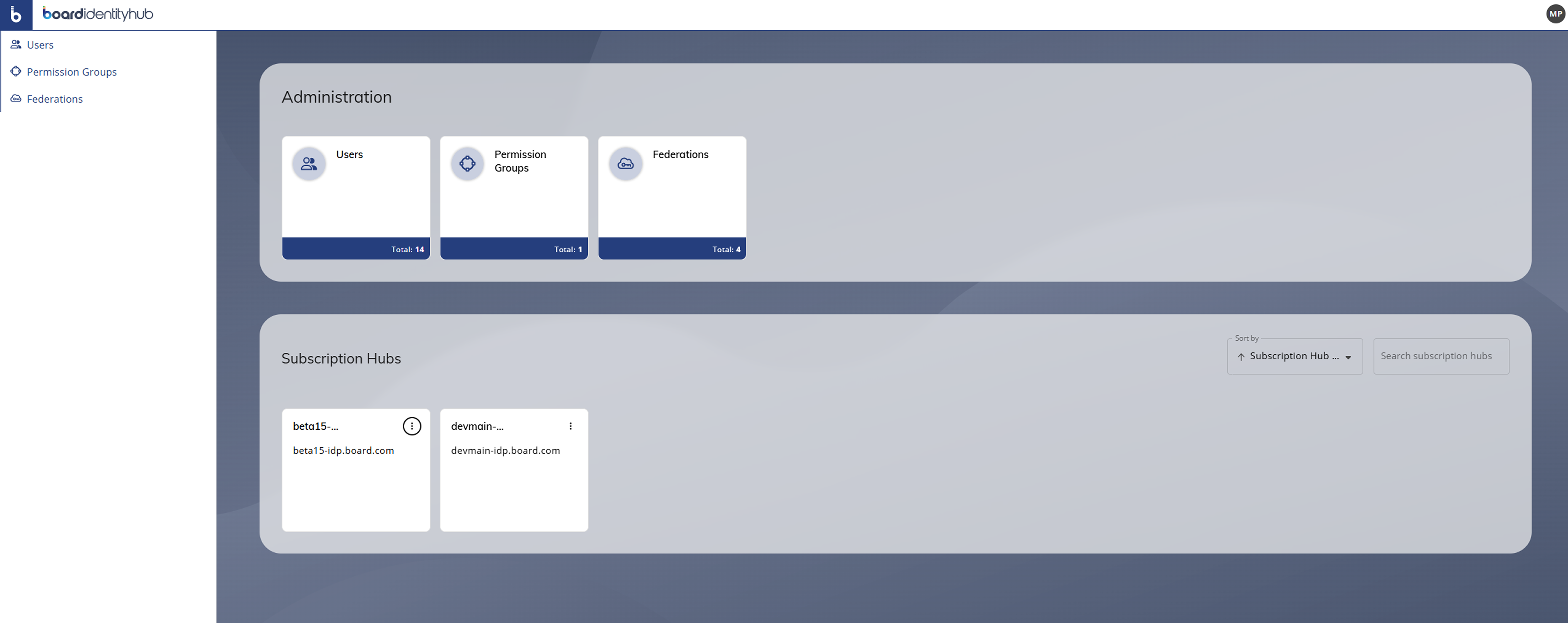
Approval-based user provisioning
The Identity Hub now supports an approval flow for environments where user access must be approved before users can sign in through the local Identity Provider. When an access request is created, the designated local Identity Provider Administrator receives an approval email, reviews the request, and approves it through the approval flow.
After approval, the user account is activated in the local Identity Provider and the user can access the Identity Hub areas allowed by their assigned permissions. This process helps organizations control which Identity Hub users are activated in their local Identity Provider.
For more details, see Access the Board Identity Hub.
License consumption
Service accounts used by Board Support no longer consume customer licenses in the Identity Hub or Board. Customers no longer need to allocate paid user licenses to these accounts, which simplifies license administration while maintaining support access to customer environments.
For more details, see Access the Board Identity Hub.
Subscription Hub enhancements
The Subscription Hub user menu now displays the Board Subscription Hub version and revision number. The version and revision number identify the Subscription Hub configuration currently used by the environment and help users and Support verify compatibility and troubleshoot issues more efficiently. When contacting Support, users may be asked to provide the version and revision number shown in the user menu. The displayed value should match the Subscription Hub version and revision configured for the environment.
.png)
Centralized user and license management for Foresight and Operational Forecasting
Applies to: Administrators
Foresight and Operational Forecasting access can now be managed centrally from the Board Subscription Hub using the existing Developer and Power User licensing model. Subscription Hub Administrators can grant or revoke access from the Licenses section of the Users area by enabling the Foresight and Operational Forecasting options for eligible users.
.png)
Foresight access is available for users with Developer or Power User licenses.
Operational Forecasting access can be enabled only when the user is also entitled to Foresight and has an eligible Developer or Power User license.
Access granted through the Subscription Hub applies across all environments associated with the subscription.
This enhancement reduces manual license management, helps keep user permissions aligned across Board, Foresight, and Operational Forecasting, and strengthens centralized access governance through the Board Identity Hub and Subscription Hub model.
Admin Portal enhancements
Applies to: Administrators
The Admin Portal now uses Managed Identity to access File Storage, replacing the previous SAS URI based access model. This provides a more secure authentication approach and removes the need to persist SAS URIs in system settings, the Platform configuration database, or Logs.
File Storage is the Azure storage area used in Cloud environments to store files used by Board applications and file-based processes, such as Data Readers and Procedures. Administrators can continue to browse, upload, and download files from the Z: drive through File Manager in the Admin Portal, while files remain accessible in Board through the assigned Z: drive or the %BSS% environment variable.
This enhancement improves the protection of storage credentials and file-based processes by using the same Managed Identity security model already adopted for Key Vault, while maintaining access to the files required by Board applications in Cloud environments.
For more details, see The Admin Portal.
Procedures
The Procedure editor has been reorganized to provide more space for creating and reviewing Procedure steps.
These changes apply to Procedures in both Data Models and Capsules.
The Configuration tab has been renamed Steps. The updated Steps tab now contains only:
The Procedure name field at the top.
The Steps section immediately below it.
The following settings, which were previously displayed in the Details section of the Configuration tab have moved to the Options tab. The Options tab now includes a Details section containing:
Default Data Model, which is available only for Capsule Procedures.
Notify execution, which is available for both Data Model and Capsule Procedures.
For more details, see the Procedures documentation.