This article describes the Subscriptions section in System Administration, the information that the section provides, and the actions available to Administrators.
Subscriptions allow users to receive a Presentation or a Capsule Screen by email on a scheduled basis, for example daily, weekly, or monthly. The Presentation or Capsule Screen is sent as an email attachment in one of the following formats: PDF, MS Word, MS Excel, or MS PowerPoint.
The Subscriptions section provides a centralized view of existing Subscriptions across the Board Platform.
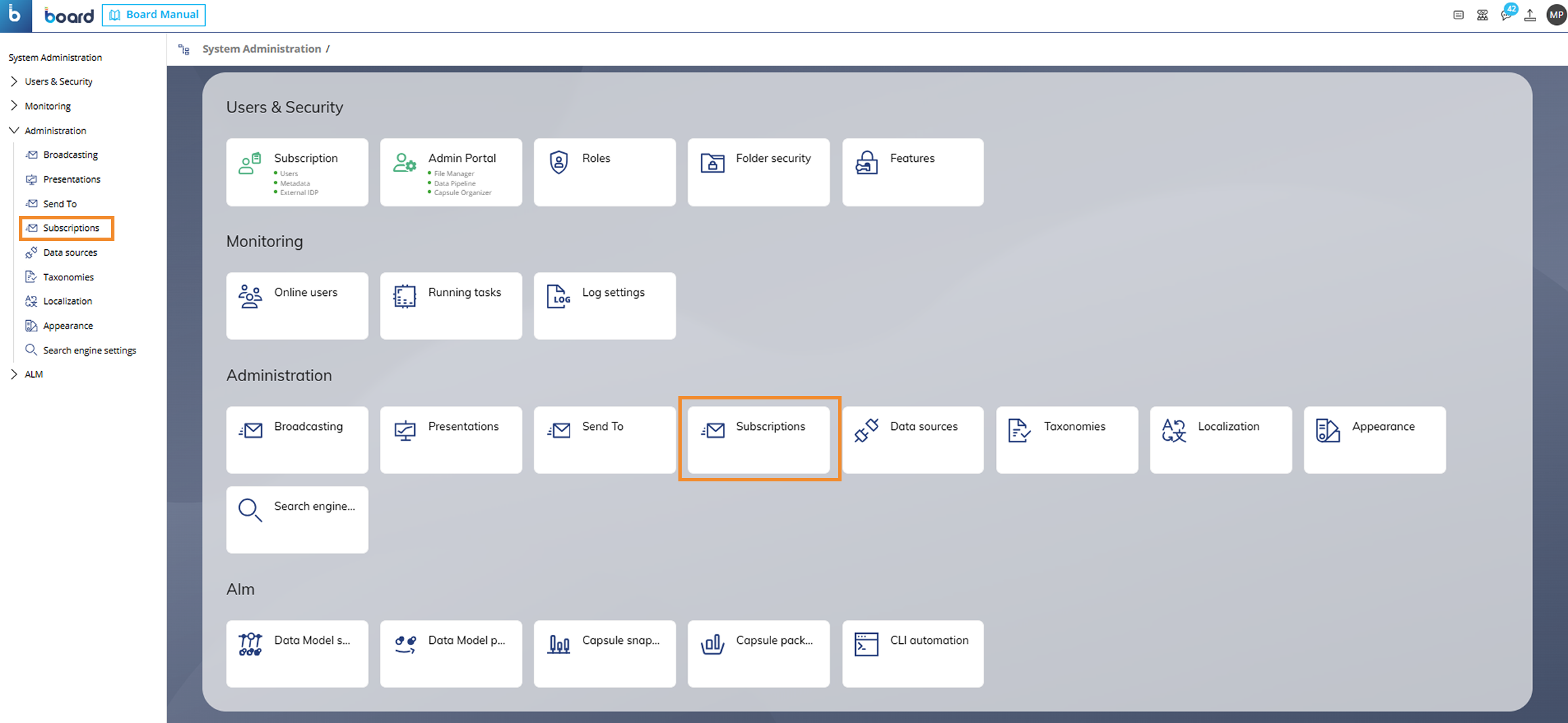
From the Subscriptions interface, Administrators can monitor Subscriptions, run them, enable or disable them, and delete them without changing the original configuration owned by the user. Administrators can also view key information about each Subscription, including its name, creation date, last run date, schedule, attachments, and email content.
The interface also shows the total number of Subscriptions and how many Subscriptions are currently selected. This information appears in the lower-left area of the page and follows the same behavior as other grids in the Board Platform.
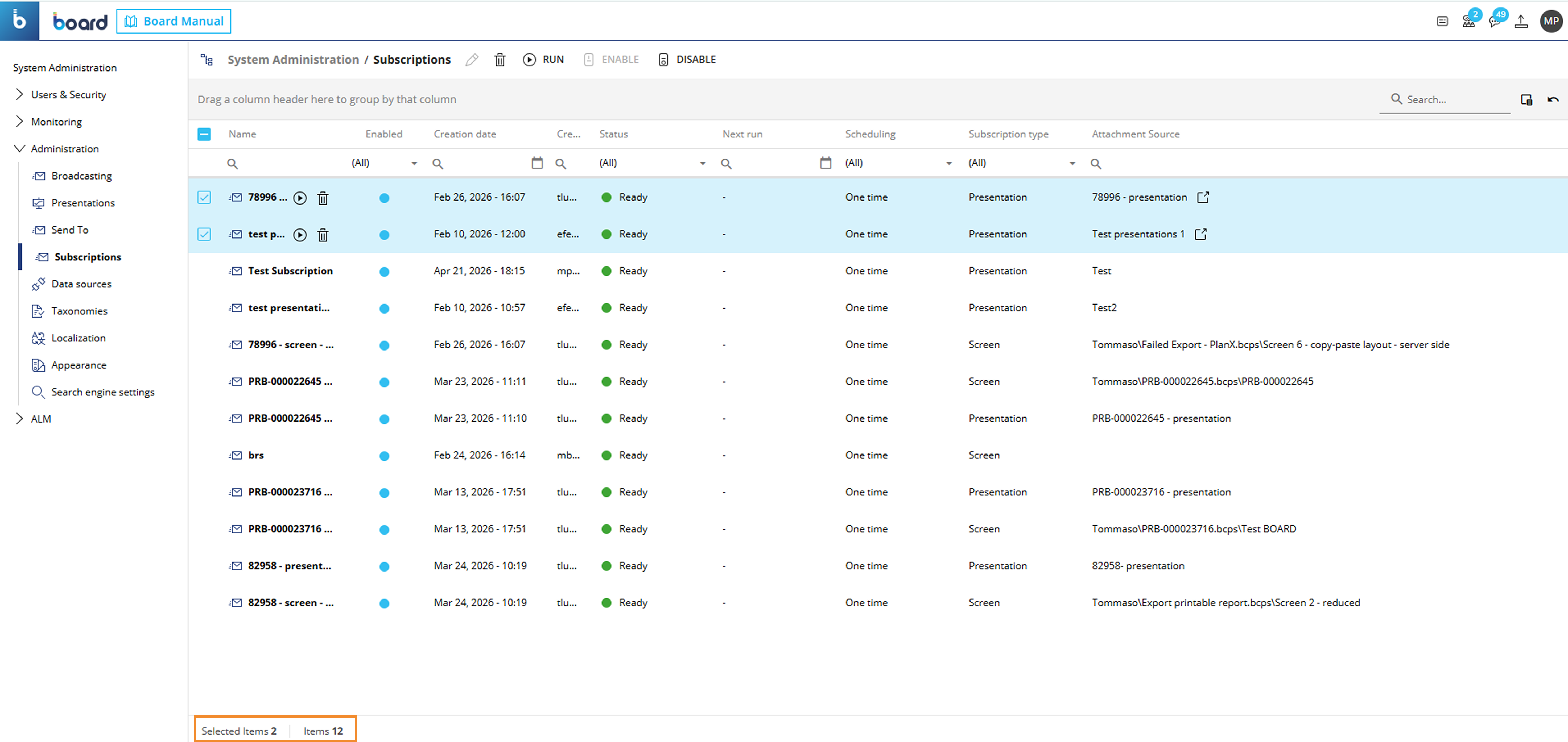
Subscriptions cannot be created or edited from this section. Users create and edit Subscriptions from the Presentations area. For more information on how to create and edit Subscriptions, see Create a Subscription and Edit a Subscription.
Subscriptions page overview
The Subscriptions page provides Administrators with a centralized view of all Subscriptions configured across the Platform.
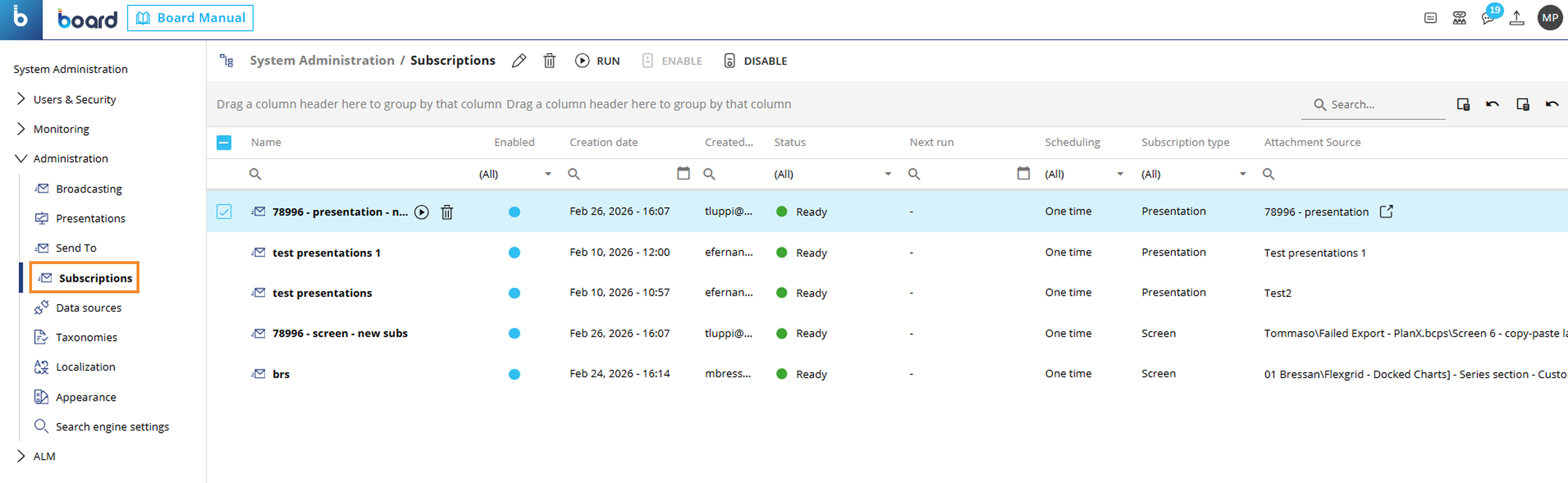
The page includes the following fields:
Name. This column displays the name of the Subscription.
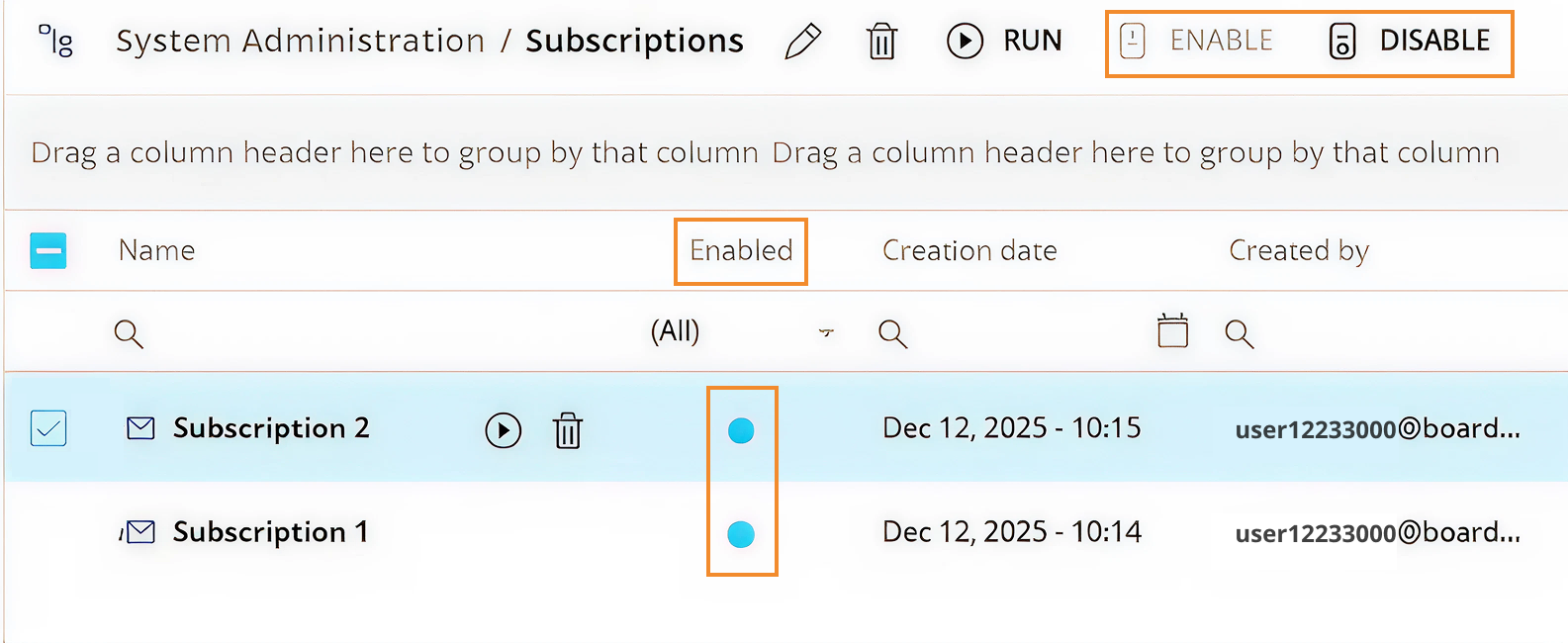
Enabled. This column indicates whether the Subscription is active. This column displays a radio button that, when filled blue, indicates that the Subscription is enabled. When the radio button is not filled blue, the Subscription is disabled. Subscriptions are enabled by default. Users can change the status directly from this column or within the Subscription details, by setting the "Enabled" toggle. A confirmation message, such as "Subscription(s) successfully enabled/disabled", appears at the bottom of the page to confirm the action.
Creation Date. This column displays the date and time of the creation of the Subscription in the following format: Month Day, Year - HH:MM (i.e. Feb 26, 2026 - 16:07).
Created By. This column displays the email address of the user who created the Subscription.
Status. This column indicates whether the Subscription is ready for execution. This column displays a radio button that, when filled green and accompanied by the status "Ready", indicates that the automatic execution of the Subscription is enabled. If the column is blank, the automatic execution of the Subscription is disabled.
Next Run. This column displays the date and time of the next time the Subscription will be executed, in the following format: Month Day, Year - HH:MM (i.e. Apr 29, 2027 - 10:00).
Scheduling. This column displays the execution frequency, such as one time, daily, weekly, or monthly, based on the configured schedule.
Subscription Type. This column defines the type of content delivery configured in the Subscription, i.e. Presentation or Screen.
Attachment Source. This column indicates the origin and name of the content included in the Subscription.
Last Run (hidden by default). This column displays the date and time of the most recent execution, in the following format: Month Day, Year - HH:MM (i.e. Apr 29, 2027 - 10:00).
File Format (hidden by default). This column displays the format of the generated output.
Administrators can review all configuration details, but they cannot change the setup of a Subscription created by another user. Only the owner can modify the configuration. Administrators can change only the enabled status.
Top menu bar
The top bar provides controls to edit, delete, run, enable, and disable Subscriptions.
 (11).png)
These actions become available after selecting one or more Subscriptions by using the checkbox next to the Subscription name. Some actions are also available from row-level icons when you hover over a Subscription name.
.png)
Actions
Edit. The Edit button
 appears in the top menu bar. Users can open the Edit Mode of a Subscription in two ways:
By clicking the pencil icon or the Subscription's name directly.
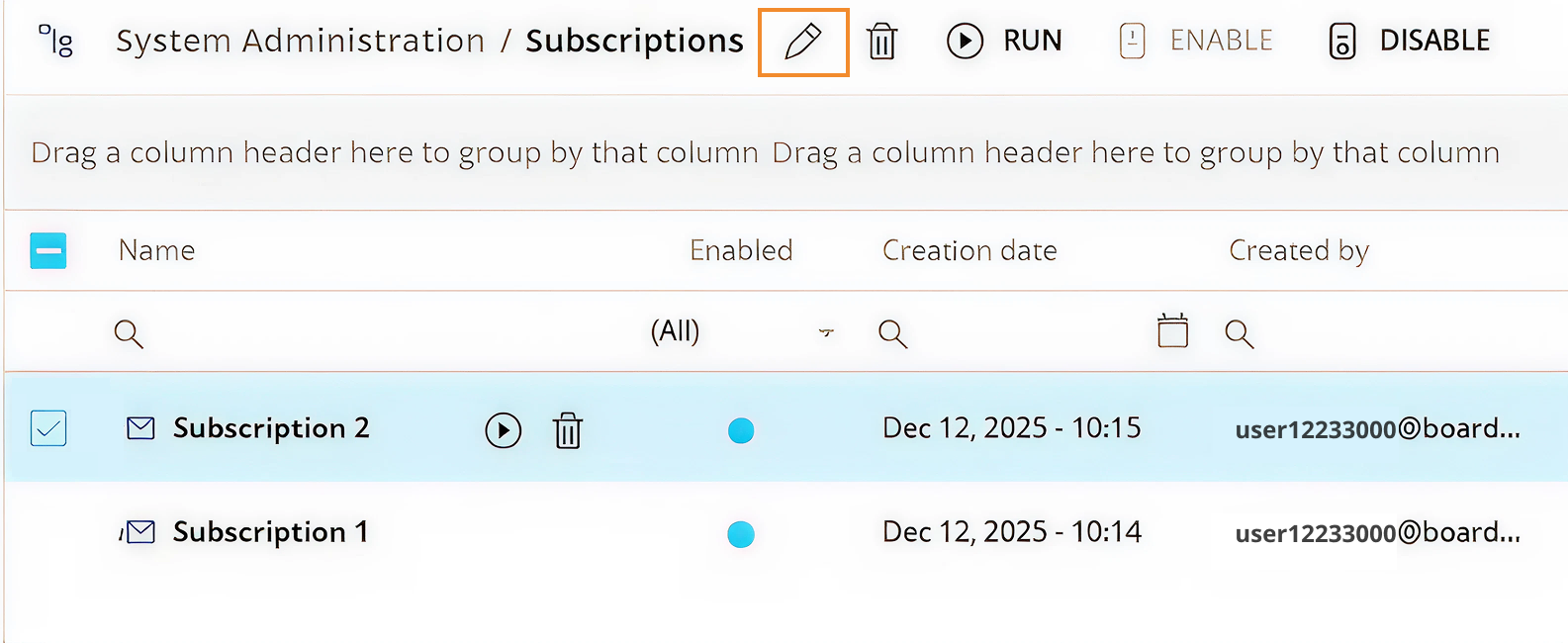
By right-clicking on a Subscription's name and selecting "Edit".
.png)
The Edit action depends on how many Subscriptions are selected:
Single selection: When one Subscription is selected, Edit Mode opens. For Administrators, the Subscription opens in read-only mode. Administrators can review the Subscription details, but they can only change the Enabled status.
Multiple selection: Multi-editing is not supported. Only one Subscription can be edited at a time. If you try to edit multiple Subscriptions, the Edit button will become unavailable.
To edit a Subscription, users need to access the Subscription from the Presentations or Capsules areas. Editing is unavailable from the Subscriptions area in System Administration. See Edit a Subscription for detailed information about how to edit a Subscription.
Delete. The Delete button
 appears in the top menu bar and when hovering over a Subscription's name. It allows deletion of one or multiple Subscriptions.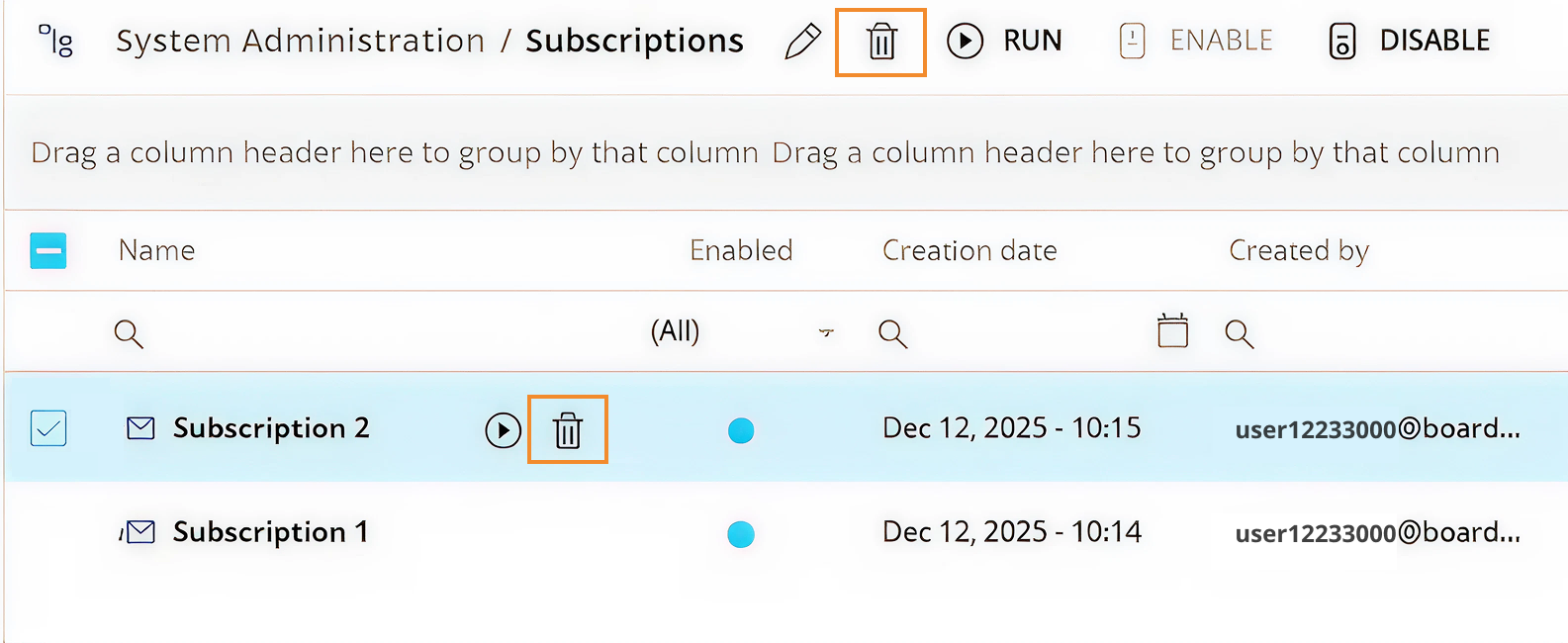
Run. The Run button
 appears in the top menu bar and also when hovering over a Subscription's name, and it executes the selected Subscriptions sequentially. During execution, a modal window shows the progress of the operation. When execution ends, a confirmation message lists the Subscriptions that were run successfully. Users can run one or multiple Subscriptions.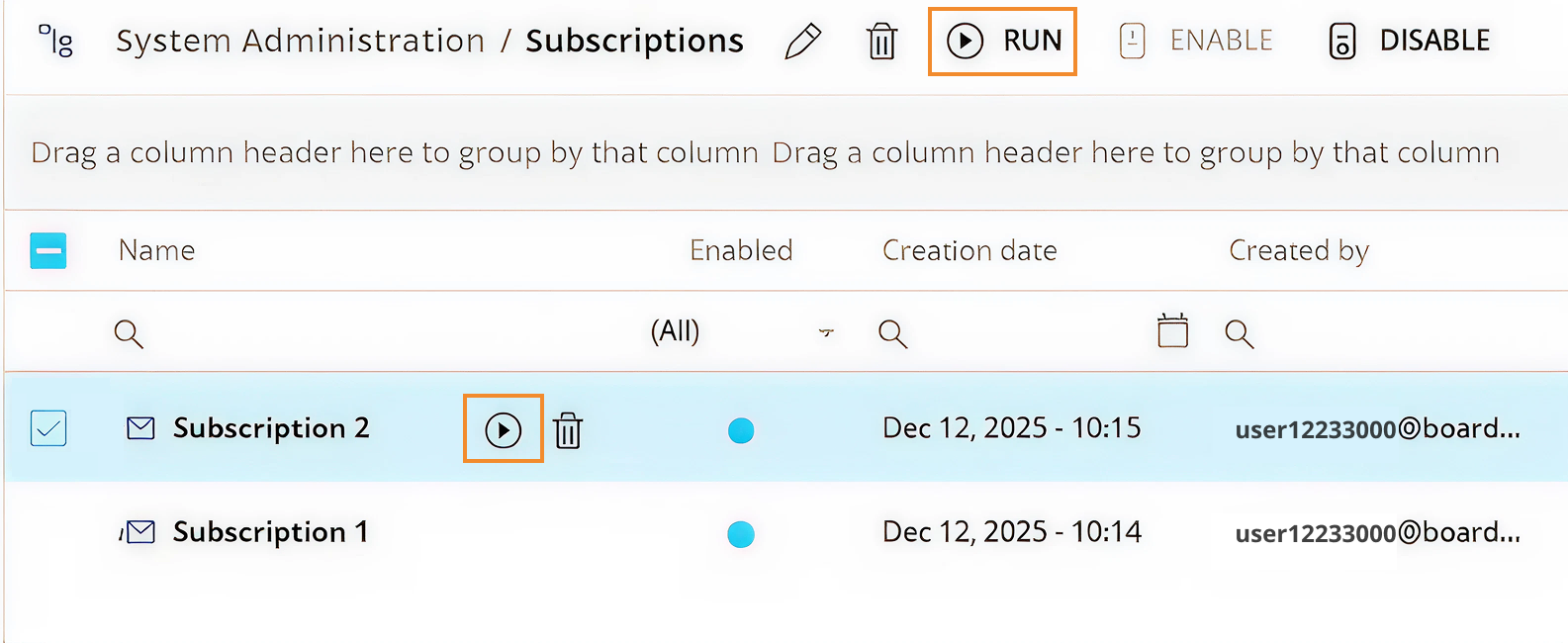
Enable/Disable. The Enable and Disable actions allow Administrators to activate or deactivate one or multiple Subscriptions at once. To change the status of a Subscription, click on the radio button in the Enabled column. When the radio button is filled blue, the Subscription is enabled. When the radio button is not filled blue, the Subscription is disabled. A confirmation message appears when the Enable or Disable action is completed successfully.
Additional tools
Column chooser. Click on the Column chooser button in the upper right corner of the Screen to show, hide, or reorder columns and customize the grid view.

Create a Subscription
Subscriptions are created from the Capsules and Presentations areas, not from the Subscriptions interface in System Administration. The System Administration page provides a centralized view of existing Subscriptions and allows users to view them in Edit Mode, run them, enable or disable them, and delete them. For detailed information about how to create a Subscription, refer to the following articles:
Create a Subscription from a Capsule: see Capsules in Play Mode.
Create a Subscription from a Presentation: see Presentations workspace.
View and edit a Subscription
When accessing a Subscription from the Subscriptions page in System Administration, users can open Edit Mode by clicking on the Subscription name or the pencil icon. In this case, Edit Mode is available for review only. Administrators can view the Subscription details, but they can only change the Enabled status.
When accessing a Subscription from a Presentation or a Capsule, Edit Mode opens with the Subscription details and editable settings. From this page, users can modify the selected Subscription.
In the example below, the page is for a Subscription named "Test Subscription".
.png)
The page contains the following visible areas and controls:
Subscription name. At the top of the page, there is a required field labeled "Subscription name". This field lets you edit the name of the selected Subscription. In the example shown, the field contains the value "Test Subscription".
Below the Subscription name field, the page shows three read-only information fields:
Created. Shows the date and time when the Subscription was created, in the following format: Month Day, Year - HH:MM (i.e. Feb 10, 2026 - 10:57).
Next run. Shows the date and time of the next scheduled execution of the Subscription, in the following format: Month Day, Year - HH:MM (i.e. Apr 29, 2027 - 10:00).
Last run. Shows the date and time of the most recent execution, in the following format: Month Day, Year - HH:MM (i.e. Apr 20, 2026 - 16:20).
These values help users identify the current status of the Subscription.
In addition, the page includes the following sections:
"Enabled" toggle. Below the information fields, there is an Enabled toggle that allows users to enable or disable the selected Subscription. When the toggle is active, the radio button is blue and the Subscription is enabled. When the toggle is inactive, the toggle is black and the Subscription is disabled.
.png)
Attachment. This section contains the controls used to define the file that will be sent by the Subscription. Within this area, the following elements are displayed:
"Change" button. This button lets you replace the current Presentation or Screen selection.
Presentation or Screen selected. This label identifies the currently selected Presentation or Screen. In the example, the selected Presentation’s name is "Test2".
File format. This dropdown list lets users define the format of the generated attachment. In the example shown, the selected file format is PDF.
.png)
Email content. This section contains the fields and tools used to define the email that accompanies the attachment. A Subscription email is the message automatically generated and delivered to the configured recipients together with the selected attachment, such as a Presentation exported in the chosen file format. This section allows Admin users with permissions to access the selected Subscription to edit the email subject and body, so the message can provide context and useful information to recipients.
Subject. This field lets you edit the email subject.
Formatting toolbar. Below the subject field, there is an editor toolbar. The toolbar includes visible formatting and editing controls, including Undo, Redo, Bold, Italic, Underline, font color, text alignment, lists, hyperlinks, and other text formatting options. Other visible controls include the following:
Substitution formulas. This dropdown list lets users insert predefined dynamic values into the email body. When the Subscription runs, each formula is replaced with the corresponding value in the generated email. The available formulas are:
@Date. Inserts the current date
@Link. Inserts a link related to the Subscription content
@Time. Inserts the current time
@User. Inserts the name or identifier of the user associated with the Subscription email
Email body. Below the Substitution formulas dropdown list, there is the email body editor.
When working from the Presentations or Capsules areas, the Email content section lets users edit the email body. After editing, click "Discard" to cancel the changes or "Save" to save them.
When working from the Subscriptions area, the Email content section is read-only and only allows users to view the email body. When finished, click "Close" at the bottom right of the page.
.png)
Scheduling. The Scheduling section lets users define when the Subscription email will be sent. This section includes the following fields:
Frequency. The required Frequency dropdown list lets users select how often the Subscription runs.
One time. Sends the Subscription only once, on the selected date and at the selected time.
Daily. Sends the Subscription every day at the configured time.
Weekly. Sends the Subscription every week, based on the configured schedule.
Monthly. Sends the Subscription every month, based on the configured schedule.
Monthly (Days of the week). Sends the Subscription every month based on the selected days of the week.
Start time. The required Start time field lets users define the time when the Subscription will run.
Start date. The required Start date field lets users define the date when the Subscription will start. The date can be selected from a calendar picker.
.png)