💡This article contains version changes.
Spot the light bulb icon? That means you’ll find helpful details about what’s changed across versions. Read more about version changes here.
The Data Management page is the first screen displayed after logging in to Foresight.
It allows users to upload, view, and manage data used for forecasting. It contains two main sections: Upload File and Uploaded Files.
.png)
Upload File
Use this section to upload a new file. Drag and drop a file from your local system or click "Browse Files" to select a file.
During the upload process, a configuration window opens and displays the file name and last modified date. In this window, define the following:
File name
File frequency. The file frequency must be set to either daily, weekly, or monthly. This setting defines the time granularity of the data contained in the file.
💡File type. Specifies whether the file is a Target, containing the values to forecast, or a Covariate, containing additional variables that may influence the forecast.
Files uploaded before this feature was introduced are automatically classified as Target files. A file can be classified as a Covariate only when it is uploaded after the feature becomes available.
Description
Click "Next" to proceed or "Remove File" to cancel the upload.
Advanced options
Date format (optional). See Date format requirements to know more about date formats.
.png)
After clicking "Next", the Data Preview page opens. This page displays:
Up to the first 25 records in the file
The total number of records
This step allows the user to validate the file content before completing the upload.
Click "Back" to cancel the upload process or "Upload" to confirm and upload the file.
Supported file formats
The following file formats are supported:
CSV
Parquet
TSV
If the user attempts to upload an unsupported file format, an error message appears stating "File type must be CSV, Parquet, or TSV".
Date format requirements
Uploaded files must include a date column that can be parsed consistently based on the selected file frequency. Date values should use one clear and consistent format across all rows in the date column.
When uploading CSV files, date and timestamp values can be interpreted using date format strings. A date format string defines how each part of the date or timestamp is represented, such as year, month, day, hour, minute, or second.
For example, the date value 1/31/2025 can be represented by the format string %m/%d/%Y.
This means:
%m = month
%d = day
%Y = four digit year
If the file frequency is daily, weekly, or monthly, the uploaded dates must contain enough information to identify the correct period. For example, the following values are valid source date values when the corresponding date format is configured correctly:
2025-01-31
01/31/2025
1/31/2025
Recommended date formats
The following date format patterns are commonly used and recommended for uploaded files:
Date value example | Format string | Description |
|---|---|---|
2025-01-31 | %Y-%m-%d | Four digit year, month, and day |
01/31/2025 | %m/%d/%Y | Month, day, and four digit year |
31/01/2025 | %d/%m/%Y | Day, month, and four digit year |
1/31/2025 | %-m/%-d/%Y | Month and day without leading zeros |
202501 | %Y%m | Monthly period using year and month |
2025-01 | %Y-%m | Monthly period using year and month |
2025-W01 | %G-W%V | ISO year and ISO week |
202501 | %G%V | ISO year and ISO week without separators |
For monthly files, use a format that preserves both the year and the month, such as %Y%m or %Y-%m.
For weekly files, use an ISO week format when possible, such as %G%V or %G-W%V. The ISO year %G should be used with the ISO week %V. Avoid combining %Y with %V, because %V follows the ISO week year, which may differ from the calendar year near the beginning or end of a year.
The value 202501 can represent either January 2025 or ISO week 1 of 2025 depending on the selected file frequency and format string. Make sure the configured format matches the intended period type.
Common format specifiers
The following specifiers are the most relevant for uploaded date values:
Specifier | Description | Example |
|---|---|---|
%Y | Four digit calendar year | 2025 |
%m | Month as a zero padded number | 01, 02, 12 |
%-m | Month without leading zero | 1, 2, 12 |
%d | Day of the month as a zero padded number | 01, 02, 31 |
%-d | Day of the month without leading zero | 1, 2, 31 |
%G | ISO week year | 2025 |
%V | ISO week number | 01, 02, 53 |
If timestamp values are included in the file, the following additional specifiers may also be useful:
Specifier | Description | Example |
|---|---|---|
%H | Hour using a 24-hour clock | 00, 13, 23 |
%I | Hour using a 12-hour clock | 01, 08, 12 |
%M | Minute | 00, 30, 59 |
%S | Second | 00, 30, 59 |
%p | AM or PM | AM, PM |
%z | UTC offset | -0700, +01:00 |
%Z | Time zone name | Europe/Amsterdam |
Examples
A CSV file with daily date values in month, day, year format:
date,demand,product
1/31/2025,100,A
2/1/2025,120,A
should use the format:
%-m/%-d/%Y
A CSV file with monthly period values:
period,demand,product
202501,100,A
202502,120,A
should use the format:
%Y%m
A CSV file with weekly period values:
week,demand,product
202501,100,A
202502,120,A
should use the format:
%G%V
Using a documented and consistent date format helps prevent year, month, or week values from being reordered, truncated, or interpreted incorrectly during upload and export.
Data validation requirements
To be processed for forecasting, the uploaded file must contain the following columns:
A date column representing the time dimension of the data.
A numeric column containing the values used as the forecast target.
At least one hierarchy column (such as Product or Location) used to define the forecasting granularity.
If these requirements are not met, the file cannot be used to run forecasting jobs.
Uploaded Files
This section displays all successfully uploaded files. In this view, users can see:
File. Displays the file name and description.
Records. Displays the total number of rows in each file.
Size. Displays the size of each file.
Uploaded. Displays the user who uploaded each file and the date and time of upload.
Action. Provides the following options:
Edit. Opens a dialog where the user can change the file name, description, and frequency. Click "Save" to confirm or "Cancel" to discard changes.
Delete. Permanently removes the file.
See the image below for a complete view of the information available for uploaded files.
.png)
Uploaded files are stored in the region assigned to the customer environment.
Selecting a specific file name opens two sections: View File Contents and Jobs.
View File Contents
This view displays the data contained in the selected file.
.png)
Users can view:
File name and description
File size
Who uploaded the file
Creation date and time
Frequency
Row display options. Select how many rows display per page. Available options are 10, 25, or 100 rows.
Update File. Upload a new file to replace the existing file.
Edit. Edit the file name, description, and frequency.
Export CSV. Export the data as a CSV file.
Jobs
This view lists all forecasting jobs created and executed using the selected file.
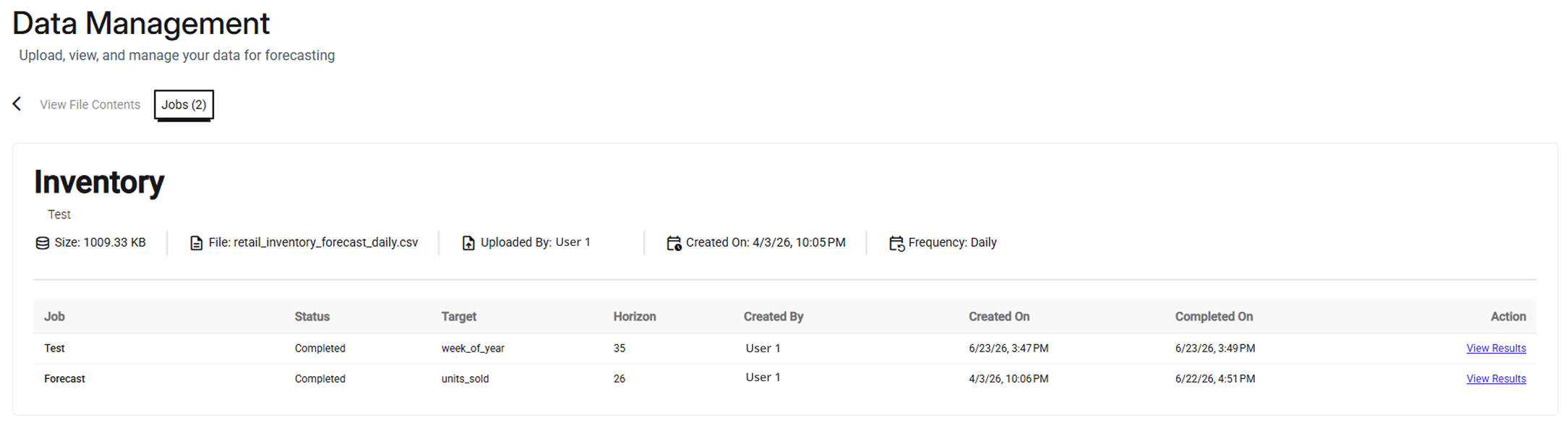
Users can view the following information about the file:
File name and description
File size
Who uploaded the file
Creation date and time
Frequency
And the following information about each job:
Job name
Status
Forecast target
Forecast horizon. Displays the number of future periods to forecast.
Job creator
Creation and completion dates and times
Action. When available, the View Results action opens a new tab displaying the job forecast results.
Users can also open this tab from Job Setup → Job Executions by selecting a Job name. See the Job Setup article for more information.
Job Results
Job results are organized by the following options:
Row display options. Select the number of rows displayed per page (25, 100, or 1000).
Calculation method. Select the aggregation method: SUM or AVG.
Displayed items. Select the items to display on the screen.
Frequency (daily, weekly, or monthly).
Additional options include:
Export CSV. Export your forecast results in CSV format.
.png)