Board 15 introduces Vertical Block Alignment for Flex Grid. Vertical Block alignment is designed for an Excel Pivot Table–like experience and is easy to use by Planners and Developers.
Vertical views are fundamental for operational planning which is why Flex Grid now offers Vertical Block Alignment. Similar to Vertical Layout in a Data View, Vertical Block Alignment transposes Blocks in a Flex Grid Layout so that data displays in a vertical order inside the Row Groups that you define in the Fields tab. This view makes hierarchical aggregations easier to read and Data Entry actions easier to perform across dimensions. Both flat mode and Pivot mode and all embedded charts are supported in vertical alignment.
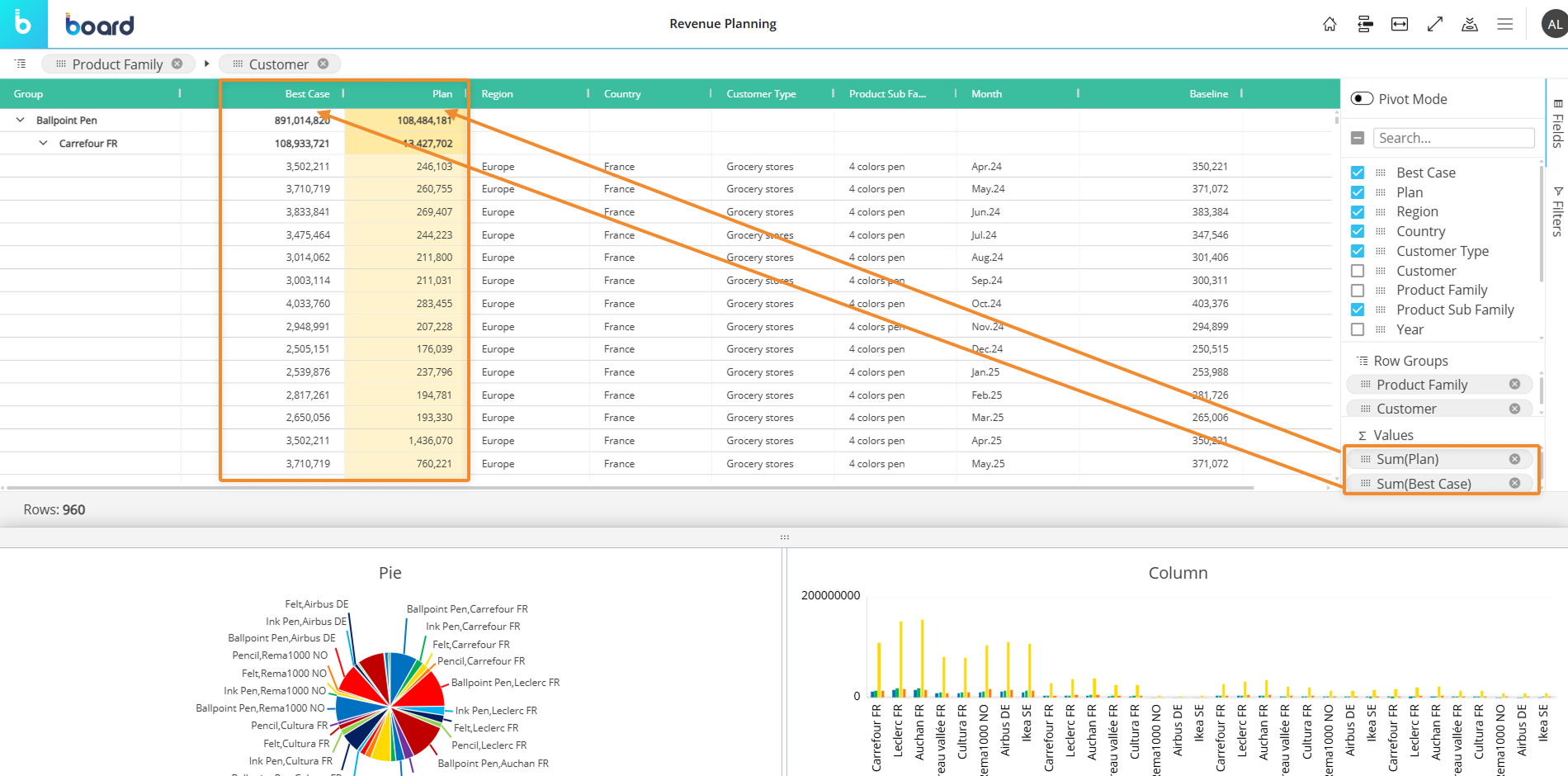
Below is a a Flex Grid without vertical alignment, showing the Values fields (“Plan” and “Best Case”) as total columns represented of the Row Groups, which are “Product Family” and “Customer”.
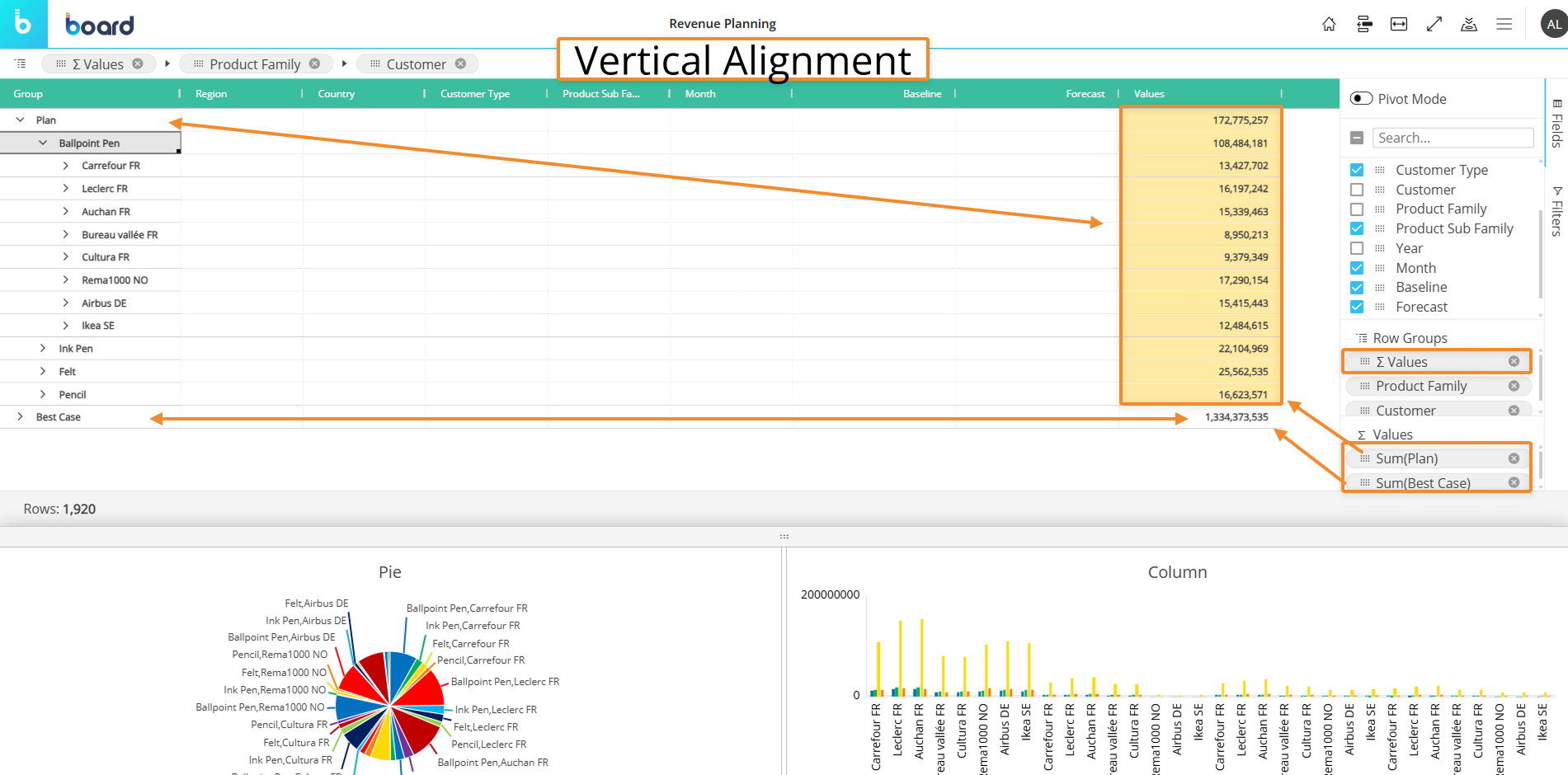
Below is a Flex Grid in Vertical Block Alignment, showing the Values fields (“Plan” and “Best Case”) organized as Row Groups along with “Product Family” and “Customer” and displaying the totals in the last column.
When to use vertical alignment?
When reviewing forecast projections over time, it is helpful to utilize the Vertical Block Alignment to better visualize and scroll data through time periods. End users can pivot the data so KPIs display in rows and the time horizon displays in columns.
Easier for Developers and Planners
Vertical Block Alignment in a Flex Grid reduces the work for a Developer who would normally have to duplicate multiple Data Views to achieve what is possible in one Flex Grid with Vertical Block Alignment. Now, utilizing common Board features, Planners can drill down, aggregate, and disaggregate data all in the vertical view of one Flex Grid.
Highlight features include:
Drag-and-drop field placement
Quick right-click menu features
Dynamic row and column arrangements
The feature is enabled by default. To disable it in Design Mode, uncheck the setting “Allow Vertical Block Alignment” in the Object Properties Panel.
Create Vertical Alignment for a Flex Grid (Developers)
Developers can enable/disable Vertical Block Alignment for the end user. When enabled, Developers can create a vertical alignment and save it so that it is a default view for Planners in Play Mode.
To create a vertical alignment in Design Mode:
After creating a Flex Grid Layout, enable the “Allow Vertical Block Alignment” option in the Object Properties Panel if needed. The option is enabled by default.
Configure “Fields” for Row Groups and Values that you want to visualize vertically.
Drag the “∑ Values” field to Row Groups to view the data vertically. The “∑ Values” field appears in the Fields list when at least 1 field is added to the “Values” area.
“∑ Values” will not be available in the list of fields when “Allow Vertical Block Alignment” is unchecked in the Object Properties Panel. When unchecked, Planners will not be able to create a vertical view using this feature.
Save the Screen.
It is available in both Pivot and flat mode, however not compatible with Column Labels. Data is visualized hierarchically according to the order of the fields. Row Template, Block Format, and Object Format are all supported in Vertical Block Alignment.
When “∑ Values” is placed in Row Groups, the measures move from values to row group fields, and switching the view to a vertical layout.
Interact with Vertical Alignment (Planners)
Planners can interact with an already configured vertical alignment or configure a Flex Grid to view data vertically themselves.
To create a vertical alignment in Play Mode:
Click on “Fields” on the right side bar of the Flex Grid to open the panel.
Drag and drop fields you want to see vertically to the areas below: “Row Groups”, “Values”, and “Column Labels” and arrange the hierarchy within the “Row Groups” area
Add the “∑ Values” field to the “Row Groups” area based on the hierarchy you want to view your data
The position of the fields matter:
1. When only “∑ Values” is in Row Groups, all the fields added to “Values” area appear in the order they are configured.
2. Adding a field or more before “∑ Values” in Row Groups displays data in the typical Flex Grid organization: embeds the KPIs within the fields in the order they are configured in Row Groups.
3. If “∑ Values” is placed before a Field, the KPIs are broken down by those dimensions.
To change the aggregation from the Fields area, right click on a checked field. From there you can ungroup or remove the field from the Values area. Or, click on an unchecked field to group or add a field to the Values area.
The vertical alignment configuration can be saved or restored using “My view” from the burger top menu and added to a Presentation.
Row limits are the same as Flex Grid: 2.5M rows.
Data Entry in Vertical Alignment
Data Entry is available on a Flex Grid in Vertical Block Alignment. All Data Entry logic and parameters stay the same as before, and now carry over to a vertical alignment. Data Entry on all Block types is supported. All locking features currently supported in a Flex Grid carry over to vertical alignment.
Data Entry in vertical alignment is supported on the following totals:
Row groups
Column labels when collapsed
Unbalanced nodes
Other supported features
Data Entry on reverse algorithms are supported.
Both Docked and Range Charts are supported.
Other unsupported features
Row header Data Entry not supported. If configured in the non-vertical alignment, it is disabled in vertical alignment.
Hidden Blocks are disabled. They become visible again when switching back to non-vertical.
Export is not supported in vertical alignment. If exported, the grid appears in a non-vertical format.
Data Entry Restrictions
Data entry restrictions are the same as for a non-vertical Flex Grid with a few more restrictions. The full list is below.
Data entry on vertical alignment cannot be performed on:
Tree View
Row headers
Drillable Blocks
RDB Cubes
Blocks configured with a "Refer to" (instead, Data Entry is possible with Object Selection active)
Multiple Unbalanced Entities set by row
Reverse Rules
Pattern-based Data Entry
Totals with Summary Algorithms different from SUM
When more than 100k rows are displayed and row grouping is enabled, copy and paste is available only on visible data (1000 rows).
Filter & Sort behavior
Filter and sort configurations remain when switching from vertical to non-vertical alignment and vice versa.
Filters on Vertical Alignment
Filter configurations remain when switching between vertical and non-vertical alignment.
However, when filtering a specific value field, only that measure is filtered—not the others.
Vertical vs non-vertical filter logic:
In a non-vertical layout, filtering removes entire rows from the dataset.
In a vertical layout, those rows are represented as columns, so they remain visible, but the filter selection limits the data displayed within them.
Drill down
Drill down on an Entity is supported on a vertically aligned Block. Drilling on an Entity in vertical alignment displays the Entity’s members within the Sum Values configured in the Values area. In the drill window, all KPIs are kept. Drills can be customized and saved by both Planners and Developers.
Drill-Procedures, Drill Throughs, and Drill-to-Screen are not compatible with Vertical Block Alignment.
Any of the above drills will be ignored in vertical format.
Drills made in vertical alignment will override any previous made drills when reverting back to non-vertical format.
Formatting a Vertical Layout
Formatting a Vertical Layout is supported. All formatting can be converted to vertical and back to non-vertical. When Block Format is configured, it is pivoted over the rows since each row is ultimately one of the Layout Blocks.
Known limitations with the Flex Grid Vertical Block Alignment
Flex Grid has a row limit of 2.5 million rows. This is important to consider in the initial configuration because the number of rows increases when switching to vertical alignment.
Vertical alignment is not compatible with Blocks configured with the 'By Column' option and Entities set By Row.
Picture type Blocks are not compatible with vertical alignment.
Exporting a Flex Grid in vertical alignment is not supported. The export will execute and render a Flex Grid in non-vertical alignment.
Drills apart from drill downs are disabled in vertical alignment, not removed, when switching from non-vertical to vertical and restored when switching back.
When a drill down is created in vertical alignment, it overwrites any existing drill in the non-vertical alignment.
Tree View is not available in vertical view.
The Nexel feature is not supported.
Hidden Blocks are disabled in vertical alignment.