Introduced in Board 15, the following new Flex Grid enhancements have been released:
Layout enhancements
Filters tab
The Flex Grid Layout Editor now features a Filters tab where you can set filter rules to your Layout. This is also useful when copying a Layout from a Data View to a Flex Grid or vice versa, and specific rules apply. See Copy/Paste formatting below for more information.
Only numerical Blocks and Blocks without By Column configured support filters in a Flex Grid Layout. Should one of these limitations exist when copying over, the filter will be ignored.
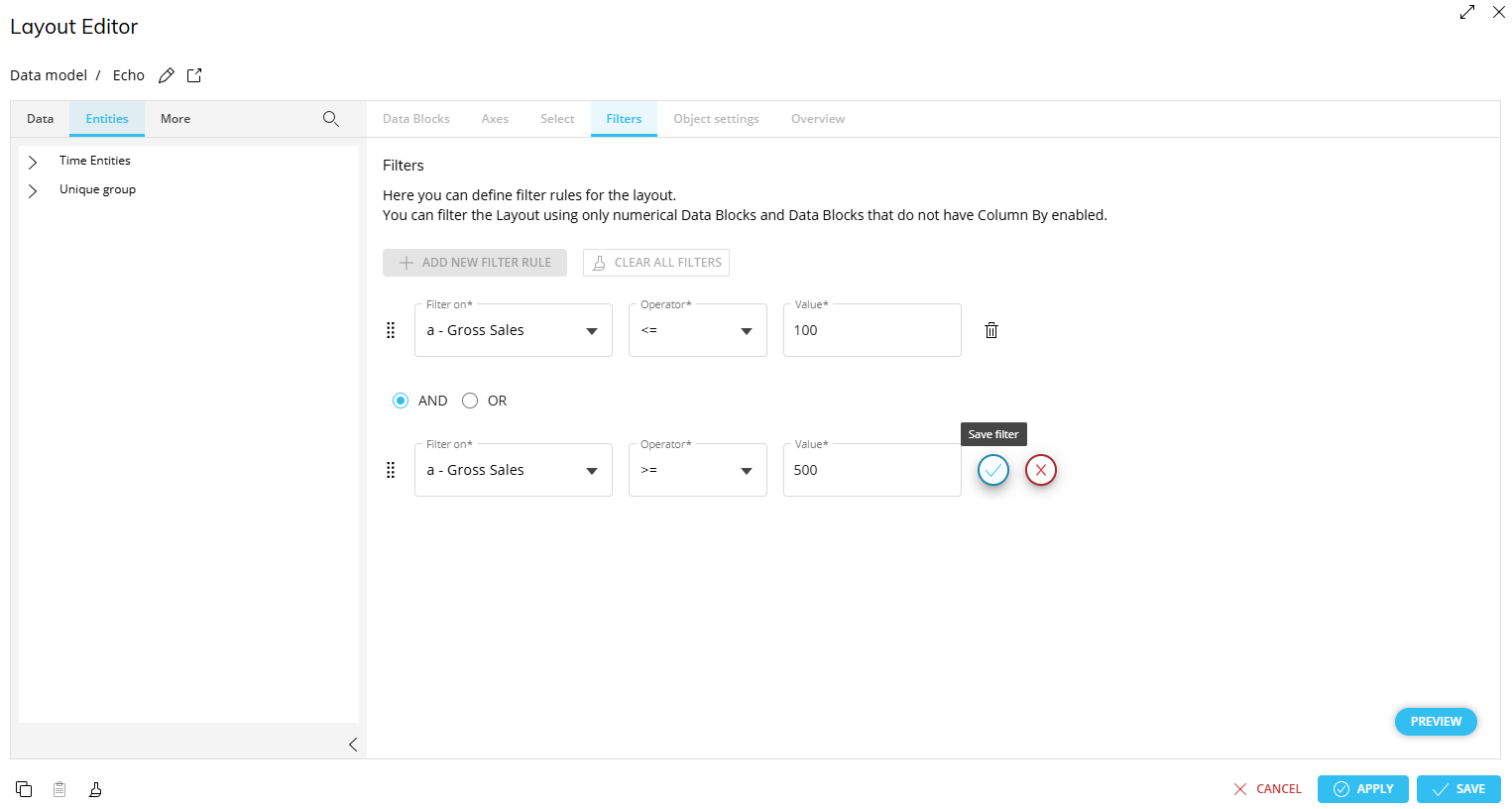
How to create Filter rules
Click “ADD NEW FILTER RULE”

Configure the rule with the following settings:
Filter on. Choose the Block you wish to apply the filter on.
Operator. Choose the operator to define the filter rule
=. Equal to a value
<>. Less than and greater than a value
>. Greater than a value
>=. Greater than or equal to a value.
<. Less than a value.
<=. Less than or equal to a value
Range. Choose a minimum and maximum value to filter a range of values.
Values. Depending on the operator, you will have the option to type different values. For all but “Range”, write in 1 value in the “Value” field. For “Range”, write the minimum value and the maximum value.
Click the blue check mark to save the filter rule. To cancel, click the red X.
Optional: Add multiple rules by repeating steps 1 and 2
While configuring the second step, choose between “AND” or “OR” to complete the rule parameters.
The “AND” or “OR” parameter you choose for the second rule will apply for any additional filter rules. You can change the parameter in the second rule, but it will apply to any additional filter rules.
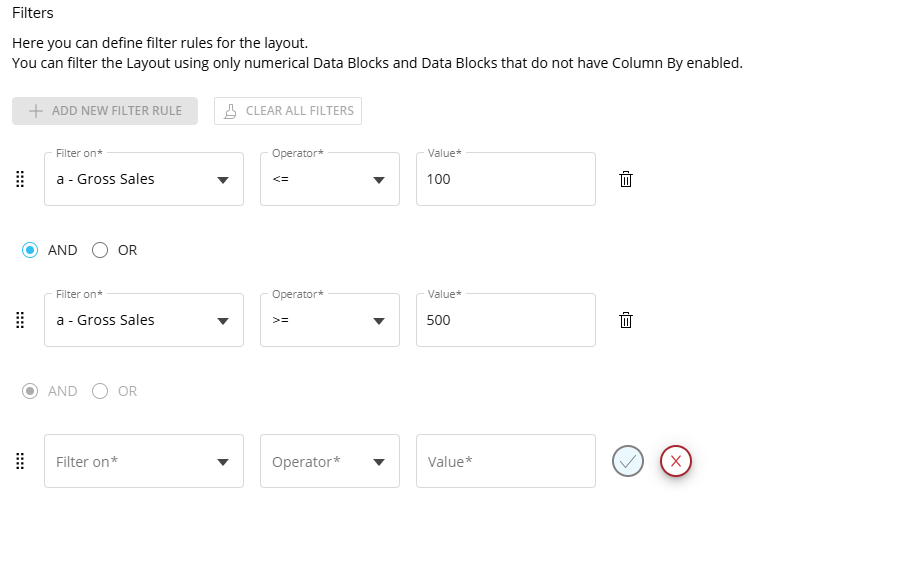
Click the blue check mark to save the filter rule.
Save the Layout.
By Column enhancements
Total sum
In previous versions, the By Column created new Total sum columns on the Flex Grid while now it creates rows inside the configuration of rows defined by the user (according to the hierarchy defined in Row Groups).
Total sum of multiple Blocks is not supported
By Column totals across multiple Blocks are not supported when those Blocks share the same By Column configuration and are grouped by 1 or more Entities.
If a total sum column is needed with By Column Blocks, it can be recreated by using a new algorithm Block that sums the multiple Blocks together.
By Column algorithm with Data Entry
In previous versions, when an aggregated formula was written as an algorithm on a Block configured with “Column by” and Data Entry enabled, data entry was redistributed from the column total first and then redistributed down to the leaf cells before recalculating the row aggregation.
Now, changes to the calculation order for Data Entry on a Calculated Total column in Flex Grid have improved to start from the row aggregation instead of the column total.
Data Entry on By Column totals of Algorithm Block
In Board 15, Data Entry on the By Column total of the calculated Data Block now redistributes vertically first instead of redistributing row aggregation and updating leaf cells first. This applies when all the following conditions are active on a Flex Grid:
By Column
Data Entry
and an aggregation formula calculated on a Data Block algorithm
How Board 15 Data Entry on By Column now behaves:
Board applies the redistribution on the Calculated (Total) column
Then, pushes the values down to the leaf cells of the reference Data Blocks
Last, recalculates the row aggregation of the Data Block algorithm.
In earlier versions, the same Data Entry action redistributed from the row aggregation first, then updated leaf cells, and only after that recalculated the Calculated (Total) column totals.
Known limitations:
When a calculated formula is used in a regular column, the Data Block algorithm on a group row behaves the same as on a leaf row. Board evaluates the algorithm directly on the group row instead of aggregating the values from child rows.
For row totals, the behavior differs:
On a group row, the calculated value is computed from the row totals of the referenced Blocks.
On leaf rows, the row total does not follow that logic: the row total on leaf rows is always and only the sum of the columns within the same By Column group.
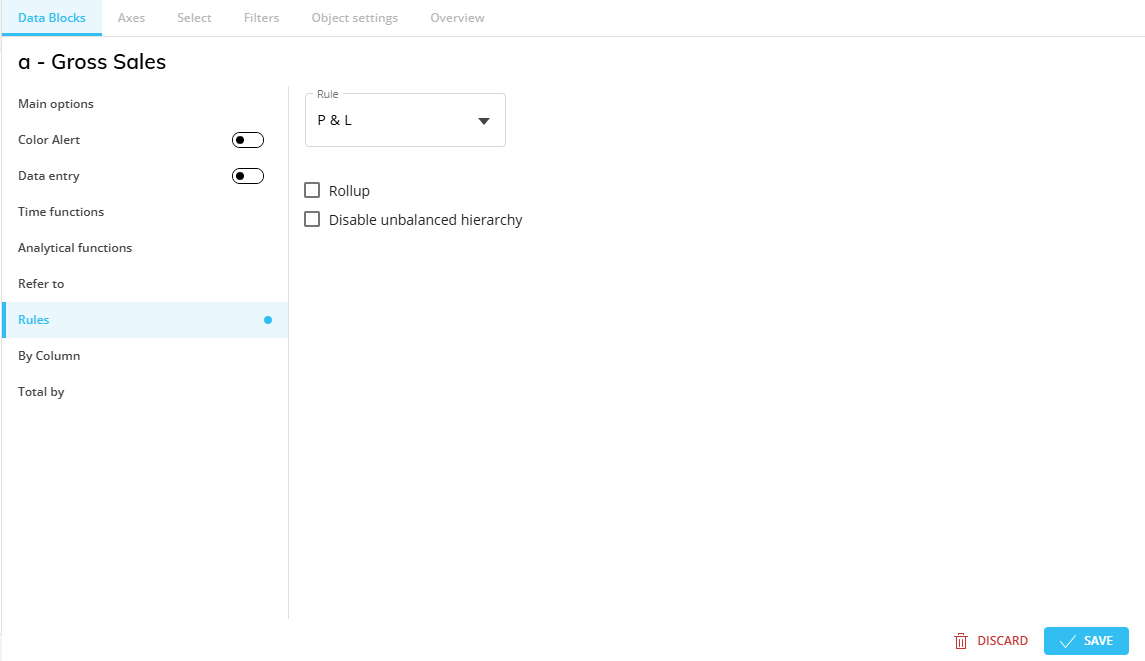
Rules
The Flex Grid now executes Rules containing range functions like a Data View. The same logic as a Data View applies: the Entity members are ordered according to the configuration at the Object Layout level (i.e. by code, desc, custom, or creation).
Apply on totals flag deprecated
“Apply on totals” flag originally found under the Rules section of Block settings is now deprecated.
Copy/paste formatting from Data View to Flex Grid
When copying a Layout from a Flex Grid to a Data View or vice versa, the basic Layout structure, including the Data Blocks, Entities, and Axes configuration, is correctly applied. The following limits and rules apply when copying and pasting a Layout from a Data View to a Flex Grid or vice versa.
Data Block settings
Not all Block settings are copied. The following Block settings are copied and unchanged:
Color alerts
Time functions
Analytical functions
Refer to
Rules
Ranking function
Total by
Rules and Ranking functions are copied, however their Blocks are removed and replaced with a placeholder. To fix this, the user must replace these if they exist in the Layout with alternative Blocks.
Sorts and Filters
Sorting is not copied and must be reconfigured between Objects.
Not all filters of the Layout are copied. The following are kept, while the others are removed:
>=
<=
Only numerical Blocks and Blocks without By Column support filters in a Flex Grid Layout. Should one of these limitations exist when copying over, the filter will be ignored.
Object Settings
Object Settings, like with other Objects, are not copied.
Because the Object Settings section is not copied, the pasted Layout may appear structurally identical but will not automatically retain these display or drill behaviors. It is therefore recommended to review and restore the desired configurations in the Object Settings section after performing the copy/paste operation.
Data Entry
When Data Entry is activated and configured, the following copy rules apply:
Pattern-based allocation is removed
Total locked by Block is removed
Cube cells locked by is removed
Substitution formulas
Substitution formulas are copied, however, if they are unavailable in the Object where the Layout is pasted, they simply stop working (E.g. @Selection_EX is not supported in a Flex Grid and therefore will not work if copied from a Data View).
Formatting
All common formatting in Row Templates and the Design Object Properties is copied, like fonts, font size, borders, and colors. Others specific to an Object are removed.
Block Format is not copied.
Data View/Flex Grid-specific copy/paste Layout changes
When copy-pasting a Layout from a Data View to a Flex Grid or vice versa, the following options are removed, changed, cleared, ignored, or reset.
Block Settings
Divide by is removed
Summary is set to Total by
Tooltip is cleared
Hide zeros and row totals are reset
Detail by (Data View)/ By Column (Flex Grid) is cleared. The user must re-configure the Object specific feature
Flex Grid interactions
Any in-grid interactions like pivot mode, filtering, sorting, grouping, and vertical alignment are ignored
Features not supported in a Flex Grid
Aggregation is cleared
Nexel is cleared
Axes
Down totals are not copied
Show all is not copied
Incompatible elements (e.g., multi-axis rows, nested algorithms) are automatically remediated or flagged.
Small enhancements
The following smaller enhancements are now available in a Flex Grid.
Faster performance
The Flex Grid now has faster rendering and better performance:
upon refresh
with Data Entry with filters and custom colors
on expand/collapse with Column by active
with more than 2 million rows
and improved calculations on hidden Blocks
Filter in Flex Grid improvements
Show Filters panel and Disable Floating Filters
Now, in the Filtering modification area of the Flex Grid properties panel under “Data”, you can configure to show or remove the Filters panel and disable the floating filters that by default appear under the Column headers.
Quick view and removal of filters
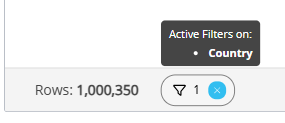
When you create a filter in the Flex Grid, it will appear on the bottom bar where you can view what filters are active and quickly reset them by clicking the blue “x”.
There are two actions you can do with this feature: view or remove the filter.
To view the active filter, hover over the element and the tooltip appears above it.
To remove the filter, click the “x” in blue.
In the example below, you can see that 1 filter is active on the Entity “Country”.
Right-click option to clear filters and sorts
You can now clear all filters and sorts in the Flex Grid from the right-click menu. Right-click to deploy either:
Clear All Filters. Clears all filters made in a Flex Grid, but not in a Layout.
Applies only to filters made in the Flex Grid. Layout filters are kept.
Clear All Sorting. Clears all sorting applied in a Flex Grid.
Fields right-click menu
In flat mode
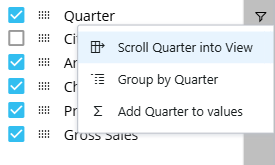
When in flat mode, a user can access a right-click menu for each field available in the Fields list. The following options are available depending on the current field configuration:
Scroll [Field] into View. This option is available only when a field is not grouped by row. When a table is heavily populated with many columns, this option scrolls the to the specified field when it may be difficult to locate.
Group/Ungroup by [Field]. This options allows users to group or ungroup the specified field and updates the Flex Grid accordingly.
Add/Remove [Field] from values. This option allows users to add or remove the field to the values section of the Fields panel and updates the Flex Grid accordingly.
In Pivot Mode
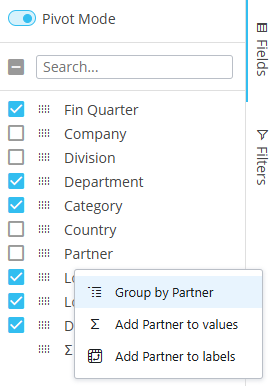
When in Pivot Mode, a user can access a right click menu for each field available in the Fields list. The following options are available depending the current field configuration:
Group/Ungroup by [Field]. This options allows users to group or ungroup the specified field and updates the Flex Grid accordingly.
Add/Remove [Field] from values. This option allows users to add or remove the field to the values section of the Fields panel and updates the Flex Grid accordingly.
Add/Remove [Field] to labels. This option allows users to add or remove the field to the labels section of the Fields panel and updates the Flex Grid accordingly.
Export Flex Grid to new Board M365 Excel Add-in
Users can export a Flex Grid configuration from the Platform to a compatible Excel file to use in the new Board M365 Excel Add-in-enabled workbook. The export maintains graphical formatting, selections, grid-made filters and sorts, and grouping.
This feature improves user productivity by enabling seamless workflow in Excel by reducing manual, ungoverned exports and unifying the Flex Grid with Excel Add-in experiences to ensure consistent, governed access to Board data across both environments.
Read more about the compatible Flex Grid export for Board M365 Excel Add-in.
Row and header density
Planners can now adjust the row and header density in Play Mode based on their needs, while only Developers could do this in Design Mode in previous versions. The row and header density options now offer 5 predefined settings and the ability to customize. Planners can configure densities with the new Row Height option located in the Object Toolbar where the following choices are available:
Extra Narrow.
Narrow.
Compact.
Large.
Extra Large.
Custom.
All densities except of “Custom” are predefined sizes. If you use a large font size and choose “Extra Narrow”, the content could be cut off by the size. Custom gives you the freedom to adjust the size of the density within the range of 14-100px for both rows and headers
The updated row densities are found in the same area as before for Designers in Design Mode: Properties Panel under the “Design” tab in the “Row” section.
Wrap Text options in Object Toolbar
Planners and Developers can now customize the position and alignment of content within cells and Column headers with the new Alignment option located in the Object Toolbar where the following options are available:
Wrap Column Headers. Wraps column headers so that text is visible however wide or narrow the column.
Active by default. Applies only to Column Headers. Only available if enabled by Developer in the Flex Grid Property Panel. Can be enabled/disabled by Planner in Play Mode from the Flex Grid Toolbar.
Wrap Cell Content. Wraps values so that text is visible however wide or narrow the column.
Disabled by default. Only applies to text values. Enabled/disabled in Design mode Property panel and for the end user in the Toolbar.
Cell Content Alignment. Choose the alignment for all cell content:
Top
Middle
Bottom
Full screen view
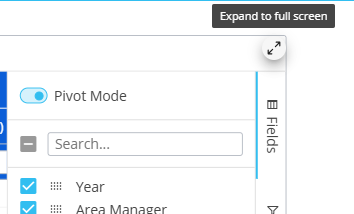
A new full screen option is available on the Flex Grid toolbar menu or as an icon in the top right corner of a Flex Grid in Play Mode. When activated, the Flex Grid expands to fill the entire screen, regardless of the size and placement defined in Design Mode. This helps Planners focus on data without other on-screen elements.
Key benefits
Improves readability for large datasets and complex pivots.
Reduces scrolling and distraction during analysis and presentations.
How To Use
Open the Screen or Presentation in Play Mode.
Hover over the Flex Grid to reveal the full screen icon in the top right corner and click it. The Flex Grid expands to the full available screen area.
Click the Exit full screen icon located in the same place to return to the previous view.
Behavior
Full screen view is only available in Play Mode. It does not alter the Object’s size or Layout configured by makers in Design Mode.
The Flex Grid keeps its interactive features in full screen, including pivoting, sorting, filtering, grouping, and drill operations, subject to Object configuration.
The full screen view cannot be used or saved in Design Mode. The full screen view can not be saved in MyView or Presentations. It is a temporary viewing mode only.
Full screen affects only the selected Flex Grid. Other Objects remain hidden while full screen is active. The feature does not change export behavior or Excel row limits when exporting from Flex Grid.
Hidden Blocks Aggregation function in the Layout Editor
The Flex Grid Layout now has a specific configuration to define the aggregation function of Hidden Blocks. When Blocks are not hidden, the end user can set the aggregation function in the “Values” area of the “Fields” panel. When hidden Blocks are used as references by other Blocks, you can now define its aggregation in the Main options of the Block settings in the Flex Grid Layout.
Open the Flex Grid Layout
Open the Block settings by double clicking on the Block or using the right-click menu
In the Main options areas, check the “Hide Block” option and then a dropdown appears where you can choose the following options:
Sum
Average
Count
Min
Max
First
Last