💡This article contains version changes.
Spot the light bulb icon? That means you’ll find helpful details about what’s changed across versions. Read more about version changes here.
After you create and configure your AI Agent, you can use it from a Screen.
Board AI Agents help you analyze data, ask questions, and receive explanations or recommendations based on the data context available to the Agent.
This article covers the following topics:
To better understand the role of AI Agents within the Board platform, see About Board AI Agents.
AI Agents on Screens
The Agent uses the Screen as the interaction entry point. The Agent can use the user context from the Screen, such as Screen Selections, Selector and Pager Object filters, and navigation state.
Link an AI Agent to a Screen
Before it is possible to interact with the Agent you have configured, you have to link it to the specific Screen you wish to analyze with the help from the Agent. To do this:
Open the Screen in Design Mode
On the Screen Properties panel, under “AI Agent“, choose what Agent you wish to link to this specific Screen from the dropdown menu. If your Agent doesn’t display in this menu make sure that the underlying Dataset has the “AI Access“ option enabled.
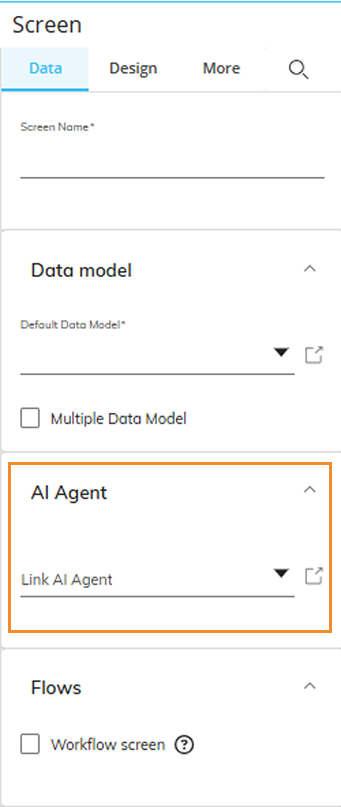
Save your Screen changes.
AI Agents are not available when "Multiple Data Model" is enabled.
When adding an Agent to an existing Screen, make sure the relevant Datasets are also included. This ensures the Agent has the right context and prevents confusing or incomplete results for users.
After this configuration, the AI icon (.png) ) will display on the Top Menu through which the End User will be able to interact with the Agent in Play Mode.
) will display on the Top Menu through which the End User will be able to interact with the Agent in Play Mode.
Use the AI Agent chat
To interact with an AI Agent:
Open the Screen where the AI Agent is available.
Click the AI icon in the Top Menu.
Click any suggested prompts or enter a prompt in the chat.
The AI Agent answers based on the data and context available to it.
.png)
Write prompts in the chat
A clear prompt helps the Agent understand the analysis you need, the data scope to use, and the format of the answer.
When you write a prompt, include the business goal, time period, scenario, Entity scope, measures or KPIs (key performance indicators), and expected output when relevant.
For detailed prompt guidance, see Best practices for Board AI Agent prompts.
Review AI Agent answers
An AI Agent answer can include different tabs, depending on the response.
The “Answer” tab. The "Answer" tab shows the Agent response in text format. The answer can include explanations, summaries, recommendations, and tables.
The “Chart” tab. The "Chart" tab shows a chart when the Agent returns a visualization. Supported chart types include:
You can download the chart by clicking the download icon in the top-right corner.
The “Steps” tab. The "Steps" tab shows the steps that the Agent used to build the answer. Use this tab to review how the Agent interpreted the request and which actions it performed.
The “Data Source“ tab. The "Data Source" tab shows the data used to generate the answer. Use this tab to review the data behind the Agent response.
Other considerations
Always validate the answers provided by the AI Agent.
The same Agent can be linked to different Screens.
The Agent does not parse Screen Objects (Data View, Flex Grid, Charts, Labels, etc). The analysis is executed on the linked Datasets.
Changes made directly on the Screen (Screen Selections/Pagers/Selectors) are not automatically re-read by the Agent. To update context, users should interact via the Agent (or re-open/refresh the Agent context after the changes are saved in Design Mode). Dynamic Selections, on the other hand, if present on Screen, will not be read by the agent - read more about other known limitations.
Request data and visualization
You can ask an AI Agent to return a summary, table, chart, or explanation.
When you request data, define the scope and expected result clearly. For example, include the time period, version or scenario, Entity scope, and the measures or KPIs to analyze.
When you request a chart, specify what you want to compare or visualize.
Example
Show a chart that compares Actual and Budget revenue by month for the selected year.
When you request a table, specify the rows, columns, measures, and sorting rule.
Example
Show a table by Legal Entity and Month. Include Actual, Budget, and Variance. Sort by the largest absolute variance.
Interact with AI Agent tables
You can use the following actions in an interactive AI Agent table.
Action | Description |
|---|---|
Sort | Click a column header to sort the table in ascending or descending order. |
Filter | Search within each column to narrow the rows shown in the table. |
Reorder columns | Drag and drop columns to change their order. |
Pin columns | Pin a column to keep it visible while you scroll across a wide table. |
Copy a cell value | Right-click a cell to copy the cell value from the context menu. |
Copy table | Copy the table with complete formatting by using the copy table icon. |
Export to Excel | Export the full table as an Excel file directly from the chat. |
Export to Excel or CSV | Right-click inside the table, then click "Export" to download the table in Excel or CSV format. |
Send to Smart Import | Send table content to a Smart Import Object when a Smart Import Object is available on the Screen.
|
Known limitations
Flex Grid not supported. At this stage, only Data Views are compatible for creating AI-enabled Datasets. Flex Grid Layouts are not yet supported.
Single Data Model only. An Agent cannot be linked to a Screen that uses multiple Data Models. It must be connected to a Screen configured with one Data Model only.
No long-term memory (session-based context only). The Agent does not retain memory across sessions. During a single session, the Agent can remember the previous prompt context and build on it. This context resets if you refresh the page, move to a Screen linked to a different Agent or no Agent, or log out of the environment.
One chart per prompt. Agents can generate only one chart per user prompt. Multiple charts in one answer are not supported at this point.
Dataset Selection filters. Do not add Entities to the Quick Layout when those Entities are already enforced as Dataset Selection filters. These Entities are fixed scope, not pivot axes.
Excel exports.
Desktop exports. When the Remove leading zeros and convert to a number" option is disabled in Excel, the Leading-zero codes are correctly pasted as text and they preserve the zeros. If this flag is enabled, codes lose the zeros and are pasted as numbers.
Excel Web exports. In the web version, the "Remove leading zeros and convert to a number" option is enabled by default and can not be disabled causing Leading zero-codes to be pasted as numbers and lose the zeros automatically.
Excel copy and paste. When you copy an AI Agent table to the clipboard and paste it into Microsoft Excel, Excel applies formatting based on the regional settings configured in the user's Excel or operating system.
Currency values. Currency values retain their currency symbols when pasted into Excel. Whether Excel recognizes the values as the Currency data type depends on the user's regional settings.
Number formatting. Negative numerical values retain their value and negative sign when pasted into Excel. Whether Excel displays negative values using the Accounting format, such as parentheses instead of a minus sign, depends on the user's Excel configuration. If needed, apply the Accounting format manually in Excel after pasting.
Other considerations
The same Agent can be linked to different Screens.
The Agent does not parse Screen Objects, such as Data View, Flex Grid, charts, labels, or other Objects. The analysis is executed on the linked Datasets.
Changes made directly on the Screen, such as Screen Selections, Pagers, or Selectors, are not automatically re-read by the Agent. To update context, users should interact with the Agent or reopen or refresh the Agent context after changes are saved in Design Mode.
Starting with version 15.1, by design, if a Dynamic Selection is applied on the Screen, Board resolves the Dynamic Selection and passes the resolved Selection value to the Agent as context. Dataset Quick Layout requirement. The Agent can use only Entities that are exposed in the Dataset Quick Layout. Any Entity used in the Screen context must also be included in the Dataset Quick Layout. Otherwise, the Agent ignores that Selection.
Core Logic Overview
The Agent operates within Board semantic and Layout logic and depends on how Entities and Datasets are configured in the Data Model.
The Entity must be defined in the Quick Layout. The Agent can query the Dataset and understand which Selections to make only if that Entity is included in the Quick Layout of the Dataset.
The Agent inherits Board native Layout Select behavior, with "keep" and "to".
The Layout must be configured in "keep" mode so that when a user prompts with a new Selection, the Agent can merge the new Selection with the existing Layout Selections.
Example: Show only 2025 planned data for country Italy.
Entity filtering and Selections sent to the Agent
The Agent receives only the list of Entities that are explicitly configured in the Quick Layout of the linked Datasets.
Quick Layout configurations
Entities must be clearly set as "by row", "by column", "mandatory", or "nested" for the Agent to interpret Layout structures.
You can leave this unmarked if it is better to let the Agent set the Entity by row or by column.
These configurations define how the Agent can pivot or reconfigure the Layout when a user prompt requests a view change.
Entity description and code
The Agent currently recognizes and responds to Entity codes and descriptions. The Agent understands the unbalanced hierarchy nature of the Entities.
Grounding model
The Agent interacts with data through the semantic layer of Board Datasets.
The Agent does not query Data Models directly. All data access happens through Quick Layout-level configurations.
Data visualization
The Agent supports chart generation and you can download charts as images.
Supported chart types include bar charts, line charts, pie charts, waterfall charts, and combined charts.
This capability is at its initial stage. You can ask the Agent in natural language to create a chart. The Agent automatically prepares the required data format. Simple visualizations work smoothly, while complex visualizations may need some time and a few iterative refinements.
Responsible behavior
The Agent combines Layout query output with AI-generated natural language to:
Explain values or variances for analysis use cases.
Draft narrative text for reporting use cases.