💡This article contains version changes.
Spot the light bulb icon? That means you’ll find helpful details about what’s changed across versions. Read more about version changes here.
Before you use AI capabilities in Board to analyze information from your Screens and Capsules, you must configure your Datasets and Agents.
Review the technical requirements described in Getting started with Board AI Agents.
This article covers the following topics:
How do the Agents interact with Board?
Agents do not query raw data directly. Instead, they interact with Board by retrieving data directly from Data Models through the Dataset abstraction layer to preserve performance, consistency, and security.
The interaction works as follows:
User request and context capture. The user asks a question or starts a task. The system captures the relevant context such as current page, selections, time range, and model scope.
Orchestration and task routing. The Orchestrator determines which Agent is best suited to the request and what steps are required to complete it reliably.
Data retrieval through the Dataset abstraction layer. Agents retrieve information through Datasets, which define selections and pivot structures. These requests are executed by the Board engine, not by the Agent itself.
Execution by the Board engine. The Board engine performs aggregations and calculations, applying the model logic and enforcing security. This ensures results match the single source of truth used across Board.
Reasoning, explanation, and guidance. The Agent interprets the results, explains drivers and assumptions, and proposes next steps or actions appropriate for the workflow.
This separation is deliberate: the Board Engine remains responsible for deterministic calculation and governance, while Agents focus on interpretation, guidance, and productivity.
How to create and configure a Dataset
Before starting to use AI capabilities in Board to analyze information from your Screens and Capsules, it is necessary to configure your Datasets and Agents.
Learn more in About Datasets, or follow the steps to Create and configure a Dataset in Board.
When creating or editing a Dataset, make sure to enable the “Dataset for AI” option so it can be used by your Agents.
Data Attribute descriptions can help Board AI Agents understand the business meaning of Entities and Cubes in a Dataset. Use clear Data Attribute descriptions when a name is ambiguous, technical, or specific to a business process.
How to create and configure an AI Agent
After creating your Dataset, you can create and configure your Agents.
Inside a Data Model, the “AI Agent Configuration” tile is situated under “Analytics”. Select this tile to open the AI Agents area, where you can create, edit, set as default, and delete Agents.
.png)
.png)
To create and configure an AI Agent, follow these steps:
Click the plus icon
.png)
Select which Board Agent and respective version you would like to configure.
Only the AI Agents configured in your License will display.
a. Choose an Agent
For detailed information about Agent version changes, see Community article.
FP&A Agent. Focuses on financial planning and analysis with capabilities related to balance sheet analysis, cash flow insights, and P&L review.
Controller Agent. Brings intelligence and automation to financial close and consolidation by surfacing true exceptions, validating financial statements and cash flows, and reducing manual reconciliation.
💡Supply Chain Agent. Supports supply chain planning workflows. It helps planners analyze changes, explain drivers, and compare corrective actions before they commit a change.
💡Merchandiser Agent. Supports merchandise planning workflows. It helps merchandise teams analyze changes, explain drivers, and compare actions before a buy decision is made.
b. Choose what view you want to have in the dropdown menuRecommended. The latest version and the best choice for new configurations. Board guides users to this version for new and existing configurations.
All supported. Fully operational. Existing configurations continue to run. No action is required.
All including deprecated. Deprecated versions still run existing configurations so nothing breaks. New configurations are no longer allowed. Plan an upgrade to a supported version.
c. Use the info icon to read about what’s new for that version of the Agent.
.png)
Click CONFIGURE
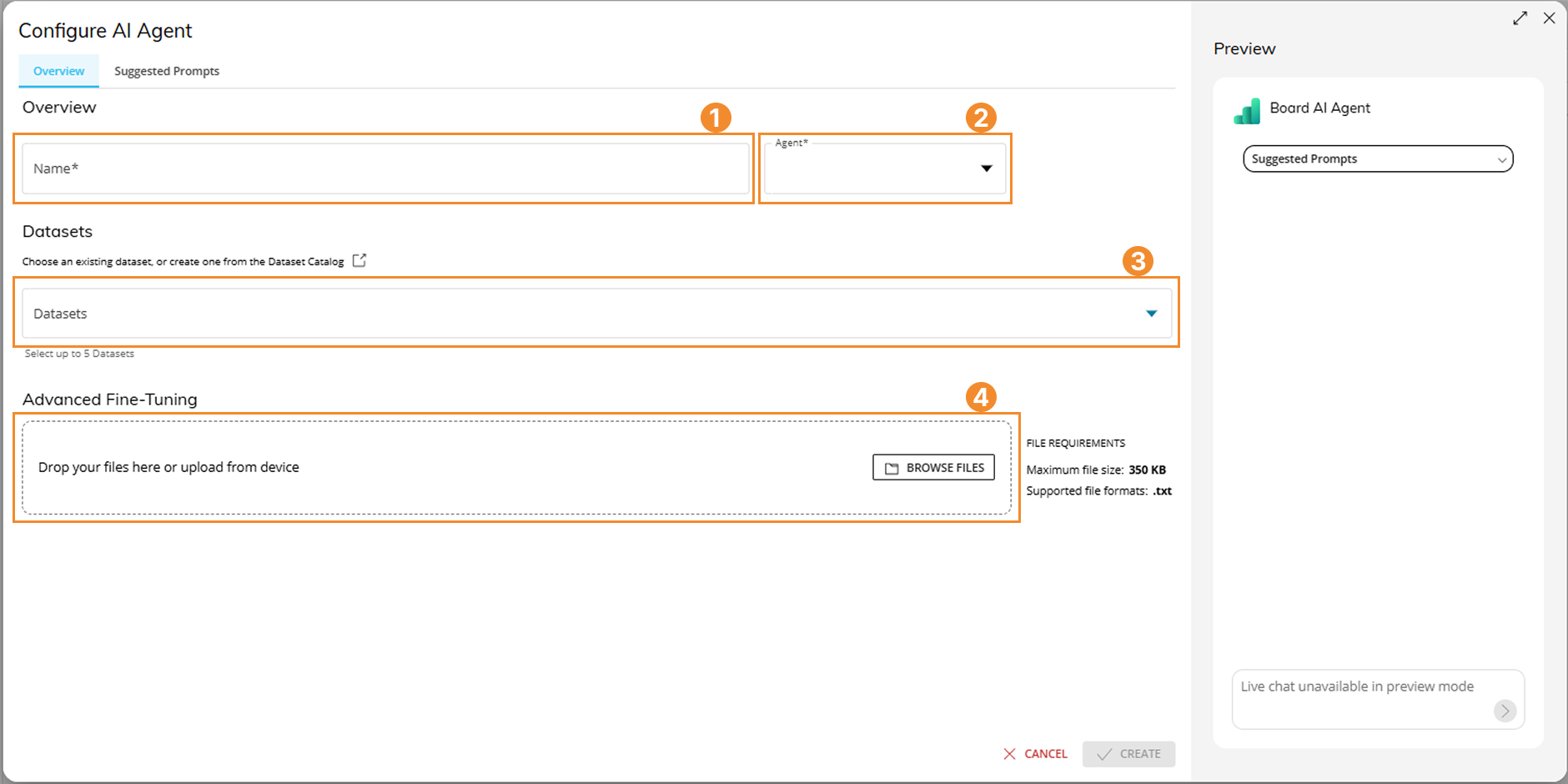
The “Overview” Tab
Name your Agent.
Modify the version of the Agent in use.
Associate one or more Datasets to your Agent (either an existing Dataset from the dropdown menu or a new Dataset by clicking on the “external link” icon and being redirected to the Datasets Catalog).
(optional) Upload TXT files from your device to add solution guidance, use-case instructions, and customer-specific business logic. These files are used for model fine-tuning.
These files guide the Agent’s behavior and definitions but they don’t change the underlying Datasets or security.
Data Attribute descriptions and TXT guidance files serve different purposes. Use Data Attribute descriptions to explain the business meaning of Entities and Cubes in a Dataset. Use TXT guidance files for broader solution guidance, use-case instructions, business rules, and process context.
Use a TXT file when you need to:
Standardize definitions, such as KPIs, sign conventions, and solution-specific terminology.
Explain business rules or calculations, such as allocations or rule-based KPIs.
Provide mappings and terminology, such as acronyms, synonyms, and Board Entity names.
Add process guidance, such as reconciliation approach or navigation guidance.
Tips:
Include keywords and synonyms that users will type. This helps the Agent look up and retrieve relevant content.
Add a short description at the start of the file that explains what the file contains and its intended use.
Keep guidance aligned with what is available in linked Datasets and the Quick Layout.
Upload a maximum of 5 files. The UI indicates file count and file size limits.
The “Suggested Prompts” Tab
The Suggested Prompts feature lets Developers and Power Users create repeatable analyses for End Users.
Suggested Prompts appear as guided starting points when End Users interact with a Board AI Agent from a Screen. They help standardize common analyses, reduce manual prompt writing, and make results more consistent.
Suggested Prompts are organized in Segments. A Segment groups related prompts together.
To create Suggested Prompts for your AI Agent, continue configuring:
Click on "ADD SEGMENT".
Enter a Segment name.
Choose an icon for the Segment.
Select "CREATE".
Select the plus icon in front of the Segment name to create a prompt.
Enter the prompt title.
Enter the prompt description.
Currently, Board allows the creation of 6 segments with 6 prompts each.
Click “CREATE” to complete your Agent’s setup.
The prompt title and description instruct the Agent on the analysis to run. This information is not displayed to the End User.
Once the Agent is configured in the Data Model, you can use it from your Screens and Capsules by clicking on the AI icon .png) situated on the Top Menu. Note that this icon will only be visible once an Agent is linked to the Screen.
situated on the Top Menu. Note that this icon will only be visible once an Agent is linked to the Screen.
Learn more about how to interact with your Agents in a Screen.
Manage Agent versions
When Board releases a new Agent version, existing Agent configurations do not update automatically. You choose when to upgrade each configuration.
Existing Agent configurations continue to run on the selected version until you change them.
Board shows only Agent versions that are compatible with your environment. Incompatible versions do not appear in the version list.
Version compatibility
Each Agent configuration is associated with a specific Agent version.
When a new version becomes available:
Existing configurations continue to use their current version.
Older versions remain available for existing configurations.
Deprecated versions continue to run existing configurations but cannot be selected for new Agent configurations.
Only compatible Agent versions are available for selection.
Upgrade an existing Agent
To upgrade an Agent:
Open the Agent configuration, choose your agent and click “Next”.
In the “Version” dropdown, select the Agent version that you want to use.
Review the available release notes and upgrade information. 4. Select the version to use.
Select the new version
Save the Agent configuration.
All existing configuration settings, including Suggested Prompts, are retained after the upgrade.