The Board for Microsoft 365 Add-in is compatible with V15 and later. For the MS Office Add-in (compatible with Board V14 and earlier), see here.
The Board for Microsoft 365 (M365)-Excel Add-in provides seamless integration between Board and Microsoft Excel, enabling users to access and leverage Board’s planning, analysis, and reporting capabilities directly within the Microsoft 365 environment.
This section covers the following topics:
Board for M365-Excel is versionless
This section is continuously updated as new functionalities are released, so users are encouraged to consult this section regularly for the latest enhancements and usage guidelines.
What is the Board for M365-Excel Add-in?
The Board for M365-Excel Add-in is an improvement to the existing MS Office Add-in. Bringing governed Board data and planning workflows into Microsoft Excel, the Board for M365-Excel Add-in provides users the ability to create Board Tables in Excel or export a Flex Grid to an Add-in-compatible workbook and connect it to a Board Data Model all within the Excel app or browser UI. With this connection, users can run reporting, analysis, and planning activities in Excel while staying aligned with Board’s multidimensional environment and governance.
Board Tables are the Board data-pivoting Object explicitly used in Excel with the Board Add-in.
The Board M365 Excel Add-in supports four main use cases:
Ad-hoc reporting and self-service. Access Board data through the Dataset approach, with Excel-like pivoting, formulas, and improved filtering to reduce manual work and errors.
Pixel-perfect output and printing. Use improved Board formulas to retrieve data and build print-ready Excel reports.
Data integration. Bring Board data into Excel-based processes for downstream consumption and reuse.
Mobile access via Excel for the web. Work with connected Excel workbooks in a browser to support mobile and distributed teams.
In addition to Excel’s native features, the Board M365 Excel Add-in supports the creation of customized worksheets that replicate key behaviors in Board Data Views and Flex Grids. This allows users to conduct ad-hoc reporting and advanced planning directly in Excel, reusing existing Excel-based business processes and skills.
Key features
Main capabilities
The Board M365 Excel Add-in introduces several key enhancements:
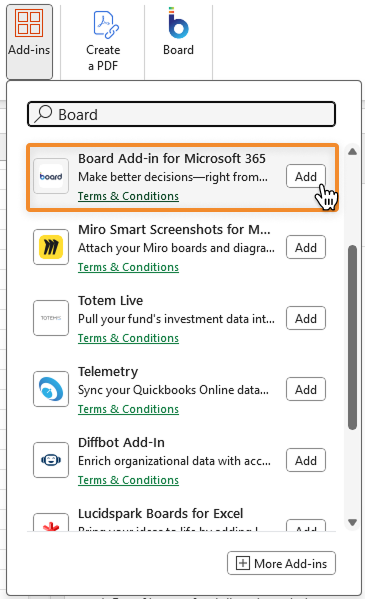
Seamless integration. No downloading or lengthy set-up
Versionless. No new versions, always updated with the most recent features and bug fixes
Enhanced UI and UX for a better experience aligned with Board 15 and newer, including direct access to Board-specific Table Object actions, from the Excel Ribbon and a task pane for easier and faster navigation and configuration. Including a guided user flow for data manipulation and visualization
Pivot functionality to dynamically reorganize data for analytical insight
Compatibility with Flex Grid Board 15 export to Excel with new “Board for M365 Excel Add-in” setting option
Faster and more advanced integration with Board Data Models for seamless access, reporting, and write-back of multidimensional data
Filtering and sorting, enhanced Board-custom functions
Layouts that replicate Board’s multidimensional views within Excel worksheets
Formatting options aligned with Excel’s reporting standards
These features empower Planners, Developers, and Administrators to leverage the full analytical and planning potential of Board within the familiar Excel environment, improving productivity and strengthening integrations across the Microsoft 365 suite.
Board M365 Excel Add-in Task pane
When you open the Board 365 Excel Add-in, the Add-in Task pane is displayed by default, while the Board ribbon is available in the top Excel menu.
To access the ribbon, select the Board section in the top menu, which reveals commands that resemble the standard Excel Ribbon. Many ribbon options open the right-side Task pane, which remains the primary workspace. Use the Task pane to sign in, select a Platform and Dataset, create Selections, configure and manage Tables, and review notifications.
The Task pane offers multiple tabs you can navigate for more options. Open a tab to see organized sections with details and settings. Expand a section to adjust configuration. Collapse it to keep the view clean. This structure helps you find what you need fast—whether you are signing in, managing Tables, checking notifications, or updating selections.
Additional features
Within an Excel workbook, the Board Office Add-in provides the following additional features.
Right-click context menu
Right-click a Board Object in the workbook to open the context menu. For full details, see the article Right-click context menu.
Overlapping Table
When creating or pasting a Table into a worksheet, the destination area must contain enough empty space to accommodate the Table. If the target range is not large enough, the Table will not be created or pasted and a warning message appears asking the user to find an area with more space to accommodate it. For full details, see the article Overlapping Tables.
User roles and permissions
The Board for Microsoft 365 Excel Add-in always enforces the Board Platform security permissions and parameters, including the Four Security Layers model, Data Model Security, and new explicit M365 Excel Add-in security features that distinguish between different user Roles. In this section, the term Planners refers to Financial Planning professionals who do not modify the structure of Capsules, Presentations, or the underlying Cubes and Data Models within the Board FP&A system. Similarly, Planners do not alter the design of Excel workbooks connected to Board but can filter, navigate, and pivot data in the same way they do within Board.
The term user in this section collectively refers to all individuals accessing the Add-in, including Planners, Developers, and Administrators.
Not compatible with the previous MS Office Excel Add-in
Board supports both the MS Office Excel Add-in and the Board M365 Excel Add-in on the same device. Users can install both Add-ins and switch between them at runtime without the need to restart Excel or reinstall an Add-in.
Excel workbooks created with one Add-in are not compatible with the other. This means that a workbook created with the MS Office Excel Add-in cannot be used with the Board M365 Excel Add-in, and vice versa.
There is no direct or automated conversion between the two versions, as the new Add-in introduces a fundamentally different technology and extended functionality. The MS Office Add-in is still maintained and remains operational for existing license holders.
For details about the Excel Add-in released prior to Board 15, refer to About MS Office Excel Add-in.
FAQs
What is the Board for Microsoft 365 Excel Add-in?
The Excel Add-in for Board M365 extends Microsoft Excel to make Tables similar to a Flex Grid, allowing users to view, analyze, and update Board data within Excel. It provides a seamless connection to Board Data Models, enabling governed reporting, and planning in the familiar Excel environment.
What are the key features of the Board Excel Add-in?
The Board Excel Add-in integrates Microsoft Excel with Board Data Models, allowing users to access, and analyze data directly within Excel. It supports complex data manipulations, and customizable views, all through a user-friendly interface integrated into the Excel ribbon.
How does the Board Excel Add-in enhance data management?
The Board Excel Add-in improves data management by streamlining workflows and reducing manual errors through direct data access between Excel and Board Data Models. It allows users to refresh, and edit data securely within Excel, enhancing accuracy, efficiency, and collaboration across planning and reporting processes.