This topic describes how to save, rename, move, or delete a Slide.
Once you've created a Slide and you've applied custom Layout definitions, Selections, drills and/or filters to the data in Edit Mode, simply switch to Play Mode to save the Slide. Leaving the Slide also automatically saves any unsaved settings.
To switch to Play Mode, click on the Play icon  in the Top Menu.
Any Slide configuration—including Layout definitions, Selections, drills, and filters—set in Edit Mode persists as the default state when accessing the Slide in Play Mode.
Rename a Slide
Open the Presentation in Edit Mode, select the Slide to rename and click on the three vertical dots that appear to the right.
Click on "Slide details" to reveal the Slide properties panel on the right.
.png)
Rename the Slide by editing the "Title" field.
Click anywhere outside of the field or click on "CLOSE" in the bottom right corner to save the new Slide title. The new title is also immediately replaced in the Slide list on the left.
Move a Slide
Open the Presentation in Edit Mode, locate the Slide in the left panel and drag and drop it anywhere in the Slide list.
Delete a Slide
Open the Presentation in Edit Mode, hover over the Slide to delete and click on the three vertical dots that appear to the right.
Click "Delete".
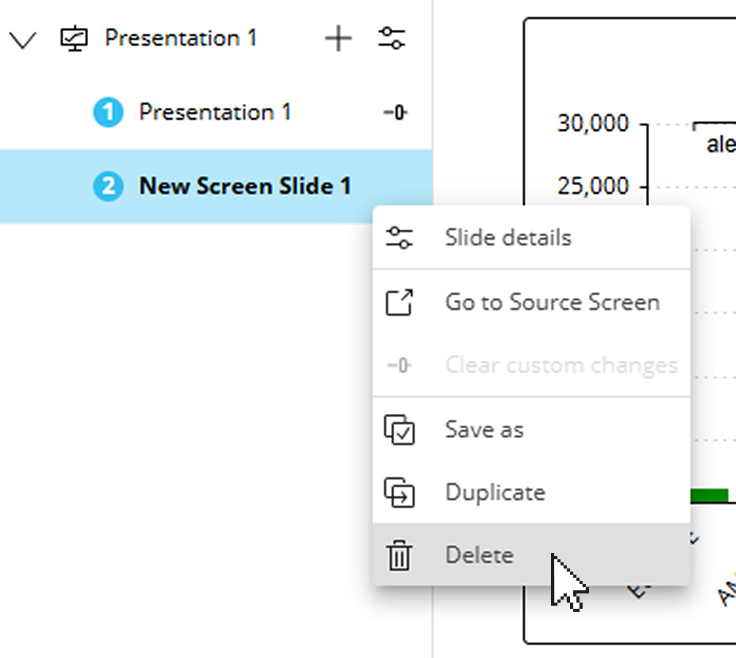
In the confirmation popup window, click "YES".
When deleting a Slide, it immediately disappears from the Slide list on the left. This action cannot be undone.