Localization of official languages
The Board M365 Excel Add-in now supports 5 official UI languages: French, German, Italian, Japanese, and Spanish.
To change the Board Add-in UI language, change the preferred language in your Excel options. When Excel is set to one of the supported languages, the Board Add-in UI automatically appears in that language.
The sign-in page remains in English.
This language setting applies only to Board-specific Add-in UI. Excel UI language settings are managed separately in Excel.
For more information, read the system requirements article.
Board for M365 Excel Add-in is now compatible without Subscription Hub
The M365 for Board Add-in now supports cloud-based Board environments without the Subscription Hub.
To enable the Add-in without a Subscription Hub:
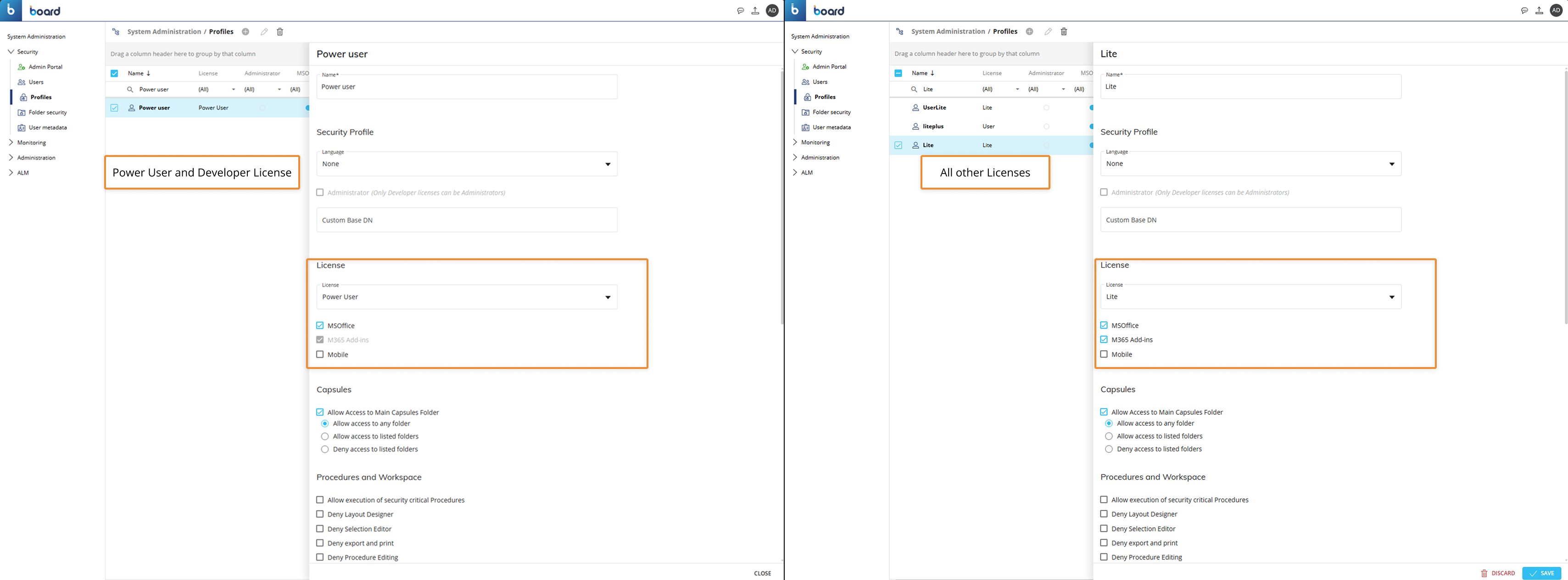
Access the Profile page under “Security” in the System Administrator section.
Locate the License section.
Enable the "M365 Add-ins" checkbox.
This checkbox is enabled by default for Power User and Developer licenses.
For all other profile licenses, you must enable the checkbox manually and have enough of the required M365 Add-in licenses available.
For more information, read the system requirements article.
Version management
Board introduces version validation to prevent users from opening workbooks created in one Add-in with the other.
Because Board supports two Add-ins, MS Office and Board for M365, users cannot use a workbook made for one Add-in while using the other Add-in.
With the release of Board for M365 Excel Add-in, Board already manages version validation one way: when a workbook is created with the MS Office Excel Add-in, it cannot be used with the Board M365 Excel Add-in.
With the 15.1 release, Board now manages the following version validation as well:
Any workbook created with the Board M365 Excel Add-in cannot be used with the MS Office Excel Add-in.
Board supports both the MS Office Excel Add-in and the Board M365 Excel Add-in on the same device.
Users can install both Add-ins and switch between them at runtime without the need to restart Excel or reinstall an Add-in.
Read more about version management.
.png)
Security export settings
The new option "Deny MS Office Add-in export" is now available to ensure the user exports a Table only compatible with the Board for M365 Excel Add-in, avoiding accidental exports compatible only with MS Office Add-ins.
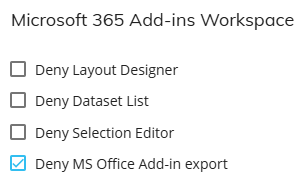
Deny MS Office Add-in export. This setting restricts users from exporting Data Views or Screens to the legacy MS Office Add-ins. The option is removed from the export window.
Find this new option in the security profile settings created in the "Features" section, under "Microsoft 365 Add-ins Workspace".
The option is enabled by default for newly created profiles.
To disable this option, you must manually uncheck the option of a profile in the Features area.
.png)
For more information, read the system requirements article.
Copy/paste Sheet Selection and Layout
You can now copy and paste Sheet Selections and Layout configurations across multiple workbooks.
Sheet Selections and Layouts can be copied and pasted across workbooks only when you are signed in with the same account and use the same Platform URL.
Copy a Sheet Selection from an existing sheet and paste it into a new sheet, or use it to overwrite an existing one with the same Data Model. The "Copy Selection" option is in the Sheet Selection menu options. After clicking "Selection" in the ribbon, click on the 3 dots next to "Sheet Selection".
Sheet Selections can only be pasted into sheets that use the same Data Model.
If you paste a Sheet Selection into a workbook that uses a different Data Model, the selection does not apply and a message appears. To paste the Sheet Selection, you must change the Data Model to match the source sheet.
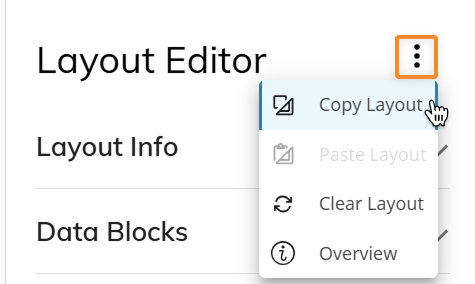
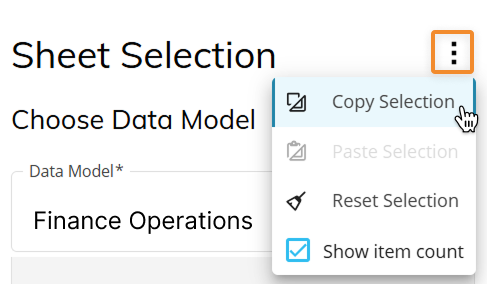
Copy a Layout from one Table and paste it into a new or existing Table, matching the copy and paste behavior already available between Flex Grid Objects. The "Copy Layout" option is in the Layout Editor menu options. After you click on "Edit Layout", click the three dots next to "Layout Editor".
Read more about Sheet Selection and the M365 Excel Add-in Layout Editor article.
Board for M365 Excel Add-in now supports Calculated aggregation functions
The Calculated aggregation function is now available for Algorithm Blocks.
The Calculated aggregation function can be used in two ways:
from the Set subtotal aggregation option in the Values area for Algorithm Blocks only.
from the Block settings in the Layout Editor for Algorithm Blocks with "Hide Block" enabled only in the "Main options" area.
The Calculated aggregation is only available for Algorithm Blocks in a Layout.
Aggregation functions are not supported for Dataset-based Tables.
When setting an aggregation function to a Block other than Algorithms, "Calculated" is omitted from the list of options.
Read more about Calculated aggregation in Table Layouts and Pivot Tables.
Export to M365 now supports calculated Algorithms. A new option, "Use Excel formulas for calculated Blocks, column totals and row totals", is available when you export a Flex Grid from Board to use in Board for M365 Excel Add-in. This option lets Excel formulas interact with Blocks that use the newly supported Calculated aggregation function.
Read more about aggregation functions.
Improved export
Export to M365 has improved in functionality and UI for more reliable workflows and to provide specific notifications to help users identify and resolve export issues.
The export to M365 Excel Add-in now:
supports calculated Algorithms
has improved “Export formatting”
has improved UI to make export settings clearer and easier to use.
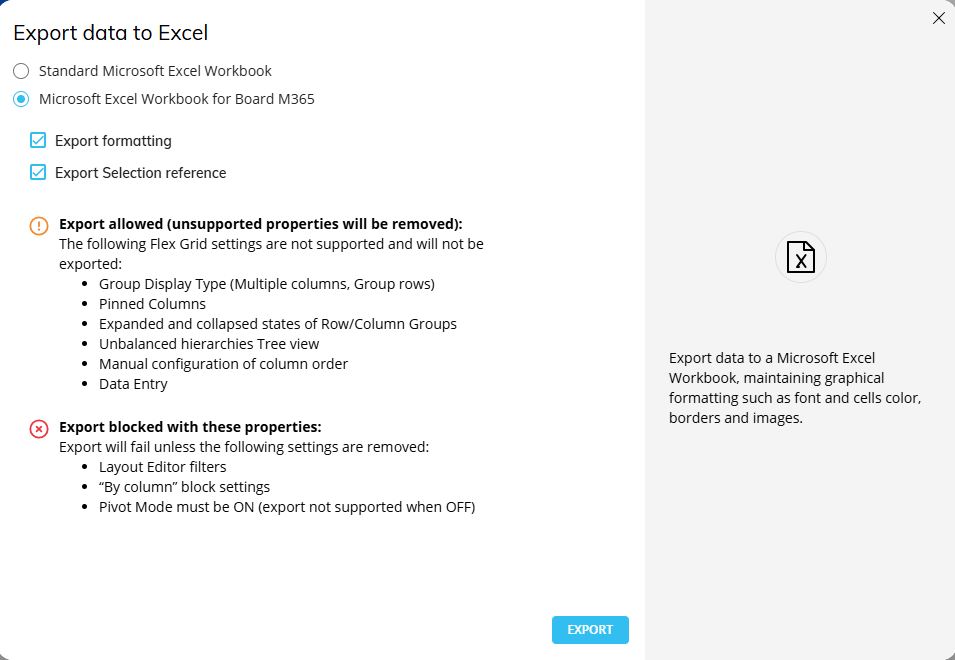
Read more about the M365 Excel Add-in export.
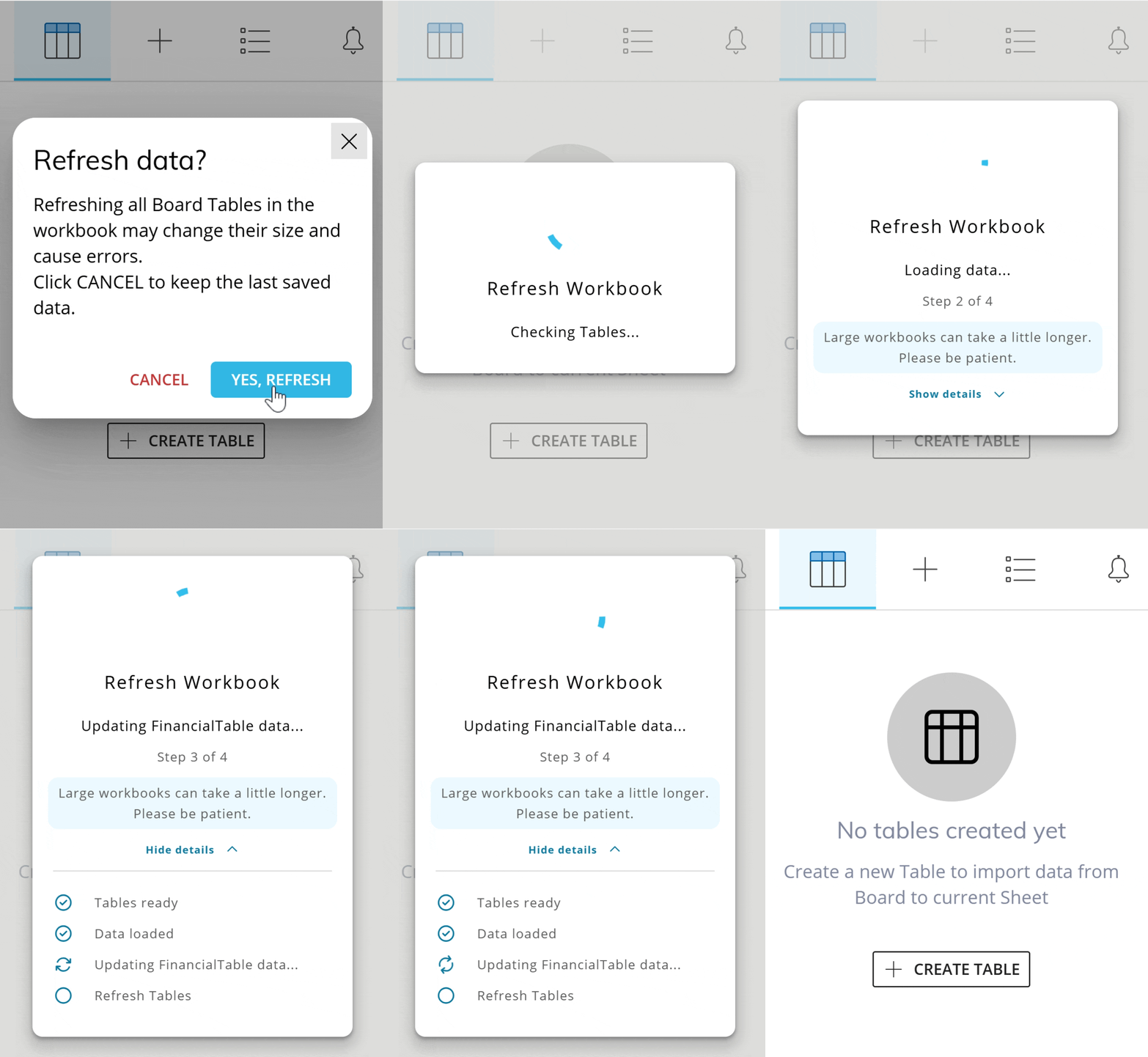
Refresh loader progress indicator
The Board for M365 Excel Add-in now provides users with clear progress updates directly in the task pane when you refresh a workbook, sheet, Table, selection, or other content. For refreshes that take longer than 2 seconds, the loader shows:
the total number of Tables refreshing,
how many Tables are complete,
the name of the Table currently in progress,
the time needed to draw cells in Excel so users know when the refresh is fully complete.
Resolve Table Refresh Failures
In addition to the progress loader, if a Table refresh fails, Board automatically opens the Table list, highlights the affected Table cards in red, and provides more details.