💡This article contains version changes.
Spot the light bulb icon? That means you’ll find helpful details about what’s changed across versions. Read more about version changes here.
This section describes how the Board Excel Add-in is deployed, distributed, and managed. It explains the supported deployment models for users and IT administrators, as well as key considerations for Excel on the web or desktop.
The Board for M365 Excel Add-in supports two deployment models: self-service by end users and centralized by IT administration. Both models can coexist in the same organization based on governance and security requirements.
Supported environments
The Board for M365 Excel Add-in can be used with Board Cloud environments. The Add-in connects directly to the Board Cloud environment with the appropriate authentication and licensing.
Board Cloud with Subscription Hub
💡Board Cloud without Subscription Hub
In versions prior 15.0x and earlier, Board for M365 Excel Add-in is not available for customers without Subscription Hub. This was introduced in 15.1.
Versioning and update behavior
The M365 Excel Add-in is versionless and depends on the version of the instance you login into via the Add-in.
The M365 Excel Add-in automatically aligns with the connected Board environment. When you connect to a Board 15 or newer instance running a different version, the Add-in updates to the compatible version as required.
Existing MS Office Add-ins (Excel, Word, and PowerPoint) remain usable in Board 15 and newer and are not affected by the Board for M365 Excel Add-in updates.
Version management
Board deploys version validation to prevent users from opening workbooks created in one Add-in with the other.
Because Board supports two Add-ins, MS Office and Board for M365, users cannot use a workbook made for one Add-in while using the other Add-in:
Any workbook created with the MS Office Excel Add-in cannot be used with the Board M365 Excel Add-in.
💡 Any workbook created with the Board M365 Excel Add-in cannot be used with the MS Office Excel Add-in.Not available in 15.0x and earlier. This particular version management check is only available in 15.1 and newer.
Board supports both the MS Office Excel Add-in and the Board M365 Excel Add-in on the same device.
Users can install both Add-ins and switch between them at runtime without the need to restart Excel or reinstall an Add-in.
.png)
Activation requirements
Before activation, make sure you have the following requirements:
an active, authenticated Board license. M365 Add-ins are included in Power User and Developer licenses. For all other licenses, Administrator permission is needed per user.
version Board 15 or newer. M365 Add-ins are only compatible with Cloud Platforms.
If you do not know your license status, see the Licenses section or contact your Board Customer Success Manager.
Read more about system requirements and technical prerequisites.
Users self-service activation
Users can activate and manage the Add-in directly from Excel or through the Microsoft Office Store. Publishing the Add-in to the Microsoft Office Store enables broad distribution, allows activation without Administrator approval, and ensures automatic updates. This approach requires Microsoft certification to comply with quality and security standards.
Use the Microsoft Office Store to active the latest version of the Board for M365 Excel Add-in. For step-by-step guidance, see the Microsoft Support article Insert Office Add-ins into Excel for the web. The Store keeps the Add-in up to date automatically.
How to activate the Add-in
Activate the Board M365 Excel Add-in from within Excel (recommended) or through the Microsoft Marketplace.
Activate from Excel
To activate, follow the steps below:
Open Excel 365 and create a blank workbook.
In the Workbook Ribbon, locate the Add-ins section and click on the “Add-ins” button.
.png)
In the search field, enter “Board Add-in for Microsoft 365”.
Click “Add” to install the Add-in.
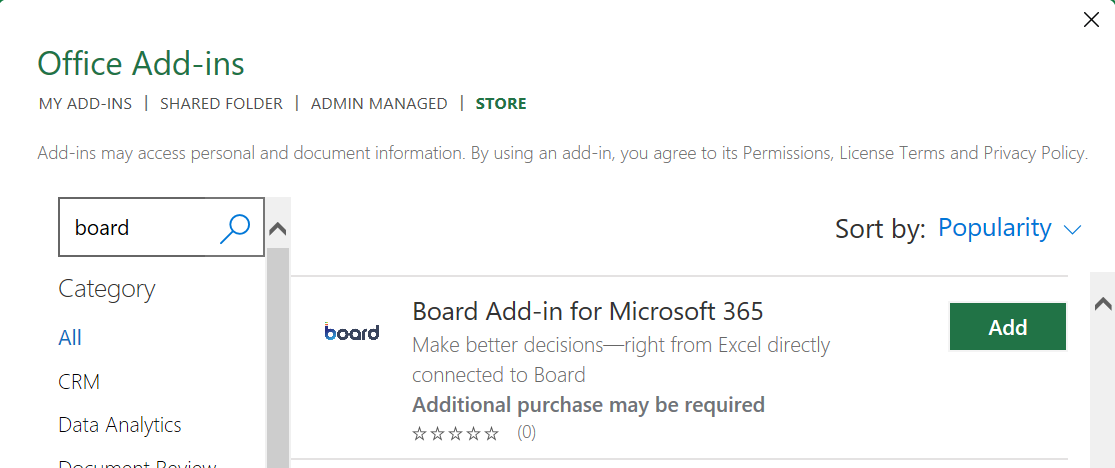
Self-service activation is often limited by the IT administration as per client policy. If self-service is not available, ask IT administration to setup centralized deployment explained below. For more information on activation, please consult your IT administration.
After activation
A Board group appears in the Excel Home tab Ribbon.
Click on the Board button to open the task pane and log in.
Open the Board M365 tab to start using the Add-in.
The Excel Ribbon below shows the Board Add-in icon on the right-most side of the Home tab ribbon.

First login experience
Click on the Board button to open the task pane.
Enter your Environment URL when prompted. Use the URL provided by your organization.
A sign-in window appears.
Sign into the Board Platform to complete the setup. You must sign in before using the Add-in. For guidance, see Connection and Login.
After you sign in, the Add-in connects to your environment and is ready to use.
Centralized deployment via Microsoft 365 Admin Center
IT administrators deploy and manage the Add-in for users across the organization. Use centralized deployment through the integrated apps portal in the Microsoft 365 Admin Center to assign the Add-in to specific users or groups.
Centralized deployment is especially useful when end users cannot access the Microsoft Marketplace due to organization security settings or other restrictions.
Refer to this guide on how to deploy the Add-in centrally using the integrated apps portal in the Microsoft 365 Admin Center.
For more help, consult the Microsoft Admin Center help articles.
Administrator deployment method
Microsoft 365 Admin Center. In the Microsoft 365 Admin Center, deploy and assign the Add-in to selected users or groups. After assignment, the Add-in appears automatically in Excel for the assigned users. Read more on how to deploy and assign Add-ins in the Microsoft admin center.
To log in, see Connection and login. If you encounter any issues connecting or logging in, read more information on troubleshooting.