Login to the Board M365 Excel Add-in
Once the Board M365 Excel Add-in is downloaded and activated, you can login following the steps below:
.png)
Select the Board menu item
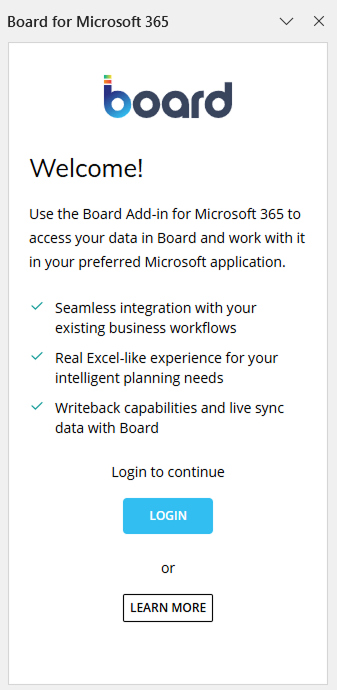
 in the Excel ribbon menu to open the task pane on the right side of the window. The task pane displays an initial "Welcome!" message. Click "LOGIN" to continue.
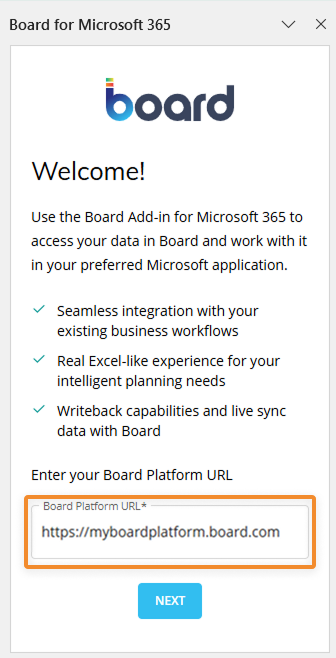
Enter the full URL of the target Board Platform and click "NEXT". By default, the URL field shows the most recently used Platform URL.
If the specified URL does not point to a Platform that supports the M365 Excel Add-in, the "NEXT" button will remain disabled, indicating that a connection cannot be established. If this happens, please open a ticket with our Cloud Operations team and share the portal link.
A popup browser window will appear prompting you to sign in to the Board Platform. Sign in with your Board credentials.
Click Next.
Valid license
If the user’s license is valid on the selected Platform, the connection to the Platform is allowed. A log entry (see Logging) is created for the connection event. The Board task pane then displays the "All Tables" tab, allowing the user to begin building Board components in Excel. The authorized user may also open an existing Excel workbook.
Invalid license
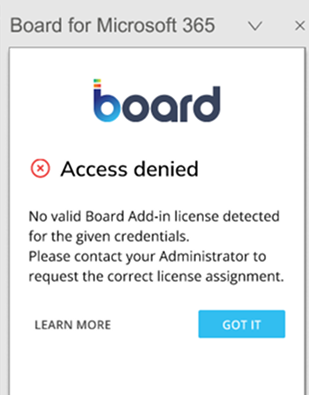
If a user’s license on the Platform is expired, blocked, or otherwise not authenticated, the connection request is denied. Access to the Platform remains blocked until both the user’s Board license and the Microsoft Office 365 option are validated and re-enabled. A Platform Administrator must intervene to restore access. When multiple platforms are available, the user’s license status and access rights may differ across platforms.
Simultaneous Access
Users can sign in to the Board web client and the Board M365 Excel Add-in at the same time with the same account. No special licensing configuration is required.
This capability does not change the Excel Add-in’s connection model. The Add-in supports one active Environment connection at a time. The web client session is independent.
Once you have logged in, additional Board menu items appear in both the Excel ribbon and context menus. These menu items provide the entry points for accessing Board data within Excel.
If you encounter any issues connecting or logging in, read more information on troubleshooting.
SSO is supported.
Simultaneous login to the web platform and Excel is supported.
Logout inactivity settings are also valid for Add-in connections.
Every time you connect to Board, the most updated M365 Board Excel Add-in compatible with the URL entered is served.
The User can switch between platforms. The most recent version of the Add-in compatible with the instance currently used is served.
Task pane overview after login
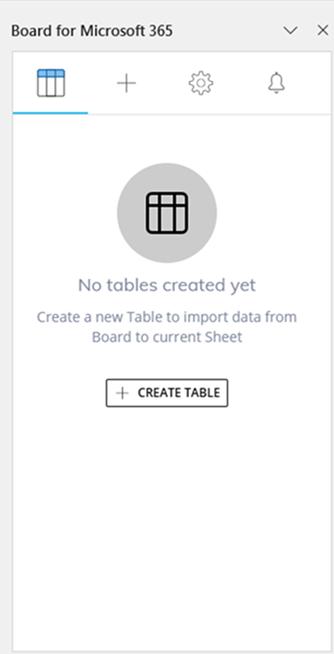
In the image below, the initial task pane’s state appears after a successful login, when no M365 Tables have been created in the current Excel workbook yet. The "Create Table" action is available, which allows the user to generate a new Table and import data from Board into the active sheet.
Task pane after opening a spreadsheet with Board M365
When an Excel workbook containing existing Board M365 Tables is opened, the task pane prompts the user to refresh all Tables that reference Board data.
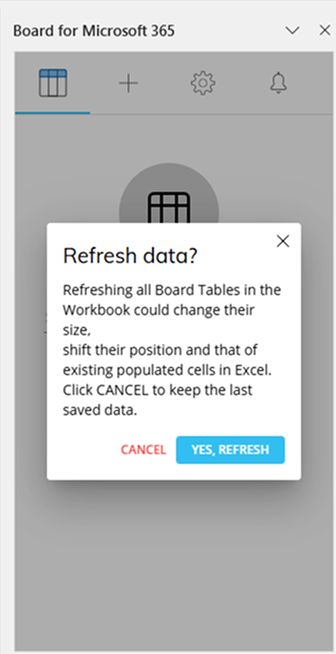
Select "YES, REFRESH" to update every Board M365 Table in the workbook. Alternatively, select "CANCEL" to open the workbook with the previously saved data. A data refresh can also be performed at any time using the Table Refresh commands, Refresh Sheet and Refresh Workbook, in the Board menu bar, either for all Tables in the workbook. See Table Refreshing for more information.
Hiding and restoring the task pane
The task pane in the right panel occupies a small portion of the window, but spreadsheet workspace may be limited.
The Right Panel can be closed or hidden at any time by selecting the "X" in the upper-right corner of the pane. This allows users to work with the full Excel window and restore the task pane when needed. To reopen it, select the blue "b" icon on the "Home" ribbon; the right panel opens and the task pane reappears with the same state it had when it was closed.
The Board icon is only available on the Excel "Home" ribbon. The task pane can also be restored by selecting any other command in the Board M365 ribbon, all of which automatically reopen the panel.
Disconnection and reconnection
In an Excel workbook that contains Board M365 Tables, the connection to the Board Platform can be interrupted so the user can work on the spreadsheet offline. To disconnect, open the Board M365 tab on the Excel ribbon and select "Disconnect".
.png)
One database connection at a time
The current version of the Board M365 Excel Add-in supports only one active Platform connection in a single workbook. If the user needs to import data from a different Board Platform, the connection to the current source must be disconnected and a new connection established. This limitation will be removed in a future version of the Add-in.
Selecting "Disconnect" returns the task pane to the "Welcome!" login tab described at the beginning of this article. If the task pane is not needed while working offline, it can be closed using the "X" in the upper right corner and later reopened when the database connection is required.
Connection and login troubleshooting
If you have issues connecting or logging in, please consult the following troubleshooting instructions for the most common issues.
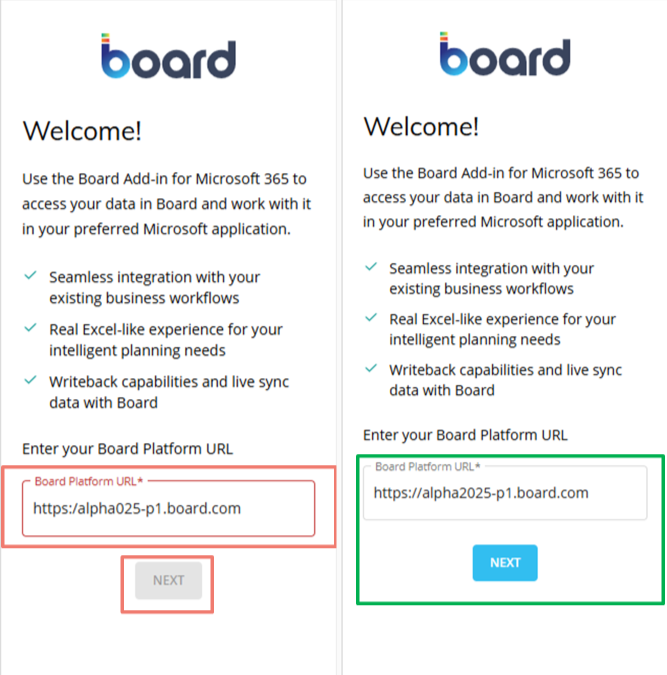
Red border around the Board Platform URL and disabled “Next” button
When the Board Platform URL is highlighted in red and the “Next” button is disabled, the URL is not correct.
Troubleshooting solutions:
Please confirm that you are using the correct and full URL, including “https://”.
Please also confirm that you are using the instance URL and not the IDP URL.
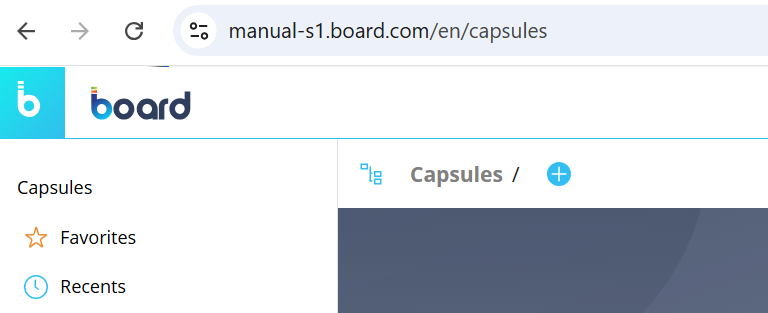
The IDP is like the landing page in which you can access one or multiple Platforms. In the image below, the IDP is the “manual-idp.board.com” URL, while the 2 platform URLs are below: “manual-c4.board.com” and “manual-s1.board.com”.
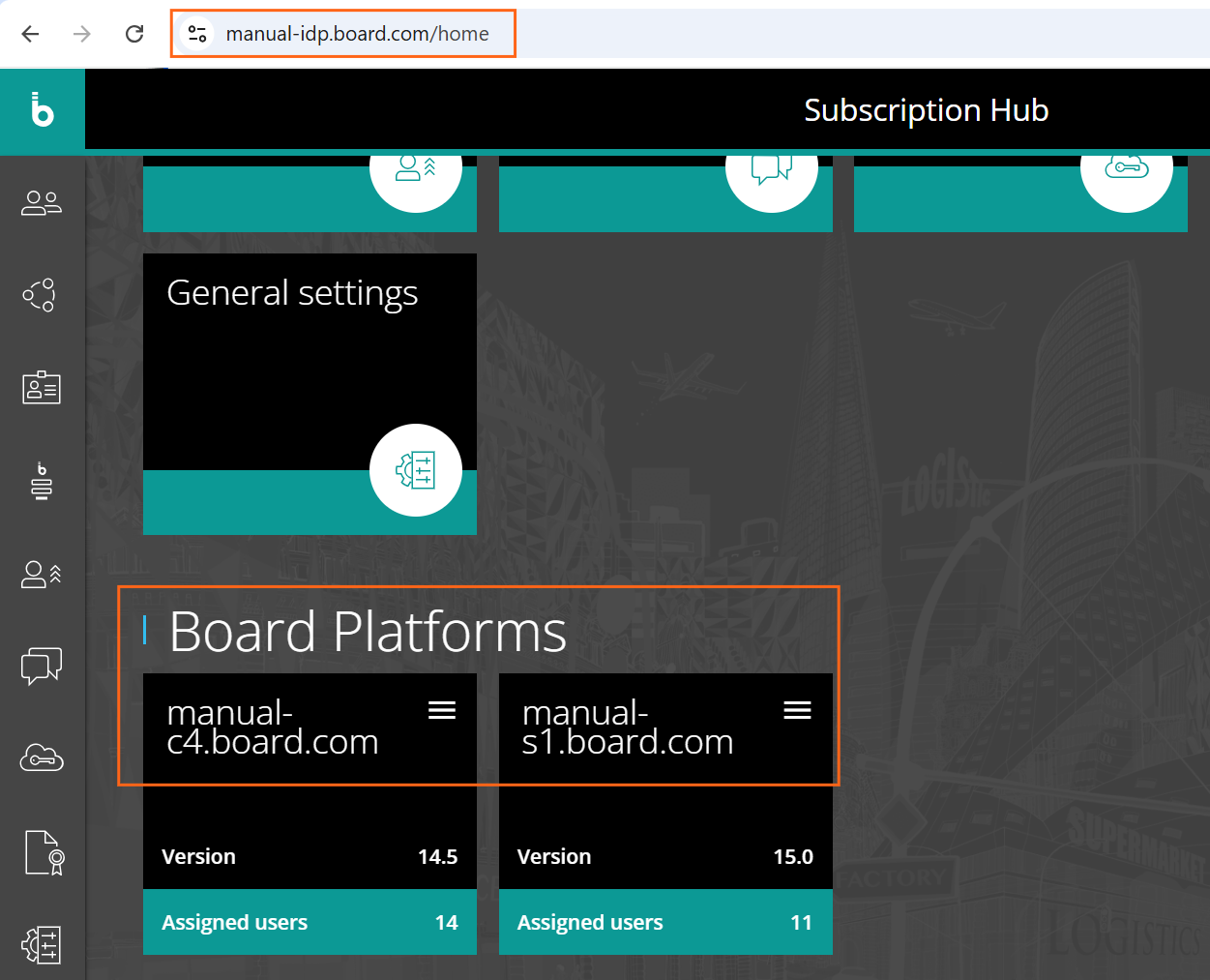
The Platform URL is the one that you connect to in order to access and use the Board Platform.
Disabled “Next” button but no red border around the Board Platform URL
When the instance URL is spelled correctly and the “Next” button still does not activate, no red border exists around the Board Platform URL. This indicates that the URL is correct but setup is not completed.
Troubleshooting solution:
Please reach out to the Cloud Operations team.
The task pane in the right panel says “Access denied”
In the image below, the "Access denied" message displays when the user does not have a valid Board Add-in license permission associated with their credentials.
Power user and Developer licenses have the M365 Add-in included. For all other licenses, further permissions and licensing is needed. To provide access to other licenses, Administrators must check the “MS365 Add-ins” flag with the appropriate user from the Users section of the Subscription Hub.
.png)