💡This article contains version changes.
Spot the light bulb icon? That means you’ll find helpful details about what’s changed across versions. Read more about version changes here.
A Dataset is a semantic layer of data that enhances self-service capabilities in the Board platform. It allows users to interact with data without needing to know in detail all the data structures of a Data Model.
This articles covers:
How to create a Dataset
From the Dataset Catalog, Developers can create and manage Datasets.
The maximum number of Datasets is 100 per type.
To create a Dataset:
Access the Dataset Catalog.
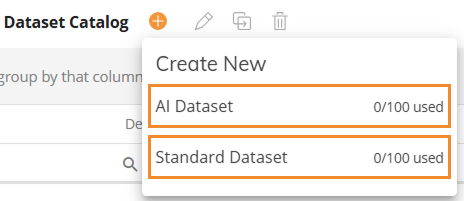
Click on the plus icon situated on top of the Dataset Catalog.

💡Choose the type of Dataset you want to create.
AI Dataset. Use this Dataset type when you want to use the Dataset with Board AI Agents.
Standard Dataset. Use this Dataset type for all other purposes.
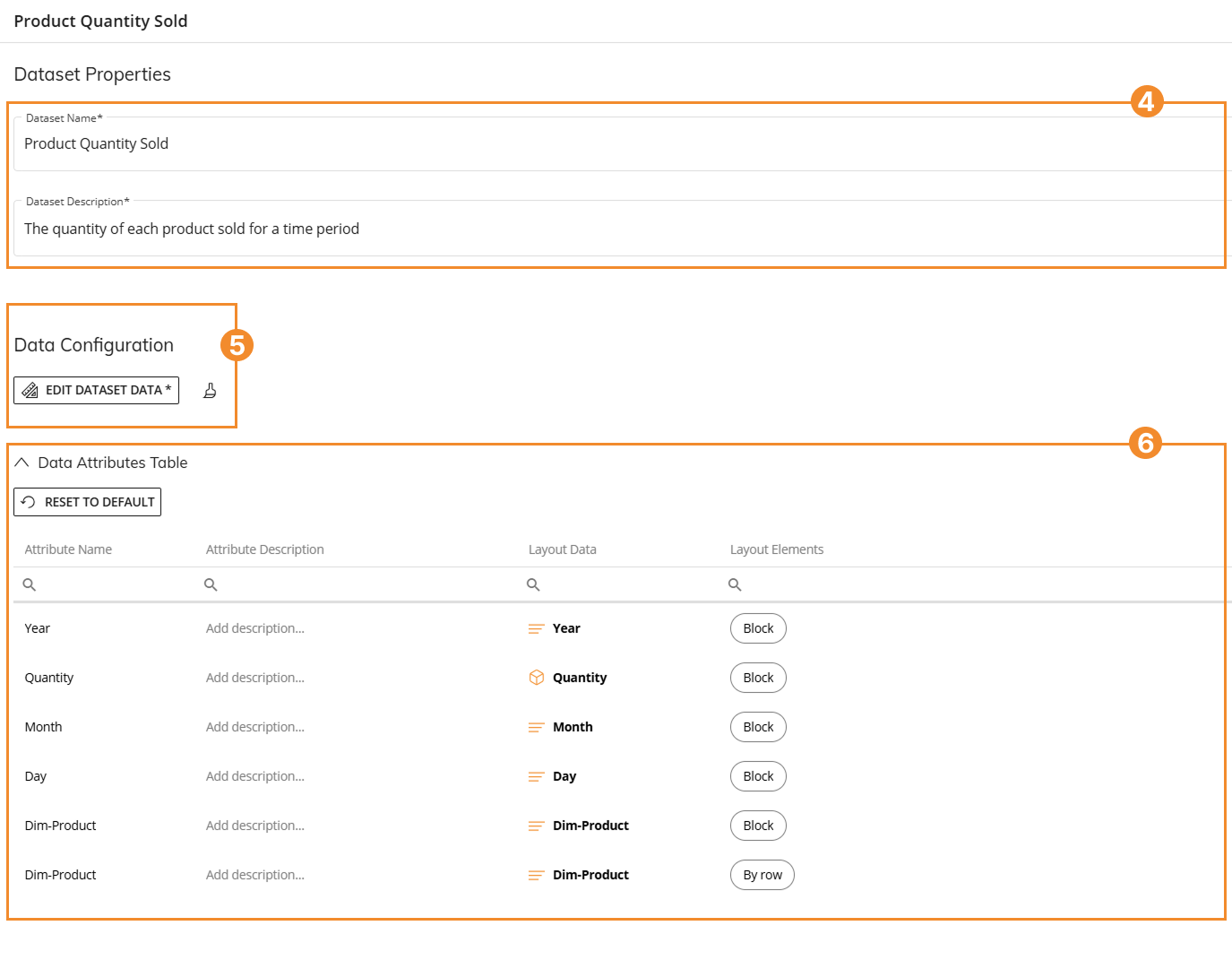
Enter a name and description in the "Data Properties" section of the create/edit panel.
Dataset Name. The name of the Dataset. Board shows this name in all features that use Datasets.Dataset Description. Developer-defined explanation of the Dataset.
Click “Edit Dataset Data” to configure the data for this Dataset. Learn more about the Quick Layout.
By design, you can copy a Layout from a Dataset to a Screen, but you cannot copy a Layout from a Screen to a Dataset.
💡Review the Data Attributes Table. The table shows the Data Attributes that exist in the Data Configuration Layout.
Click “CREATE”.
💡Maximum number of Datasets
You can create up to 100 AI Datasets and 100 standard Datasets in the Dataset Catalog.
A counter at the bottom of the Dataset Catalog shows how many Datasets of each type exist and the maximum number allowed. Board also shows the counter when you select the plus icon to create a Dataset and when you open the Creation or Edit panel for AI Datasets and standard Datasets.
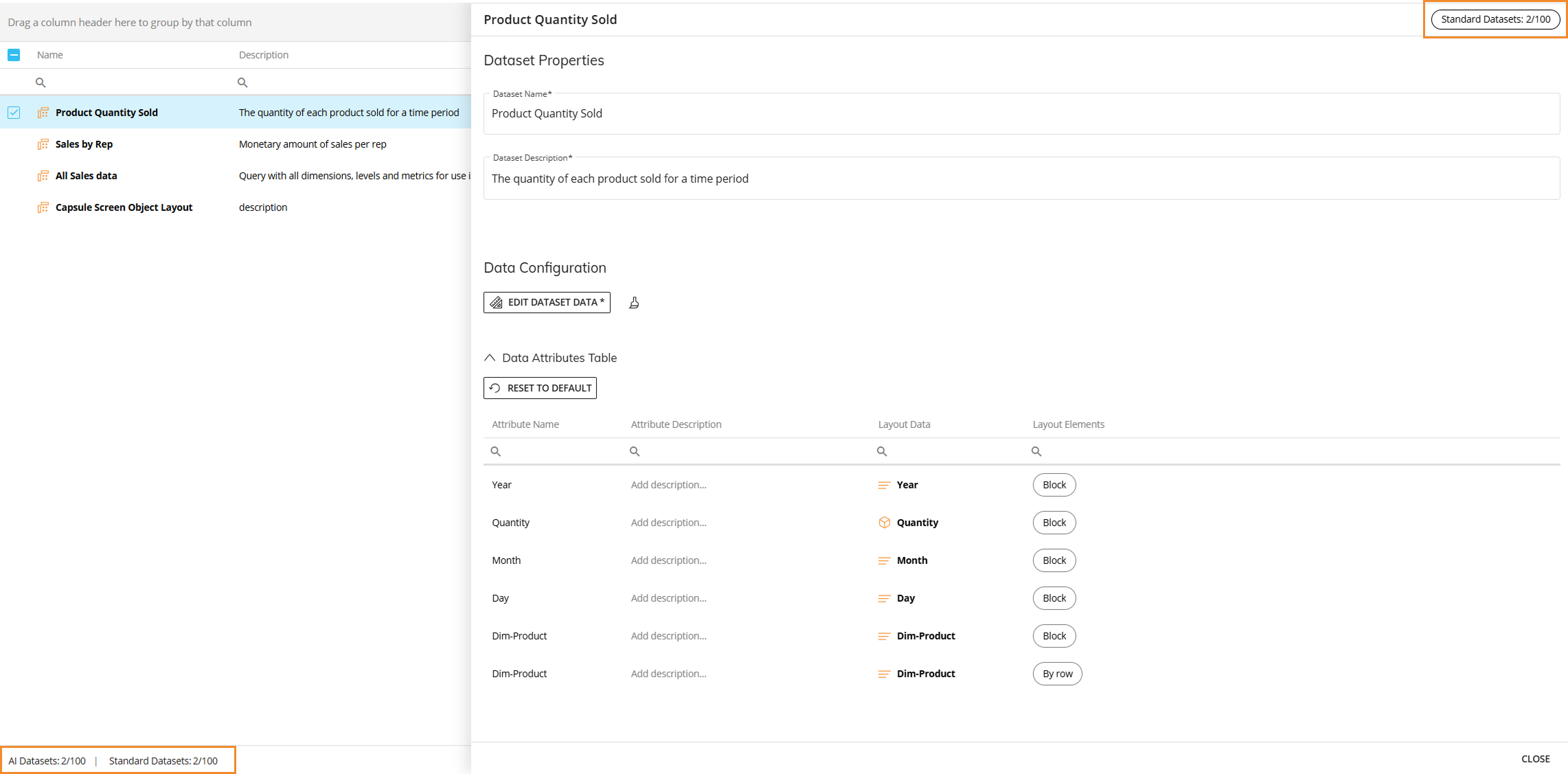
When you reach the limit for each Dataset type, Board shows a red error message preventing the creation of more Datasets of that type. To create another Dataset, delete or merge Datasets that you no longer need.
💡Data Attributes
Dataset Attributes help users understand the purpose of each element in a Dataset. They can improve Dataset search, reuse, and collaboration through business-friendly descriptions for each Data Attribute.
After you configure the Layout in the "Data Configuration" section of the create/edit Dataset panel, the "Data Attributes Table" appears.
The "Data Attributes Table" lists the different elements used in the Dataset data configuration Layout.
The table includes the following columns:
Attribute Name. Name of the Attribute in the Layout.
Attribute Description. The description of the Data Attribute. The description can contain up to 1000 characters.
Layout Data. Original name of the Attribute in the Layout preceded by the symbol of what data structure it represents.
 represents an Algorithm
 represents an Entity
.png) represents a Cube
represents a Cube represents a Rule
 represents a Ranking
Layout Elements. The section of the Layout where the data Attribute is used.
To add or edit a Data Attribute description:
In the "Data Attributes Table", select the Data Attribute that you want to update.
The “Edit Data Attribute” window opens. Enter a description in "Attribute Description".
Suggested descriptions
Alternatively, you can also reuse one of the suggested descriptions when the same Entity or Cube is already in use in other Datasets. To do so, click on “Use suggested description”, choose the description from the list and click “confirm”.
Select "Save" to save the Attribute.
In this popup window, only "Attribute Description" can be edited.
Interact with Datasets in Board
Datasets are not visible in Capsules or Screen Objects. Users interact with Datasets through other features in Board.
Board AI Agents
The Datasets feature will play an important role in allowing the Developer to prepare a set of queries that represent the best data to be used by Board AI Agents.
Datasets define data context for Board AI Agents.
Developers create Datasets optimized for AI responses.
Board M365 Excel Add-in
The new Excel Add-in defaults to using Datasets for data extraction from Board, leveraging the same backend technology utilized by the Flex Grid Object. The user will do all the data manipulation inside Excel. Users using the Excel M365 Add-in simply need to pick the Dataset that they wish to use and go directly to the pivoting stage to create custom views – there is no need to use the Layout editor.
Board Foresight
The purpose of a Dataset in Board Foresight is to enable the sharing of specific data with Foresight to enable the user to create a forecast which will then be returned to Board, automatically stored in a Cube and made available for the Developer to add to Screens.
Enables secure, structured data sharing with Foresight.
Forecasts are generated in Foresight, returned to Board, and stored in Cubes.
Data Models are abstracted from the API interface.
Datasets known limitations
Any key change like Entity renaming will require a recreation of the Dataset - Already created datasets will not adapt to the key data structure changes made after creation
Data Entry, Detail By & Total By are not supported in the Layout settings of a Dataset
Nexel, Dynamic Options, Sparklines, Column Appearance are not visible in Datasets