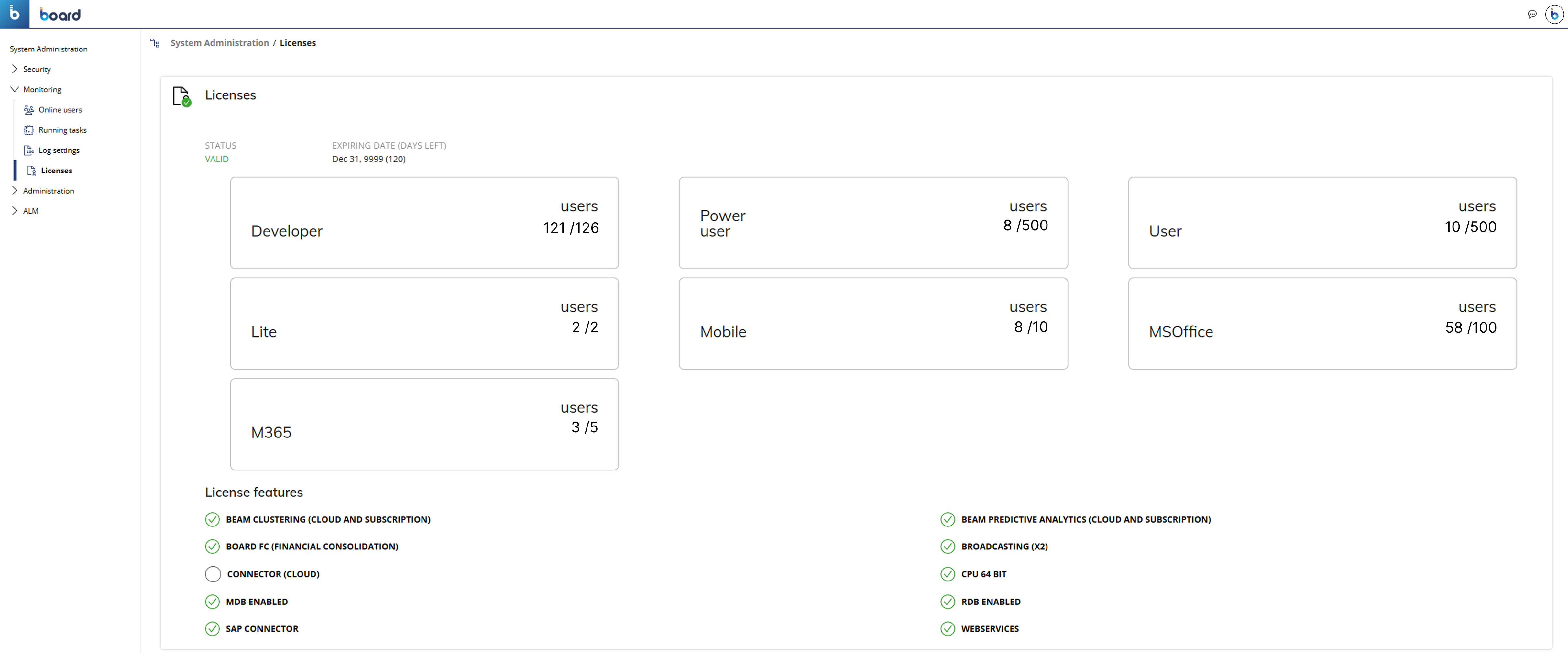
The Licenses section, where Licenses can be viewed and managed in the Subscription Hub, applies to all Board Cloud subscriptions associated with a Subscription Hub.
Read more about Board license types and add-ons.
Introduction to the Licenses section
The Licenses section of the Subscription Hub gives you an overview of the status of your Board Cloud subscription, also called License or Main License. Here, you can view details about your main license, user licenses, and the additional features enabled for the subscription.
A License in Board grants the user access to services and functionalities that are defined for that particular license. However, users might not have access to all of the services and functionalities that are actually available for the type of license that is currently assigned to them. To view the status of services for each user, check the User profile panel for each of them. Read more about license types.
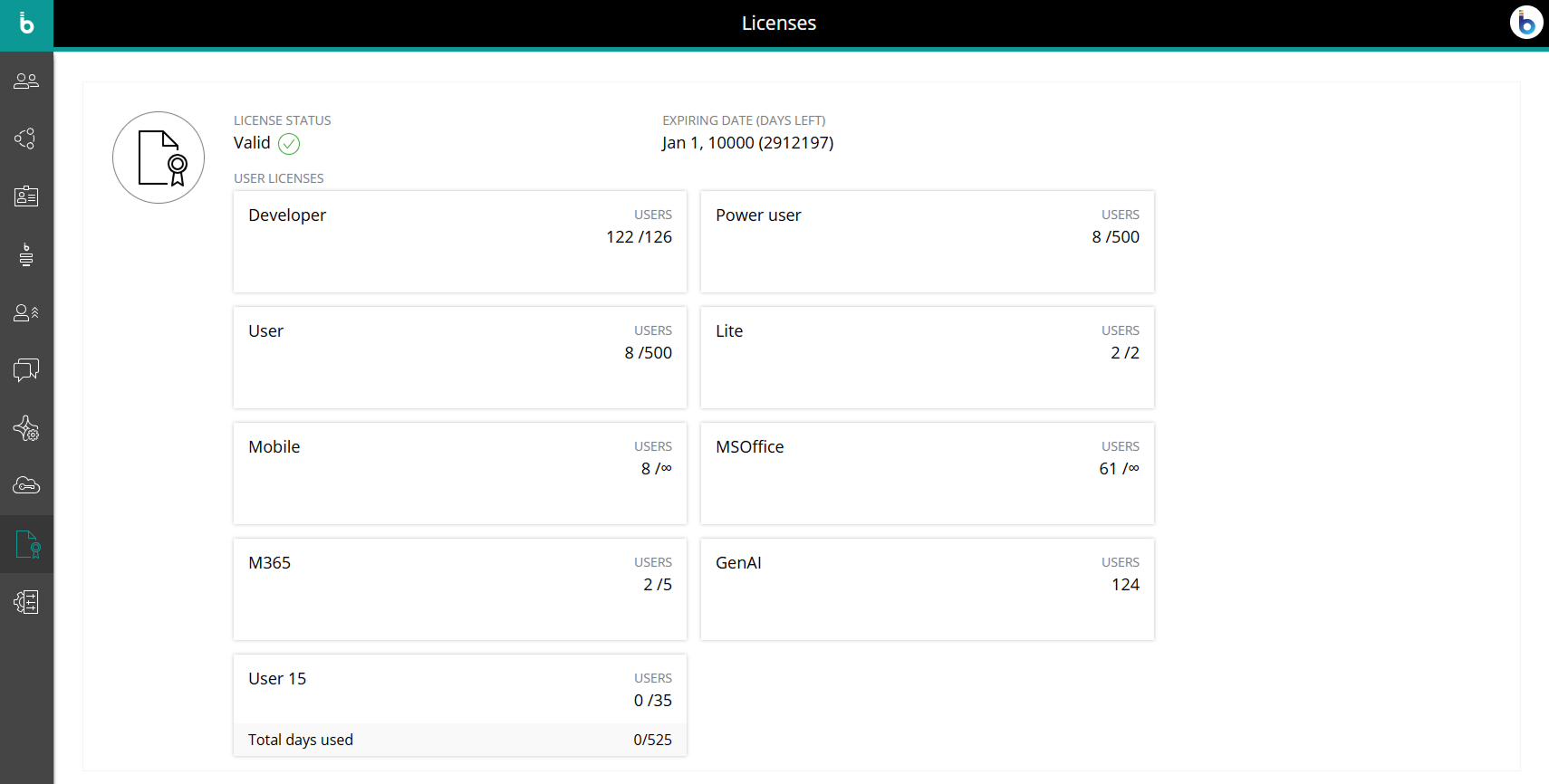
The Licenses page displays:
License status. Indicates whether the license is valid or invalid.
Expiring date (days left). Shows the expiration date and how many days are left before expiration.
User Licenses. Displays a collection of tiles for each User License type.
Users. Shows the count of licenses used out of the amount available. For example, "5/50" means that 5 registered users are currently assigned a license out of a maximum of 50 purchased.
License Features. Indicates subscription add-ons that give the capabilities to all licensed users.
Board Agents. Indicates which Agents are available to any user who has the GenAI license feature activated.
For User 15 licenses, the consumed license count includes only currently active users who are assigned a User 15 license. Disabled users assigned a User 15 license are not included in the consumed license count, and their license immediately becomes available for assignment to another active user. Any days they already consumed remain included in the subscription's total days used. Once the yearly usage cap is reached, no additional User 15 license days can be used within that subscription year. Read more about User 15 license count calculations.
The capacity indicated for each license does not refer to the number of concurrent users allowed to work simultaneously: it states the number of users that can be associated with each license type, according to the rules of each license.
The image below shows an example of the Licenses area in the Subscription Hub for a Board Cloud subscription, including the license status, expiration date, user licenses, add-on licenses, and Board AI Agents information.
License features and Board Agents
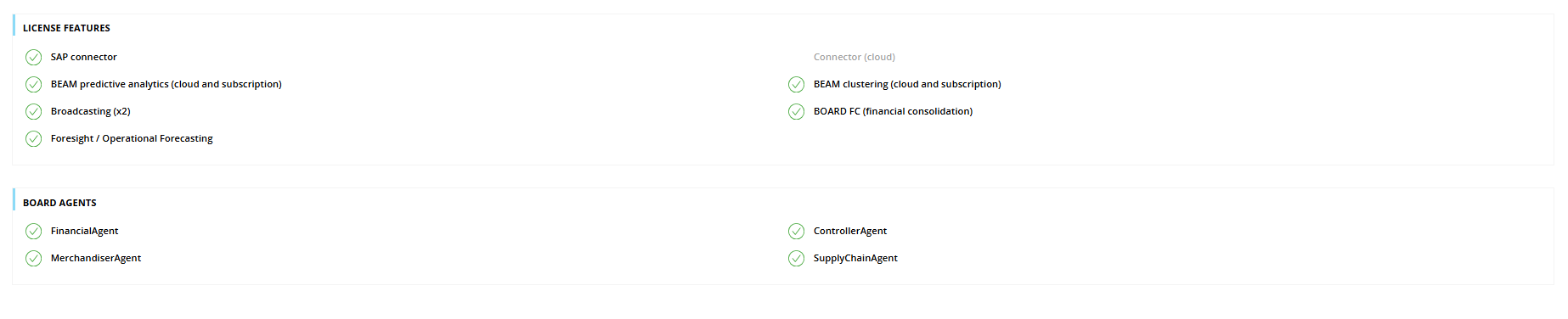
Below is a list of all the features and Board AI Agents enabled with this Main License or subscription. The checkmarks beside each feature indicate that it is currently active in your subscription. See the table below for more information.
License features are subscription add-ons that give the capabilities to all licensed users.
Board AI Agent licenses are limited and controlled in the Users section to assign the feature to individual users. All the Agents seen here are available to any user who has the GenAI license feature activated.
Feature name | Description |
|---|---|
SAP connector | Indicates whether the SAP connector is activated on your subscription or not: this feature allows you to interface Board with SAP ERP objects, that will appear between your Platforms' data sources. |
BEAM predictive analytics (cloud and subscription) | Indicates whether Board's BEAM predictive analytics feature is activated on your subscription or not. |
Broadcasting (x2) | Indicates whether Board's Broadcasting functionalities are activated on your subscription or not. |
Connector (cloud) | Indicates whether Board's Cloud connectors are activated on your subscription or not: this feature allows you to interface Board with third-party databases via cloud connectors. |
BEAM clustering (cloud and subscription) | Indicates whether Board's BEAM clustering feature is activated on your subscription or not. |
BOARD FC (financial consolidation) | Indicates whether Board's Financial Consolidation application is activated on your subscription or not. |
Board Agents | In its own section, indicates whether the Board AI Agents feature is activated and which Agents are activated on your subscription. |
Foresight / Operational Forecasting | In their own sections, they indicate whether the Foresight and Operational Forecasting features are activated for the subscription. |
Cloud and on-premises license information
License information is not displayed in a single shared Licenses section for all license types. Instead, it is shown in separate areas depending on the license setup: at subscription level when license management is configured through the Subscription Hub, or at environment level for on-premises customers and Cloud customers whose license management is not configured through the Subscription Hub.
For Board Cloud subscriptions with license management configured through the Subscription Hub, license information is centralized at subscription level. The page shows the status of the main license, the available user licenses, the license features enabled for the subscription, and Board AI Agents.
The available License types may vary depending on your Cloud subscription. When a user account is disabled, the user's license is immediately available to assign to another account. To know more about the disabled account status, visit the Users section page.
Board AI Agents are compatible only with Board version 15 or newer, in Cloud-based environments with license management configured through the Subscription Hub. Read more about Board AI Agents in Getting started with Board AI Agents.
The image below shows an example of the Licenses area in the Subscription Hub for a Board Cloud subscription, including the license status, expiration date, user licenses, add-in licenses, and Board AI Agents information.
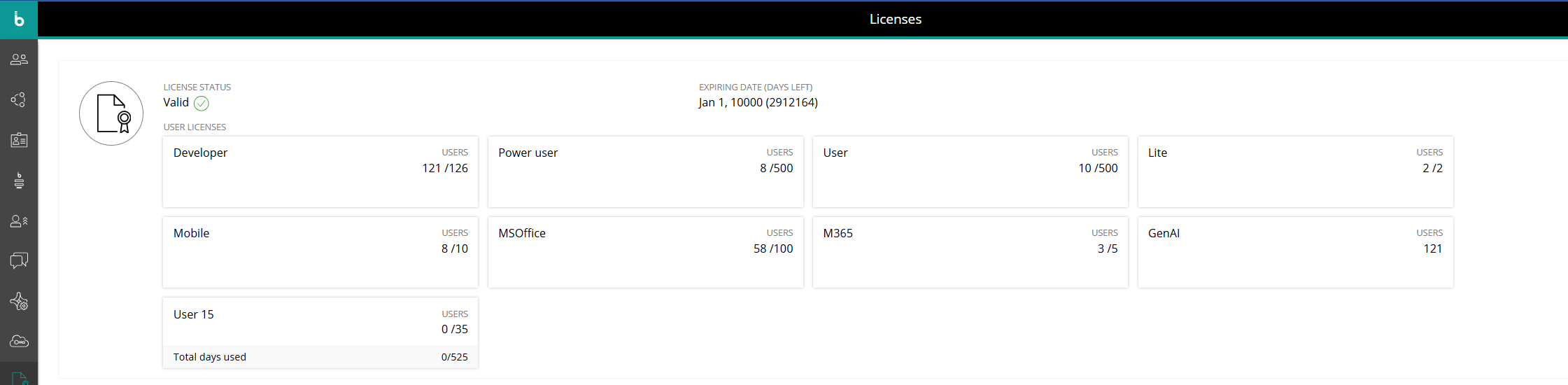
For on-premises customers and Cloud customers whose license management is not configured through the Subscription Hub, license information follows a different structure because licenses are shown at environment level instead of being centralized at subscription level. This information includes the license status, total user licenses, expiration date, user licenses by type, and license features enabled for the environment, such as Mobile, MS Office, and Microsoft 365.
The image below shows an example of this environment-level Licenses area, including the license status, expiration date, user licenses by type, and license features enabled for the environment.