This topic describes how to create a Slide in a Presentation.
There are two ways to create a Slide:
From the Capsules environment
From the Presentations environment
Creating a Slide from the Capsules area
To create a new Slide from the Capsules environment:
Open the desired Capsule in Play Mode and navigate to the target Screen to include in the Presentation
(Optional) Apply any changes to Layouts, drills, selections, and filters (Pagers) as desired
Click the burger icon in the top menu and select "Add to Presentation".
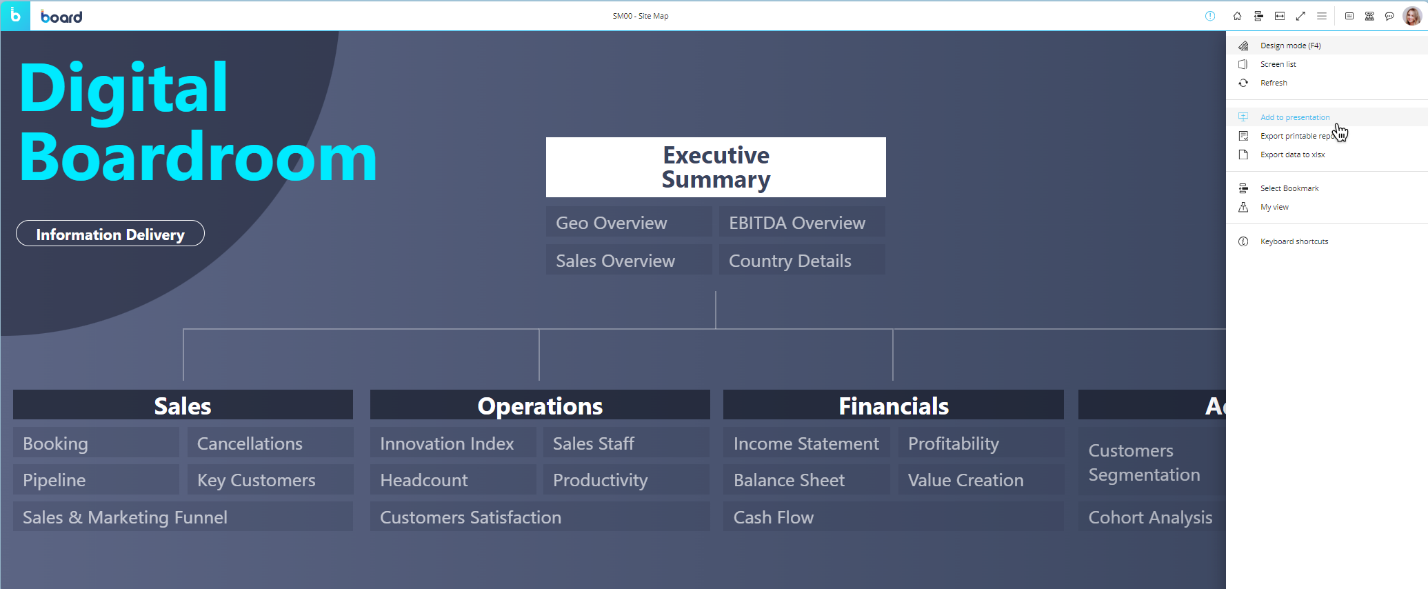
In the popup window, provide a name for the new Slide and specify whether to create a new Presentation or add the Slide to an existing one.
To add the Screen to a new Presentation, enter a name for that Presentation to continue.Click on "ADD" to open the newly created Slide in Edit Mode.
When a Screen is added to a Slide, a link between the Slide and the Screen is created: the Screen is then displayed on the Slide with any custom settings applied (Layouts, selections and filters defined within the Capsule environment in Play Mode).
When applying changes to Layouts, drills, selections, and filters of a Screen and adding them to a Presentation, the resulting Slide saves those changes and shows the linked Screen with those changes applied.
When a Screen is added to a Presentation without modifications to its Layout, drills, selections, or filters, the resulting Slide remains linked to the source Screen. This synchronization persists unless changes are explicitly applied to the Layout, selections, or filters within the Presentation's Edit Mode.
Once a Screen is added to a Presentation, the user can make changes to Layouts, drills, selections, and filters (Pagers) of that Screen in the Presentation environment by opening the corresponding Slide in Edit Mode. These changes are automatically saved when switching to Play Mode in the Presentation environment, but they don't affect the linked Screen in the Capsule environment. See About Presentations for more details. In Edit Mode, the side panel on the right of the page allows the user to access additional Slide properties. See Edit and Play Modes for more details.
Creating a Slide from the Presentations Area
Users can also create a Slide from within the Presentations environment. To do so, proceed as follows:
Open an existing Presentation in Edit Mode.
From the side panel on the left of the page, click on the "+" button.
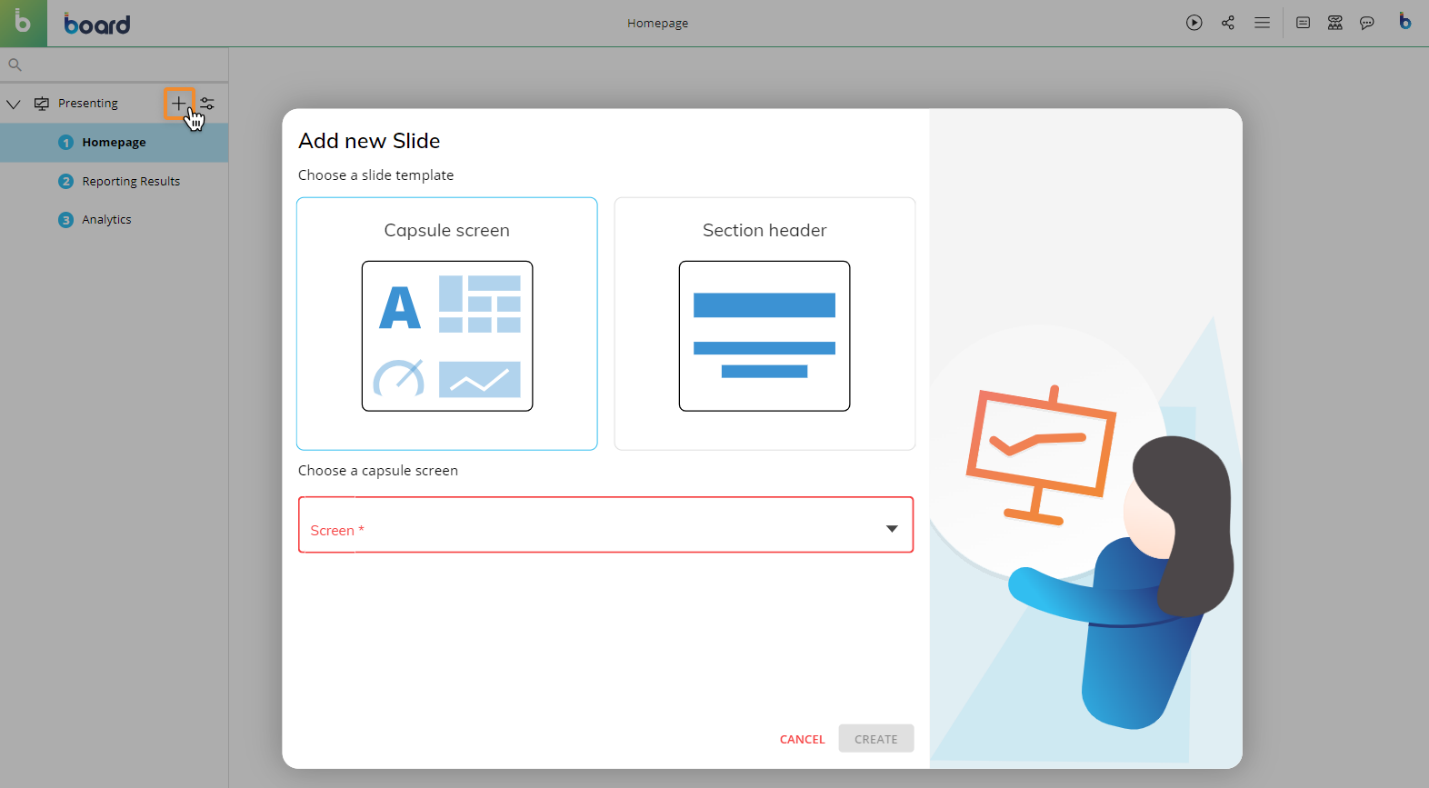
In the popup window, select which type of Slide to create: Section header or Capsule Screen.
To add a Section header, select the corresponding option.
To add a Screen from a Capsule, select the corresponding option and choose the specific Screen using the dropdown menu.
It is not possible to add a Screen as a Slide if the Screen’s Capsule Properties has the "Hide Screen list" option enabled.
In this case, the user must first disable the "Hide Screen list" option on the Screen’s Capsule properties, then proceed to add the Screen to the Presentation. Once this is completed, the "Hide Screen list" option can be re-enabled.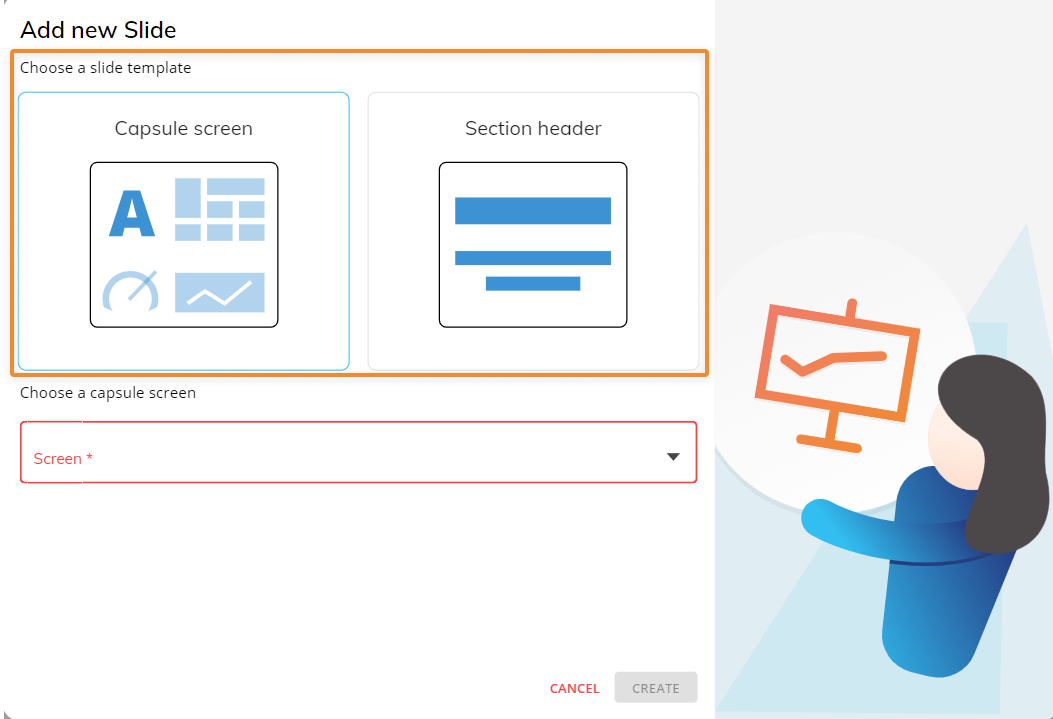
Click on "CREATE" to open the newly created Slide in Edit Mode.
When adding a Screen to a Presentation following the steps described above, the resulting Slide shows the linked Screen in its default view (i.e. as when opening the Screen in the Capsule environment). The Slide continues to mirror the linked Screen as long as you don't apply changes to Layouts, drills, selections, and filters from within the Presentation environment in Edit Mode.
Once the user has added a Screen to a Presentation, they can make changes to Layouts, drills, selections, and filters (Pagers) of that Screen in the Presentation environment by opening the corresponding Slide in Edit Mode. These changes are automatically saved when switching to Play Mode in the Presentation environment, but they won't affect the linked Screen in the Capsule environment. See About Presentations for more details. In Edit Mode, the side panel on the right of the page allows the user to access additional Slide properties. See Edit and Play Modes for more details.
Any change applied to the number scaling or column visibility is kept if the Screen is saved as a Slide in a Presentation or using the My Screen View feature.
Another way to create a new Slide is to copy an existing one. This is particularly useful, for example, when creating Slides that include the same Objects but display different data.
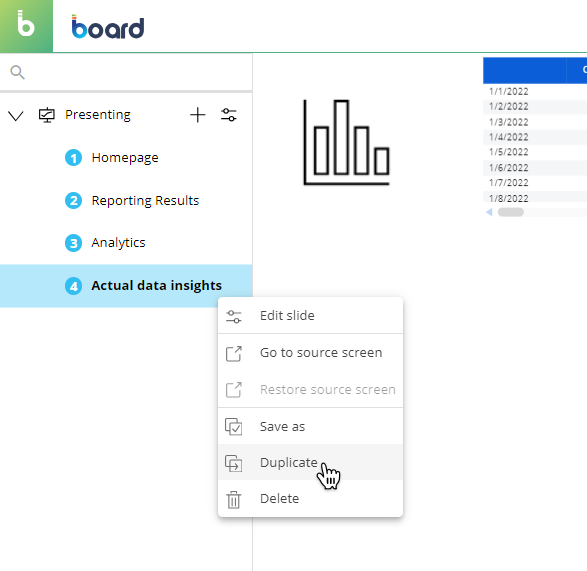
See Copying a Slide for more details.
When the user creates a new Slide, it is always added to the bottom of the Slide list on the left.
To move a Slide to a different position in the list, drag and drop it anywhere in the list.
If the Screen list of a Capsule is hidden, the user cannot add any Screen of that Capsule to a Presentation.
Creating a Slide – Implications of Custom Changes
There are 2 ways to create a Screen Slide. However, the method through which a Screen Slide is created or added to a Presentation has different implications regarding the relationship between the Slide and its source Screen.
Slide created from the Capsules area | Slide created from the Presentations area | |
|---|---|---|
Slide Creation | The Slide is added to a Presentation by clicking "Add to Presentation" on a Capsule Screen. | The Slide is added to a Presentation by clicking the "+" icon in the Presentation left panel. |
Custom Changes Icon | The Custom Changes icon is present – The Slide inherits all Object configurations and filters applied in Play Mode from the source Screen. | The Custom Changes icon is not present – the Slide displays no Object configurations or filters applied in Play Mode from the source Screen. |
Sync with Source Screen | Changes made to the source Screen in Design Mode after Slide creation do not affect the Slide. Changes made to the Slide are saved independently – the Slide operates autonomously. | Changes to Objects or filters on the Capsule Screen always affect the Slide. If any Custom Change is applied directly in the Presentation, the Slide becomes independent and stops syncing with the source Screen. |
Adding a new Object to a Screen | The above scenarios refer to Slides and Screens containing the same Objects. If a new Object is added to the Capsule Screen, linked Slides all display the new Object. | |