The Flex Grid Object provides sophisticated data interactions for financial planners. Planners can effortlessly pivot, sort, filter, incorporate embedded charts, group rows and/or columns, and more with extensive datasets to examine data from various perspectives without requiring developers to set up multiple Data Views.
The Flex Grid Object includes specific options and characteristics that differentiate it from a Data View Object. Some of these features are detailed below. The subjects discussed regarding interaction with a Flex Grid are as follows:
Read about Range Charts (interaction only) and Docked Charts (savable).
Interactive Selection on rows and columns
The Flex Grid Object enables users to select an Entity by choosing specific rows and/or columns.
For example, in a Flex Grid that lists Countries in rows, users can click on one or multiple rows (i.e., Countries) and utilize them as selection criteria, prompting other Objects on the Screen to update accordingly.
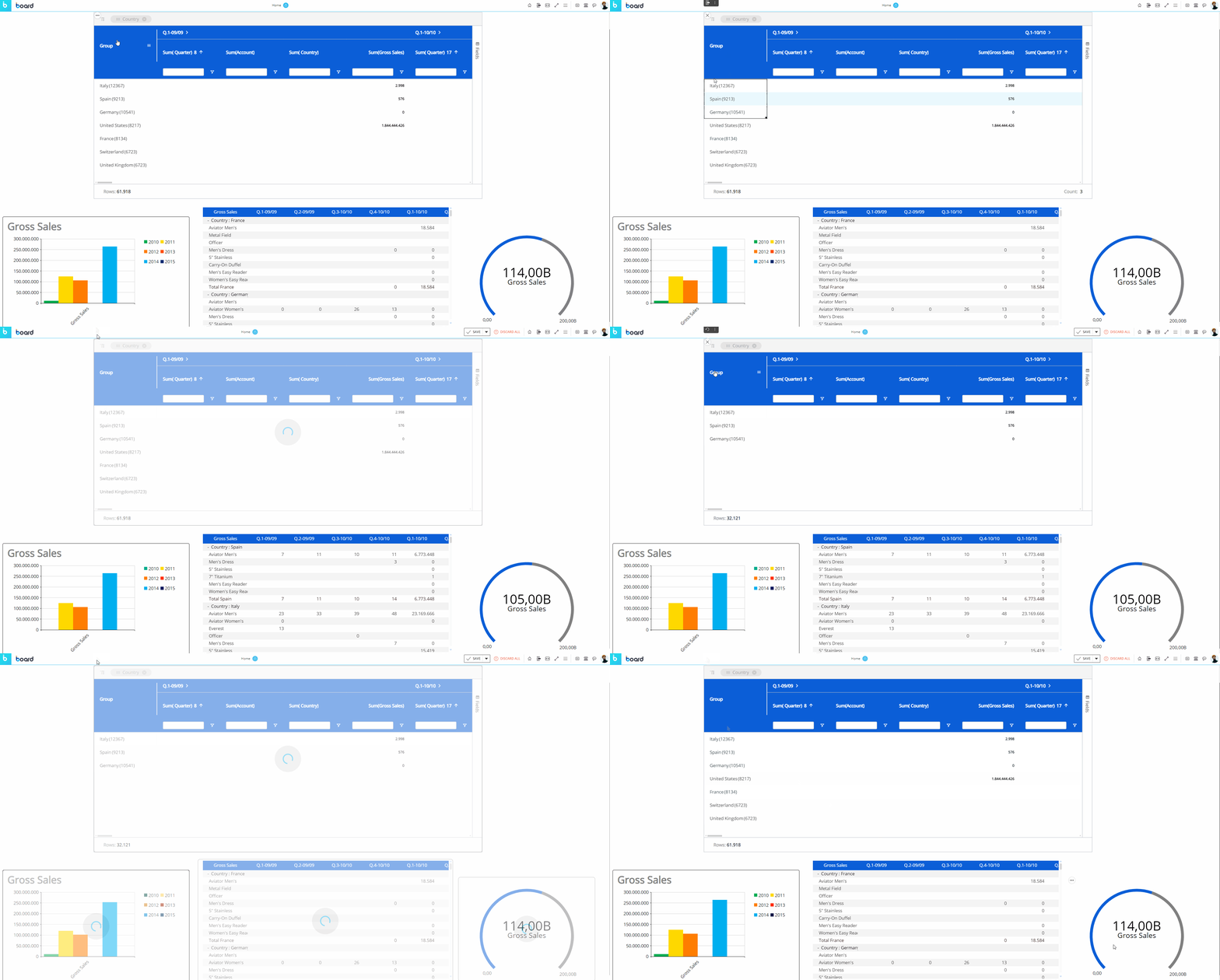
As you can see in the example above, once a selection is applied the other Objects on the Screen are refreshed to show data for the selected items only.
To reset the selection made on a Flex Grid Object, click the reset button  in the top left corner of the Flex Grid.
The selection can be made on the Entities set By Row and By Column. Read more about how the Select works.
The "Fields" panel in Play Mode
The "Fields" panel, displayed vertically on the right side of the Flex Grid, is a powerful tool specific to the Flex Grid. This panel gives the end user the ability to pivot and display data in different ways, depending on the configuration of the developer. Beyond the capabilities of grouping and setting fields by Row within the Flex Grid as described above, the "Fields" panel allows you to group fields by Column using the "Pivot Mode" feature, giving you even more flexibility and freedom to configure your dataset.
You can interact with the Flex Grid in 2 ways:
Flat view. In flat view, you see all the fields selected which can be grouped by Row. Click on the "Fields" panel to open it. Then drag and drop fields into Row Groups, Values, or hide Blocks from the panel. All rows of the dataset are always part of flat view. Even if row groups are defined, you can expand all row groups to display the distinct rows of the dataset, configured by the Developer.
Click on the Fields panel to open it. Then drag and drop fields into Row Groups or Values areas or hide Blocks from the panel. You can also drag column headers to the top bar of the Flex Grid that says "Drag here to set row groups".Pivot Mode. In Pivot Mode, you only see aggregated data by Rows that are based on the group configuration in the Columns panel, and you also have the possibility to group By Column, which becomes available only when "Pivot Mode" is enabled.
Enable the Pivot Mode toggle and then drag and drop fields as before, but now you can add Column groups under the "Column Labels" section that appears at the bottom of the panel.
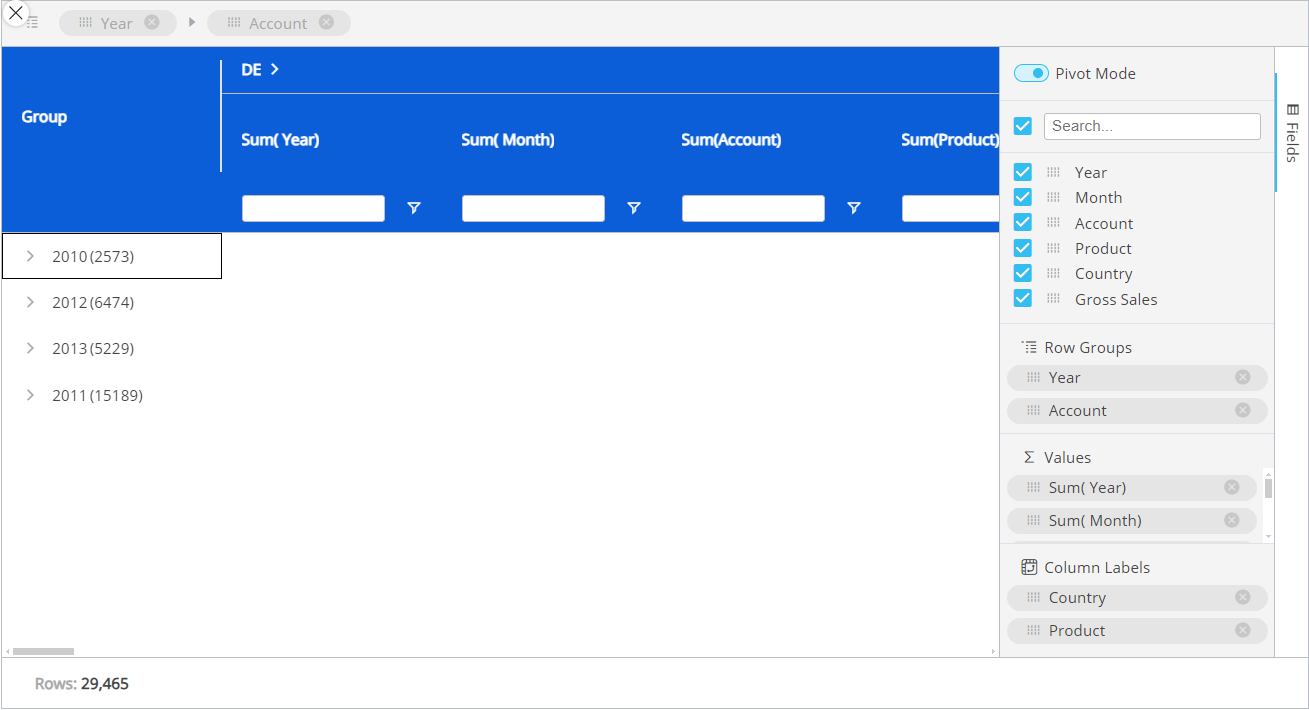
The Fields panel options are:
Pivot Mode. Enabling Pivot mode allows you to customize the display of the Flex Grid in more detail. Upon enabling for the first time, you will see the default view configured by the Developer, and the feature "Column Labels" appears at the bottom.
Column Labels. Enabling Pivot Mode will unlock the "Column Labels" feature at the bottom of the panel. Drag and drop fields that you would like to group the other fields by.
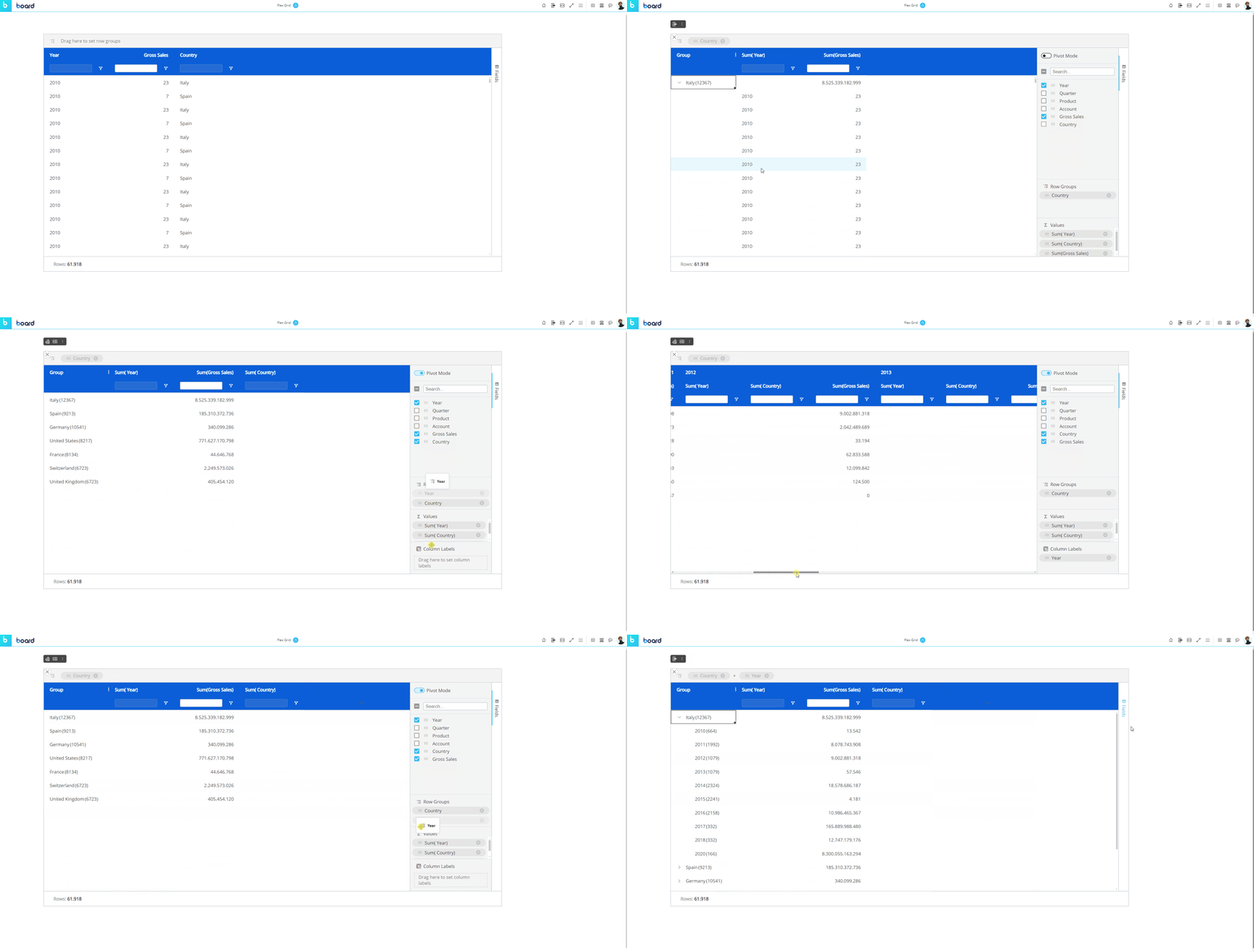
For example, if you have a Flex Grid with the Entities "Year" and "Country" and a "Gross Sales" Block, and you set "Country" by "Row Groups", then, "Year" and "Gross Sales" show separate value fields.
Instead, if you set "Country" in the "Column Labels" sections, the Columns will now be organized by the group "Country" and Gross Sales will be broken down into multiple columns that display the value by country rather than a lump sum of Gross Sales in the Country value cell.
Next, if you add "Year" to the "Row Groups" underneath "Country", years are grouped within each country, and you can expand and collapse those row groups to see the data broken down by group.
Search. Use this search bar to find a field within the list below it (of only the fields configured in the Layout).
The checkbox that appears to the left of the search bar is used exclusively for the search results. The checkbox will select or deselect all the fields that are displayed under the search bar.
For example, if you search for "Sales" from a list of 10 fields, and 2 fields show up called "Gross Sales" and "Total Sales", you can select or deselect only these fields that displayed via the search function by selecting or deselecting the checkbox to the left of the search bar.Checkbox behavior. The checkbox is selected only when all the fields below the search bar are selected. If some are not, the checkbox will appear with a minus sign. If the checkbox is enabled with a checkmark, all field results via the search will be selected. If deselected when all fields are selected, all fields will become deselected.
If nothing is entered into the search bar, then all the fields are listed. The same behaviors as above apply when nothing has been searched.
Fields. All fields configured in the Flex Grid will display under the search bar. You can rearrange the position of the fields in the Flex Grid by dragging and dropping a field in a different order. The first field in the list will display on the leftmost side of the Flex Grid columns, while the last will display on the rightmost side. You can also drag and drop these fields into the areas below: Row Groups, Values and Column Labels.
Row Groups. Drag and drop one or more fields you would like to configure the Flex Grid by row. By adding more than one, the row fields become grouped. The grouping behavior is determined by the position of the field in the "Row Groups" list. The first field in the list is the root group, the second is the first sub-group, the third is the next sub-group, and so on.
Values. Drag and drop fields here in order to aggregate the data on field groups. A new column appears in which it will display the aggregated value. The default aggregation is sum, but the aggregation can be changed via the "Value aggregation" menu access by the header options menu or directly in the Columns panel. From the Columns panel, click on the field under the Values section to display a dropdown menu where you can choose between average, count, first, last, max, min, and sum. Read more about aggregation values.
Fields right-click menu
In flat mode
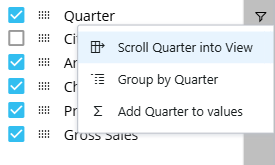
When in flat mode, a user can access a right click menu for each field available in the Fields list. The following options are available depending on the current field configuration:
Scroll [Field] into View. This option is available only when a field is not grouped by row. When a table is heavily populated with many columns, this option scrolls to the specified field when it may be difficult to locate.
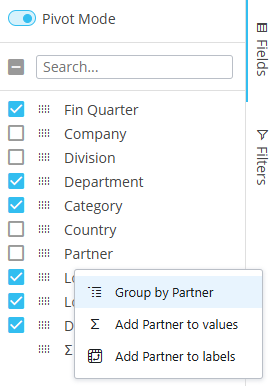
Group/Ungroup by [Field]. This options allows users to group or ungroup the specified field and updates the Flex Grid accordingly.
Add/Remove [Field] from values. This option allows users to add or remove the field to the values section of the Fields panel and updates the Flex Grid accordingly.
In Pivot Mode
When in Pivot Mode, a user can access a right click menu for each field available in the Fields list. The following options are available depending the current field configuration:
Group/Ungroup by [Field]. This options allows users to group or ungroup the specified field and updates the Flex Grid accordingly.
Add/Remove [Field] from values. This option allows users to add or remove the field to the values section of the Fields panel and updates the Flex Grid accordingly.
Add/Remove [Field] to labels. This option allows users to add or remove the field to the labels section of the Fields panel and updates the Flex Grid accordingly.
Interact with Vertical Alignment
Planners can interact with an already configured vertical alignment or configure a Flex Grid to view data vertically themselves.
Data Entry is supported with vertical alignment. Read about data entry limitations in a Flex Grid.
Filters and sorts are supported between vertical and non vertical alignment with some exceptions, stated in the filter and sort paragraph below.
Drill down (on Entities) is supported with vertical alignment, but not other type of drills. Read more about Drill Downs in Vertical Alignment.
The Flex Grid rows limit of 2.5 million rows apply to vertical alignment. This is important to consider in the initial configuration because the number of rows increases when switching to vertical alignment.
Vertical alignment is not compatible with Blocks configured with the 'By Column' option and Entities set By Row.
Picture type Blocks are not compatible with vertical alignment.
Exporting a Flex Grid in vertical alignment is not supported. The export will execute and render a Flex Grid in non-vertical alignment.
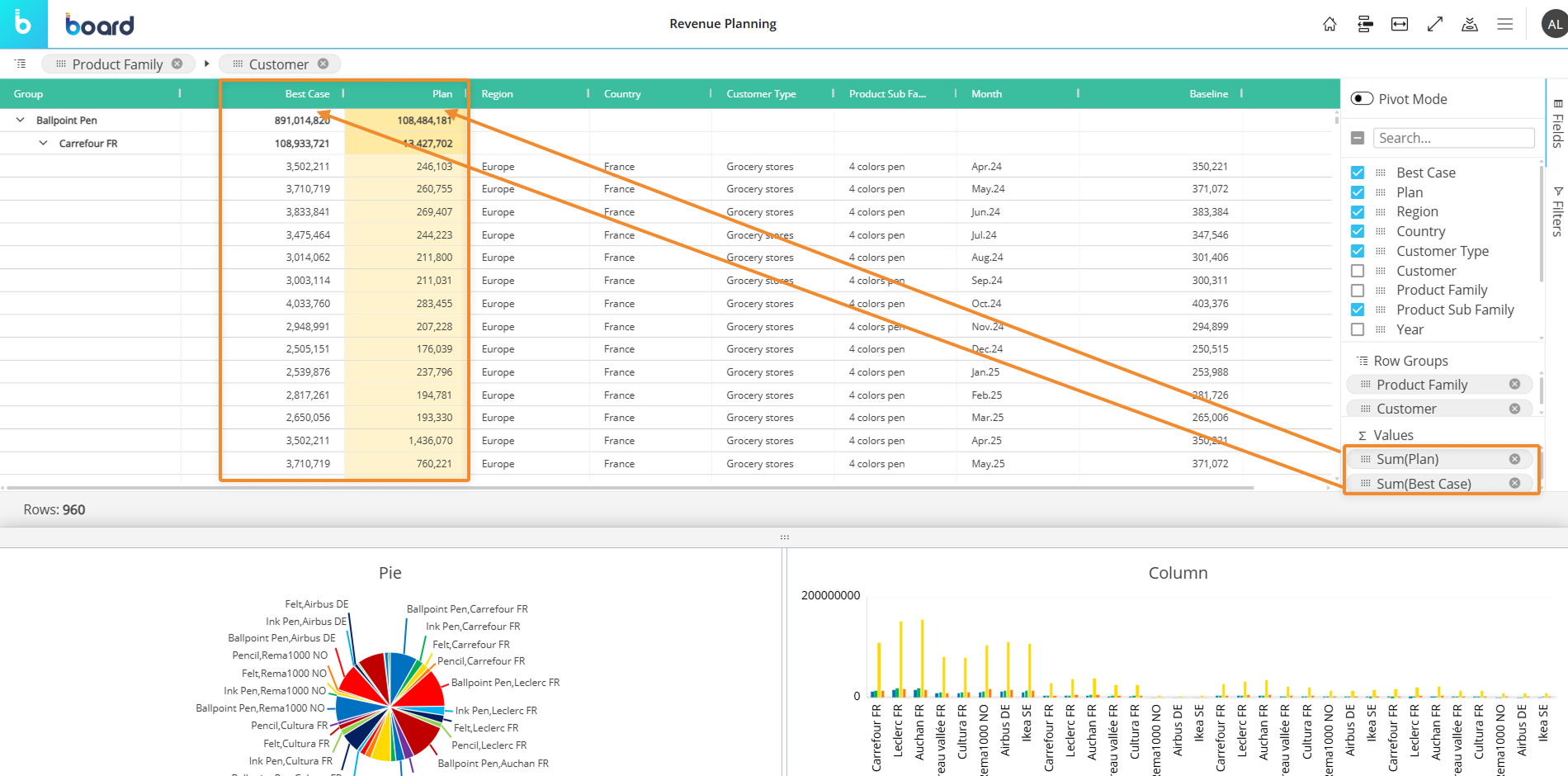
Below is a a Flex Grid without vertical alignment, showing the Values fields (“Plan” and “Best Case”) as total columns represented of the Row Groups, which are “Product Family” and “Customer”.
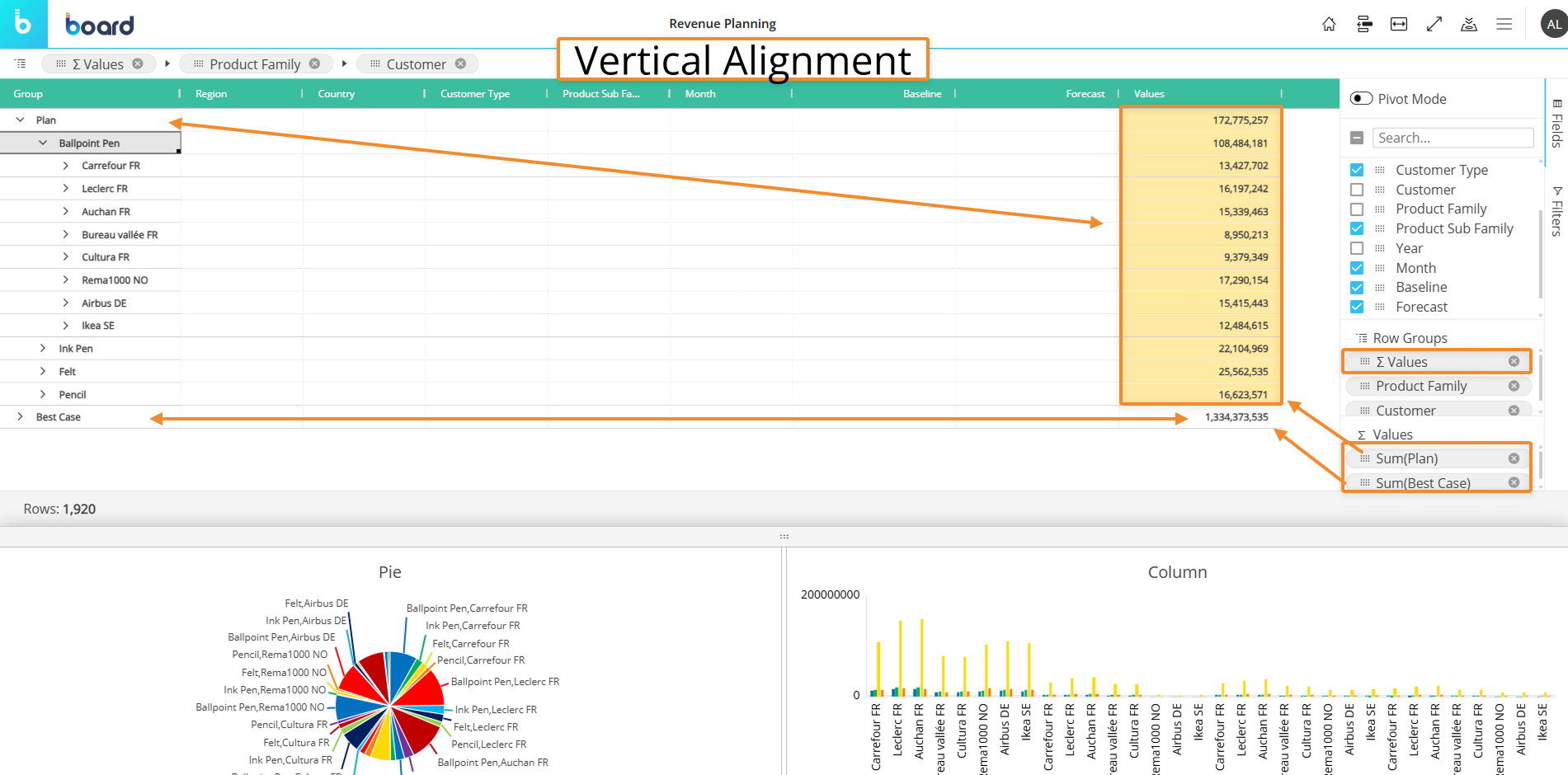
Below is a Flex Grid in Vertical Block Alignment, showing the Values fields (“Plan” and “Best Case”) organized as Row Groups along with “Product Family” and “Customer” and displaying the totals in the last column.
How to align Flex Grid vertically
Planners can create a vertical alignment of a Flex Grid by the following these steps:
Click on “Fields” on the right side bar of the Flex Grid
Drag and drop fields you want to see vertically to the areas below: “Row Groups”, “Values”, and “Column Labels” and arrange the hierarchy within the “Row Groups” area
Add the “∑ Values” field to the “Row Groups” area based on the hierarchy you want to view your data
The position of fields matters
When only ∑ Values is in Row Groups, all the fields added to “Values” Area appear in the order they are configured.
Adding a field or more before “∑ Values” in Row Groups displays data in the typical Flex Grid organization: embeds the KPIs within the fields in the order they are configured in Row Groups.
If “∑ Values” is placed before a Field, the KPIs are broken down by those dimensions.
To change the aggregation formula from the Fields area, right click on a checked field to ungroup or remove from Values area or an unchecked field to group or add to Values area.
All these settings can be saved or restored using “My view” from the burger top menu and added to a Presentation
Limits are the same as Flex Grid: 2.5M rows
Sort and Filter a Flex Grid in Play Mode
Sorting and filtering is not done in the Layout editor configuration as with a Data View, but within the Flex Grid itself, if the Developer's configuration allows it.
Sort a Flex Grid
To sort directly from the Flex Grid Object, if the configuration allows it, click on a column header or drag and drop a field into the "Row Groups" section from the "Columns" panel that you would like to sort from. Arrows will indicate the order: up arrow for ascending, down arrow for descending, or no arrow for the default order.
Sort configurations remain when switching from vertical to non-vertical alignment and vice versa.
Filter a Flex Grid
There are 4 ways to filter a Flex Grid: from the filter icon under each column header, the column option menu within the filter subpage, the textbox underneath a column header (if available), and the “Filters” tab along the right side of the Flex Grid, each is described below in addition to the Filter Quick view and remove feature:
Filter icon
From the filter icon in the Flex Grid column header, you can filter in a two-step process.
Click on the filter icon and then choose how you want to filter the field with the dropdown menu and add text/a value (if prompted) to combine with the filter command. The dropdown filter rule parameters include:
Contains
Not Contains
Equals
Not Equals
Starts with
Ends with
Blank
Not blank
By default, it filters using "Equals". If you want to, you can add a second filter in combination with "AND" or "OR" below.
All members that fit the filter rule display below and are all selected by default. You can choose to select/deselect member items to satisfy your preferences.
Filter from the column options menu
Another way to filter is from accessing the same filter menu as with the filter icon from within the column options menu. Click on the hamburger menu icon and click on the filter icon from the dialog box. If the text box is colored the same as the header background (or grayed out if the header background is white), then a small dialog window opens with the filter options to choose from and a search box. If the text box is white, you can type directly into the box in order to filter it according to what you type.
Filter using textbox
It is possible to filter from the textbox below each column header when the textbox is available (when it is white-filled or not grayed out).
To filter within the textbox below the column header, like "FLOW VIEW P&L" in the example below, simply type into the textbox and hit "Enter" on your keyboard or click outside of the textbox to run the search.
The column will filter according to the default setting, which is "Equal to" for integer Blocks when single filtering is configured and "Contains" for all other Blocks as well as all columns when multiple filtering is configured. To change the filter option from its default, click on the filter icon  and choose your parameters from the dropdown menus and using the AND/OR functions.
To filter without a textbox, like "Year" in the example below, click on the filter icon  and make a selection from the following options. You can also use the search bar to find what you are looking for.
To filter the columns that appear in the Flex Grid, you can deselect them from the Fields panel or access the menu from any one of the columns using the hamburger icon that appears in the top right corner. From the third tab with the Flex Grid icon  , a list of the columns appears where you can select or deselect the ones you want to view or hide.
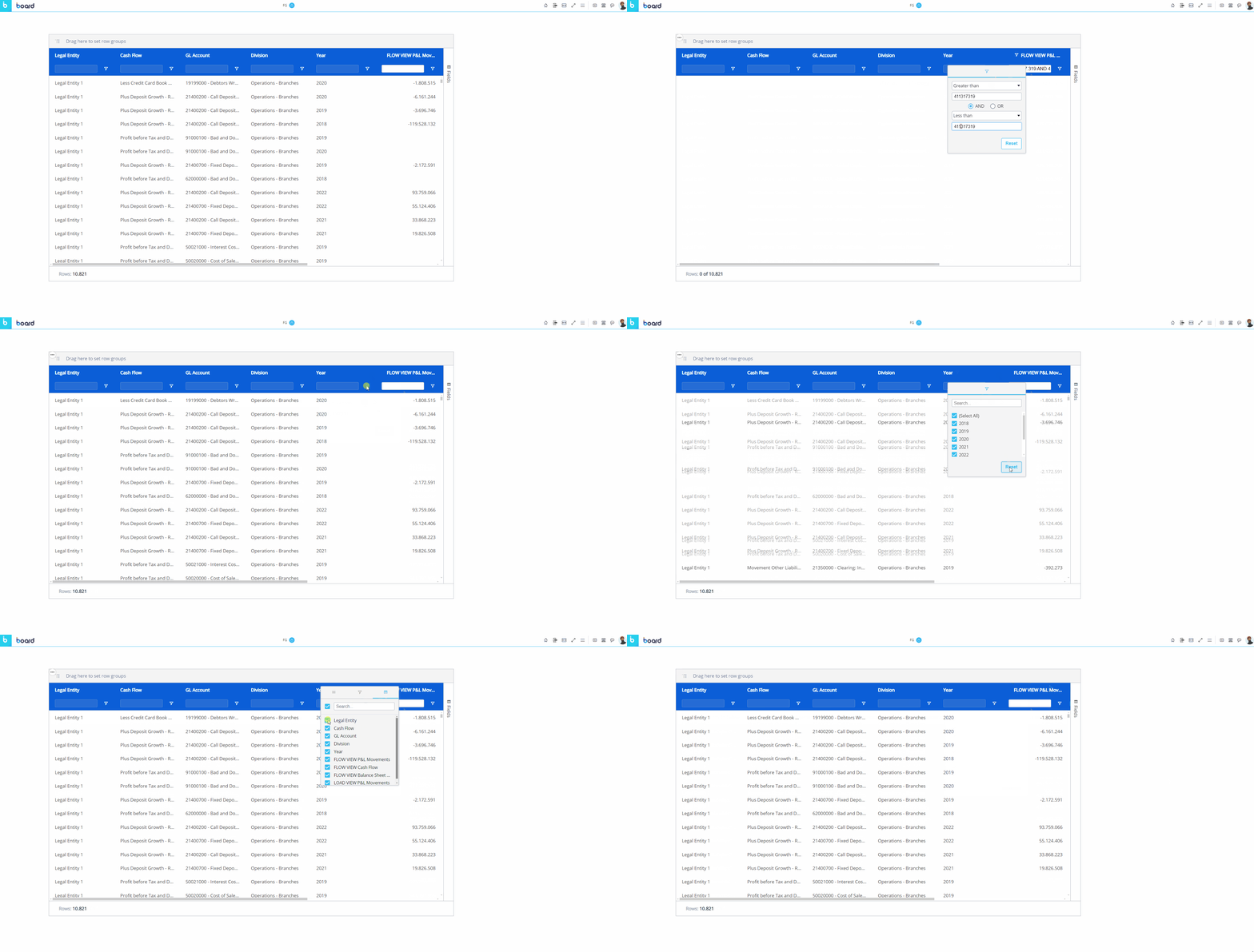
The textbox is only available to value fields when the filter configuration is set to "Single", or available to all fields when the filter configuration is set to "Multiple", allowing multiple filters at once.
"Filters" Tab
Along the right side of the Flex Grid with the "Fields" tab is the "Filters" tab. Click on it and the right-side panel opens where you can create filters for a Flex Grid. In addition to the filter icon in every column, the Filters tab contains every element name which you can open by clicking on the element, and the applicable filter options appear in the dropdown where you can reset filters or configure them.
Quick view and removal of filters
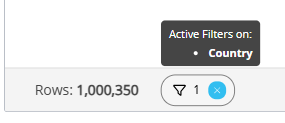
When you create a filter in the Flex Grid, it will appear on the bottom bar where you can view what filters are active and quickly reset them by clicking the “x”.
There are two actions you can do with quick view filters: view or remove the filter.
To view the active filter, hover over the element and the tooltip appears above it.
To remove the filter, click the “x” in blue.
In the example below, you can see that 1 filter is active on the Entity “Country”.
Multi-filtering & multi-sorting
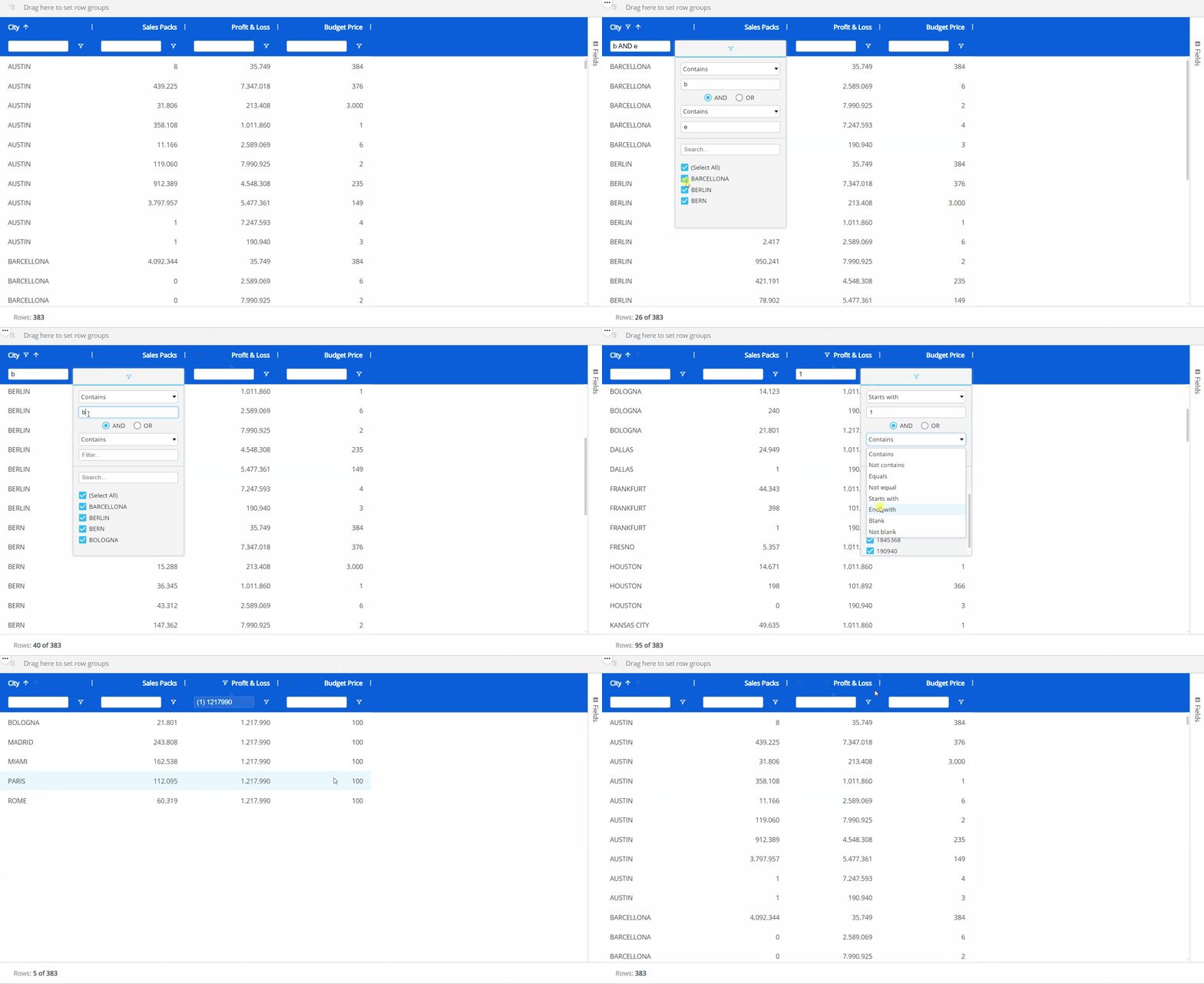
It is possible to sort and filter by multiple fields, if the configuration allows it. When multiple sorting and/or filtering is allowed, the first sort or filter applied is the first priority in the hierarchy, while the second and third sort or filter becomes the second and third priority, respectively.
Multiple sorting allows multiple columns to apply a sort, whereas a single sort only allows one column to apply a sort to the Flex Grid Object.
Multiple filtering allows multiple filtering per column, whereas a single filter only allows one filter per column.
When sorting multiple fields, a number will appear next to the field header to indicate the priority order of the sort.
When filtering multiple fields, the textbox option under every field is available.
Filters on Vertical Alignment
Filter configurations remain when switching between vertical and non-vertical alignment.
However, when filtering a specific value field, only that measure is filtered—not the others.
Vertical vs non-vertical filter logic:
In a non-vertical layout, filtering removes entire rows from the dataset.
In a vertical layout, those rows are represented as columns, so they remain visible, but the filter selection limits the data displayed within them.
Group a Flex Grid in Play Mode
You can group fields directly from the Flex Grid Object in both flat view or in Pivot Mode. The difference being that, in Pivot Mode, you can dimension the whole grid by rows and group columns, whereas in the flat view with Pivot Mode disabled, you can only group fields by Row.
Grouping in flat view
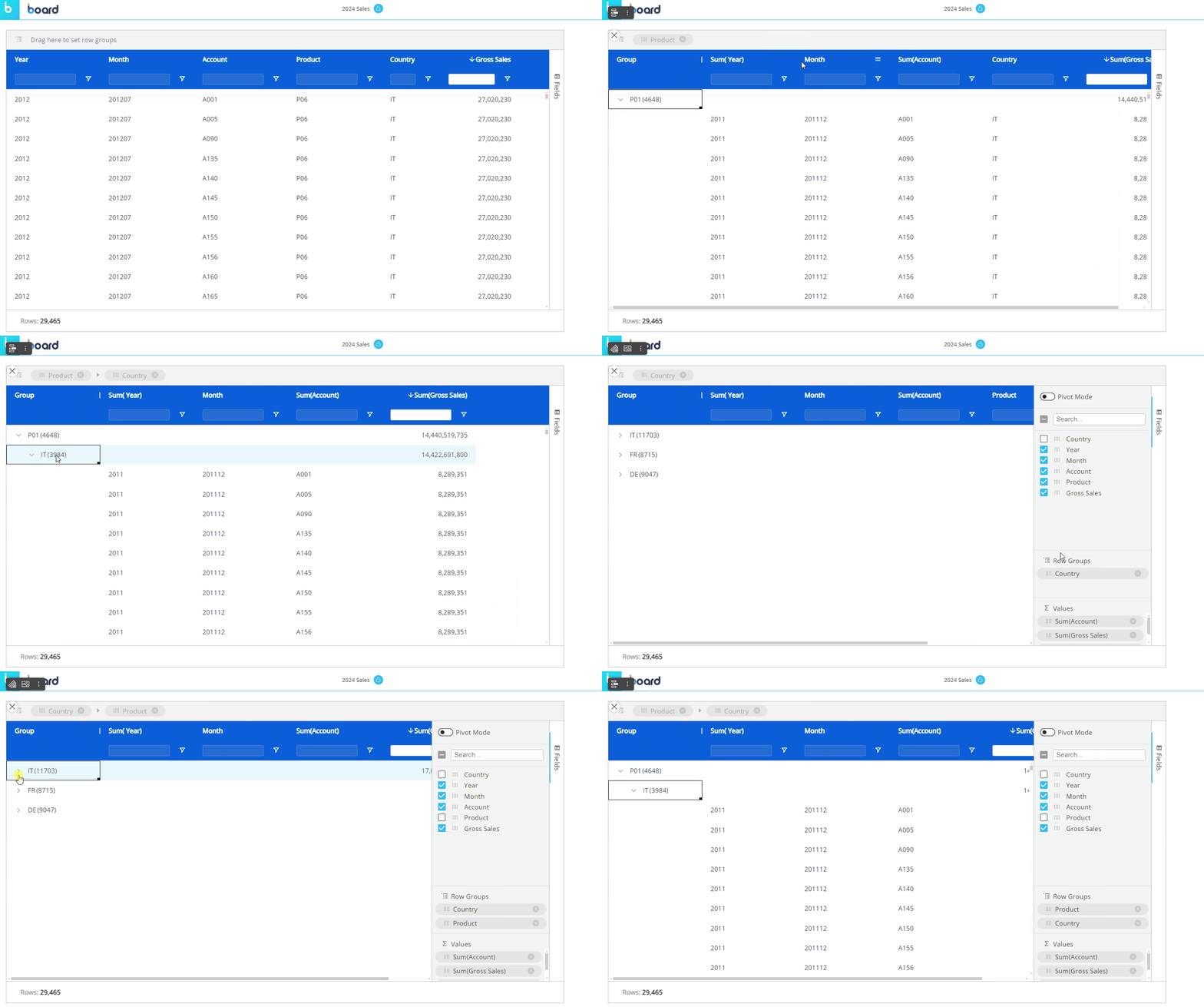
To group the full dataset by Row in flat view, drag and drop a column header of a field into the top grey bar that says "Drag here to set row groups". You can also group the flat dataset in a similar way by utilizing the "Fields" panel without enabling "Pivot mode". To do so, do the following:
Open the "Fields" panel.
Drag and drop fields into the "Row Groups" section. This will automatically set that field by row, grouping the others under it, as in the example below. You can change the hierarchy of the groups by dragging and dropping the elements in the order you want, the leftmost position being the most-nested.
Grouping in Pivot Mode
To group a dataset using Pivot Mode, access the "Fields" panel from the right side of the Flex Grid, and do as follows:
Open the "Fields" panel.
Enable the Pivot Mode toggle.
Dimension fields by Row by dragging and dropping fields into the "Row Groups" section. You can change the hierarchy of the groups by dragging and dropping the elements in the order you want, the top position of the "Row Groups" section being the most-nested. You can also drag fields into the top grey bar for Row Groups
You must have at least one field set by Row Groups.
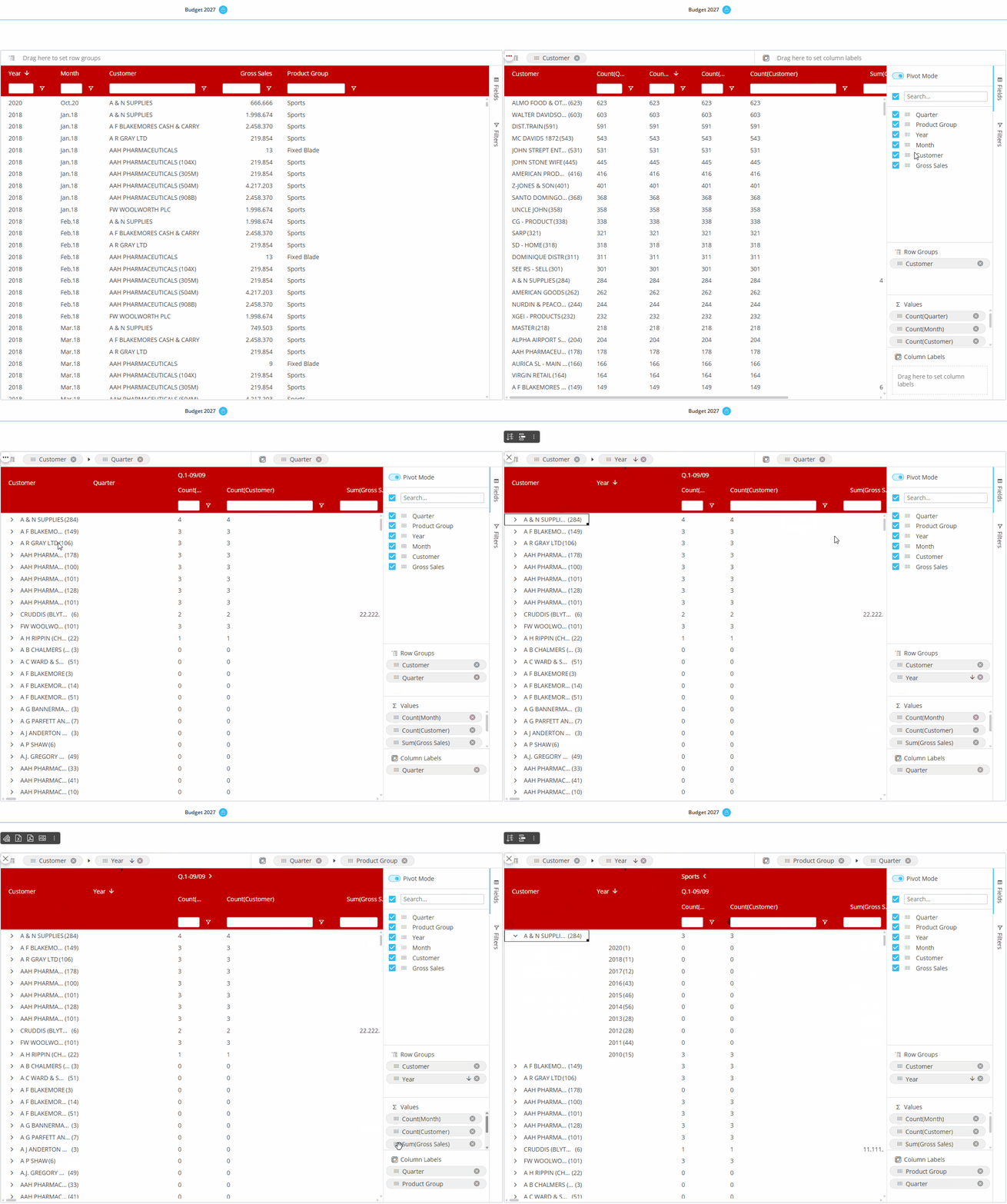
Group fields by Column by dragging and dropping the fields into the "Column Labels" section (which only appears once Pivot Mode is enabled). You can change the hierarchy of the groups by dragging and dropping the Entities in the order you want, the top position of the "Column Labels" section being the most-nested. Or drag and drop the field into the top grey bar to the Right for Column Labels. On the grid, you can expand and collapse the Column groups as you want.
The different ways of grouping is shown in the example below.
Flex Grid Collapse and Expand on Column Headers (only with 3 or more column labels)
Users can collapse and expand Column headers when configured with at least 3 Entities. Use the arrow that appears next to column headers to expand or collapse.
In Pivot Mode, expanding/collapsing column labels requires at least 3 column labels and a dataset under 100,000 rows.
This limitation does not apply to the “By Column” configuration, which supports expand/collapse without major restrictions.
Master
If the Flex Grid has been configured as a Master Object, clicking on a row header (i.e. the field members set by Row Groups) will update the data displayed by all other Objects on the Screen in order to show only the data relating to the clicked header. The Master Object result is similar to applying a Screen Selection.
By clicking on the "Disable master" icon  in the sliding toolbar, you can disable this option. Click on the "Enable master" icon
  to re-enable it.
Tree view for Unbalanced Entities
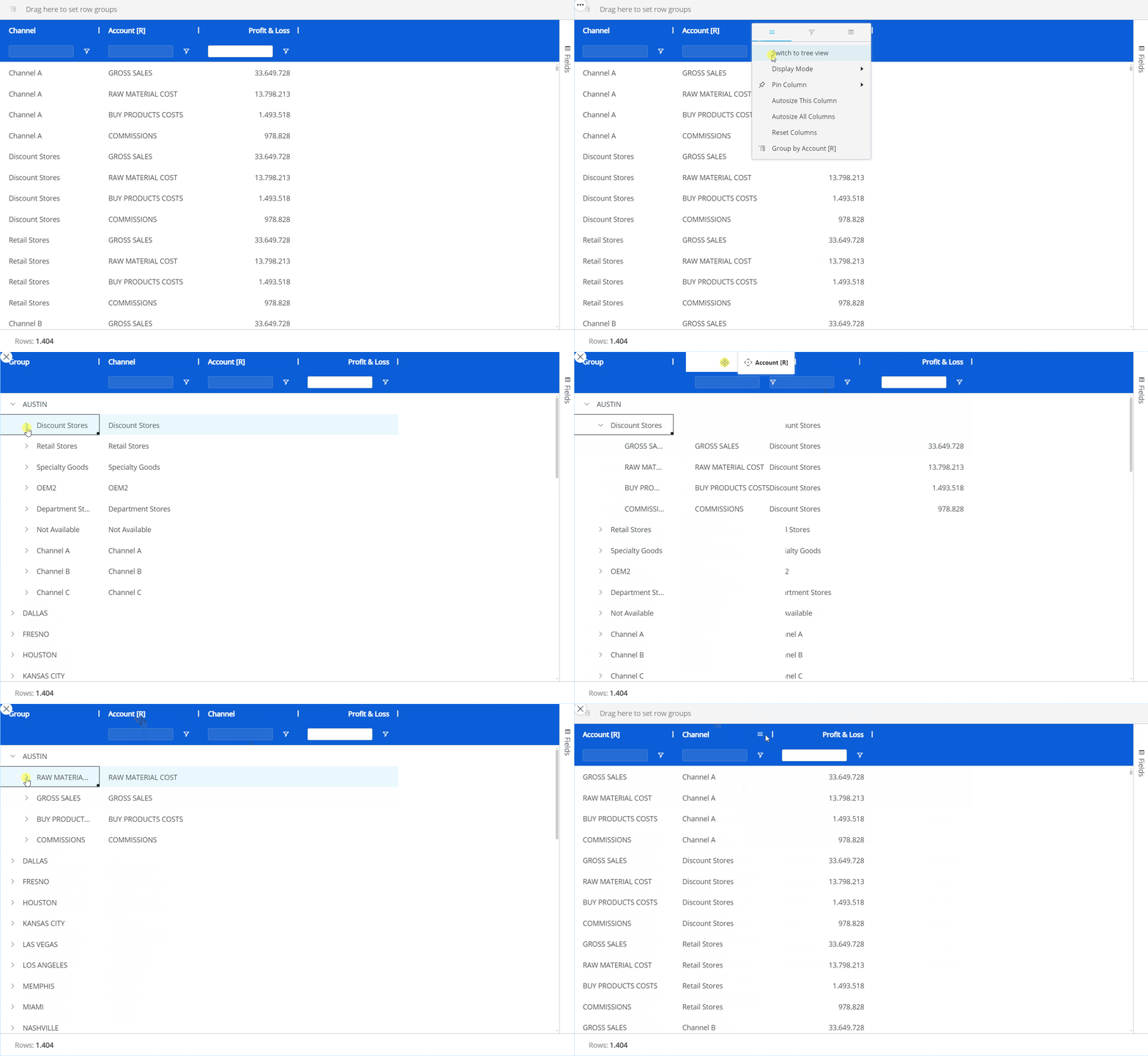
You can dimension a Flex Grid by an Unbalanced Entity and view it in tree view. Tree view enables the display of an Unbalanced Entity's hierarchy in a tree form, allowing the users to interact with it by expanding and collapsing different nodes, as opposed to viewing the Entity in flat view.
To see an Unbalanced Entity in tree view, you must be in flat view (not available in Pivot Mode). Click on the hamburger icon in the top right corner of the Unbalanced Entity's column (the Column menu) and select "Switch to tree view". To exit the tree view, click on the hamburger icon in the top right corner and then select "Switch to flat view".
The tree view of the Unbalanced Entity will not retain any grouping.
In Play Mode, tree view is only available when the Flex Grid is in flat view. When Pivot Mode is enabled, the Tree view is automatically disabled.
Locking the total cell of a high-level row group will automatically lock its lower-level row groups in tree view.
Tree view is not available with vertical alignment.
Flex Grid options
The Flex Grid has many unique options and settings unlike other Objects, found directly in the Flex Grid.
Flex Grid Object toolbar and right-click
You can access the Object toolbar in the top left corner of the Flex Grid by hovering over the Object and clicking on the Object toolbar icon  , and you can right-click within the Flex Grid to access the following options if they are configured by the Developer:
Reset. Resets any selections made on the Flex Grid.
Only available when a Select in the Flex Grid has been made. Does not apply to Screen selects.
Drill down. If a Drill Down is configured, you can drill down via right click options.
Drills apart from drill down are disabled with vertical alignment.
When a drill down is created in vertical alignment, it overrides any existing drill in non-vertical alignment.
Drill anywhere. Configure a Drill Down. Read more about drill configuration in a Flex Grid Layout.
Drills apart from drill down are disabled with vertical alignment.
Select. Quickly add a selection to the Flex Grid of selected cells. This is separate from a Layout or Screen Select. The Flex Grid Select considers Layout and Screen Selects first.
Layout
 . Access the Layout.
Export data to Excel
 . Exports the Flex Grid as an Excel file, including for the Board M365 Excel Add-in. Read about the Export data to Excel in the next paragraph.
Exporting a Flex Grid in vertical alignment is not supported. The export will execute and render a Flex Grid in non-vertical alignment and without Data Entry formatting.
Export PDF
 . Exports the Flex Grid as a PDF file.
Exporting a Flex Grid in vertical alignment is not supported. The export will execute and render a Flex Grid in non-vertical alignment and without Data Entry formatting.
Export Screenshot .png
 . Takes a screenshot of the Flex Grid and saves it in .png format.
Exporting a Flex Grid in vertical alignment is not supported. The export will execute and render a Flex Grid in non-vertical alignment.
Clear All Filters. Clears all filters applied in a Flex Grid, but not in a Layout.
Applies only to filters made in the Flex Grid. Layout filters are kept.
Clear All Sorting. Clears all sorting applied in a Flex Grid.
Copy. Copy the selection of one or many cells.
Copy with headers. Copy the selection of one or many cells with the headers included.
Copy with group headers. Copy the selection of one or many cells with the group headers included.
Row Height.
Extra Narrow. Rows take up the least amount of space.
Narrow. Rows take up less space than Compact.
Compact (Default). Rows take up moderate space.
Large. Rows take up more space than the the Compact setting and less than the Extra Large setting.
Extra Large. Rows take up the most space.
Custom. You can customize the height with the below settings:
Rows. Enter the height value for rows in px.
Headers. Enter the height value for headers in px.
“Custom” gives you the freedom to adjust the size of the density within the range of 14-100px for both rows and headers. All other sizes are predefined.
The density setting of the row spacing does not adjust the font size. If you make the cell or heading row height too small or too large for the font size, you will have to adjust the density setting accordingly.
By design, exports of a Flex Grid to a Microsoft Excel Workbook for Board M365 exports the current row height from the Flex Grid as a manual row height in Excel. This applies when the Flex Grid is formatted with a row density (other than the default), such as "Extra Narrow", "Narrow", "Large", "Extra Large", or "Custom".
Because of this, actions that change a Table configuration do not reapply the configured Flex Grid row height to new or changed rows.
Rows that were exported from the original Flex Grid keep their custom height. Rows that appear later, for example after expanding row groups, use the standard Excel row height.
You can manually change row heights in Excel after the export. This behavior only affects how row heights are displayed in Excel.
Alignment. Customize the position and alignment of content within cells and Column headers.
Wrap Column Headers. Wraps column headers so that text is visible however wide or narrow the column is shifted.
Active by default. Applies only to Column Headers. Only available if enabled by Developer in the Flex Grid Property Panel. Can be enabled/disabled by Planner in Play Mode from the Flex Grid Toolbar.
Wrap Cell Content. Wraps values so that text is visible however wide or narrow the column is shifted.
Disabled by default. Only applies to text values. Enabled/disabled in Design mode Property panel and for the end user in the Toolbar.
Cell Content Alignment. Align the content in all cells to the:
Top
Middle
Bottom
Expand to full screen. Expands the view of the Flex Grid to full screen.
Full screen is only available in Play Mode. The full screen view cannot be used or saved in Design Mode. The full screen view can not be saved in MyView or Presentations. It is a temporary viewing mode only.
Full screen affects only the selected Flex Grid. Other Objects remain hidden while full screen is active. Export behavior or Excel row limits does not change when exporting from Flex Grid.
Range Chart. View embedded charts directly from the Object. Choose which type of chart you want to display alongside the value: Column, Bar, Pie, Line, X Y (Scatter), Area, Histogram, Combination. Read more about Flex Grid Range charts.
Docked Chart. View and save charts on a Flex Grid. Choose which type of chart you want to display. Read more about Flex Grid Docked charts.
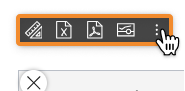
Options can be removed by the Developer in Design Mode and may not be available in your Screen.
Export data to Excel
You can export the exact Layout of your Flex Grid configuration to an Excel worksheet directly from the Object with two options:
Standard Microsoft Workbook
Microsoft Excel Workbook for Board M365 (Add-in)
Color, border, font, template, and block formatting is not exported.
Exporting a Flex Grid in vertical alignment is not supported. The export will execute and render a Flex Grid in non-vertical alignment and without Data Entry formatting.
Standard Microsoft Excel Workbook
Export a Flex Grid to a standard Microsoft Excel workbook in the (.xlsx) format.
The Excel export options in the Flex Grid offer two distinct modes for tailored data exports: Flatten and Non-flatten.
Export to Excel popup options
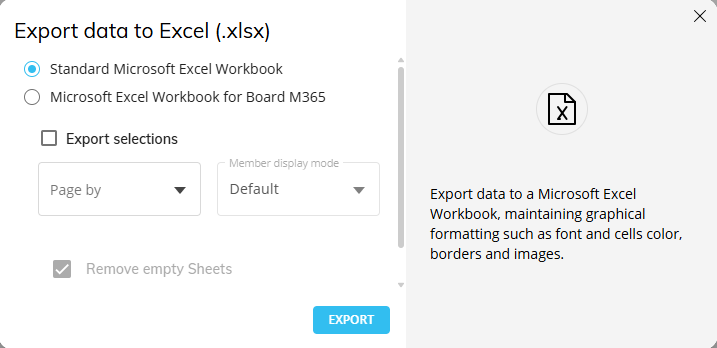
When exporting a Flex Grid to Excel, the following options are available on the “Export data to Excel (.xlsx)” popup window:
Export selections. Enable to include a Reference Tab which captures the active selections applied on the Screen at the time of export.
Page by. Creates a separate tab in the exported workbook for every Entity member (displayed by the Member display mode chosen) chosen in the configuration. Configure the export by choosing an Entity and a Member display mode from the dropdowns.
Member display mode. Choose the member display mode of the Entity chosen in the “Page by” dropdown.
Remove empty Sheets. When enabled, any empty sheets that would normally display in the report is removed to reduce excess pages.
This flag is enabled by default and can only be disabled when the “Page by” field is configured.
Export flatten. When enabled, exports raw datasets without grouping, ensuring a clean data structure for further analysis. Includes raw data while ignoring grouping and hidden columns.
Flatten
Enable “Export flatten” to export the Flex Grid in flatten mode: exports raw datasets without grouping, ensuring a clean data structure for further analysis. Includes raw data while ignoring grouping and hidden columns.
When using Flat Mode:
Exports the dataset without applying grouping or hierarchy structures.
Hidden columns are ignored in the output.
When using Pivot Mode:
Groups are exported into separate columns, preserving the hierarchical structure.
Items in Column Labels are preserved.
Totals are not included in the export, maintaining a clean dataset for external analysis.
Hidden columns are ignored in the output.
Non-flatten
When “Export flatten” is disabled, exports in a non-flatten format: retains grouping and hierarchy structures while reflecting the active selections.
Exports the dataset while maintaining the grouping structure displayed on screen also in the Excel sheet.
Retains all hierarchy and grouping details based on the current Flex Grid configuration.
Users can collapse and expand row groups also in the Excel sheet.
Group display type settings when exporting a Flex Grid to Excel
Furthermore, the "Group display type" setting found in the Flex Grid Object’s Property Panel offers different ways to improve the functionality of the extracted report as follows:
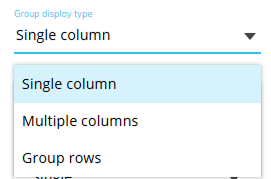
Single column (default):
In flatten mode: Exports raw data sets without grouping.
In non-flatten mode: Retains the grouping structure displayed on screen, with collapsible/expandable groups in the Excel sheet.
Multiple columns:
In flatten Mode: Exports flat, ungrouped datasets, excluding hidden columns and totals.
In non-flatten mode: Exports data with multi-column grouping preserved, matching the browser structure.
Group rows:
In flatten Mode: Ignores grouping and exports raw data without totals.
In non-flatten mode: Retains the row grouping hierarchy, matching the browser view in the Excel sheet.
The Flex Grid exported to Excel must not exceed 1 million rows. If it does, the following message will appear:

Grouping configured by row in a Flex Grid is converted to Excel groups functionality when exported to Excel. Tree view groups on Unbalanced Entities are converted to Excel groups functionality when exported to Excel.
Export to Board M365 Excel Add-in
Users can export a Flex Grid configuration from the Platform to a compatible Excel file to use in the new Board M365 Excel Add-in-enabled workbook. The export maintains graphical formatting, selections, grid-made filters and sorts, and grouping.
This feature improves user productivity by enabling seamless workflow in Excel by reducing manual, ungoverned exports and unifying the Flex Grid with Excel Add-in experiences to ensure consistent, governed access to Board data across both environments.
Read more about the compatible Flex Grid export for Board M365 Excel Add-in.
The following Flex Grid options are not supported in Board M365 Add-in:
Export Flatten is not available for exports specific to the Add-in.
Group Display Type is not supported.
Pinned Columns are not supported.
Expand configuration is not reflected in the export. All groups appear collapsed by default.
Unbalanced structures are not supported.
Reordering of columns or groups is not supported in the export
Drills
Docked Charts
Vertical Aligned Layout is disabled at the export
Pinned Columns
Flat view
Data Entry
By Column configured
Layout filters
The following Flex Grid Object Properties are ignored when exported:
Desaturate color alert
Show fields panel
Show Filters panel
Show Pivot Mode
Allow changing column visibility
Allow Grouping by row
Allow Grouping by column
Allow aggregation of totals
Remove aggregation label
Show status bar
Suppress group count
Enable click on URL
Allow Vertical Block Alignment
Expansion level
GroupDisplayType
Sorting modification
Filtering modification
Data entry options
Row Height
However, the configured Row Height that is visible in an export is replicated in an Excel worksheet but not carried over to new or changed rows. This can cause different row densities in a worksheet and can be manually changed in Excel.
Flex Grid Column menu
Every column displayed in a Flex Grid has a menu for further options and capabilities.
Hover over the column header and click on the hamburger menu icon  to access the Column menu. There may be up to 3 subpages of menu options available: main options, filtering, and quick pivoting.
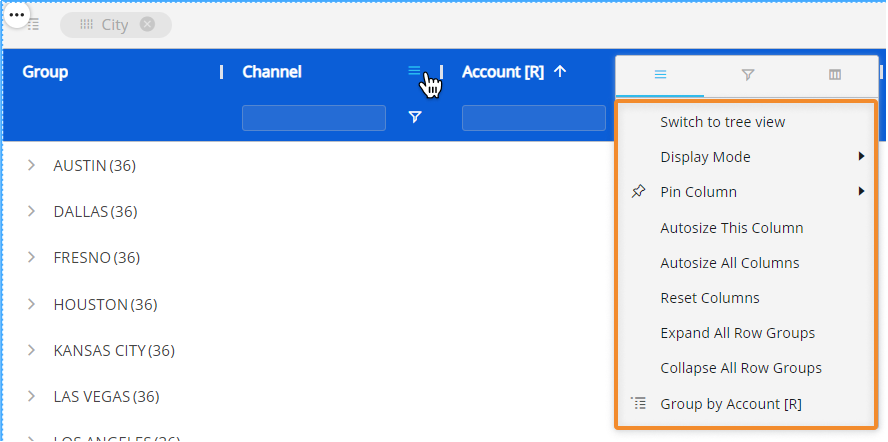
Main options. Customize Axes settings directly from the Flex Grid.
Switch to tree view/ Switch to flat mode. View an unbalanced Entity in tree view (only available for unbalanced Entities).
Display Mode. Choose or change the display mode of the Entities by Column. The following are available: Code, Desc (description), and Code and description.
Pin Column. Pin the Entity column to the left or right of the Flex Grid so that it is frozen in the viewing area and always in view while scrolling through other columns.
Autosize This Column. The column width size is automatically changed to a size suitable to view the data within the Flex Grid Object.
Autosize All Columns. Every column width size is automatically changed to a size suitable to view the data within the Flex Grid Object.
Reset Columns. Resets columns to their default width.
Expand All Row Groups (flat view only). Expand all the row groups listed to the left side (if any) with one click. Each one can individually be expanded manual by clicking on each arrow next to the Group Entity's member.
This option is only available in flat view and when a row group exists.
Collapse All Row Groups (flat view only). Close all the row groups listed to the left side (if any) with one click. Each one can individually be collapsed manual by clicking on each arrow next to the Group Entity's member.
This option is only available in flat view and when a row group exists.
Group/Un-Group by/ Un-Group all. Group or ungroup the Flex Grid by the selected field or all fields. Also available by dragging and dropping the field into the top bar that says "Drag here to set row groups" and ungrouping by clicking the X next to the field's name placed in the top bar.
This option is only available when no column group exists.
Reset Columns. Resets to the default view.
Cell Content Alignment.
Filtering. Gives you the same filtering options as in the field header. Select all the members you would like to filter this Entity by or type in a value you would like to filter the field by.
Quick pivoting. Shows the Entities set by Row with select boxes next to them. Select or deselect them to customize the display of the Flex Grid, however, for more customization, access the pivot tool located in the Fields panel on the right side of the Flex Grid.
Excel-like status bar component
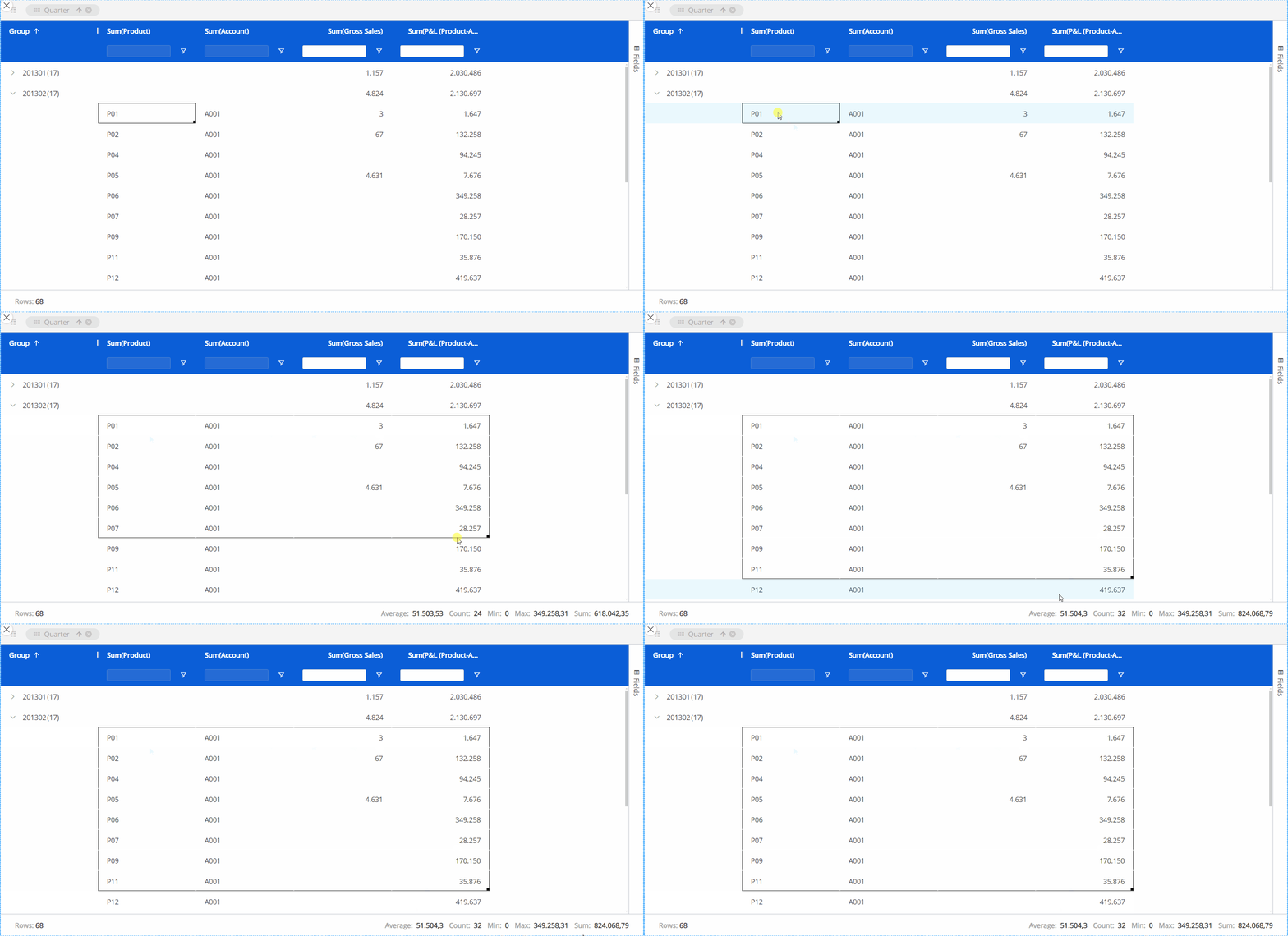
At the bottom of the Flex Grid, a status bar gives you information about the selected cell or cells. If one or no cell is selected, it will display the number of Rows in the Flex Grid. If a group of cells are selected, it will display:
Rows. The number of Rows displayed in the Flex Grid.
Average. The average value of the selected cells.
Count. The number of cells selected.
Min. The minimum value within the cells.
Max. The maximum value within the cells.
Sum. The sum of the selected cells in total.
Drill Down and Drill Anywhere
The Drill Down and Drill Anywhere features allow users to explore data in greater detail - users can interactively drill into specific entities and gain actionable insights directly from the grid, much like the Drill Anywhere functionality available in the Data View Object.
How to use the Drill Down and Drill Anywhere features in Flex Grid
Like in the Data View Object, the Drill Down and Drill Anywhere features allow you to see data that is in a different aggregation level than what is exposed in the Flex Grid table.
Drill Anywhere
When a drill is performed, by right-clicking a cell and then clicking “Drill anywhere” from the menu or by clicking on a cell and then on the Drill Anywhere icon from the Object toolbar  , a popup window displays.
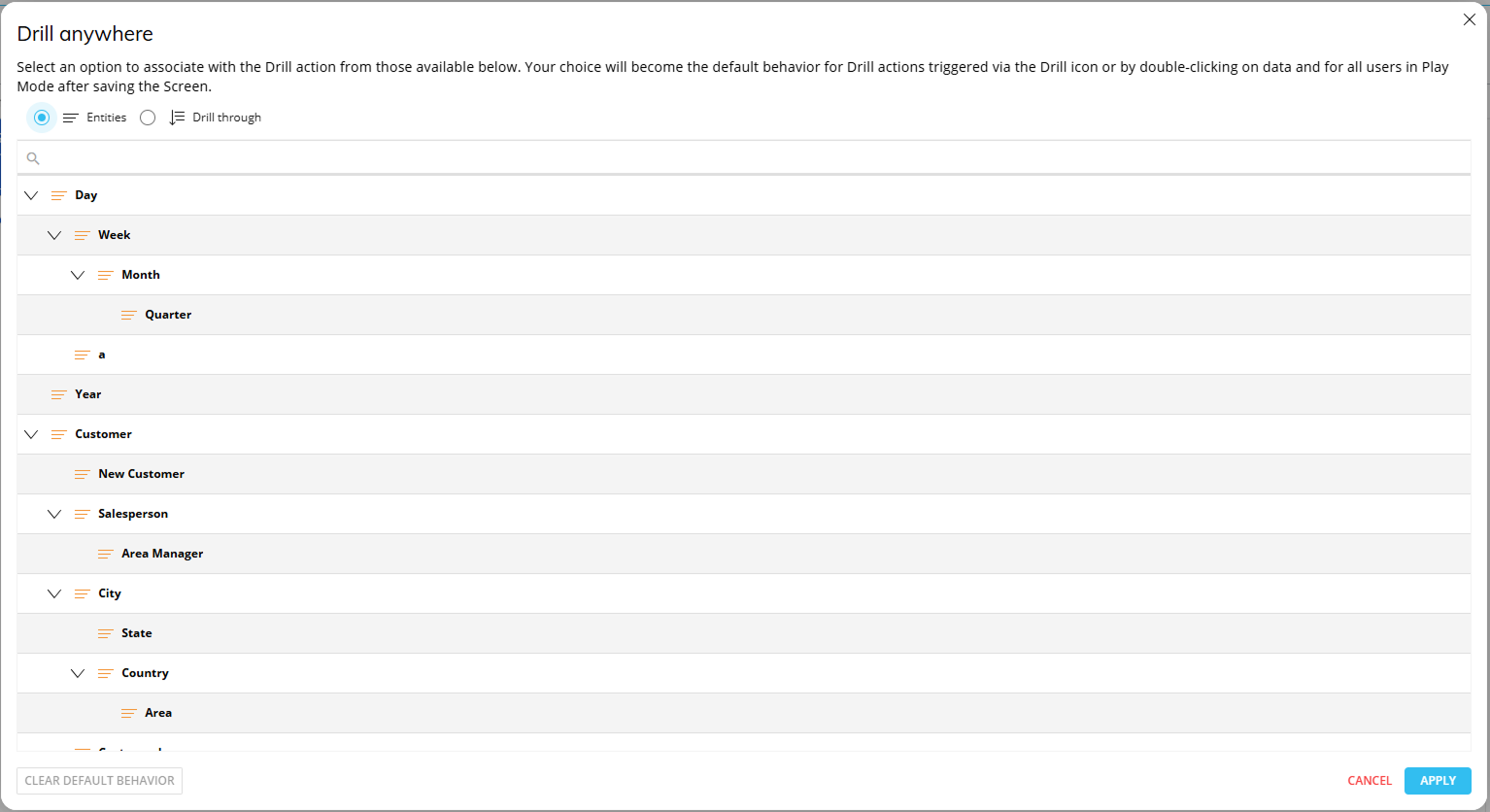
From this window, you can select the level of granularity you wish to see.
Drill Down
When a Drill Anywhere is configured, it is possible to access the Drill Down icon  from the Object toolbar or from the right click menu which lets you access the same level of granularity as configured in the Drill Anywhere functionality.
The drill Entity is displayed on rows and filters automatically applied based on the drilled number’s coordinates.
The resulting Layout retains the same structure and the pivoted fields by row/column, maintaining the same point of view of the original Flex Grid but focused on the drilled entity in axes with all configured blocks, just applying a selection on the drilled member.
In Unbalanced Hierarchies, Drill by level is implemented, ensuring consistency when exploring hierarchical data, regardless of its structure.
Drill-Procedures, Drill-to-Screen, and Drill Throughs are also available for the Flex Grid in non-vertical alignment only.
These drills are not supported with Vertical Block Alignment configured.
These drills are disabled when switching to vertical alignment if configured in non-vertical format.
Changes made in second-level Layout Drills are not saved.
When you drill down from a Block and then open a second drill level, changes made in the second-level drill result are not kept after you close and reopen the drill.
Changes are only saved in the first level drill down.
Drills made in vertical alignment will override any previous made drills when reverting back to non-vertical format.
Drill down with Vertical Alignment
Drill down on an Entity is supported on a vertically aligned Block. Drilling on an Entity in vertical alignment displays the Entity’s members within the Sum Values configured in the Values area. In the drill window, all KPIs are kept. Drills can be customized and saved by both Planners and Developers.
Drill-Procedures, Drill Throughs, and Drill-to-Screen are not compatible with Vertical Block Alignment and are ignored in vertical format.
Drills made in vertical alignment will override any previous made drills when reverting back to non-vertical format.